Guides / Lines and call routing
How to set business hours and an after-hours message for a phone line
Business hours decide when a line rings at all. Outside them, nobody's phone rings and callers go straight to voicemail, after an optional after-hours message. This guide shows account admins how to turn business hours on, set each day's hours and the time zone, and write the after-hours message.
Before you start
- You need to be an account admin.
Step 1. Turn on business hours
- Step 1.a In the left menu, click Lines, then click the pencil button next to the line.
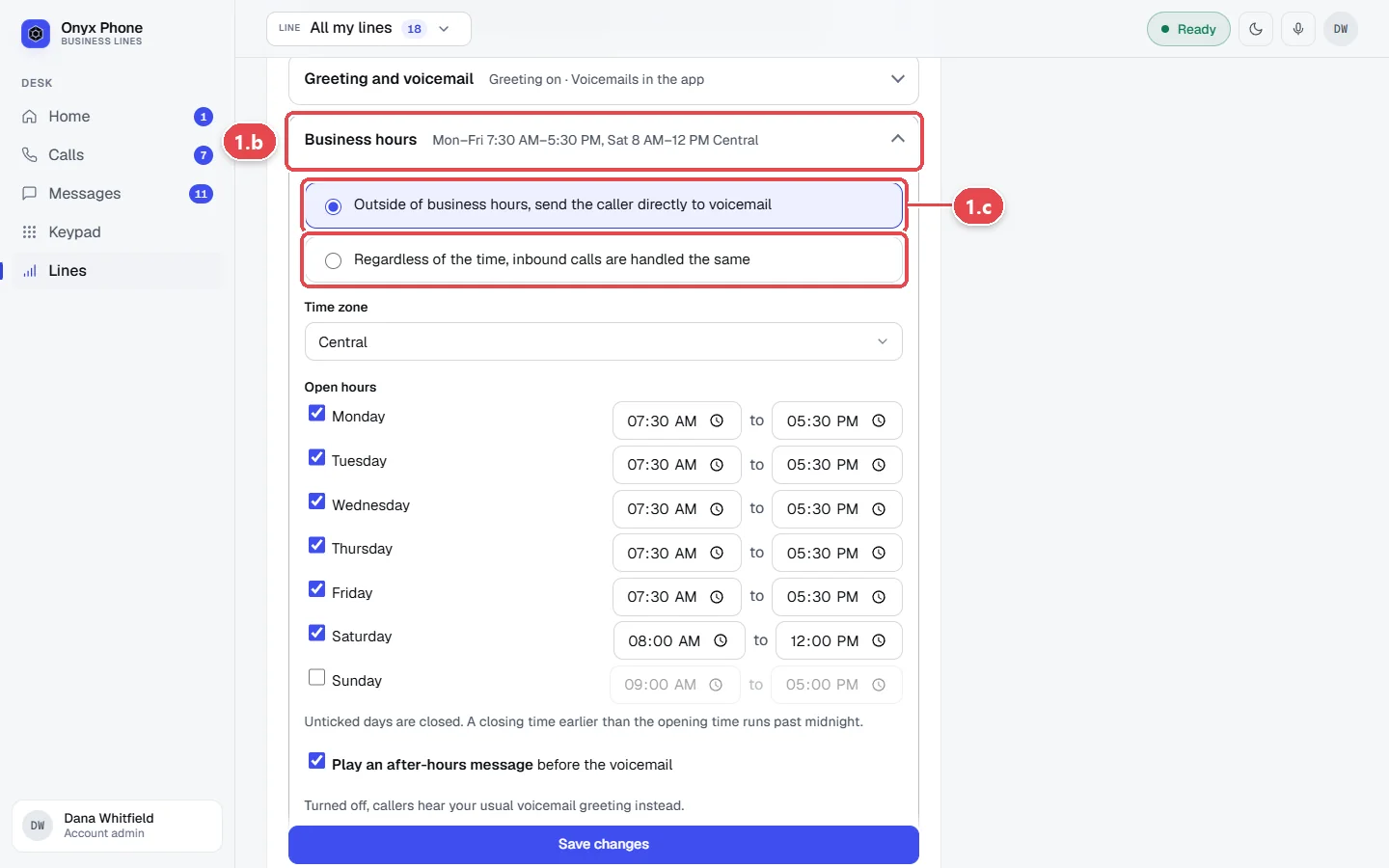
- Step 1.b Click Business hours.
- Step 1.c Choose Outside of business hours, send the caller directly to voicemail. Choose Regardless of the time, inbound calls are handled the same to ring at any hour.
Step 2. Set the time zone and each day's hours
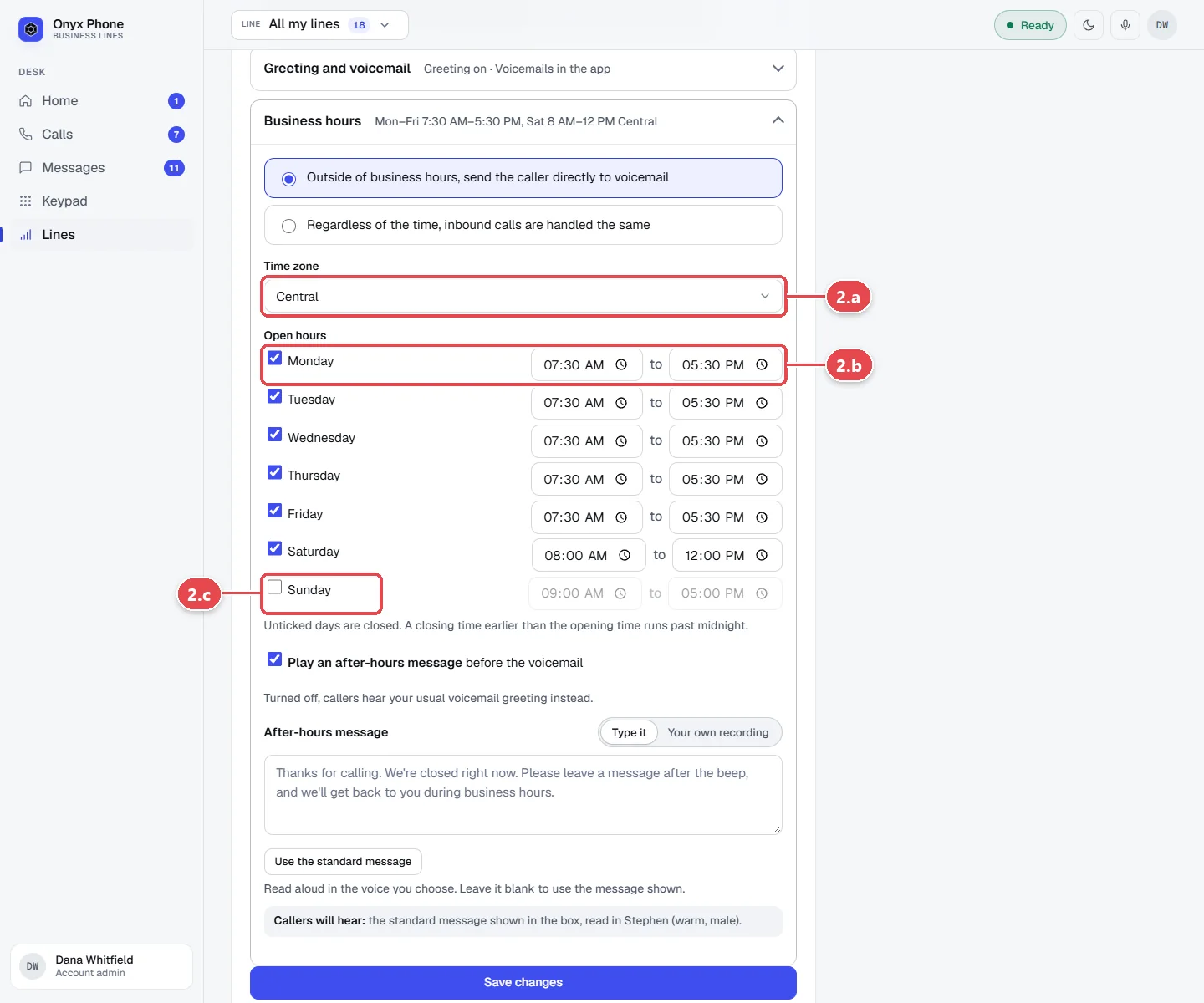
- Step 2.a Choose the line's Time zone.
- Step 2.b For each day you're open, tick the day and set the time you open and the time you close. Hours that run past midnight work too.
- Step 2.c Clear the days you're closed.
Step 3. Write the after-hours message
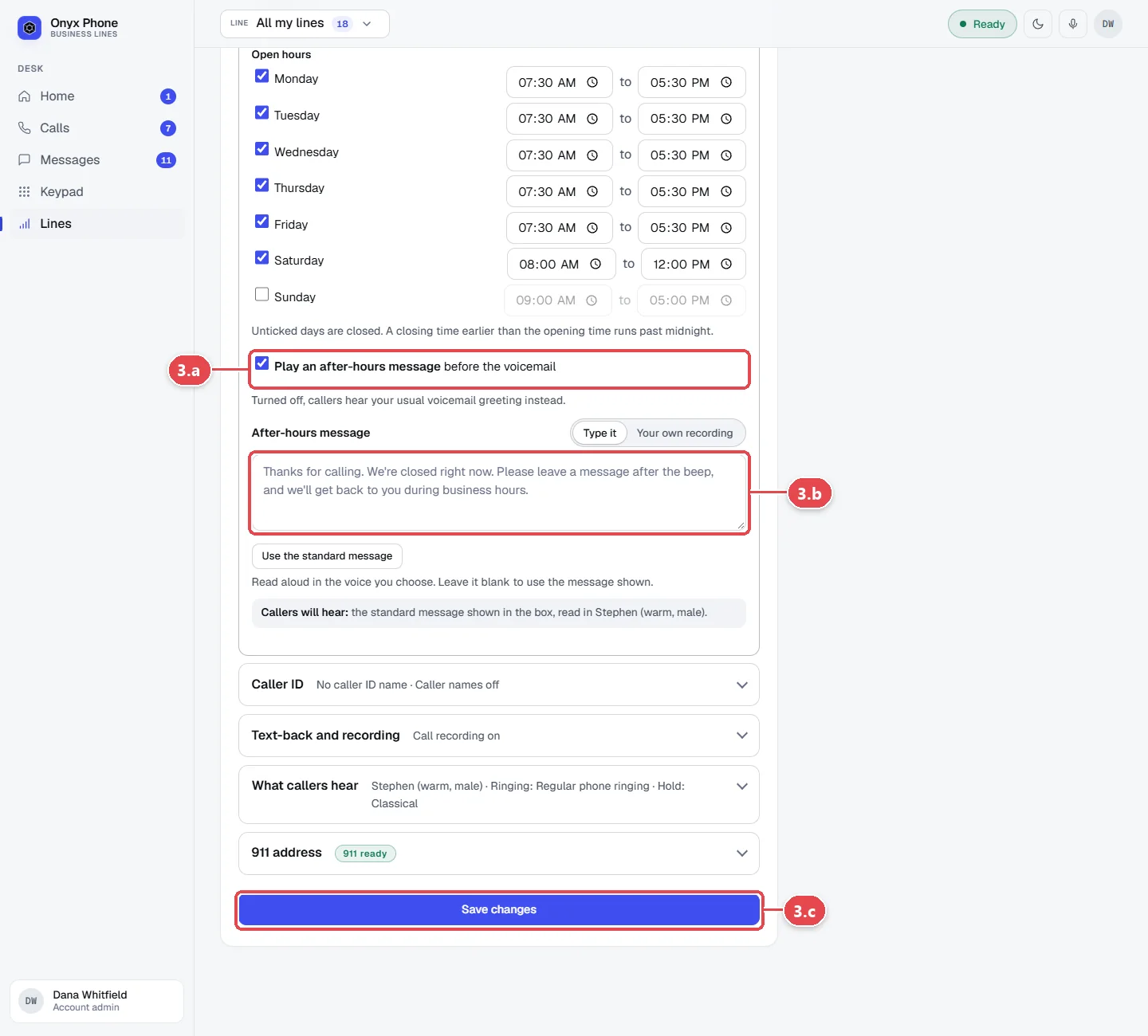
- Step 3.a Tick Play an after-hours message.
- Step 3.b Type what callers hear before voicemail, such as "You've reached us after hours. Leave a message and we'll call you back first thing tomorrow."
- Step 3.c Click Save changes at the bottom of the page.
Questions and answers
What happens to calls outside business hours?
Nothing rings. Callers hear the after-hours message if it's on, then leave a voicemail, which everyone on the line sees in Calls.
Do texts stop after hours?
No. Texts still arrive in Messages at any hour, just without alerts outside your alert hours.
How are business hours different from alert hours?
Business hours are for the whole line and decide whether it rings at all. Alert hours are each person's own and decide whether that person is rung. See Alert hours.
Can each line have different hours?
Yes. Every line has its own business hours and time zone, which helps for locations in different time zones.
Can I make an emergency line that always rings?
Yes. Leave that line on Regardless of the time, or add a phone menu option that rings someone at any hour. See Phone menu and call routing.
Related guides
- How to set your alert hours so business calls ring only when you're workingChoose when business calls ring you and texts alert you in Onyx Phone. Set weekly hours, custom hours per line, or any hour, on web, iPhone, or Android.
- How to set how a business line rings and what voicemail saysSet how an Onyx Phone line rings: browsers, phone apps, and desk phones, ring time, the greeting, voicemail greeting, and voicemail by email.
- How to set up a phone menu, ring order, and robocall filterBuild a phone menu (press 1 for sales) in Onyx Phone, ring teammates in order, forward calls to another number, and screen robocalls.
- How to listen to, return, and delete business voicemailsCheck business voicemail on the web, iPhone, or Android: play messages, read transcripts, call back, mark them returned, and delete or restore them.
Getting started
- Create a login and pick a plan. Checkout saves a card for the 7-day free trial, and nothing is charged until it ends.
- Confirm your business and its 911 address, and get a local number on the spot. Bringing your own number? You answer on a temporary one while it moves over, for free.
- Choose where calls ring, write what callers hear, invite your team, and register for texting. Then answer in the browser, the iPhone and Android apps, or a desk phone. How it works has the details.
Screens change as we improve Onyx Phone; we last checked this guide on November 6, 2026. The screenshots show a made-up business. Markdown version · All guides · Contact us