Guides / Lines and call routing
How to set up a phone menu, ring order, and robocall filter
Onyx Phone can answer every call with a phone menu, ring your team in the order you choose, and stop robocalls before they reach anyone. This guide shows account admins how to turn on a phone menu and add options, choose who rings first and who rings next, forward calls to an outside number, decide what happens when nobody presses a key, and turn on the robocall filter.
Before you start
- You need to be an account admin. Phone menus and ring order come with the plans that include them; the page offers Change plan if yours doesn't.
Step 1. Open call routing
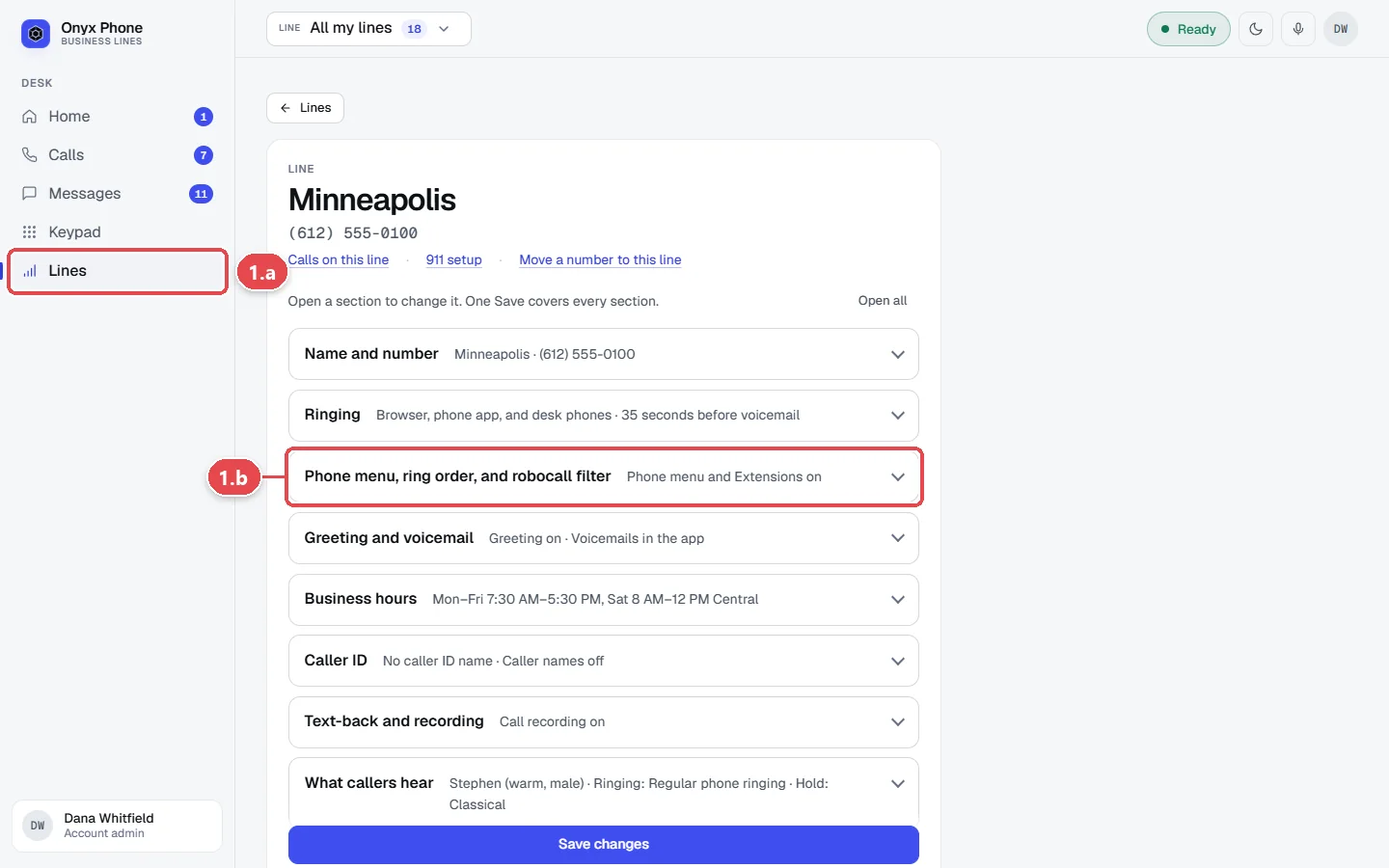
- Step 1.a In the left menu, click Lines, then click the pencil button next to the line.
- Step 1.b Click Phone menu, ring order, and robocall filter.
Step 2. Ring teammates in order
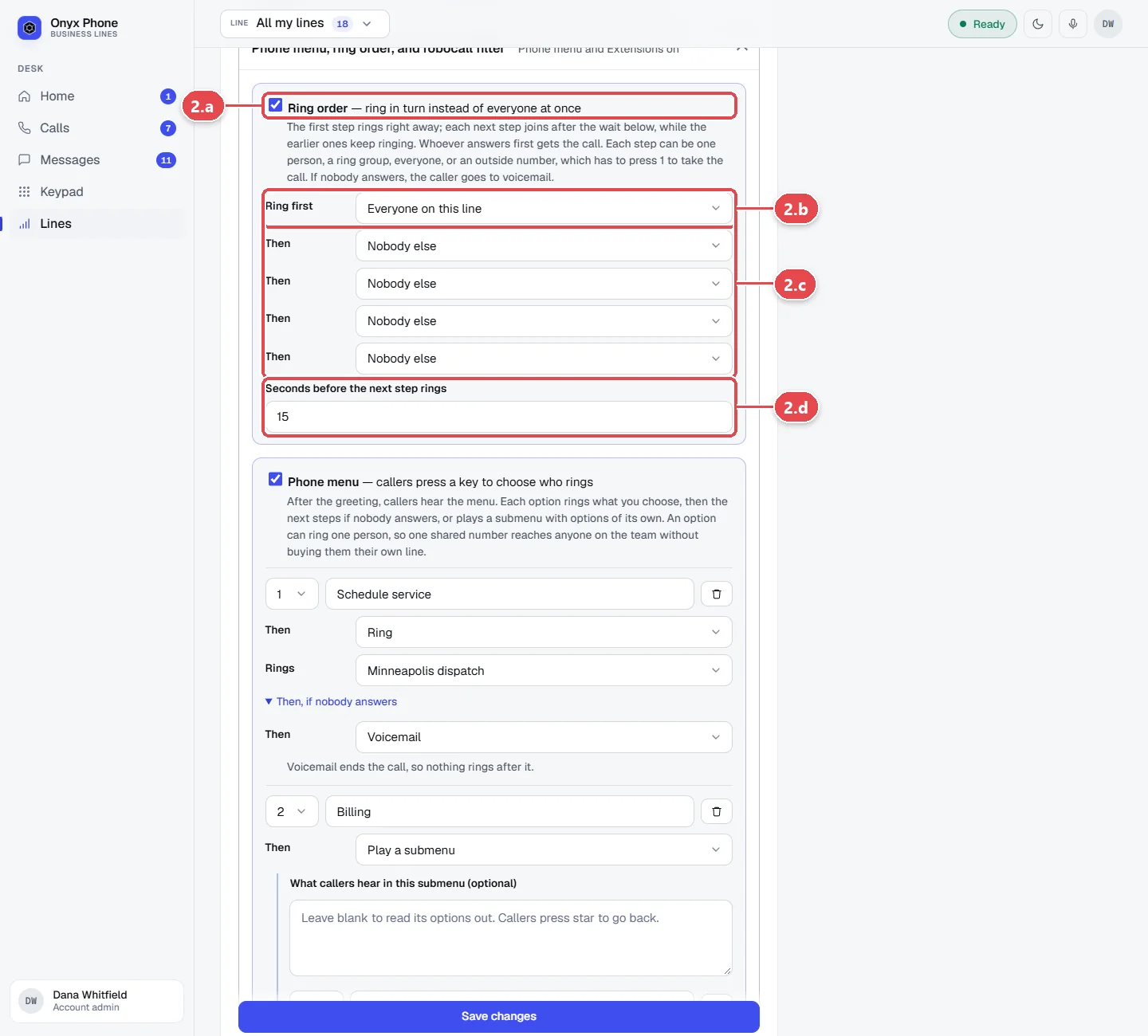
- Step 2.a Tick Ring order.
- Step 2.b In Ring first, choose who rings first, such as a person, a ring group, Everyone on this line, or Forward to a number.
- Step 2.c In Then, if nobody answers, choose who rings next. Add up to four more steps, or choose Nobody else to stop.
- Step 2.d In Seconds before the next step rings, type how long each step rings before moving on.
Step 3. Add a phone menu
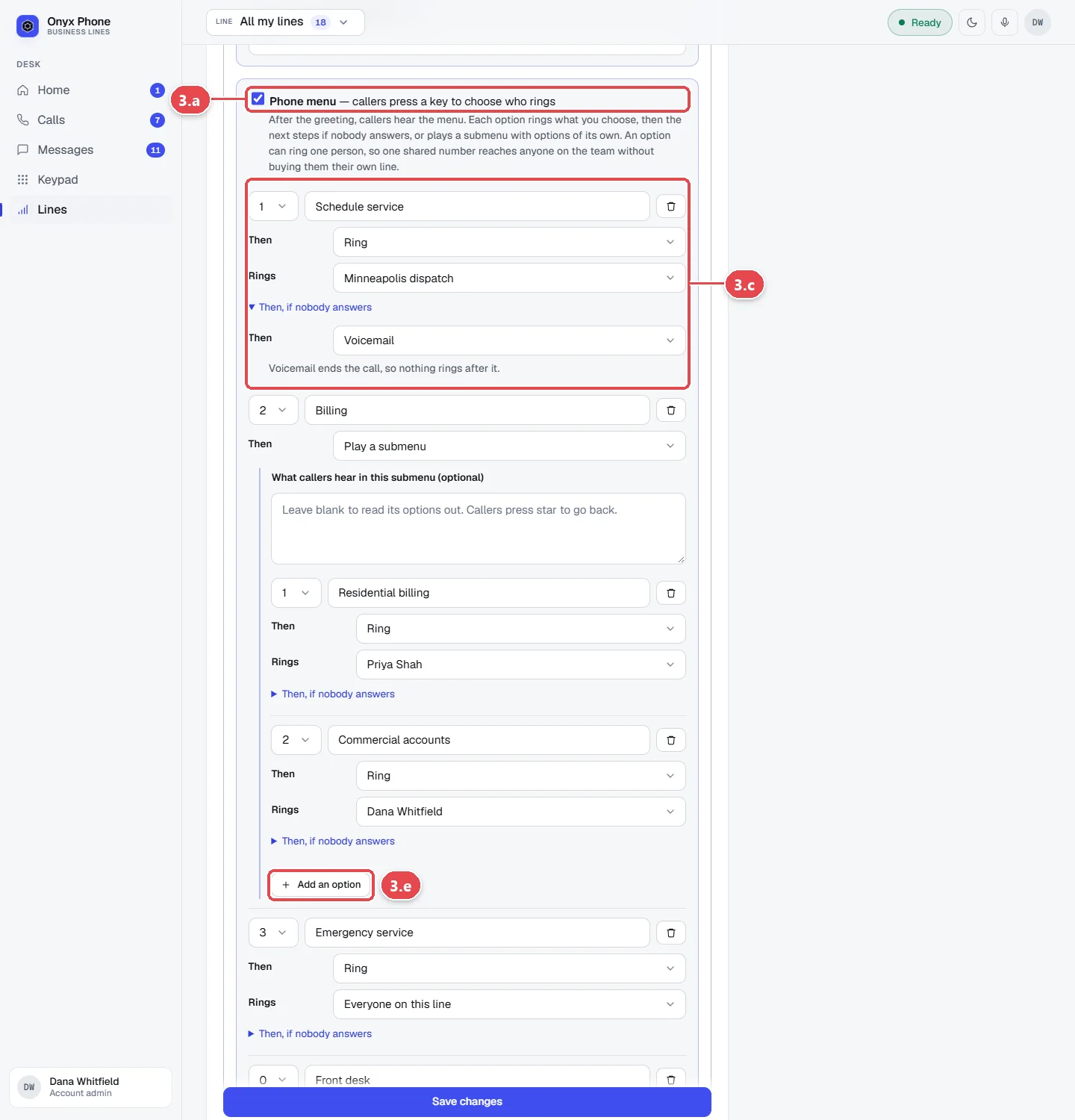
- Step 3.a Tick Phone menu.
- Step 3.b Callers hear the menu after the line's greeting, read in the line's voice from your options. To say something first, set the greeting in Greeting and voicemail.
- Step 3.c For each option, choose the Key, type What callers choose, like Sales, and choose Then, either Ring someone or Play a submenu.
- Step 3.d Choose who the option rings, and who rings next if nobody answers.
- Step 3.e Click Add an option for more, or Remove this option to delete one.
- Step 3.f Under No key, or a key not listed, choose what happens to callers who don't press a valid key, and how many times to Replay the menu first.
Step 4. Screen robocalls and allow extensions
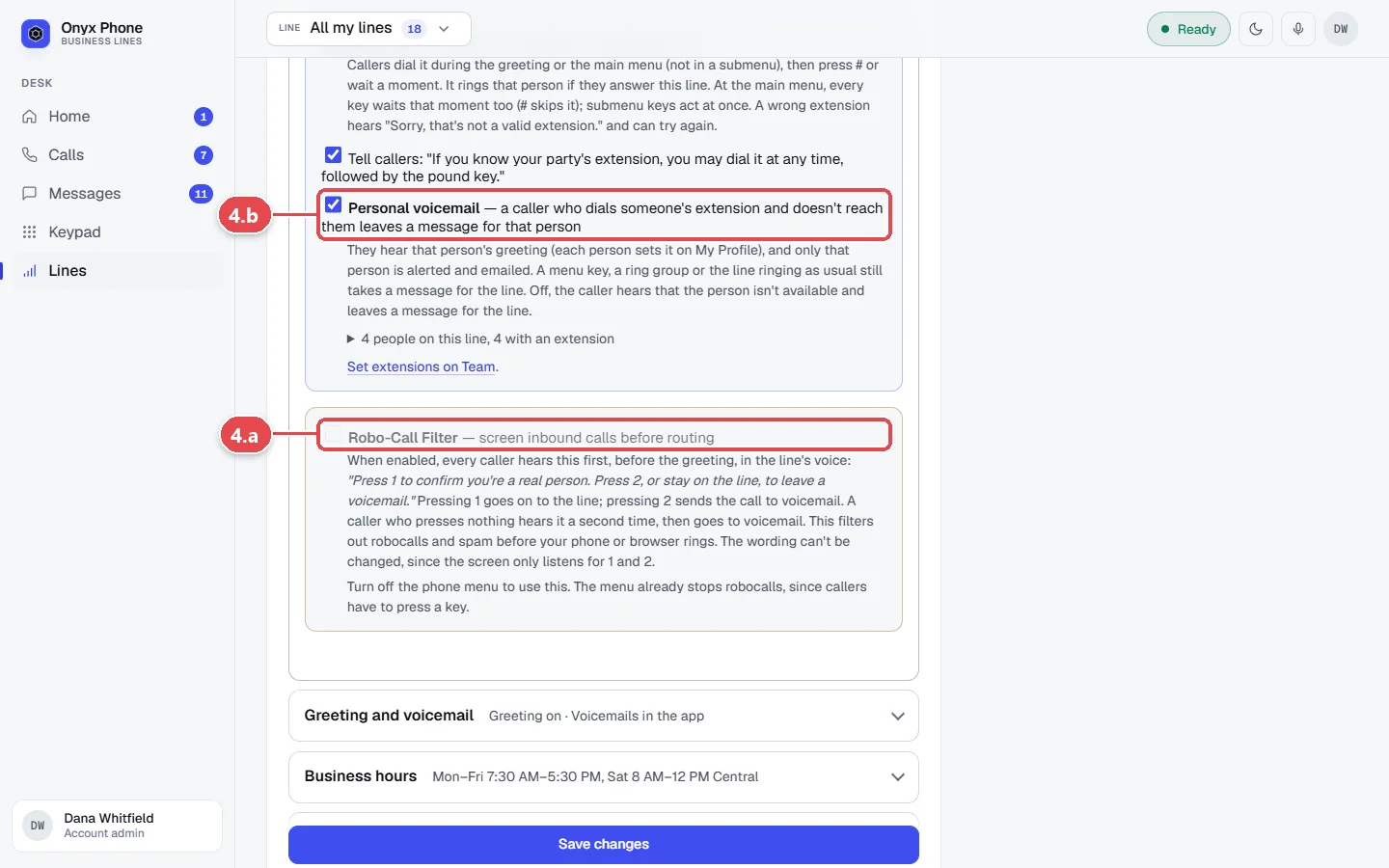
- Step 4.a Tick Robo-Call Filter to have every caller hear "Press 1 to confirm you're a real person" before the call rings. Robocalls can't press 1, so nobody's phone rings for them. The filter is for lines without a phone menu; a menu already stops robocalls, since callers have to press a key.
- Step 4.b Tick Personal voicemail to let a caller who dials someone's extension leave a message for that person.
- Step 4.c To let callers dial a teammate's extension, turn on extensions for this line on Team. See Invite and manage teammates.
- Step 4.d Click Save changes at the bottom of the page.
Questions and answers
What can a phone menu option do?
Ring a person, a ring group, everyone on the line, voicemail, or an outside number, or play a submenu with its own options. Each option can ring a second choice if nobody answers.
Can I forward calls to my cell phone?
Yes. Choose Forward to a number in the ring order or a menu option, and type the number. Forwarded calls show your line's number, and your team still sees the call in Calls.
What do callers hear in the robocall filter?
"Press 1 to confirm you're a real person. Press 2, or stay on the line, to leave a voicemail." Pressing 1 rings the line. A caller who presses nothing hears it a second time, then goes to voicemail. The wording is fixed, since the filter only listens for 1 and 2.
Do phone menu recordings cost extra?
No. The words are read in the voice you choose and recorded once, then replayed on every call. See Voices and music.
Can you build a more advanced menu for us?
Yes. Use the link on the phone menu settings, or the contact page, to tell us what you need.
Related guides
- How to set up ring groups to ring a set of teammates togetherMake ring groups in Onyx Phone, like Office or Dispatch, to ring a set of teammates together, transfer calls to them, and use them in phone menus.
- How to set how a business line rings and what voicemail saysSet how an Onyx Phone line rings: browsers, phone apps, and desk phones, ring time, the greeting, voicemail greeting, and voicemail by email.
- How to set business hours and an after-hours message for a phone lineSet open and closed hours for each Onyx Phone line, pick its time zone, and play an after-hours message before callers leave a voicemail.
- How to choose the voice, ringing music, and hold music callers hearPick from 12 voices for your greeting, phone menu, and voicemail greeting in Onyx Phone, choose ringing and hold music or upload your own, and preview each one.
Getting started
- Create a login and pick a plan. Checkout saves a card for the 7-day free trial, and nothing is charged until it ends.
- Confirm your business and its 911 address, and get a local number on the spot. Bringing your own number? You answer on a temporary one while it moves over, for free.
- Choose where calls ring, write what callers hear, invite your team, and register for texting. Then answer in the browser, the iPhone and Android apps, or a desk phone. How it works has the details.
Screens change as we improve Onyx Phone; we last checked this guide on November 6, 2026. The screenshots show a made-up business. Markdown version · All guides · Contact us