Guides / Calls and voicemail
How to flag a call or text and tag a teammate to follow up
When a call or text needs someone else's attention, flag it in Onyx Phone and tag the teammate who should follow up. They get a live alert and an email, it shows on their Home page until someone marks it done, and your team can see every open flag in one list. This guide walks through flagging, tagging, finding what's tagged for you, and marking it done.
Step 1. Flag a call, voicemail, or text and tag someone
- Step 1.a Open the call or voicemail from Calls, or the conversation from Messages.
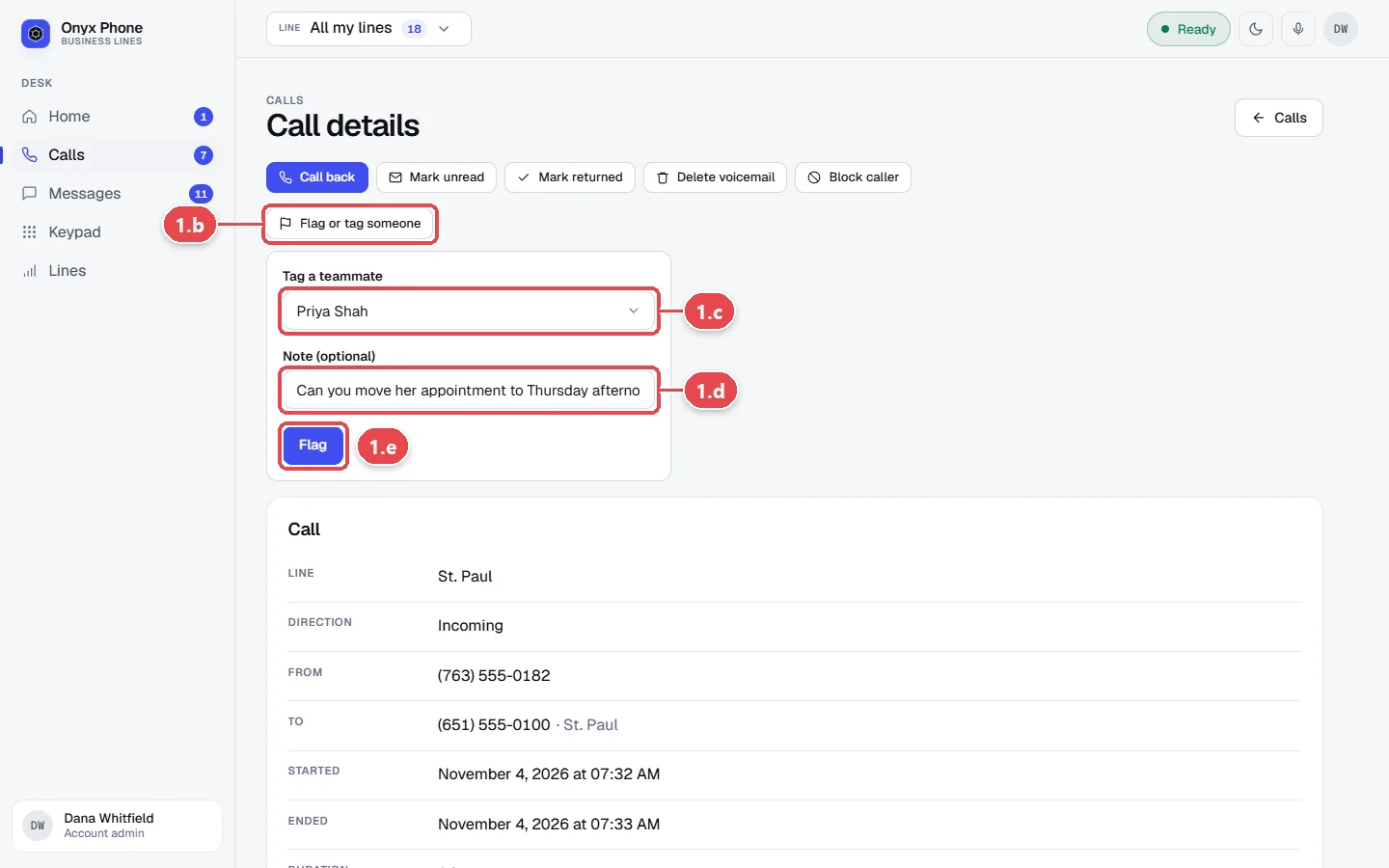
- Step 1.b Click Flag or tag someone under the buttons at the top of the page.
- Step 1.c Click Tag a teammate and choose who should follow up. Choose No one, just flag it to flag it for the whole team.
- Step 1.d In Note (optional), type what they should do, such as "Call her back about the water heater quote."
- Step 1.e Click Flag. The person you tagged gets an alert in Onyx Phone and an email.
Step 2. Flag a call straight from the list
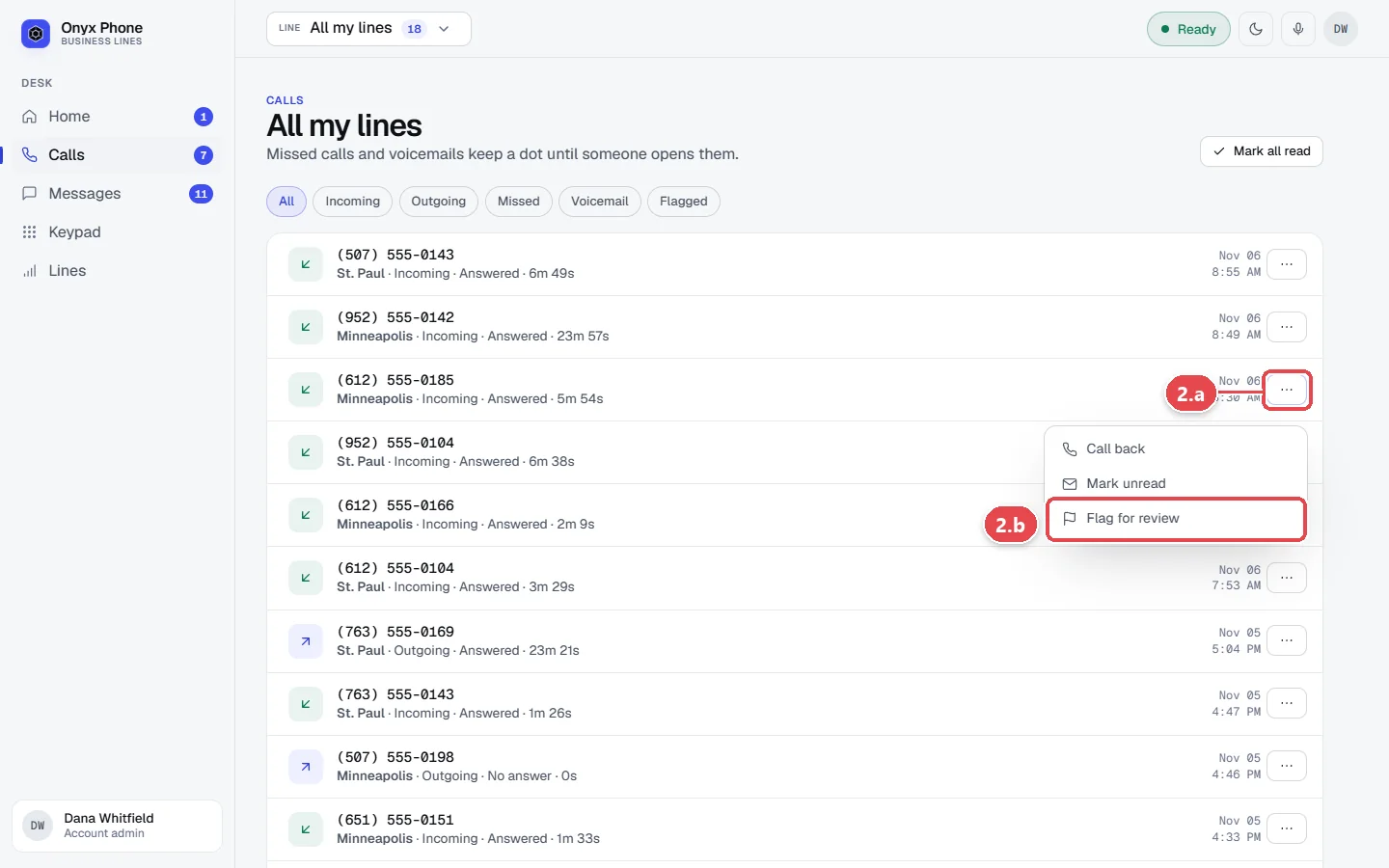
- Step 2.a On the Calls page, click the ⋯ button at the right of the call's row.
- Step 2.b Click Flag for review. The call is flagged for the team, with no one tagged.
Step 3. See what's tagged for you
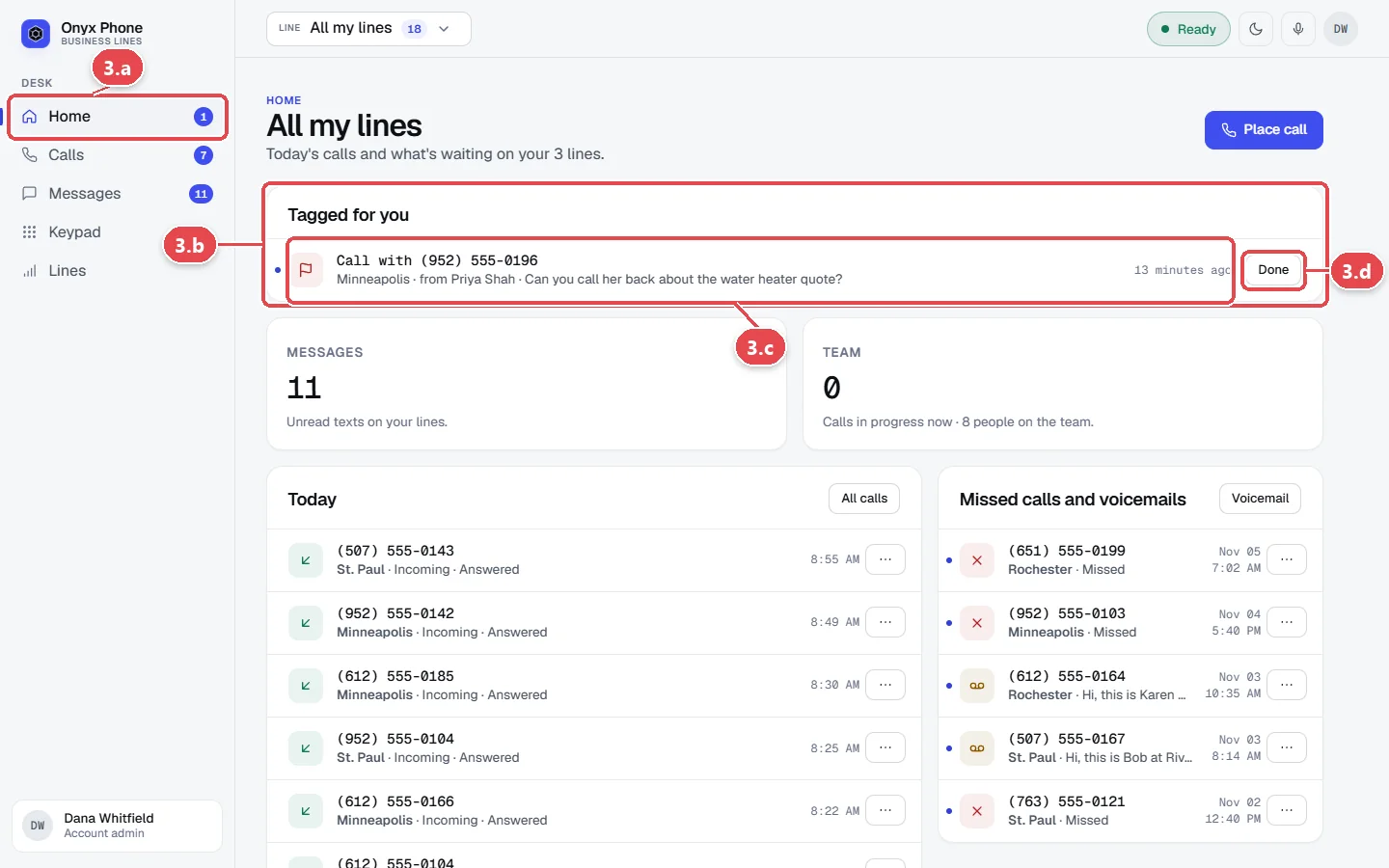
- Step 3.a In the left menu, click Home. The number next to Home counts what's tagged for you.
- Step 3.b Look under Tagged for you. Each item shows the call or text, who tagged you, and their note.
- Step 3.c Click the item to open the call or conversation.
- Step 3.d When you've handled it, click Done. It leaves your list and the flag is marked done for everyone.
Step 4. See every flagged call
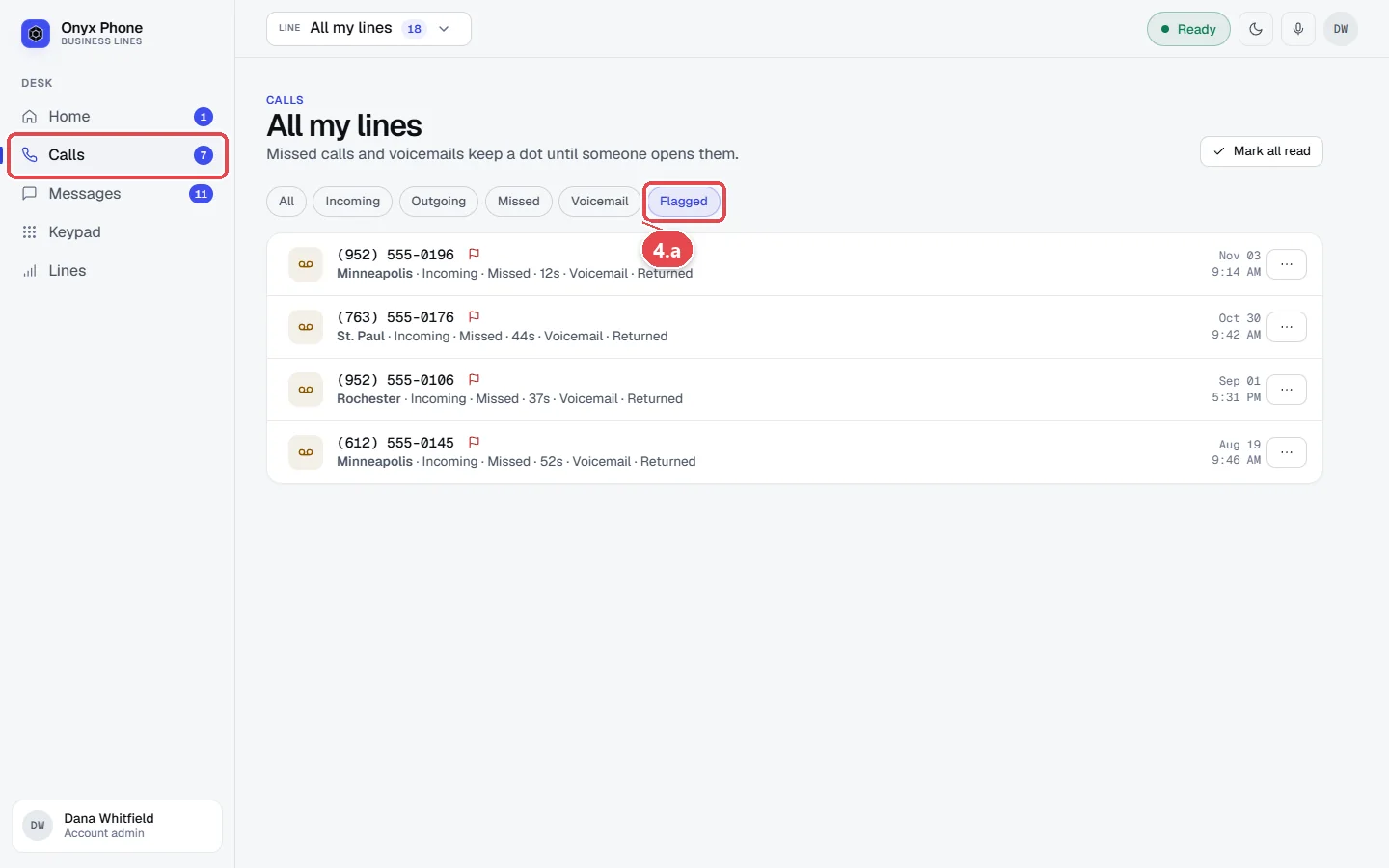
- Step 4.a In the left menu, click Calls, then click Flagged above the list.
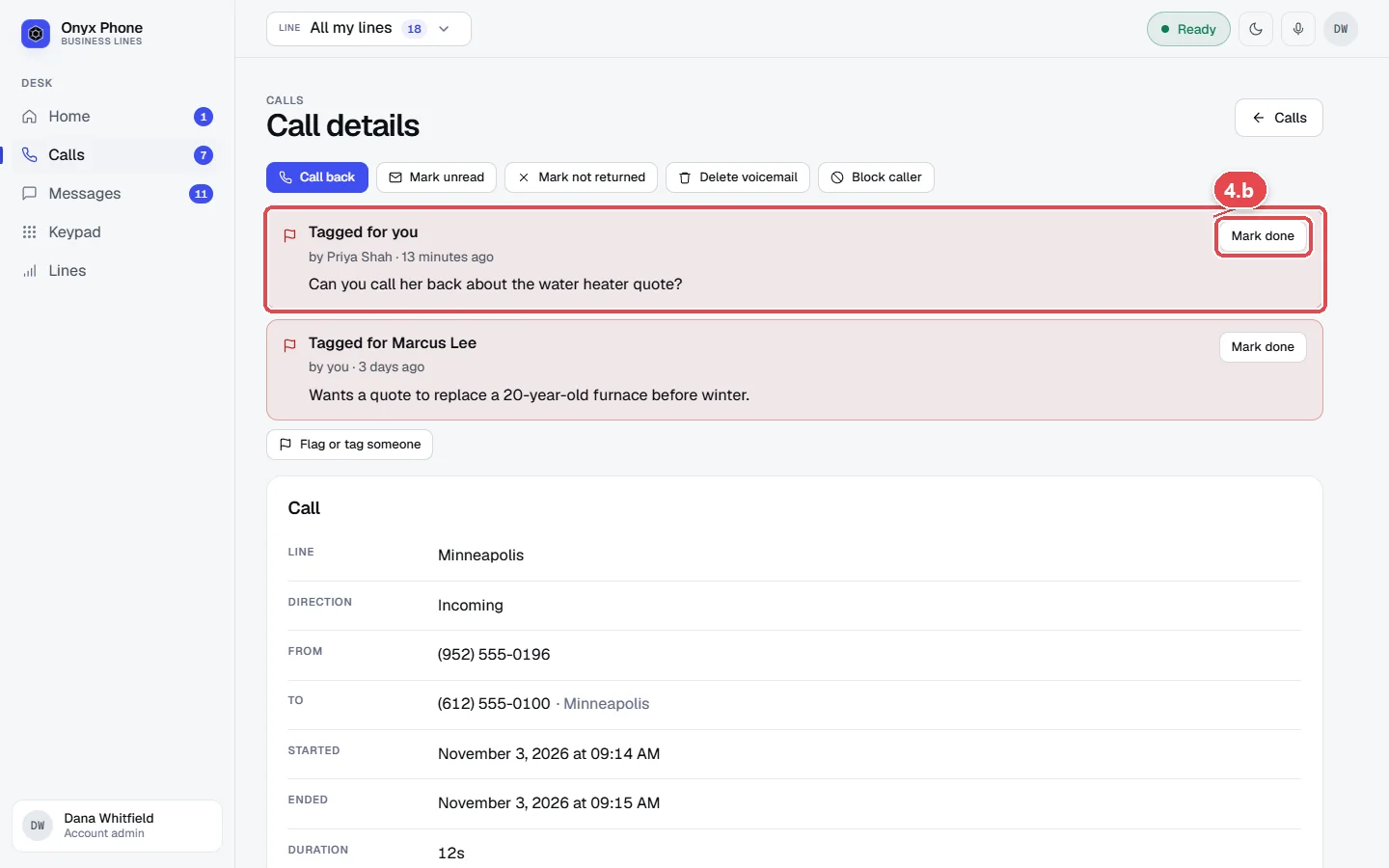
- Step 4.b Open a flagged call to see who flagged it, who's tagged, and the note, then click Mark done when it's handled.
Questions and answers
Who can I tag?
Anyone assigned to the line the call or text came in on, plus the account's admins. If you can't find someone, an admin can add them to the line on the Team page.
How does the tagged person find out?
They get a live alert in Onyx Phone if they're signed in, an email, and the item appears under Tagged for you on their Home page with a badge until someone marks it done.
What does Flag without tagging do?
It marks the call or conversation for review by the whole team. It shows with a flag icon and under the Flagged filter on Calls, without alerting anyone.
Can someone else mark my flag done?
Yes. Anyone on the line can mark a flag done, so whoever handles it can close it out. Done flags stay in the call's history, folded under Done flags.
Can I tag a teammate from the phone app?
Flags and tags are made on the website. Teammates can still see and return the call or text from the phone app.
Related guides
- How to see your call history, recordings, and call detailsFind any business call in Onyx Phone. Filter missed and outgoing calls, play recordings, read AI summaries and transcripts, and add notes for your team.
- How to send and receive business texts from your computerText customers from your business number in any browser. Start a text, reply, send photos, mark texts read or unread, and delete or block a number.
- How to listen to, return, and delete business voicemailsCheck business voicemail on the web, iPhone, or Android: play messages, read transcripts, call back, mark them returned, and delete or restore them.
- How to invite teammates and choose which lines they answerInvite teammates to Onyx Phone by email or in bulk, choose the lines each person answers, give extensions, let them call each other, or remove someone.
Getting started
- Create a login and pick a plan. Checkout saves a card for the 7-day free trial, and nothing is charged until it ends.
- Confirm your business and its 911 address, and get a local number on the spot. Bringing your own number? You answer on a temporary one while it moves over, for free.
- Choose where calls ring, write what callers hear, invite your team, and register for texting. Then answer in the browser, the iPhone and Android apps, or a desk phone. How it works has the details.
Screens change as we improve Onyx Phone; we last checked this guide on November 6, 2026. The screenshots show a made-up business. Markdown version · All guides · Contact us