Guides / Texting
How to send and receive business texts from your computer
With Onyx Phone, your team texts customers from the business number, not their personal phones, and everyone on the line sees the same conversations. This guide shows you how to open Messages, start a new text, reply and send photos, keep track of unread texts, and delete or block a conversation, with a labeled screenshot for each step.
Before you start
- Texting must be on for your account and approved by the carriers. An admin sets this up once on the Texting page; see Register your business for texting.
Step 1. Open your text conversations
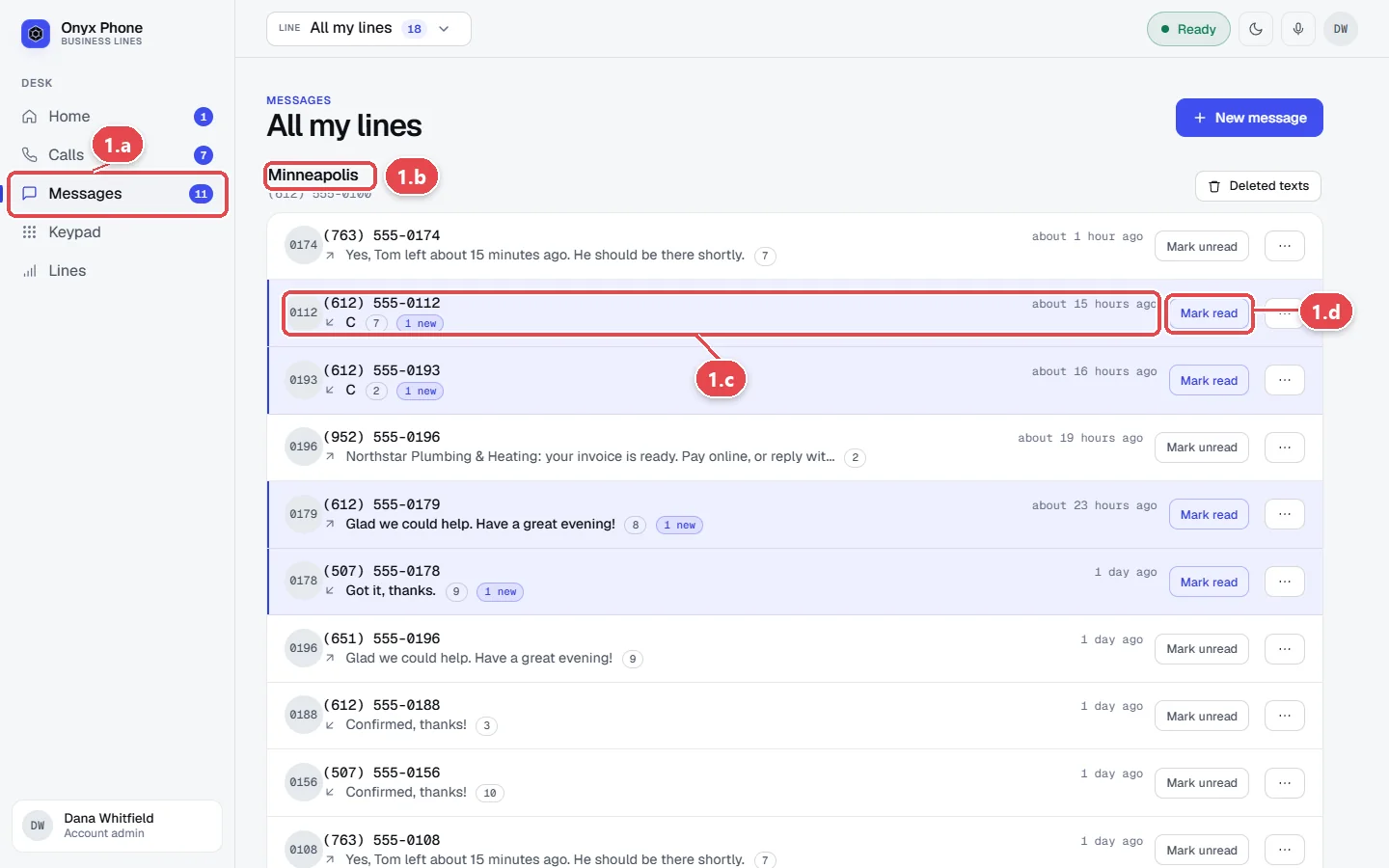
- Step 1.a In the left menu, click Messages. The blue number counts unread texts on the lines picked in the line picker.
- Step 1.b Find the line's conversations. Each line has its own heading, with the most recent conversation first.
- Step 1.c Read each row. It shows the other person's number, how long ago the last text was sent, and the start of it. Rows with new have texts nobody has read.
- Step 1.d Click Mark read or Mark unread at the right of a row to change it without opening it.
- Step 1.e Scroll down and click Older conversations to see earlier ones.
Step 2. Start a new text
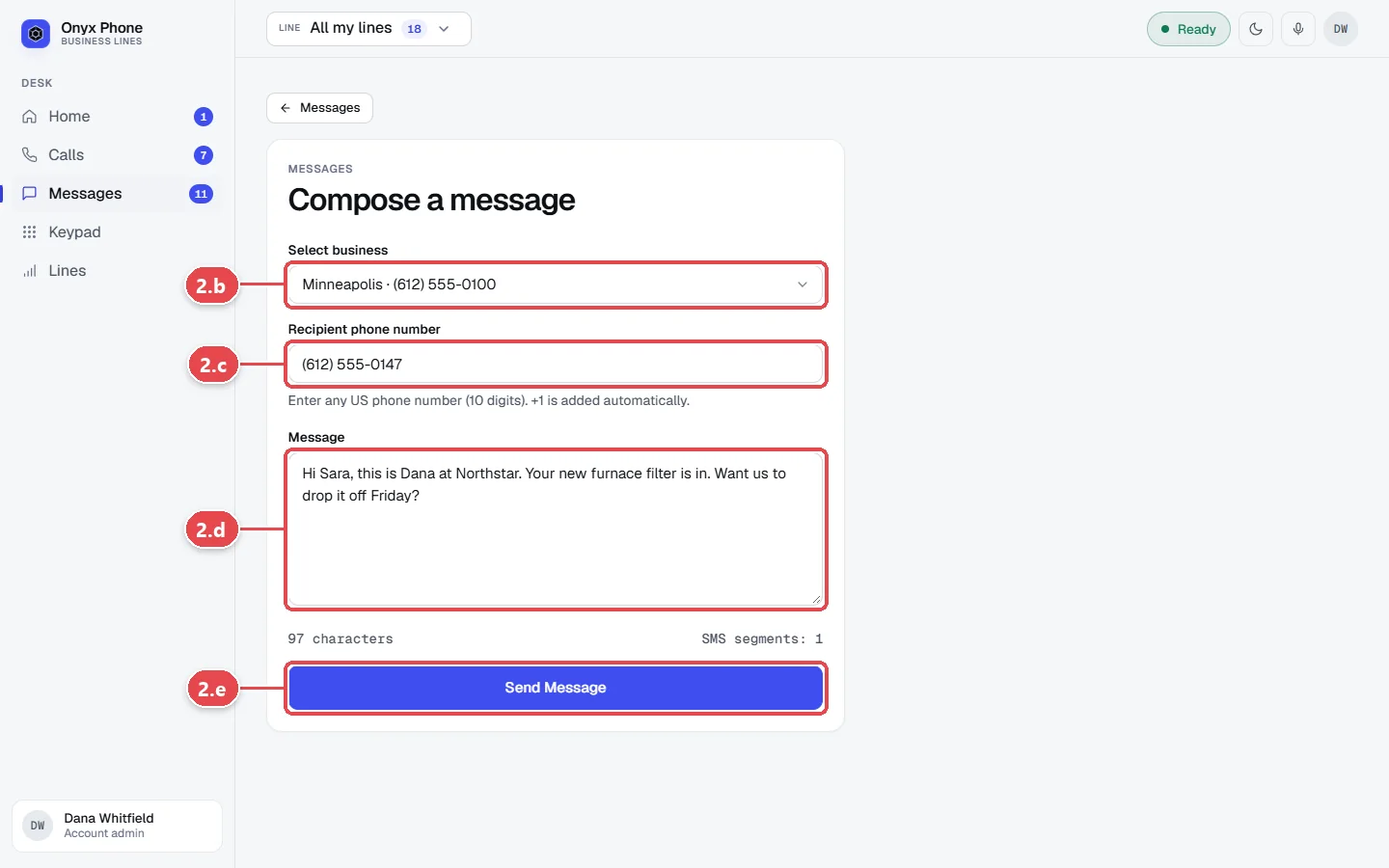
- Step 2.a At the top right of the Messages page, click New message.
- Step 2.b Click Select business and choose the line to text from. The person sees that line's number.
- Step 2.c In Recipient phone number, type their 10-digit number.
- Step 2.d Type your text in Message. The counter below shows the characters and how many SMS segments it will use; a segment is 160 standard characters.
- Step 2.e Click Send Message. The conversation opens.
Step 3. Reply in a conversation
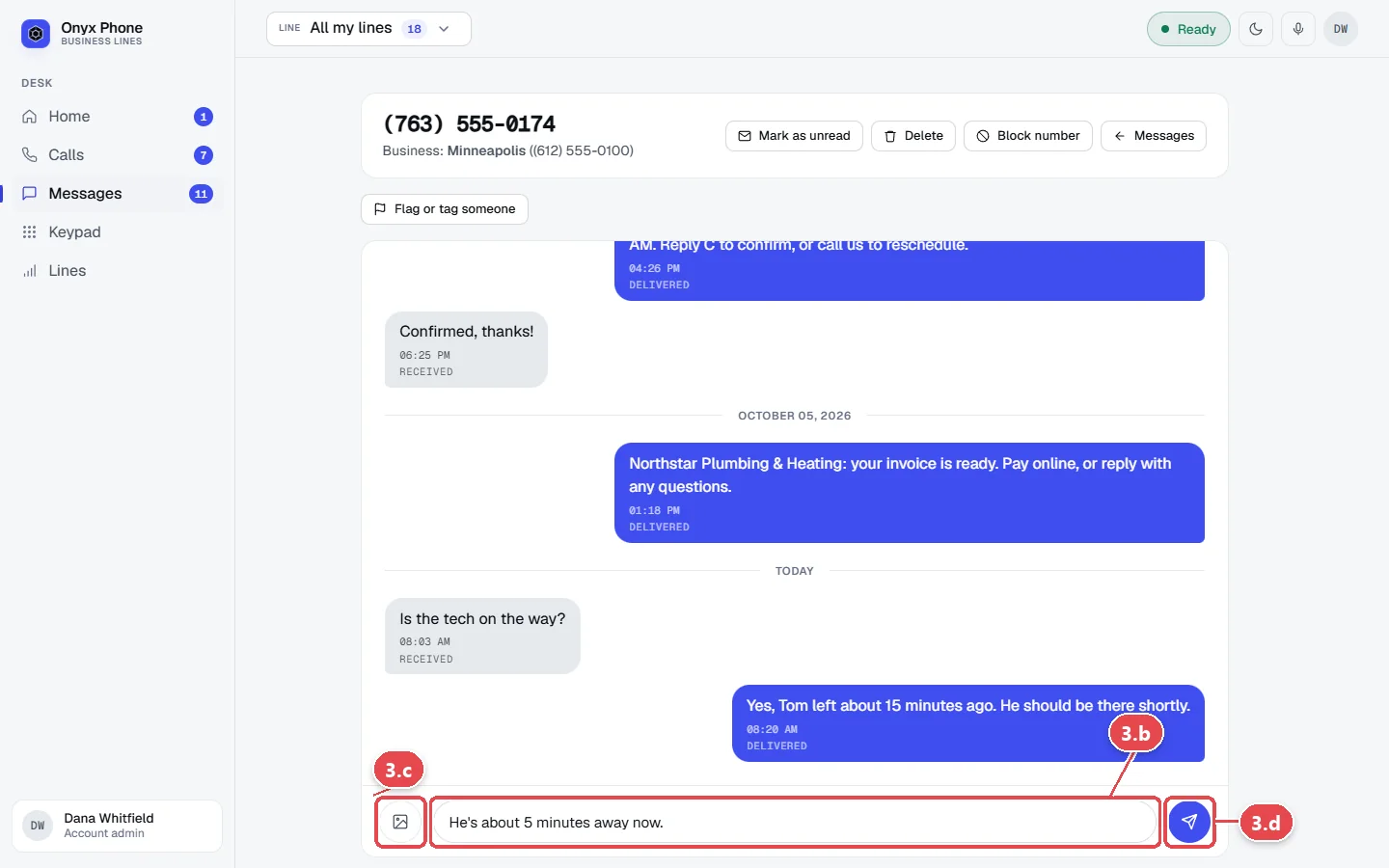
- Step 3.a Click a conversation's row to open it. Your texts are blue on the right; theirs are gray on the left, each with the time and whether it was delivered.
- Step 3.b Click in the Type a message... box at the bottom and type your reply.
- Step 3.c To send pictures, click the picture button to the left of the box and choose one or more photos.
- Step 3.d Click the send button at the right, or press Enter. Press Shift and Enter for a new line.
Step 4. Mark, delete, flag, or block a conversation
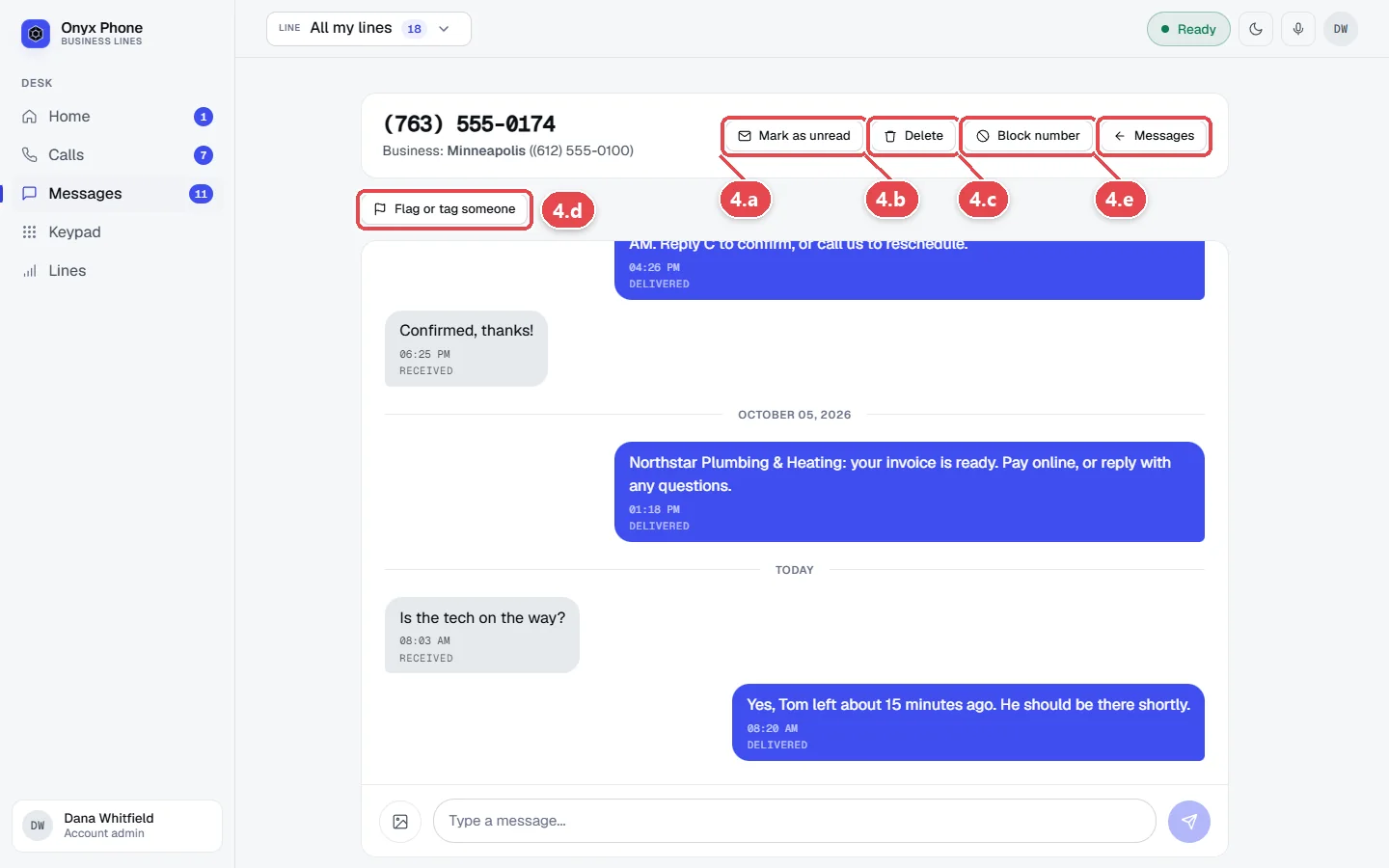
- Step 4.a Click Mark as unread to keep the conversation on everyone's unread list.
- Step 4.b Click Delete, then OK, to remove the conversation from Messages. A new text from that number starts a fresh conversation. Admins can restore deleted conversations; see Deleted texts.
- Step 4.c Click Block number, choose whether to block it on this line or all lines, pick a reason, and confirm. See Block numbers.
- Step 4.d Click Flag or tag someone to ask a teammate to follow up. See Flag a call or text.
- Step 4.e Click Messages to go back to the list.
Questions and answers
What number do customers see when I text them?
They see the business number of the line you text from. Replies come back to that same line, where everyone assigned to it can read them.
Can customers text my business number first?
Yes. Texts to any line with texting on arrive in Messages for everyone on the line, with a badge, a sound, and live updates. The phone apps get them too.
Why can't I send a text?
Texting needs the Texting add-on and approval from US carriers, which usually takes one to two weeks after an admin sends the registration. A number that replied STOP can't be texted until it texts START. The page explains which applies above the message box.
How long can a text be?
Standard texts are split into 160-character segments, or 70 characters when they contain emoji or special symbols. Long texts still arrive as one message on most phones. Texting from Onyx Phone and the apps is included in your plan; only texts sent through the API or Zapier are billed per segment.
Can I send pictures?
Yes. Click the picture button next to the message box to attach photos. Pictures arrive as MMS on the customer's phone.
Is there a limit on how many texts we can send?
Carriers set a daily limit for registered businesses, about 2,000 texts a day to T-Mobile customers on the standard registration. Admins are emailed at 80% and 100%. Businesses that send more can ask for high-volume texting on the Texting page.
Does texting work on the phone apps too?
Yes. The iPhone and Android apps have a Messages tab with the same conversations. See Text from the phone app.
Related guides
- How to text customers from the Onyx Phone appText customers from your business number on iPhone or Android. Pick a line, search, start a text, send photos, call back, block, or delete a conversation.
- How to see and restore deleted text conversationsAdmins can see every deleted text conversation on an Onyx Phone line, who deleted it and when, restore it, and choose who may delete texts.
- How to register your business for texting (A2P 10DLC)Register your Onyx Phone lines with US carriers for business texting (A2P 10DLC): describe your texts, how people opt in, add samples, and send it.
- How to block spam calls and texts on your business numberBlock spam calls and texts on your business lines. Block on one line or all, choose what blocked callers hear, block hidden caller ID, and unblock.
Getting started
- Create a login and pick a plan. Checkout saves a card for the 7-day free trial, and nothing is charged until it ends.
- Confirm your business and its 911 address, and get a local number on the spot. Bringing your own number? You answer on a temporary one while it moves over, for free.
- Choose where calls ring, write what callers hear, invite your team, and register for texting. Then answer in the browser, the iPhone and Android apps, or a desk phone. How it works has the details.
Screens change as we improve Onyx Phone; we last checked this guide on November 6, 2026. The screenshots show a made-up business. Markdown version · All guides · Contact us