Guides / Calls and voicemail
How to see your call history, recordings, and call details
Every call to and from your business lines is saved in Calls, shared by everyone who answers the line. This guide shows you how to filter your call history, act on a call from the list, open a call's details, play its recording, read the AI summary and transcript, see who answered and who it was transferred to, and keep notes your whole team can read.
Step 1. Open your call history
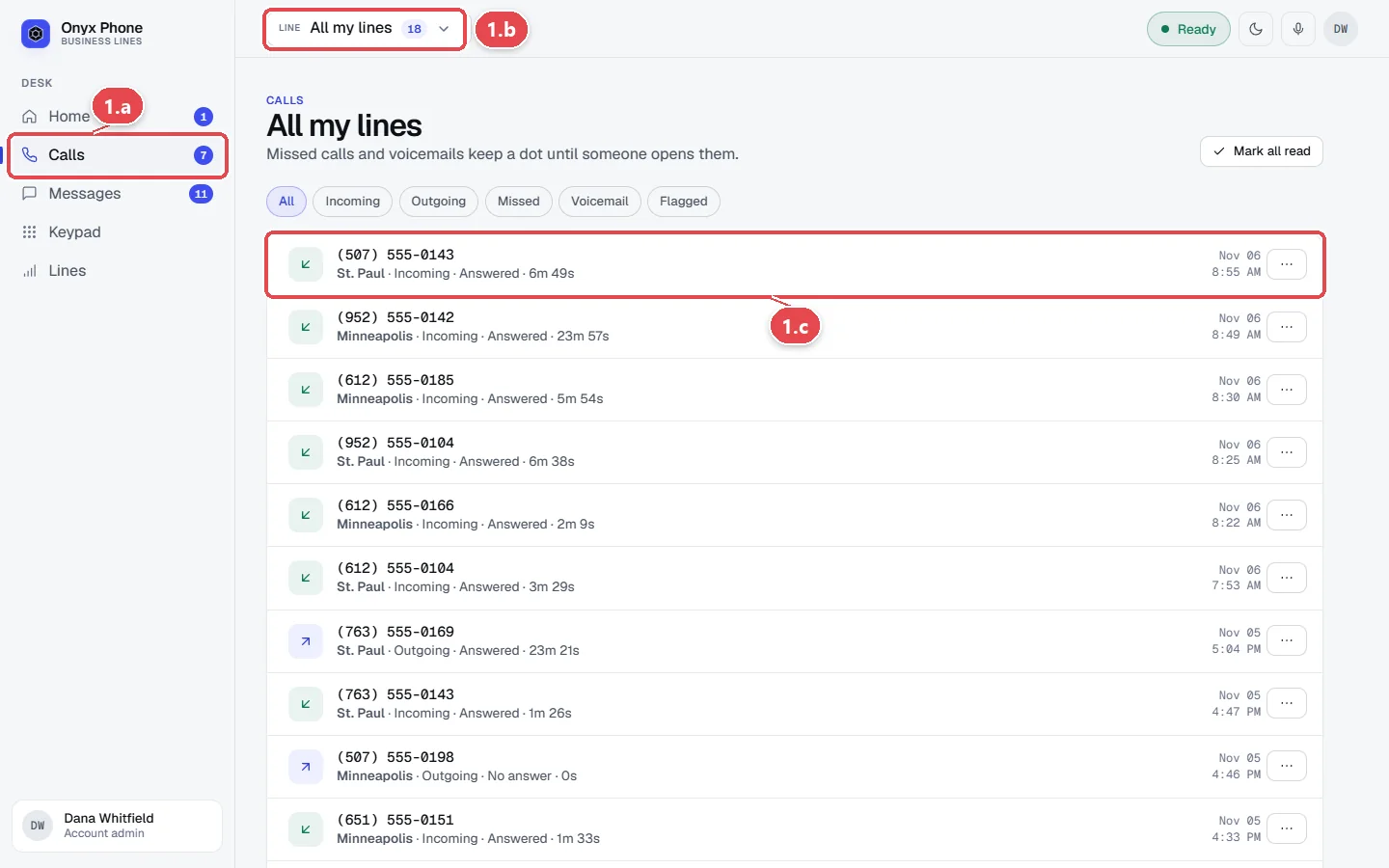
- Step 1.a Sign in at onyxphone.io/login. In the left menu, click Calls. The blue number next to it counts the missed calls and voicemails nobody has opened yet.
- Step 1.b To see one line's calls, click the Line picker at the top of the screen and choose the line. Choose All my lines to see every line you answer together.
- Step 1.c Read each row from left to right. The icon shows the kind of call, then the number or caller's name, the line, whether it was incoming or outgoing, answered or missed, how long it lasted, and when. Unread calls are bold, with a blue dot.
Step 2. Filter the list
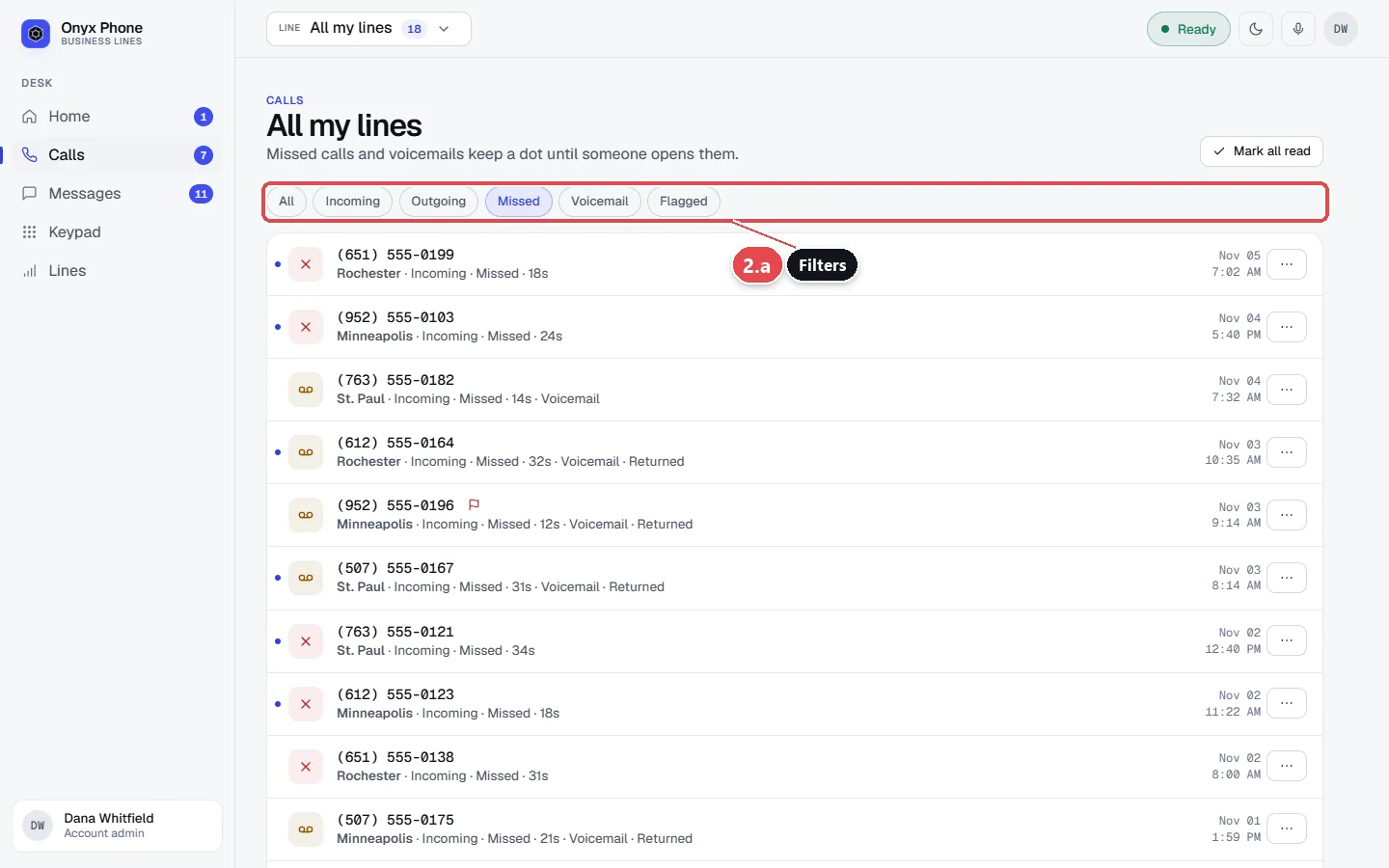
- Step 2.a Click a filter above the list. All shows every call; Incoming, Outgoing, and Missed narrow it down; Voicemail shows calls that left a message; Flagged shows calls someone flagged for review.
- Step 2.b Scroll to the bottom of the page and click Older to see the next 50 calls.
Step 3. Act on a call from the list
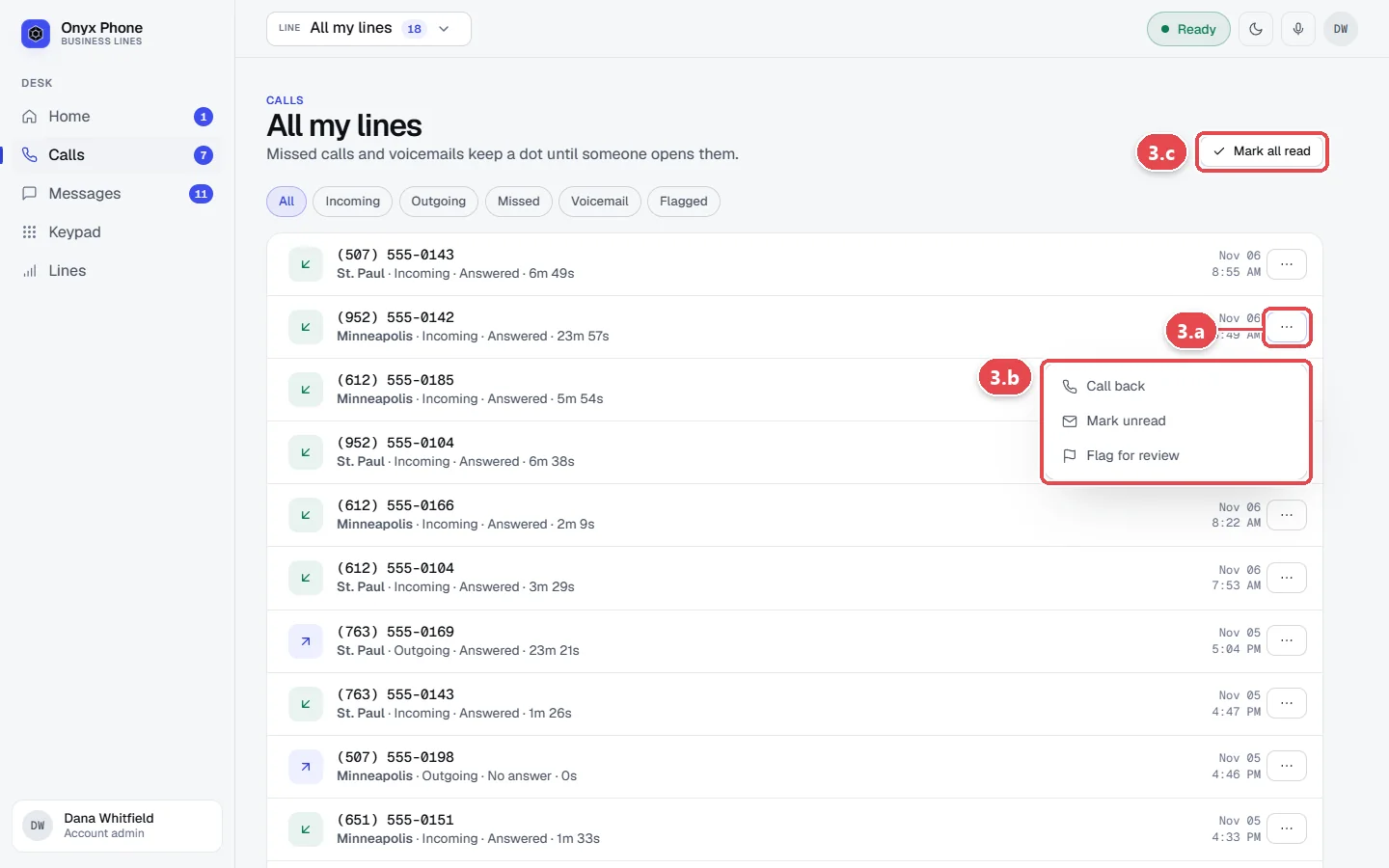
- Step 3.a Click the ⋯ button at the right end of a call's row.
- Step 3.b Choose what to do. Call back opens the Keypad with the number filled in. Mark read or Mark unread changes the badge for everyone. Flag for review marks the call for your team. On a voicemail, Delete moves it to the trash.
- Step 3.c To clear every unread call at once, click Mark all read at the top right of the page.
Step 4. Open a call's details
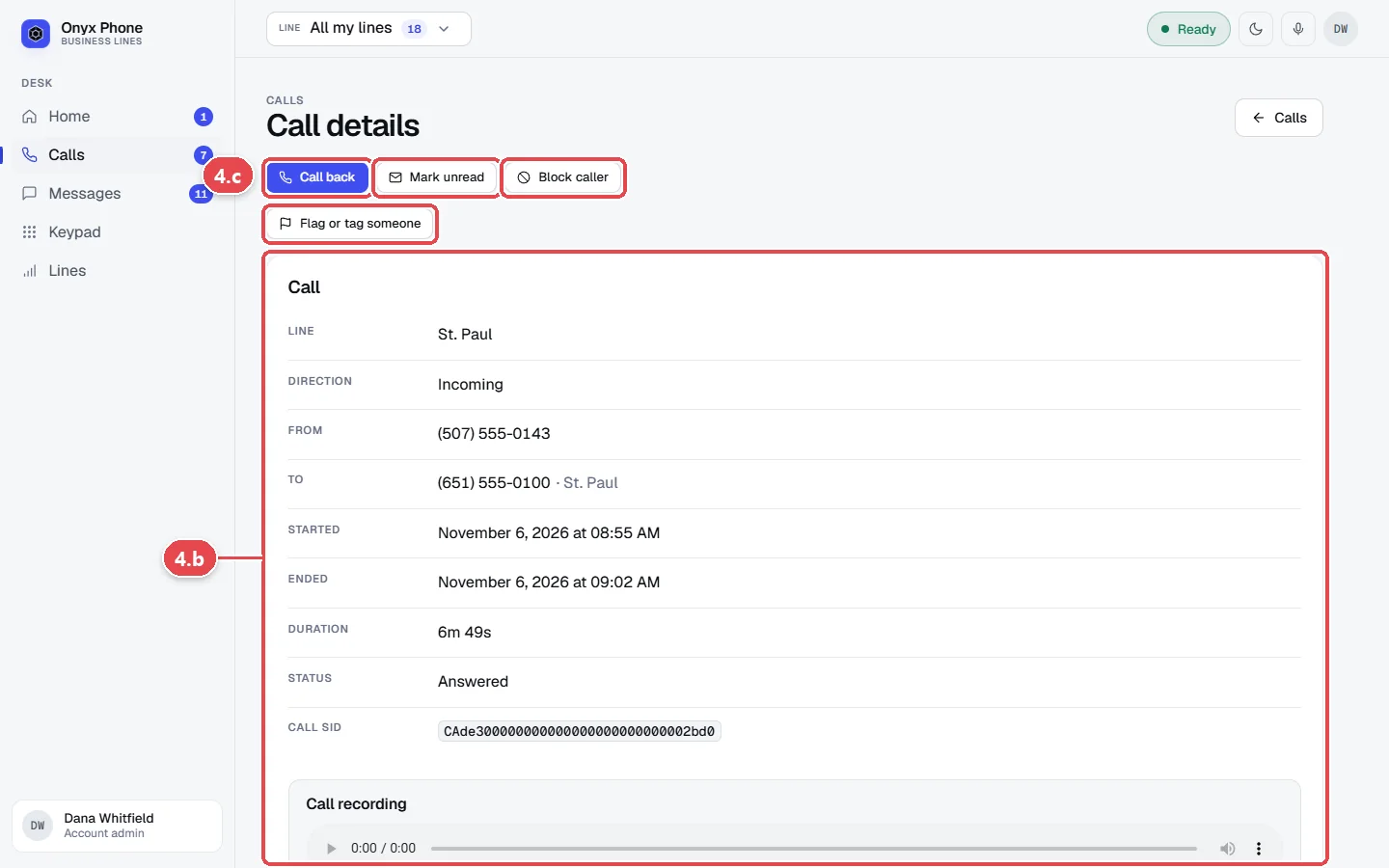
- Step 4.a Click anywhere on the call's row. The Call details page opens. Opening a call marks it read for your whole team.
- Step 4.b Read the Call card. It shows the line, direction, who called whom, when it started and ended, how long it lasted, its status, and the caller's name when known.
- Step 4.c Use the buttons at the top of the page. Call back returns the call, Mark unread keeps it on everyone's list, Block caller stops this number from reaching you, and Flag or tag someone asks a teammate to follow up.
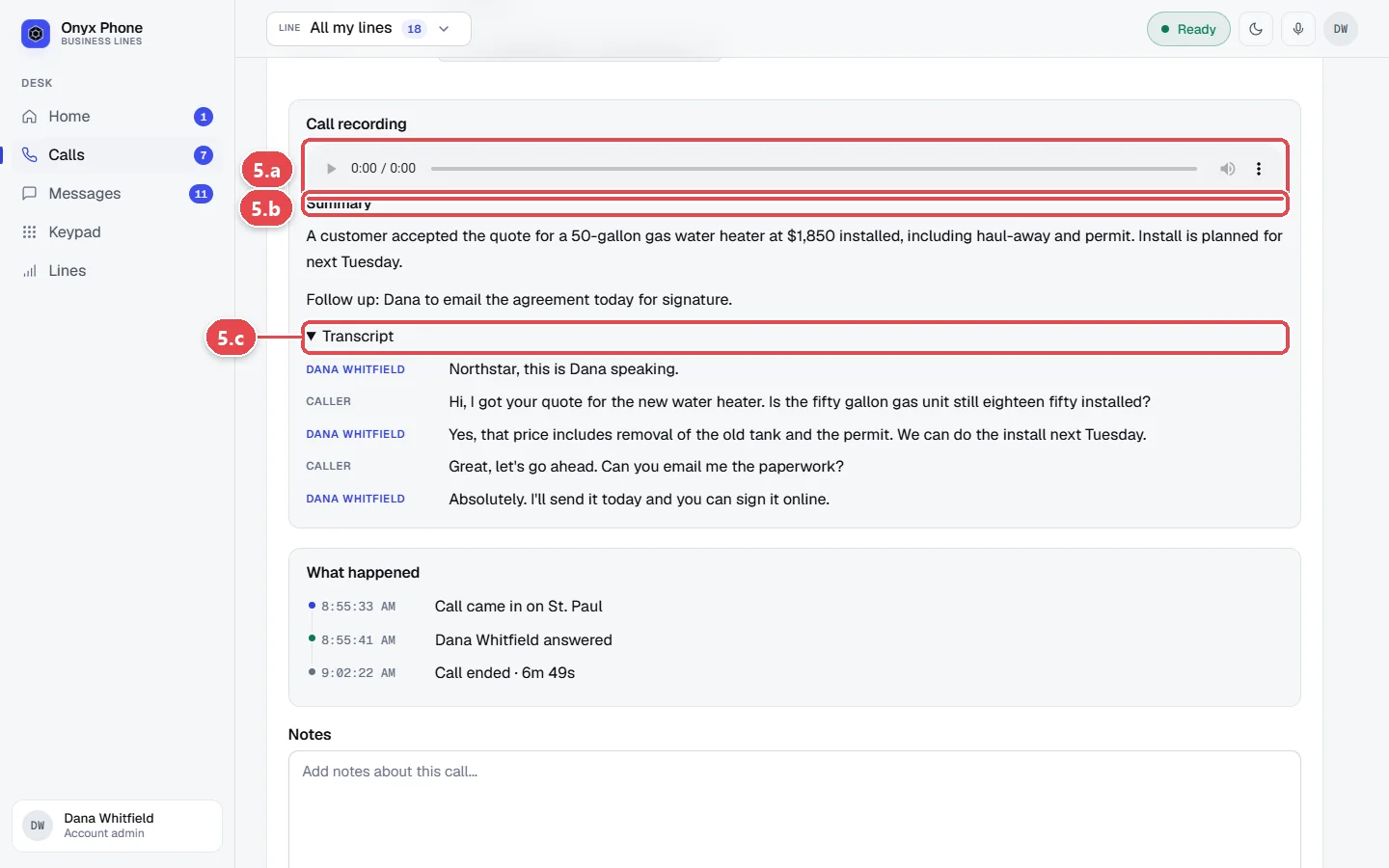
Step 5. Play the recording and read the summary
Calls are recorded only on lines where an admin turned on call recording. Voicemails are always saved.
- Step 5.a Scroll down to Call recording and click the play button to listen. Drag the slider to skip ahead.
- Step 5.b Read the Summary under the player. It is written by AI from the call's transcript, so you can see what the call was about without listening.
- Step 5.c Click Transcript to open the full conversation, with each side labeled.
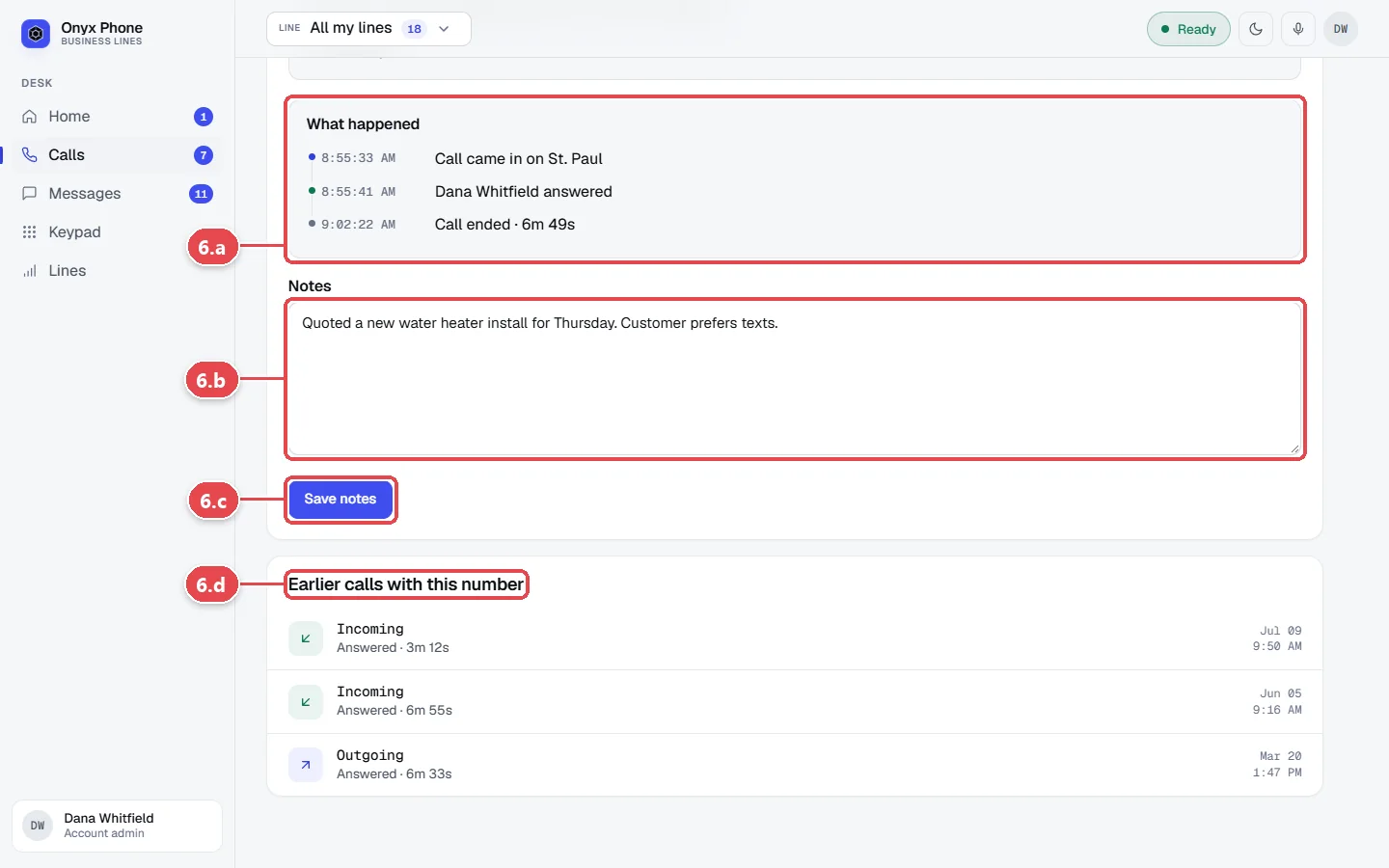
Step 6. See what happened and add notes
- Step 6.a Look at What happened to see the call step by step, such as which teammates rang, who answered, and any hold or transfer.
- Step 6.b Click in the Notes box and type what your team should know, such as the job, the address, or the next step.
- Step 6.c Click Save notes. Everyone on the line sees your note on this call.
- Step 6.d Look under Earlier calls with this number for the caller's history on this line, and click any of them to open it.
Questions and answers
Who can see my call history?
Everyone assigned to the line sees its calls, voicemails, and notes. Account admins can see every line on the account. Your calls on other lines stay private to the people on those lines.
Why is a call bold with a blue dot?
It's unread. Missed calls, voicemails, and calls someone marked unread stay bold until anyone on the line opens them or clicks Mark read. Opening a call marks it read for the whole team, so two people don't return the same call.
Are all calls recorded?
No. An admin turns call recording on for each line in its settings, and callers hear an announcement. Calls placed before recording was turned on have no recording. See Caller ID, call recording, and text-back.
Can I download a call recording?
Voicemails have a Download button under the player. Call recordings play in the browser after you sign in; they are never shared through a public link.
How do I find a call from a specific number?
Open any call from that number. The Earlier calls with this number list at the bottom of its details page shows every other call between that number and the line.
Can I export my call history?
Yes. Admins can make an API key on the API and Zapier page and pull calls from the Onyx Phone API, or send each new call to a spreadsheet or CRM with Zapier. See API keys, Zapier, and AI assistants.
What's the difference between Missed and Voicemail?
Missed shows incoming calls nobody answered, whether or not the caller left a message. Voicemail shows only calls that left a message, with its recording and transcript.
Related guides
- How to listen to, return, and delete business voicemailsCheck business voicemail on the web, iPhone, or Android: play messages, read transcripts, call back, mark them returned, and delete or restore them.
- How to flag a call or text and tag a teammate to follow upHand off a call, voicemail, or text in Onyx Phone: flag it for review, tag the teammate who should follow up with a note, and mark it done.
- How to make business calls from your web browserPlace business calls from your computer with Onyx Phone. Pick the line your caller ID shows, dial, call back missed callers, and call teammates by name.
- How to block spam calls and texts on your business numberBlock spam calls and texts on your business lines. Block on one line or all, choose what blocked callers hear, block hidden caller ID, and unblock.
Getting started
- Create a login and pick a plan. Checkout saves a card for the 7-day free trial, and nothing is charged until it ends.
- Confirm your business and its 911 address, and get a local number on the spot. Bringing your own number? You answer on a temporary one while it moves over, for free.
- Choose where calls ring, write what callers hear, invite your team, and register for texting. Then answer in the browser, the iPhone and Android apps, or a desk phone. How it works has the details.
Screens change as we improve Onyx Phone; we last checked this guide on November 6, 2026. The screenshots show a made-up business. Markdown version · All guides · Contact us