Guides / Getting started
How to sign in, sign out, and reset your Onyx Phone password
One Onyx Phone login works on the website and in the iPhone and Android apps. This guide shows you how to accept an invitation from your team, sign in, reset a password you forgot, change your password, and sign out on the web and in the apps.
Step 1. Accept an invitation from your team
- Step 1.a Open the email with the subject about joining your team on Onyx Phone, and click the link in it. The link works for 7 days; an admin can send a new one from Team.
- Step 1.b Choose a password, type it again to confirm, and save it. You're signed in.
- Step 1.c Use the same email and password to sign in to the phone app.
Step 2. Sign in on the web
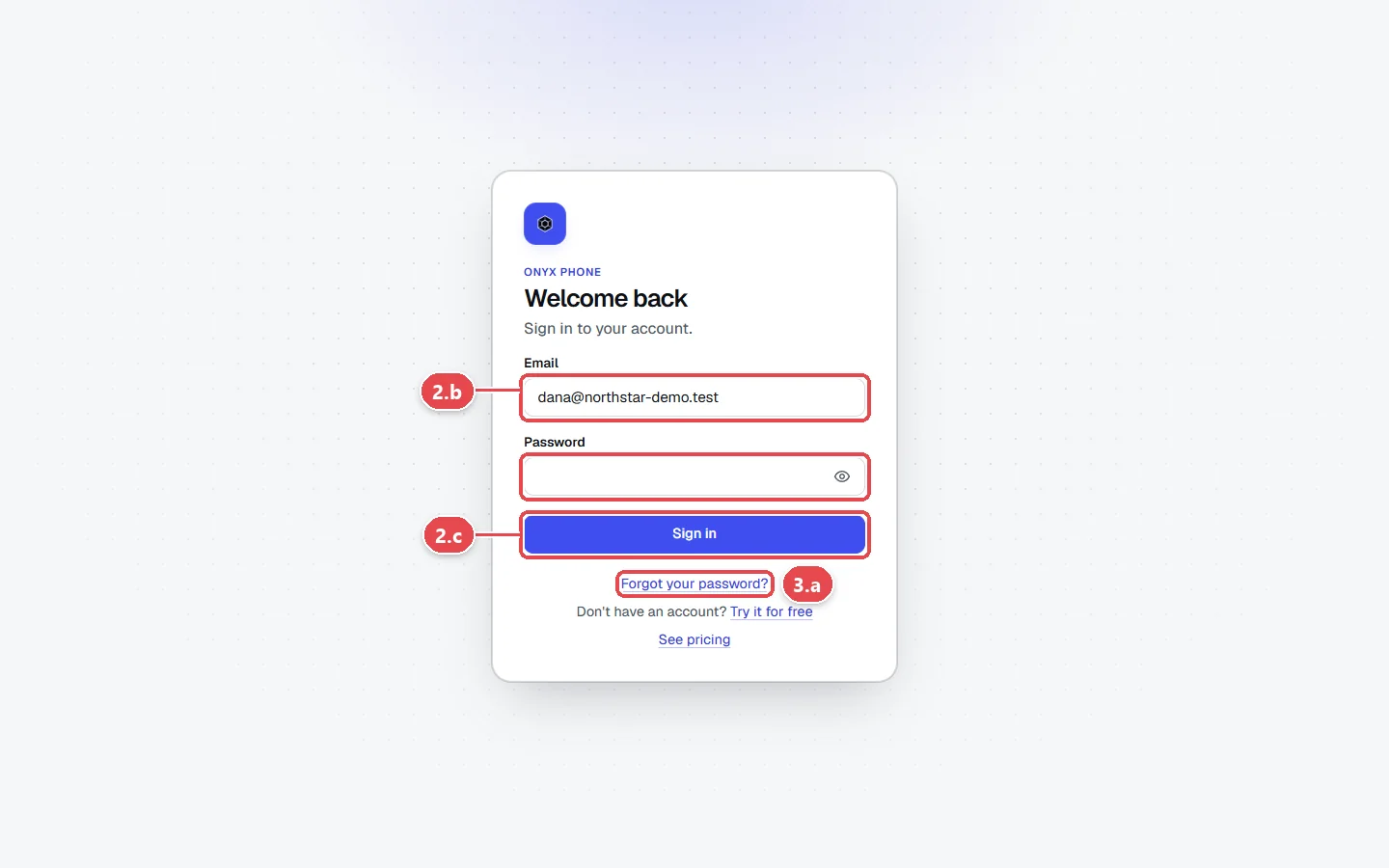
- Step 2.a Go to onyxphone.io/login, or click Sign in at the top right of any page on onyxphone.io.
- Step 2.b Type your email in Email and your password in Password.
- Step 2.c Click Sign in. You land on your Home page.
Step 3. Reset a password you forgot
- Step 3.a On the sign-in page, click Forgot your password?.
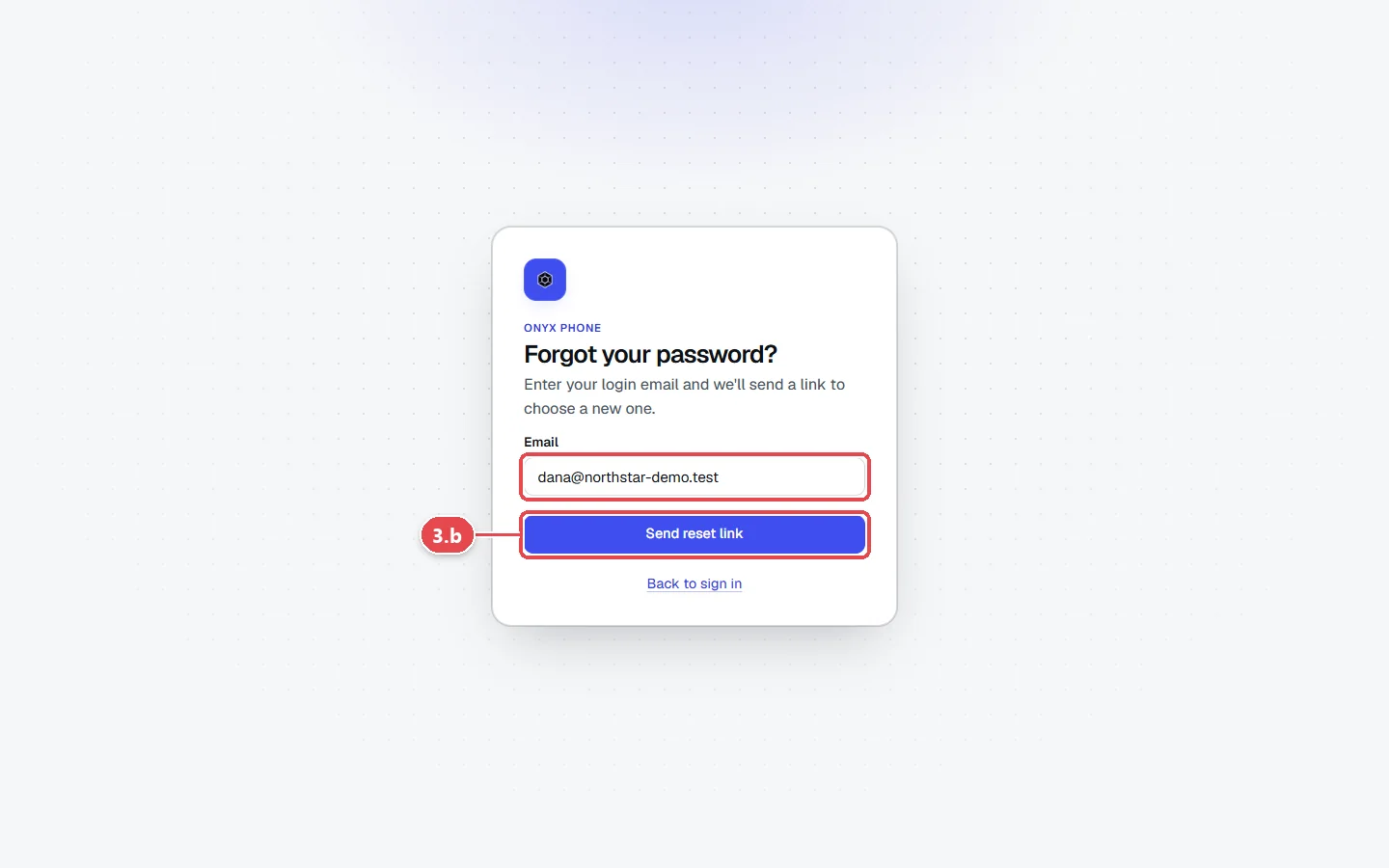
- Step 3.b Type your email and click Send reset link.
- Step 3.c Open the email from Onyx Phone and click the reset link.
- Step 3.d Choose a new password and save it. Your other browsers and phones are signed out, so sign in again there with the new password.
Tip: In the phone app, tap Forgot password? under Sign in to start the same reset.
Step 4. Change your password
- Step 4.a Click your initials at the top right of the screen, then click My account, then Edit profile.
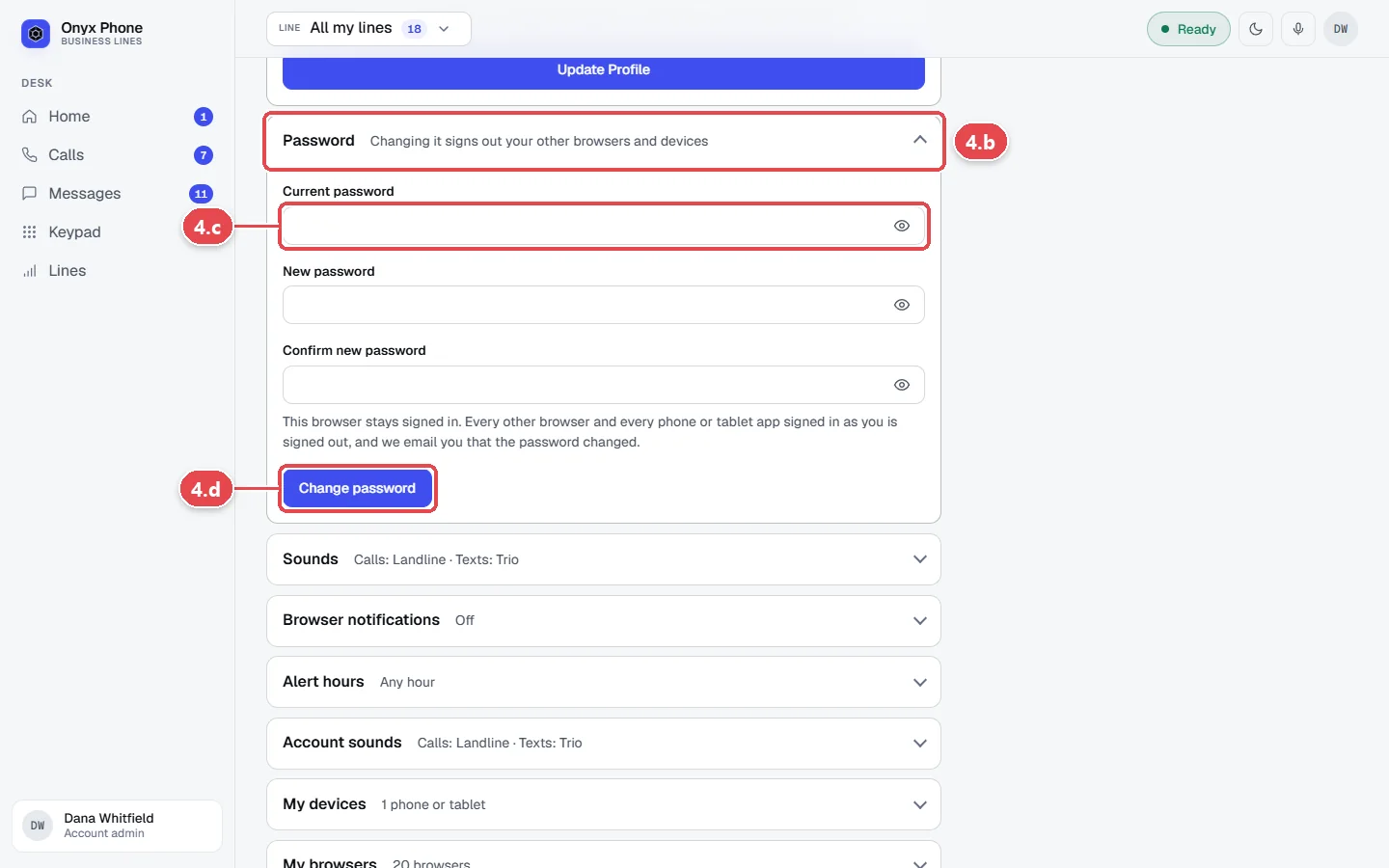
- Step 4.b Click Password to open it.
- Step 4.c Type your current password, then your new password twice.
- Step 4.d Click Change password. Your other browsers and devices are signed out.
Step 5. Sign out
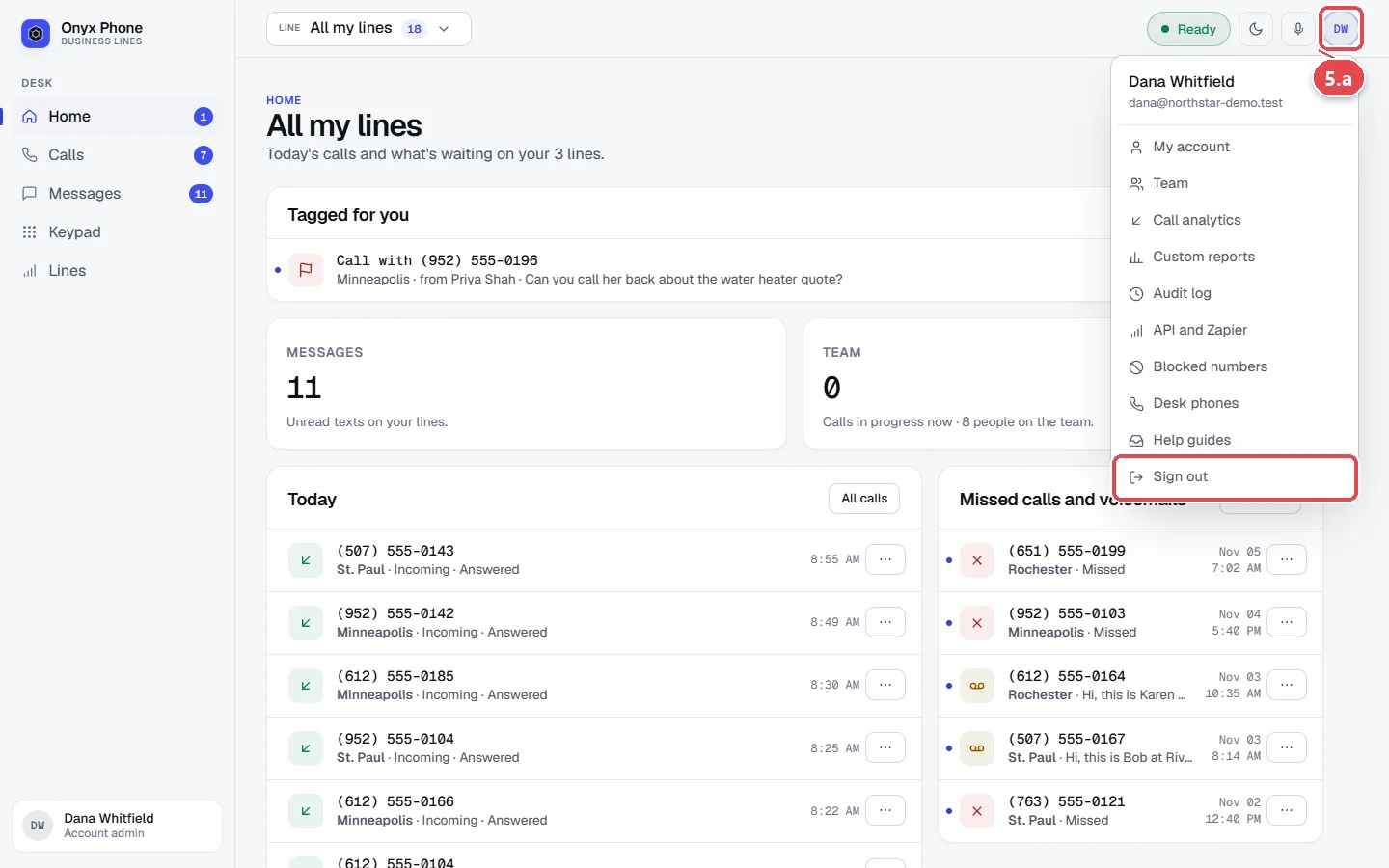
- Step 5.a On the web, click your initials at the top right of the screen, then click Sign out at the bottom of the menu.
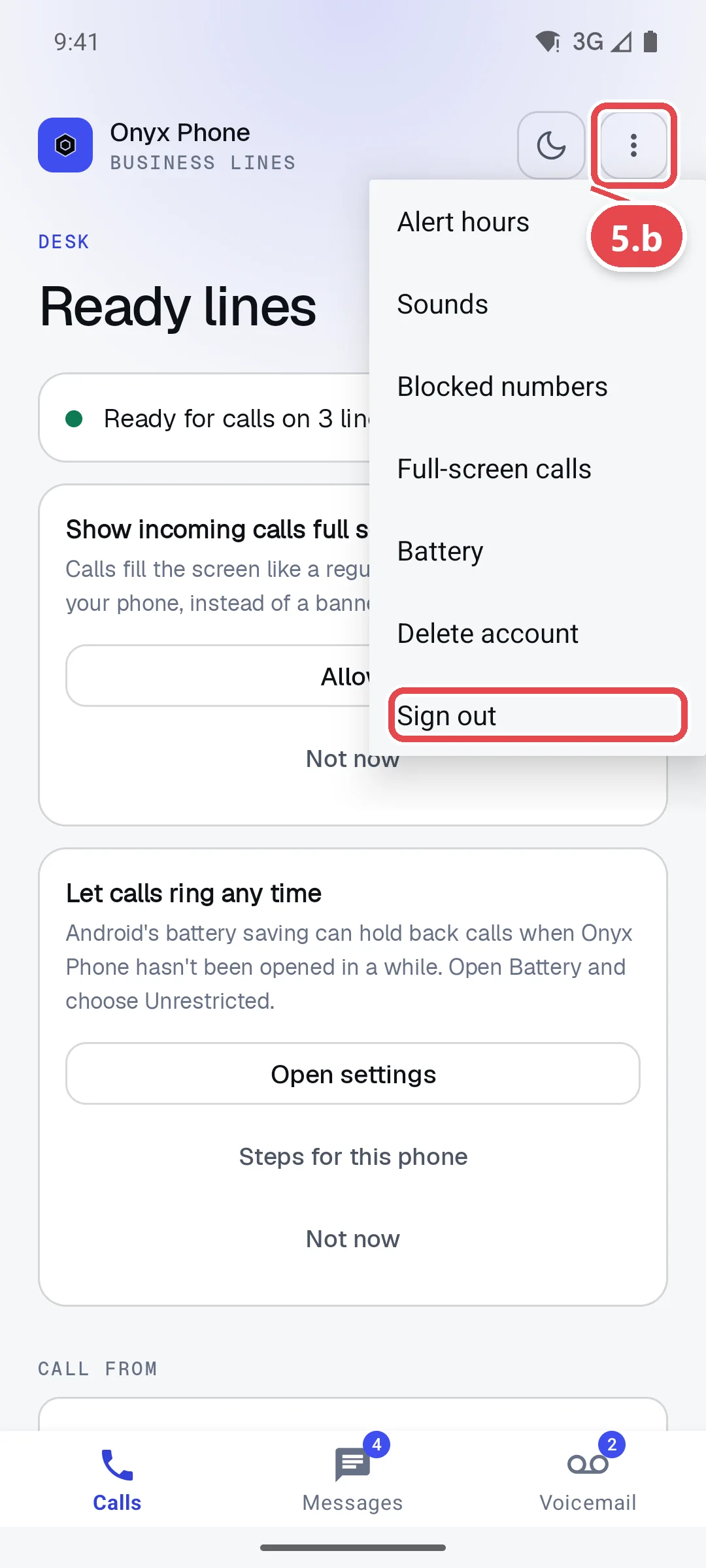
- Step 5.b In the phone app, tap the ⋮ Settings button at the top right, then tap Sign out. The phone stops ringing for your lines until you sign in again.
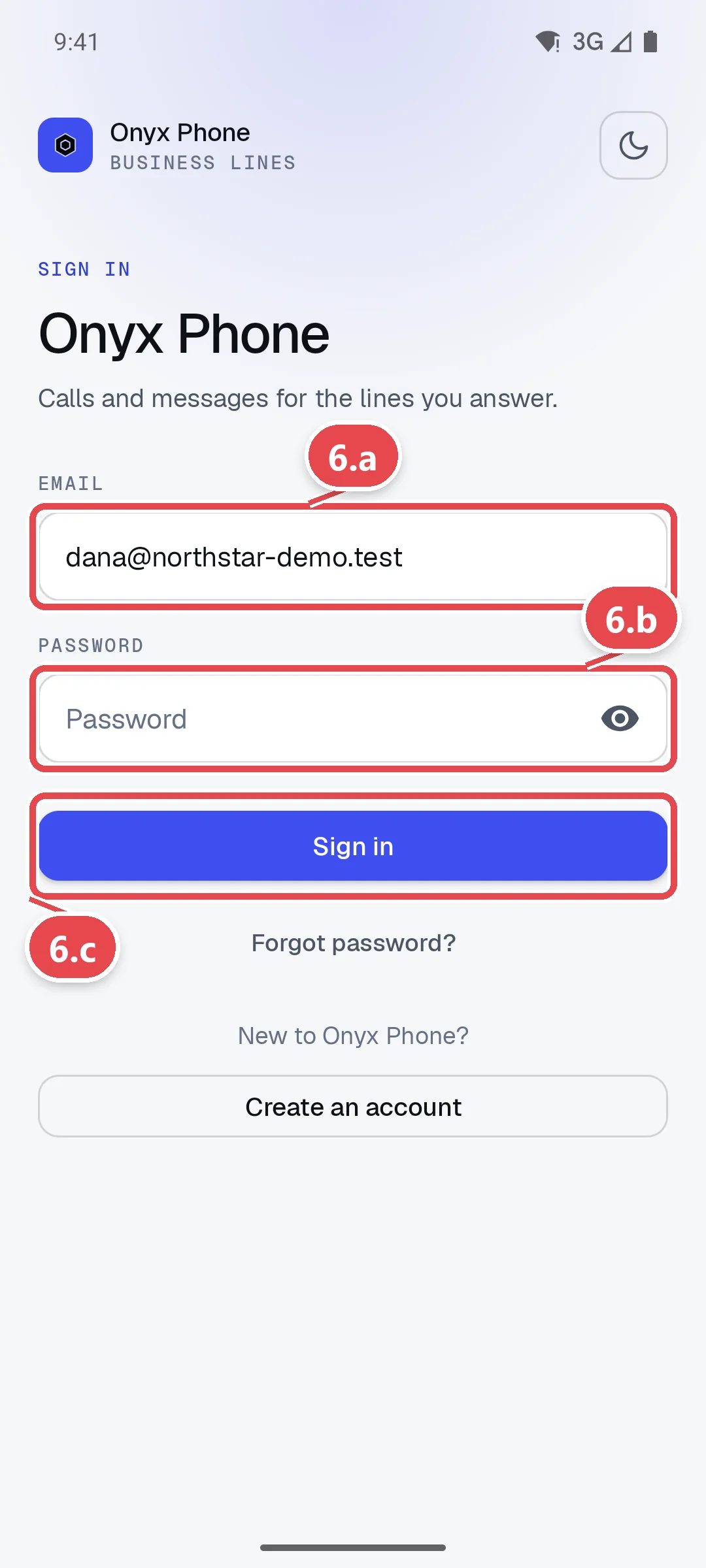
Step 6. Sign in to the phone app
- Step 6.a Open the Onyx Phone app. Tap Email and type your email.
- Step 6.b Tap Password and type your password.
- Step 6.c Tap Sign in.
Questions and answers
Do I need different logins for the website and the app?
No. The same email and password work on the website, the iPhone app, and the Android app.
I didn't get my invitation or reset email. What should I do?
Check your spam or junk folder for an email from Onyx Phone. Invitations last 7 days; ask an admin to click Resend invite on your page in Team. For a reset, request a new link; only the newest one works.
Does changing my password sign me out of my phone?
Yes. Changing or resetting your password signs out your other browsers and phones, so a lost device can't stay signed in. Sign in again with the new password.
How do I change the email I sign in with?
On My profile, change Email Address, type your current password, and click Update Profile. We email a confirmation link to the new address; it becomes your login once you click it. See Your profile, devices, and browsers.
Can I see where I'm signed in?
Yes. My profile lists your phones and tablets under My devices and your browsers under My browsers, with a button to sign each one out.
Related guides
- How to update your profile and sign out of devices and browsersChange your name, email, and voicemail greeting in Onyx Phone, and see every phone and browser signed in as you, with a button to sign each one out.
- How to set up and use the Onyx Phone app on iPhone and AndroidInstall the Onyx Phone app on iPhone or Android, sign in, check your lines are ready, allow full-screen calls, and find the tabs and Settings menu.
- How to invite teammates and choose which lines they answerInvite teammates to Onyx Phone by email or in bulk, choose the lines each person answers, give extensions, let them call each other, or remove someone.
- How to find your way around the Onyx Phone web appA tour of the Onyx Phone web app: the left menu, switching lines, the Ready light, audio settings, the account menu, and the Home page.
Getting started
- Create a login and pick a plan. Checkout saves a card for the 7-day free trial, and nothing is charged until it ends.
- Confirm your business and its 911 address, and get a local number on the spot. Bringing your own number? You answer on a temporary one while it moves over, for free.
- Choose where calls ring, write what callers hear, invite your team, and register for texting. Then answer in the browser, the iPhone and Android apps, or a desk phone. How it works has the details.
Screens change as we improve Onyx Phone; we last checked this guide on November 6, 2026. The screenshots show a made-up business. Markdown version · All guides · Contact us