Guides / Getting started
How to set up and use the Onyx Phone app on iPhone and Android
The Onyx Phone app puts your business lines on your iPhone or Android phone, with the same sign-in, calls, texts, and voicemails as the website. This guide shows you how to install the app, sign in, check that your lines are ready to ring, allow full-screen calls, and find everything in the tabs and the Settings menu. The iPhone and Android apps have the same screens.
Before you start
- Your Onyx Phone email and password, the same ones you use on the website.
- An iPhone, or an Android phone with Android 12 or later.
Step 1. Install the app and sign in
- Step 1.a On your phone, open the App Store (iPhone) or Google Play (Android), search for Onyx Phone, and install it. You can also scan the QR code at onyxphone.io/get-app.
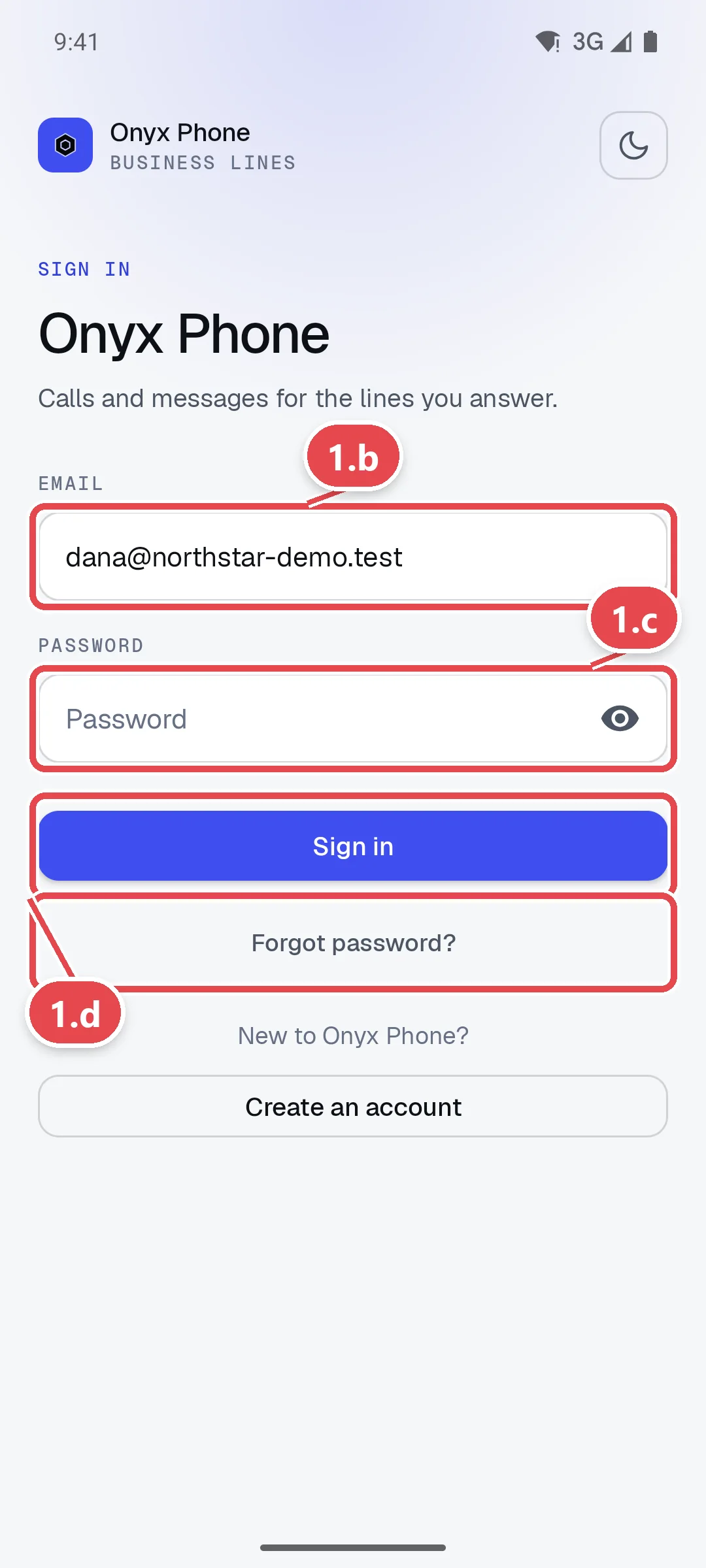
- Step 1.b Open the app. Tap Email and type the email you use for Onyx Phone.
- Step 1.c Tap Password and type your password. Tap the eye button to check what you typed.
- Step 1.d Tap Sign in. If you forgot your password, tap Forgot password? to get a reset email.
- Step 1.e When the phone asks, allow Onyx Phone to use the microphone and send notifications. Calls can't ring or connect without them.
Step 2. Check that your lines are ready
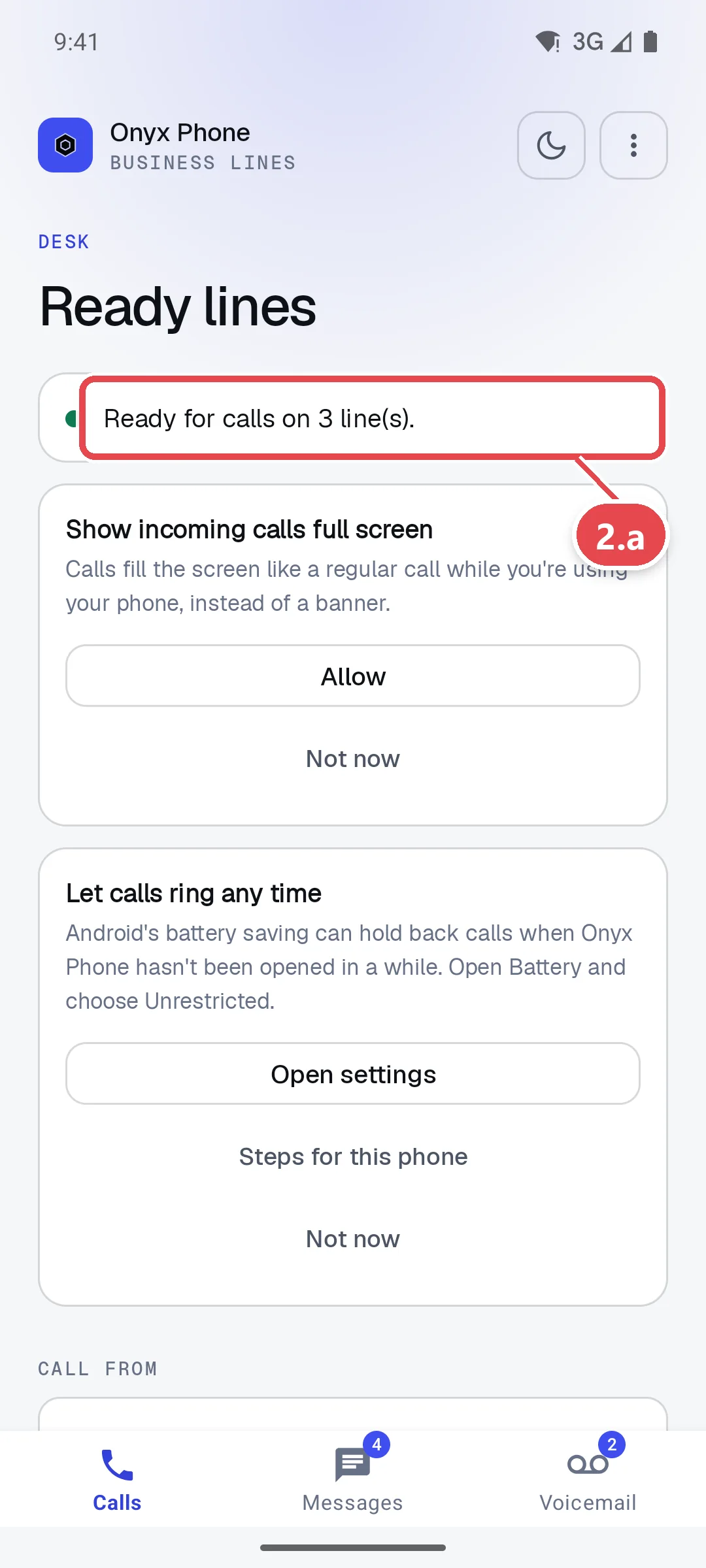
- Step 2.a Look at the top of the Calls tab. A green dot with Ready for calls means calls to your lines will ring this phone, even when the app is closed.
- Step 2.b If the dot is yellow or red, read the message next to it. It says what's missing, such as a permission, and pull down on the screen to check again after fixing it.
Step 3. Let calls fill the screen and ring any time
Android asks for two extra settings so business calls ring like regular phone calls. Cards on the Calls tab walk you through them.
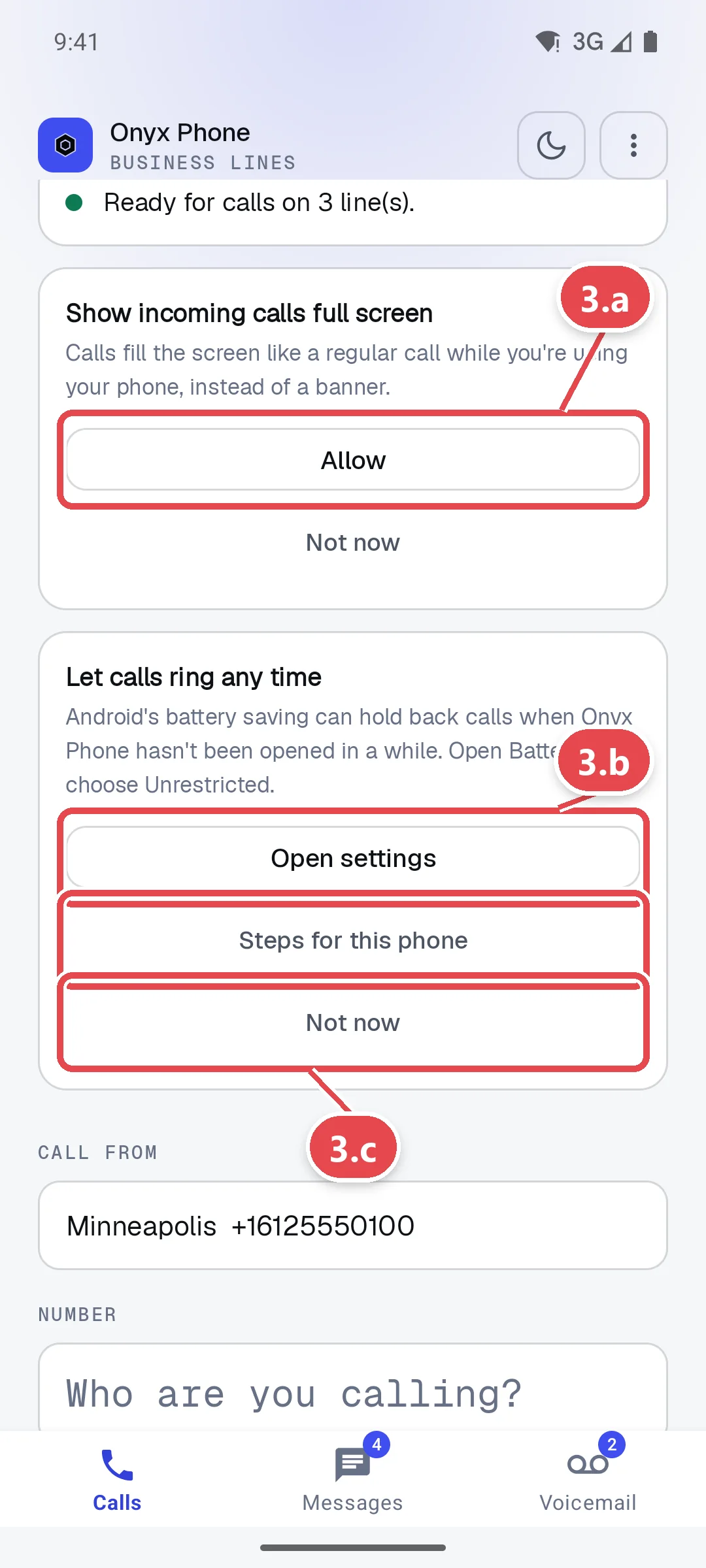
- Step 3.a On the Show incoming calls full screen card, tap Allow, then turn on the setting Android opens and tap back. Calls then fill the screen instead of showing as a small banner.
- Step 3.b On the Let calls ring any time card, tap Open settings and choose Unrestricted battery use, so Android doesn't hold back calls when the app hasn't been opened in a while. Tap Steps for this phone for instructions for your phone's maker.
- Step 3.c Tap Not now to hide a card for now, or Don't show again to hide it for good.
Tip: For every setting, phone by phone, see Set up the Android app or Set up the iPhone app.
Step 4. Find your way around
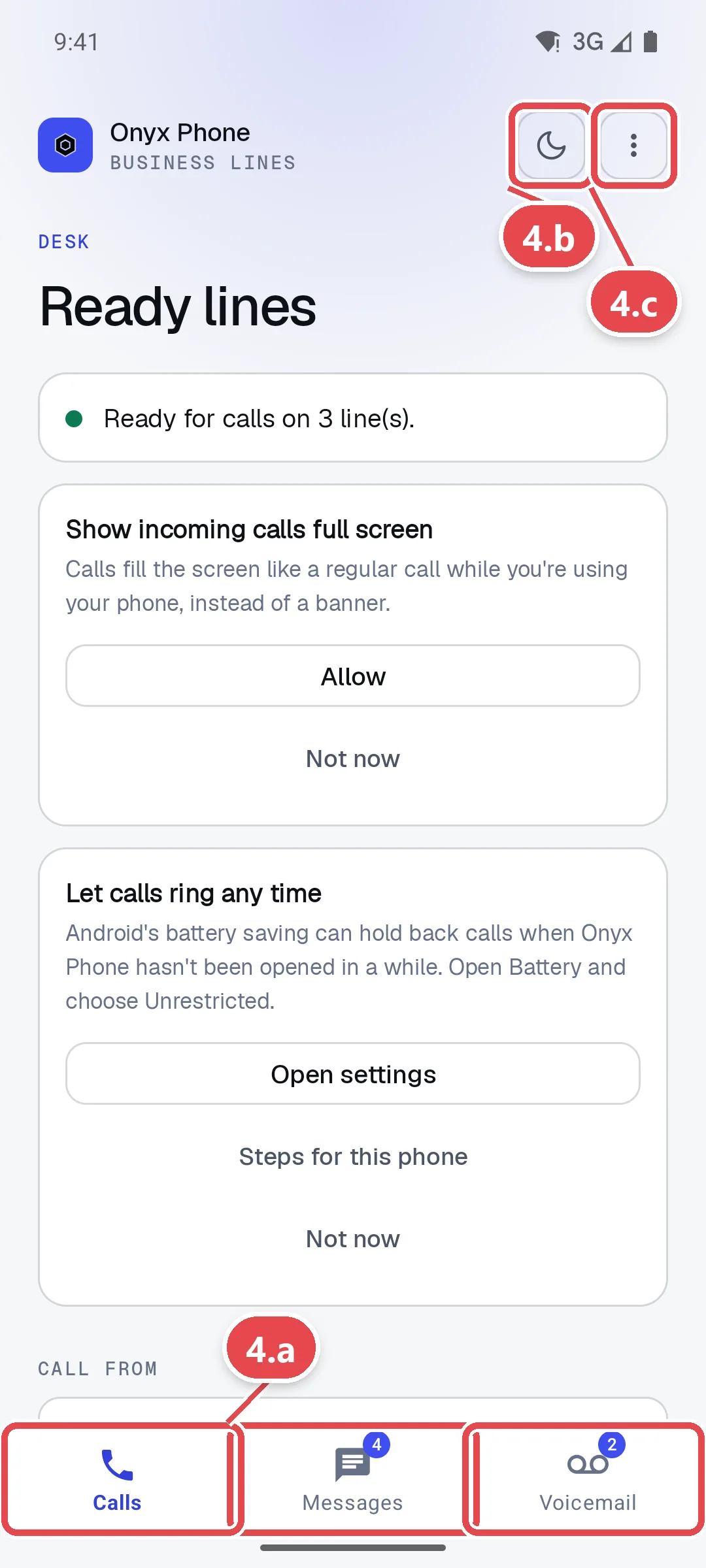
- Step 4.a Use the tabs at the bottom of the screen. Calls places calls and shows recent calls, Messages has your text conversations, and Voicemail has your voicemails. Red numbers count what's new.
- Step 4.b Tap the moon or sun button at the top right to switch between the dark and light theme.
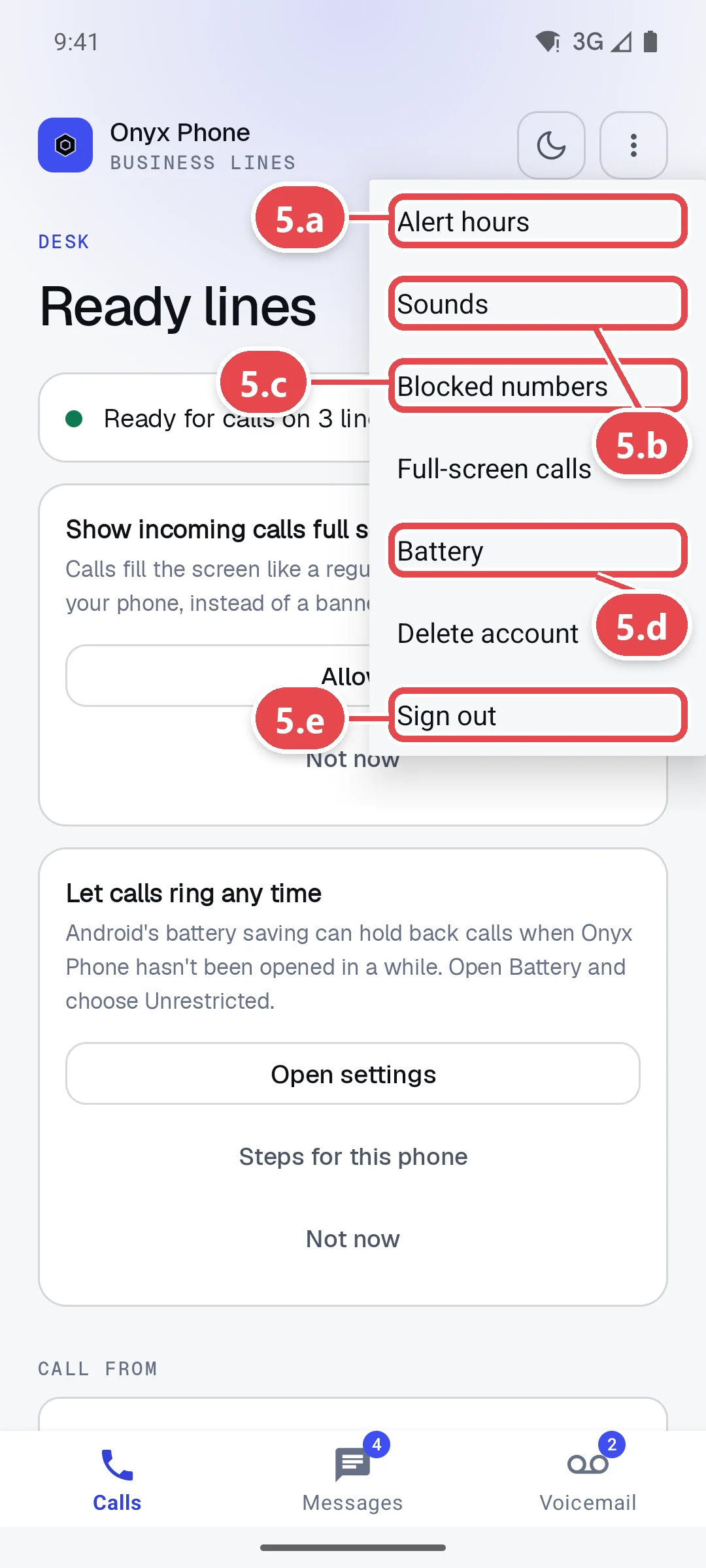
- Step 4.c Tap the ⋮ Settings button at the top right to open the menu.
Step 5. Use the Settings menu
- Step 5.a Tap Alert hours to choose when calls ring you. See Alert hours.
- Step 5.b Tap Sounds to choose your ring and text tone. See Sounds and notifications.
- Step 5.c Tap Blocked numbers to block spam callers. See Block numbers.
- Step 5.d On Android, tap Full-screen calls or Battery to open those phone settings again.
- Step 5.e Tap Delete account for how to delete your login, or Sign out to sign out of the app on this phone.
Questions and answers
Do I need a separate login for the phone app?
No. Sign in with the same email and password you use on the website. There's no server address or code to enter.
Will calls ring when the app is closed?
Yes, once the line shows Ready for calls. Calls arrive by push notification and ring full screen even when the phone is locked. On Android, allow full-screen calls and unrestricted battery use so the phone doesn't hold calls back.
Does the app use my personal phone number?
No. Calls and texts use your business lines' numbers. Your personal number is never shown to customers.
Is the iPhone app the same as the Android app?
Yes. Both have the Calls, Messages, and Voicemail tabs and the same Settings menu, so this guide's screens apply to both.
Does the app work over Wi-Fi?
Yes. Calls work over Wi-Fi or mobile data. If the connection drops, a banner says so and the app reconnects on its own.
Can I use the app on more than one phone?
Yes. Sign in on each phone or tablet; all of them ring. You can see and remove them on My profile on the website, under My devices.
Related guides
- How to make and answer business calls in the Onyx Phone appMake and answer business calls on iPhone or Android: answer or decline, then mute, keypad, speaker, hold, swap, merge, add someone, and transfer.
- How to text customers from the Onyx Phone appText customers from your business number on iPhone or Android. Pick a line, search, start a text, send photos, call back, block, or delete a conversation.
- How to listen to, return, and delete business voicemailsCheck business voicemail on the web, iPhone, or Android: play messages, read transcripts, call back, mark them returned, and delete or restore them.
- How to set your alert hours so business calls ring only when you're workingChoose when business calls ring you and texts alert you in Onyx Phone. Set weekly hours, custom hours per line, or any hour, on web, iPhone, or Android.
Getting started
- Create a login and pick a plan. Checkout saves a card for the 7-day free trial, and nothing is charged until it ends.
- Confirm your business and its 911 address, and get a local number on the spot. Bringing your own number? You answer on a temporary one while it moves over, for free.
- Choose where calls ring, write what callers hear, invite your team, and register for texting. Then answer in the browser, the iPhone and Android apps, or a desk phone. How it works has the details.
Screens change as we improve Onyx Phone; we last checked this guide on November 6, 2026. The screenshots show a made-up business. Markdown version · All guides · Contact us