Guides / Team and your profile
How to update your profile and sign out of devices and browsers
My profile holds everything about you in Onyx Phone. This guide shows you how to change your name and the email you sign in with, set a personal voicemail greeting, and see each phone, tablet, and browser signed in to your account, with when it last rang and a button to sign it out.
Step 1. Open My profile
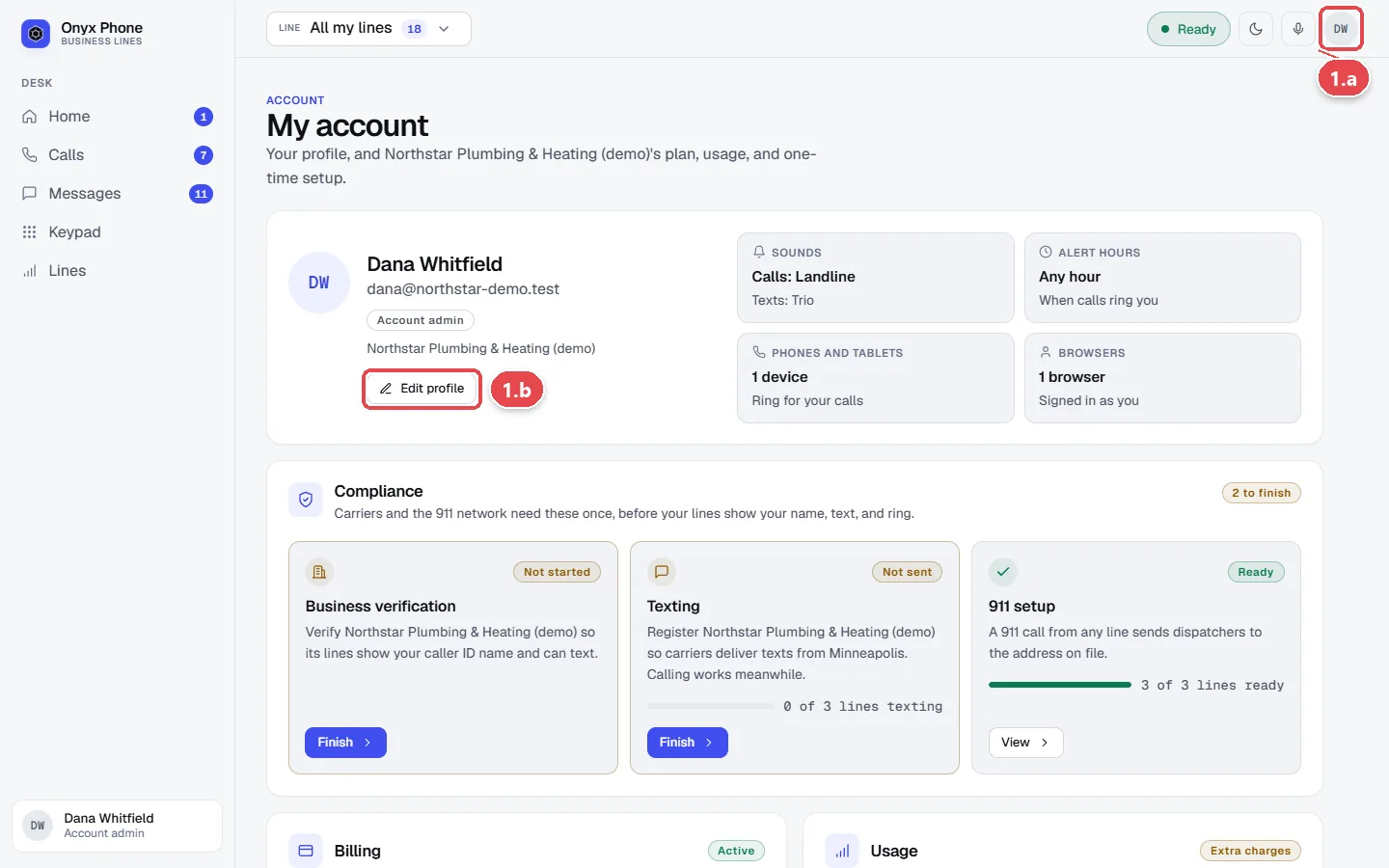
- Step 1.a Click your initials at the top right of the screen, then click My account.
- Step 1.b Click Edit profile. My profile opens with its sections folded; click Open all to open them all.
Step 2. Change your name, email, and voicemail greeting
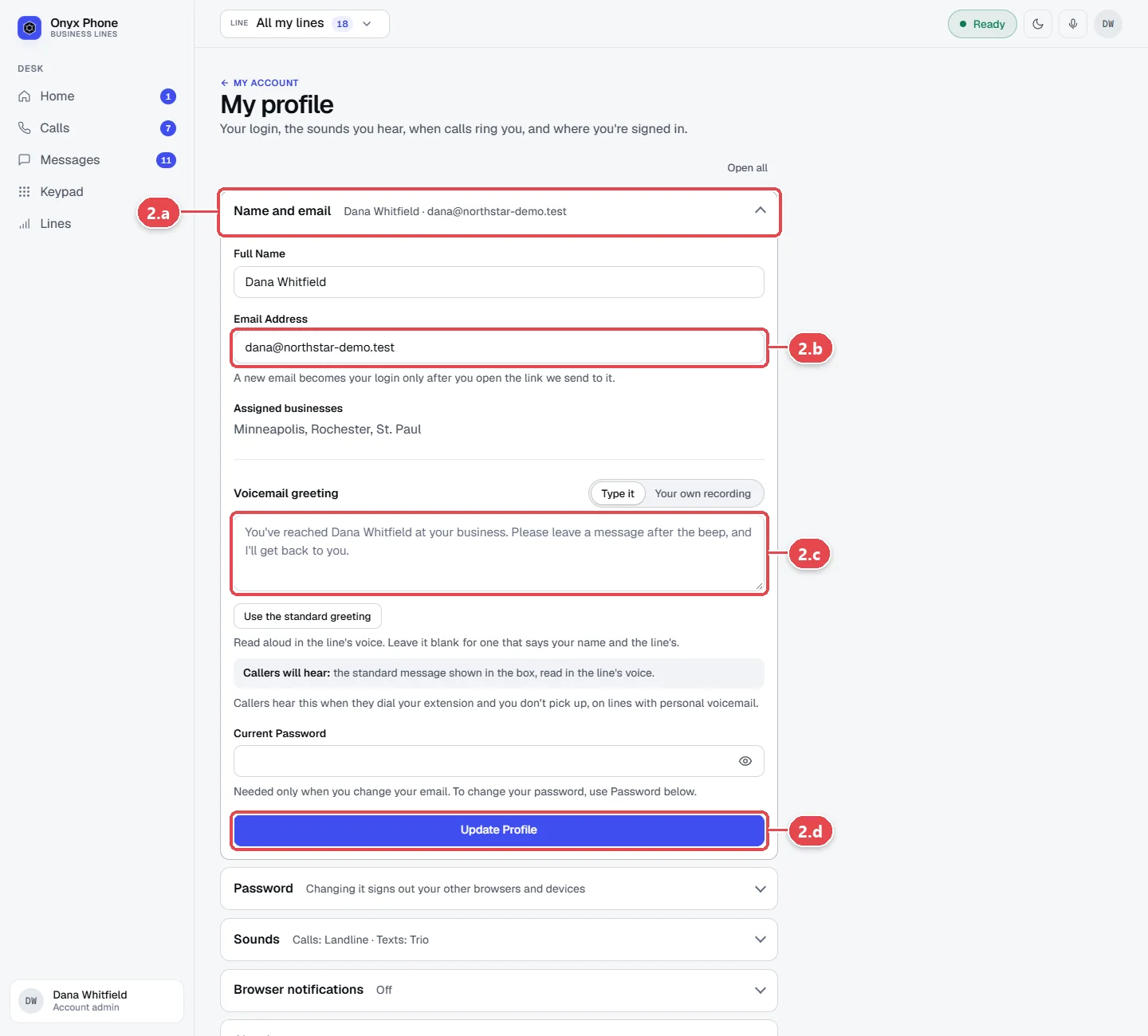
- Step 2.a Click Name and email.
- Step 2.b Change Full Name or Email Address as needed.
- Step 2.c Under Voicemail greeting, choose Type it and type what callers hear when a call rings only you, or choose Your own recording. Click Use the standard greeting to go back to the default.
- Step 2.d Type your Current Password and click Update Profile. A new email address becomes your login after you click the confirmation link we send to it.
Step 3. See and remove your phones and tablets
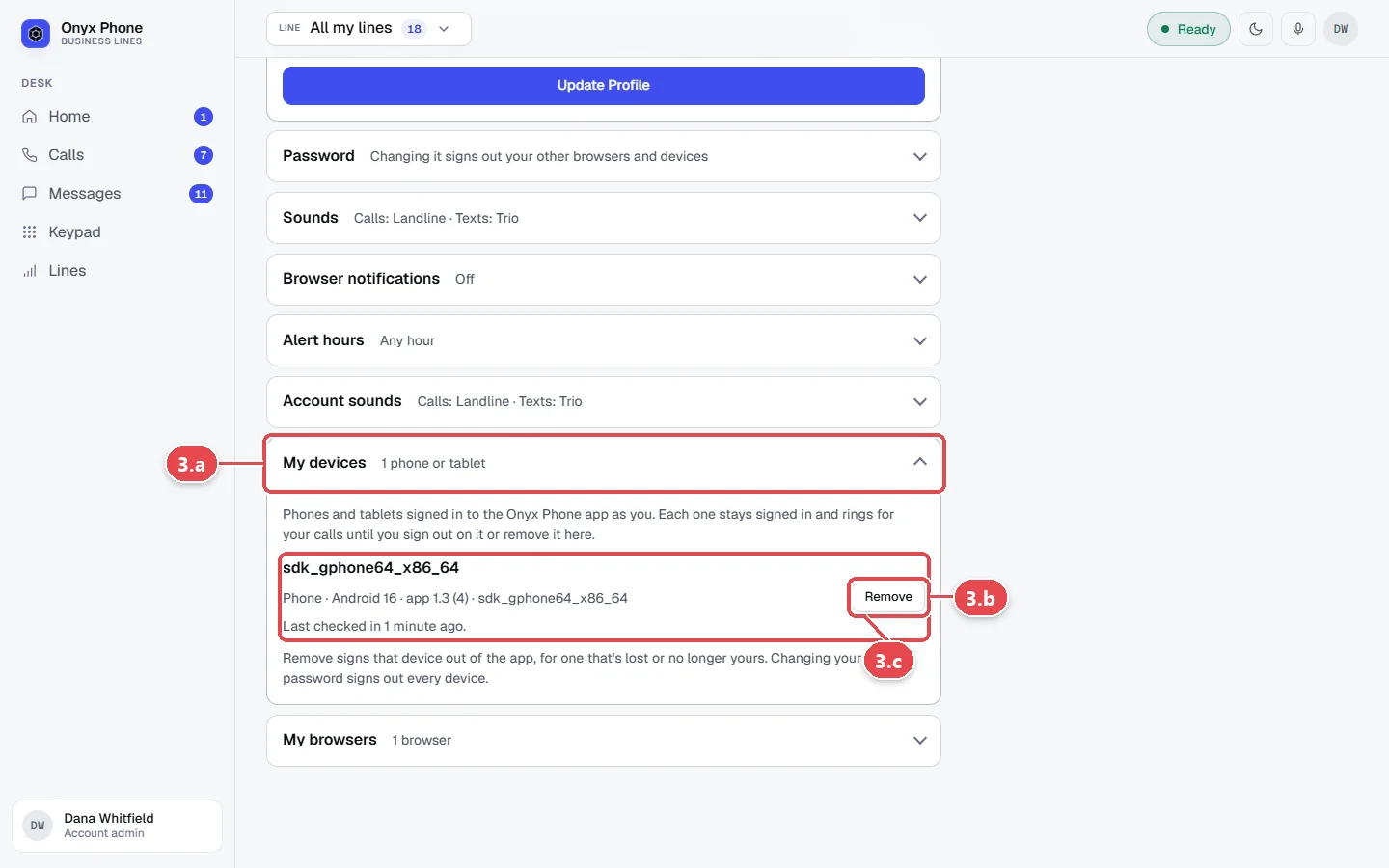
- Step 3.a Click My devices.
- Step 3.b Read each device's name, system, app version, when it last rang, and anything that stops it ringing.
- Step 3.c Click Remove next to a device you no longer use. It's signed out of Onyx Phone and stops ringing.
Step 4. Sign out of other browsers
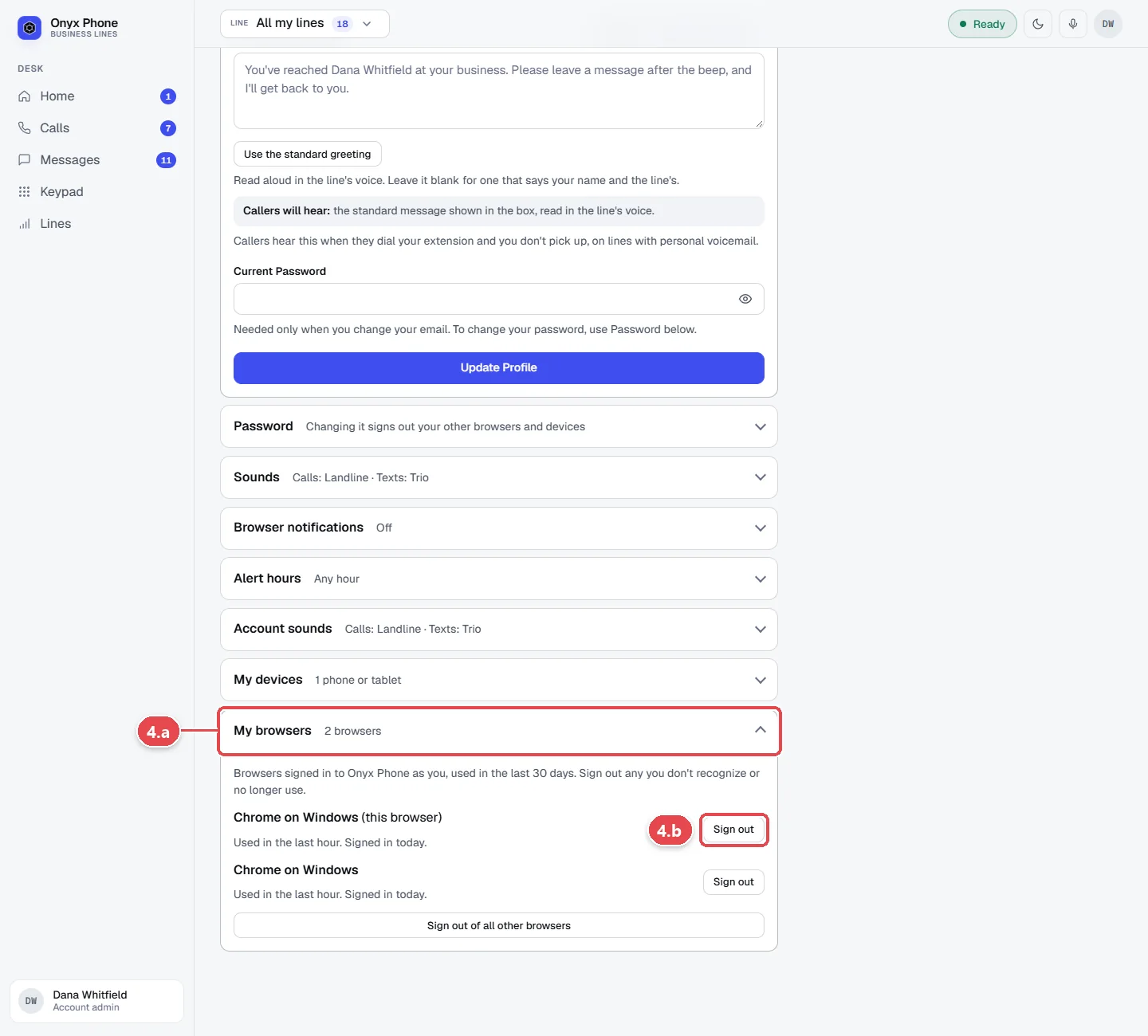
- Step 4.a Click My browsers to see every browser signed in as you.
- Step 4.b Click Sign out next to a browser to sign it out. When you're signed in on more than one, Sign out of all other browsers signs out every browser but this one.
Questions and answers
When should I remove a device?
When you replace or lose a phone, or stop using a tablet. A removed device stops ringing and is signed out at once.
Why does my email change need confirming?
So nobody can move your login to an address they control. The old address also gets a note about the change.
Where are my sounds and alert hours?
Also on My profile, under Sounds and Alert hours. See Sounds and notifications and Alert hours.
Can an admin sign out my devices?
Yes. Admins can sign out a teammate's phones and browsers from the teammate's page in Team.
Related guides
- How to sign in, sign out, and reset your Onyx Phone passwordSign in to Onyx Phone on the web, iPhone, or Android with one login, accept a team invitation, reset a forgotten password, change your password, and sign out.
- How to change your ringtone, text tone, and browser notificationsPick your ring and text tone in Onyx Phone, turn on browser pop-up notifications, and set your team's default sounds, on the web, iPhone, or Android.
- How to set your alert hours so business calls ring only when you're workingChoose when business calls ring you and texts alert you in Onyx Phone. Set weekly hours, custom hours per line, or any hour, on web, iPhone, or Android.
- How to use My account to manage your profile, billing, and complianceMy account puts your Onyx Phone profile, devices, billing, usage, and business setup (verification, texting, 911) on one page, with the next step for each.
Getting started
- Create a login and pick a plan. Checkout saves a card for the 7-day free trial, and nothing is charged until it ends.
- Confirm your business and its 911 address, and get a local number on the spot. Bringing your own number? You answer on a temporary one while it moves over, for free.
- Choose where calls ring, write what callers hear, invite your team, and register for texting. Then answer in the browser, the iPhone and Android apps, or a desk phone. How it works has the details.
Screens change as we improve Onyx Phone; we last checked this guide on November 6, 2026. The screenshots show a made-up business. Markdown version · All guides · Contact us