Guides / Texting
How to text customers from the Onyx Phone app
The Messages tab in the Onyx Phone app has every text conversation on your business lines, the same ones your team sees on the website. This guide shows you how to switch lines, search conversations, start a new text, reply with words or photos, call the person, block a number, and delete a conversation on iPhone or Android.
Before you start
- Texting turned on for your account. See Register your business for texting.
Step 1. Open your conversations
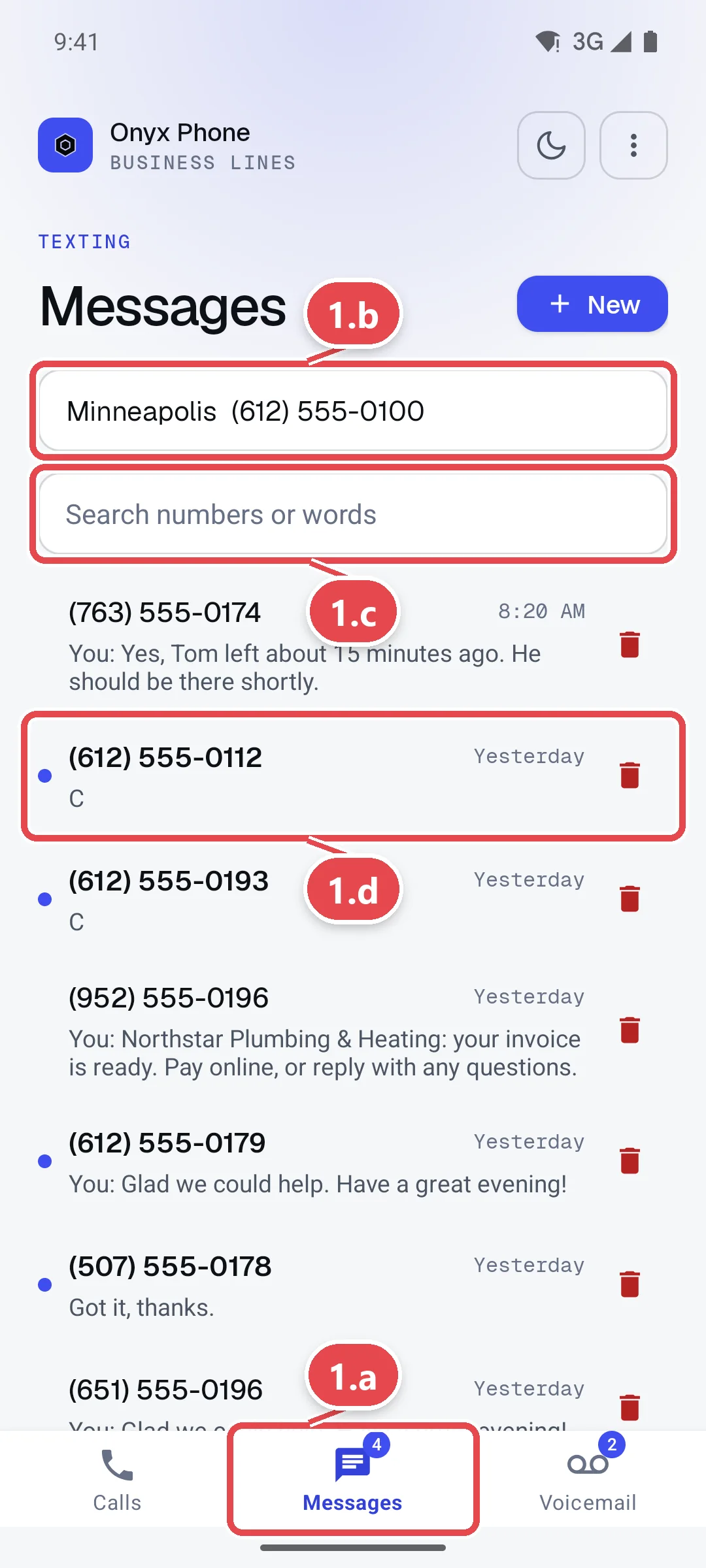
- Step 1.a Tap Messages at the bottom of the app. The red number counts unread texts.
- Step 1.b Tap Line to choose which business line's conversations to see.
- Step 1.c Tap Search numbers or words to find a conversation by phone number or by something said in it.
- Step 1.d Read each row. It shows the number or name, when the last text came, and the start of it. A blue dot marks unread texts.
- Step 1.e Pull the list down to check for new texts.
Step 2. Start a new text
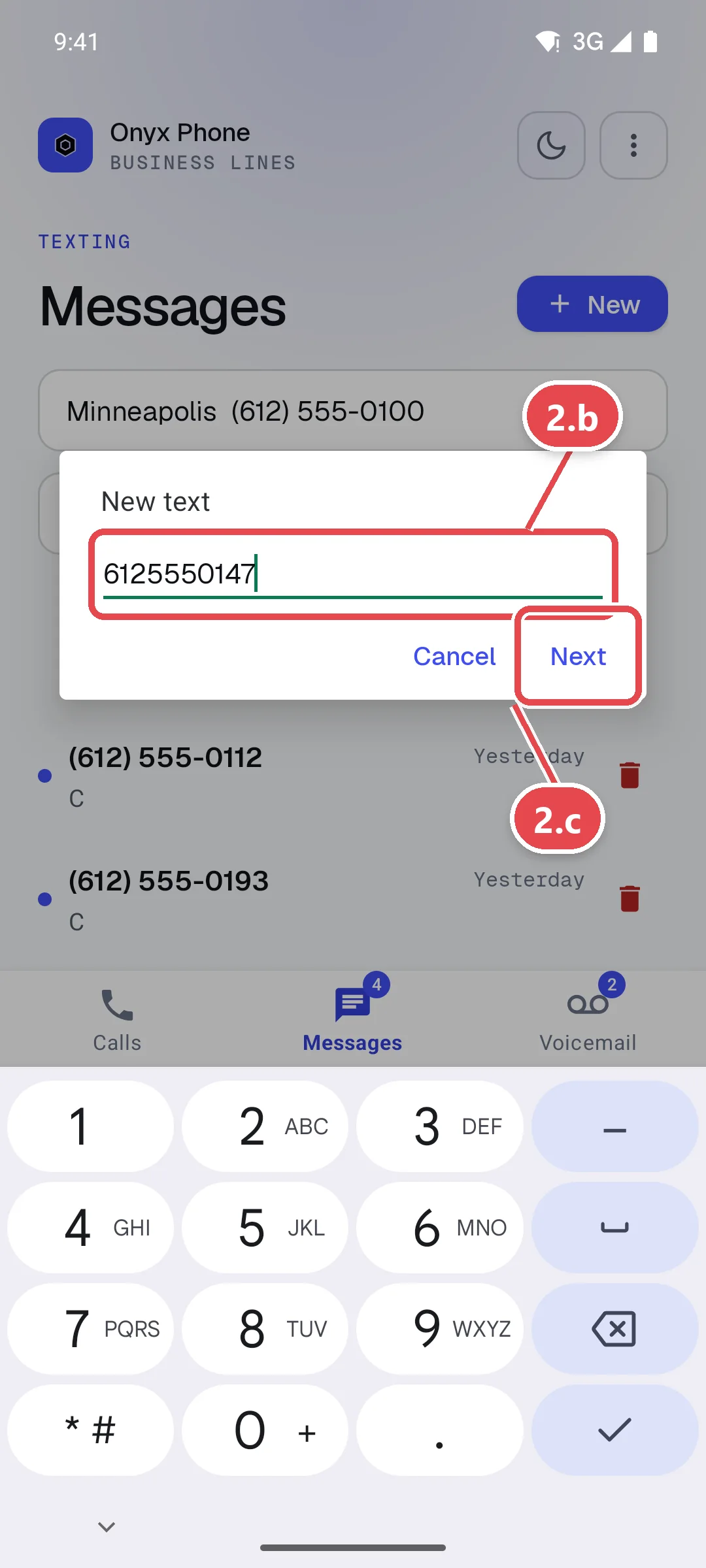
- Step 2.a Tap New at the top right of the Messages tab.
- Step 2.b Type the number in Phone number.
- Step 2.c Tap Next. The conversation opens on the line you picked; type your text and send it.
Step 3. Reply, send photos, call, or block
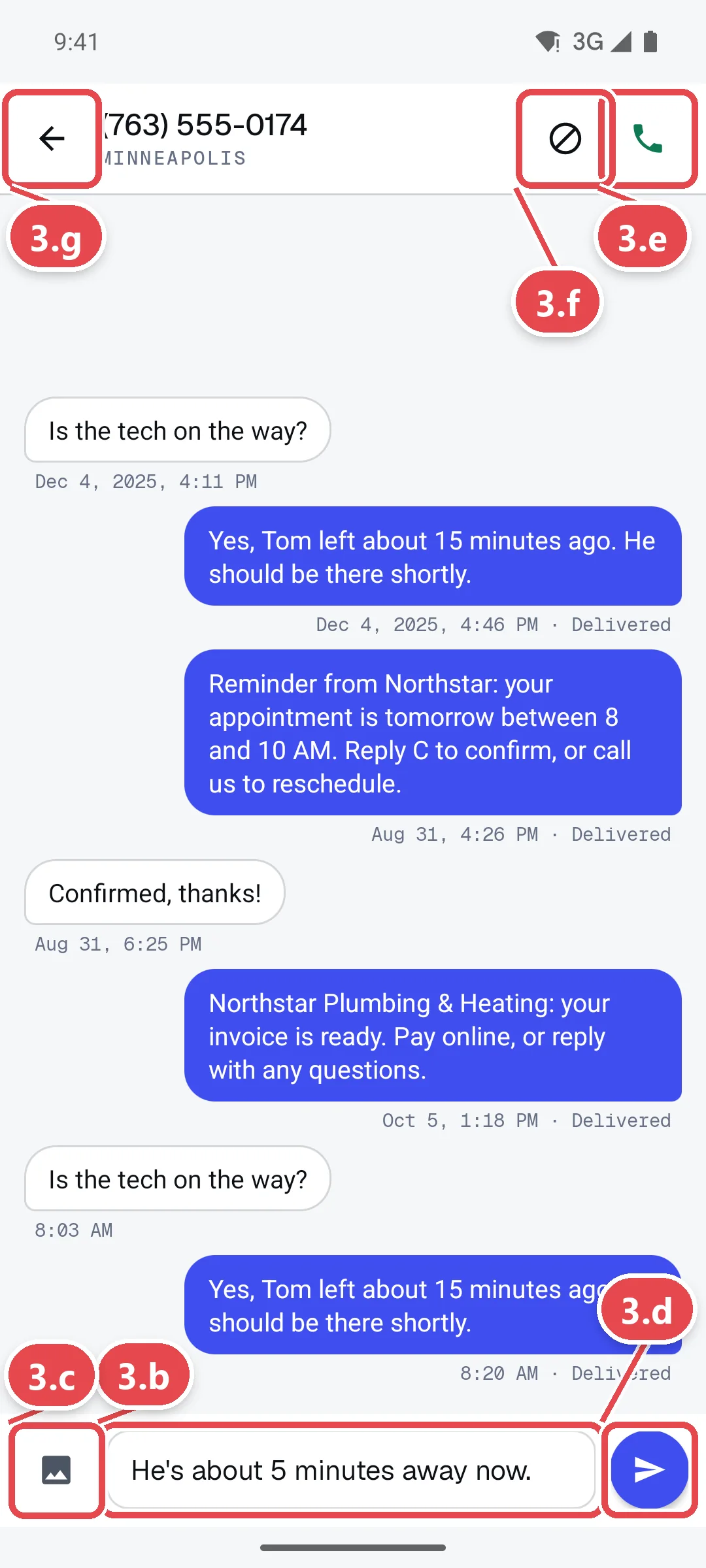
- Step 3.a Tap a conversation to open it. Your texts are on the right; theirs are on the left, with the time and whether each was delivered.
- Step 3.b Tap Text message at the bottom and type your reply.
- Step 3.c Tap the picture button at the bottom left to add photos.
- Step 3.d Tap the send button at the bottom right.
- Step 3.e Tap the phone button at the top right to call this number from the same line.
- Step 3.f Tap the block button at the top to block this number. See Block numbers.
- Step 3.g Tap the back arrow at the top left to go back to your conversations.
Step 4. Delete a conversation
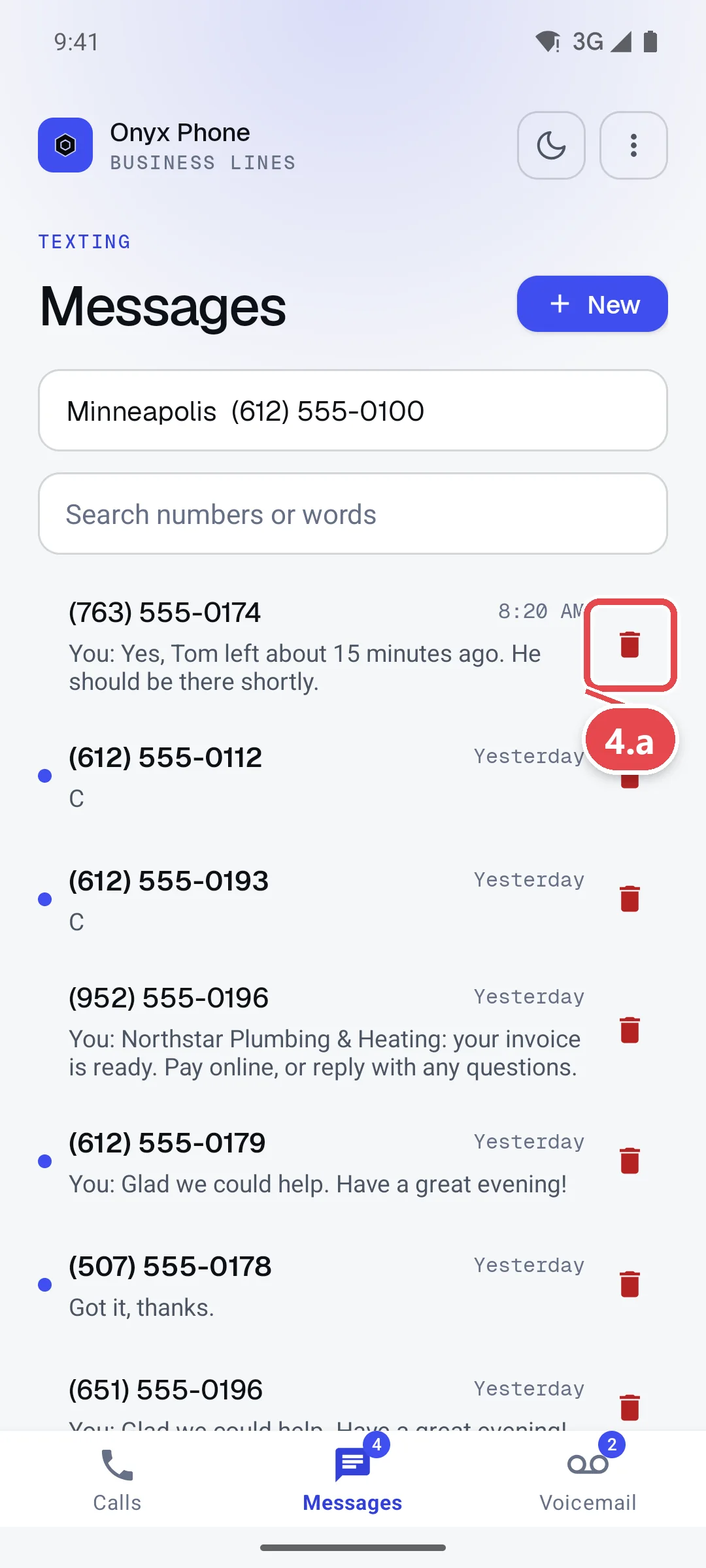
- Step 4.a On the Messages tab, tap the trash button at the right of the conversation, or swipe the conversation to the left.
- Step 4.b Confirm. The conversation leaves Messages for everyone on the line. An admin can restore it from the website; see Deleted texts.
Questions and answers
Do my teammates see the texts I send from the app?
Yes. Texts belong to the line, so everyone assigned to it sees the whole conversation on the website and in their apps, with your name on the texts you sent.
Why does it say texting is off on this line?
Texting needs the carriers' approval of your business's texting registration, which an admin sends from the website. Until it's approved, you can read texts but not send them. See Register your business for texting.
Will I get a notification for new texts?
Yes, during your alert hours, with the text tone you chose in Sounds. Outside your alert hours texts still arrive, quietly. See Alert hours.
Can I text from a different line?
Yes. Tap Line on the Messages tab and choose the line, then start the text. You can text from any line assigned to you.
Why can't I delete a conversation?
An admin may have set texts so only admins can delete them. See Deleted texts.
Related guides
- How to send and receive business texts from your computerText customers from your business number in any browser. Start a text, reply, send photos, mark texts read or unread, and delete or block a number.
- How to set up and use the Onyx Phone app on iPhone and AndroidInstall the Onyx Phone app on iPhone or Android, sign in, check your lines are ready, allow full-screen calls, and find the tabs and Settings menu.
- How to see and restore deleted text conversationsAdmins can see every deleted text conversation on an Onyx Phone line, who deleted it and when, restore it, and choose who may delete texts.
- How to block spam calls and texts on your business numberBlock spam calls and texts on your business lines. Block on one line or all, choose what blocked callers hear, block hidden caller ID, and unblock.
Getting started
- Create a login and pick a plan. Checkout saves a card for the 7-day free trial, and nothing is charged until it ends.
- Confirm your business and its 911 address, and get a local number on the spot. Bringing your own number? You answer on a temporary one while it moves over, for free.
- Choose where calls ring, write what callers hear, invite your team, and register for texting. Then answer in the browser, the iPhone and Android apps, or a desk phone. How it works has the details.
Screens change as we improve Onyx Phone; we last checked this guide on November 6, 2026. The screenshots show a made-up business. Markdown version · All guides · Contact us