Guides / Lines and call routing
How to add a business phone line and choose its number
Each line in Onyx Phone is a business phone number with its own calls, texts, voicemail, settings, and team. This guide shows account admins how to see their lines, add a new line with a local number from the area code they want, set where it's used for 911, and start moving a number they already own instead.
Before you start
- You need to be an account admin. Your plan's number of lines is shown on the page; extra lines are added to your bill.
Step 1. Open your lines
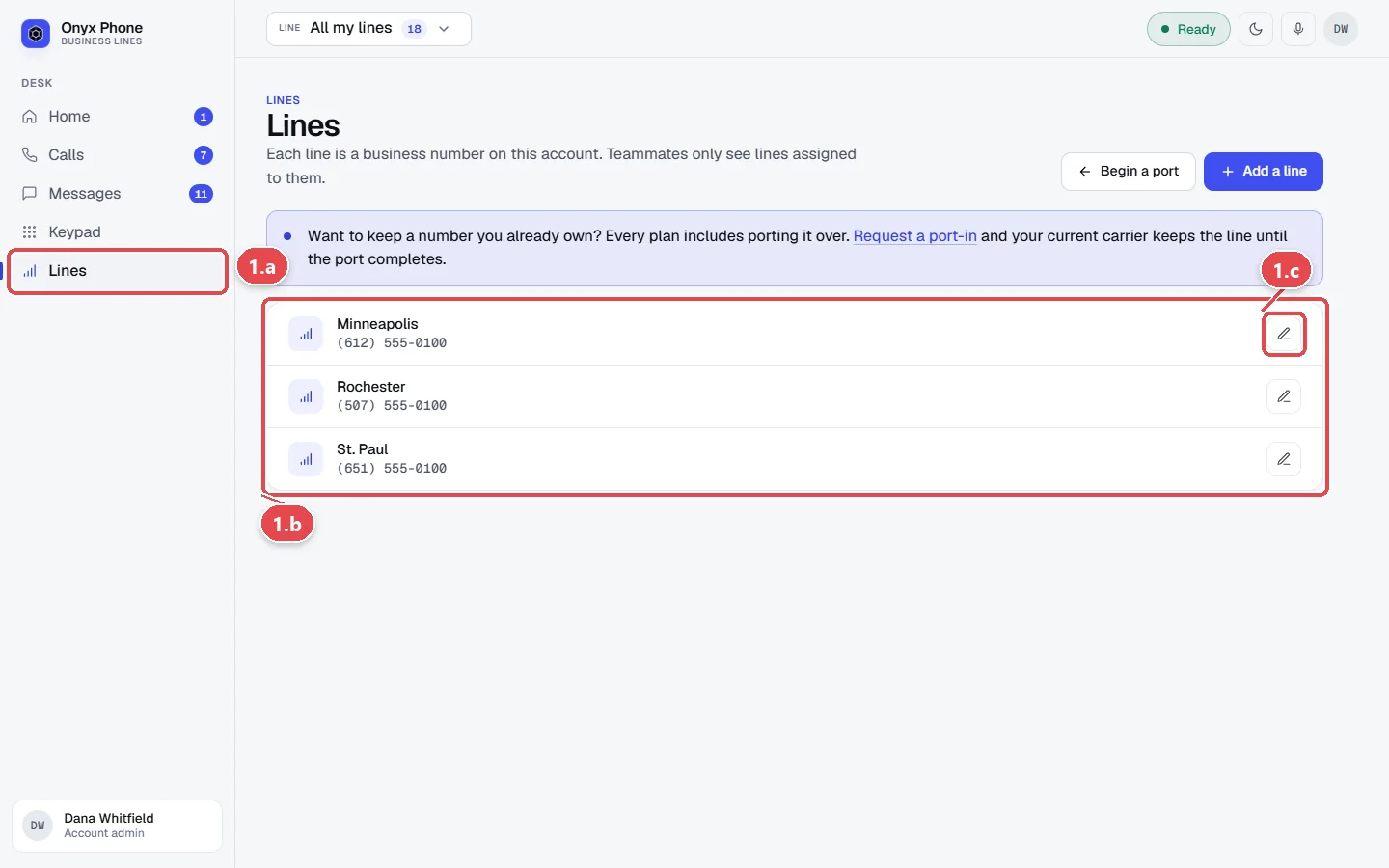
- Step 1.a In the left menu, click Lines.
- Step 1.b Read the list. Each line shows its name, its number, and how it rings.
- Step 1.c Click Edit next to a line to change its settings.
Step 2. Add a line with a new number
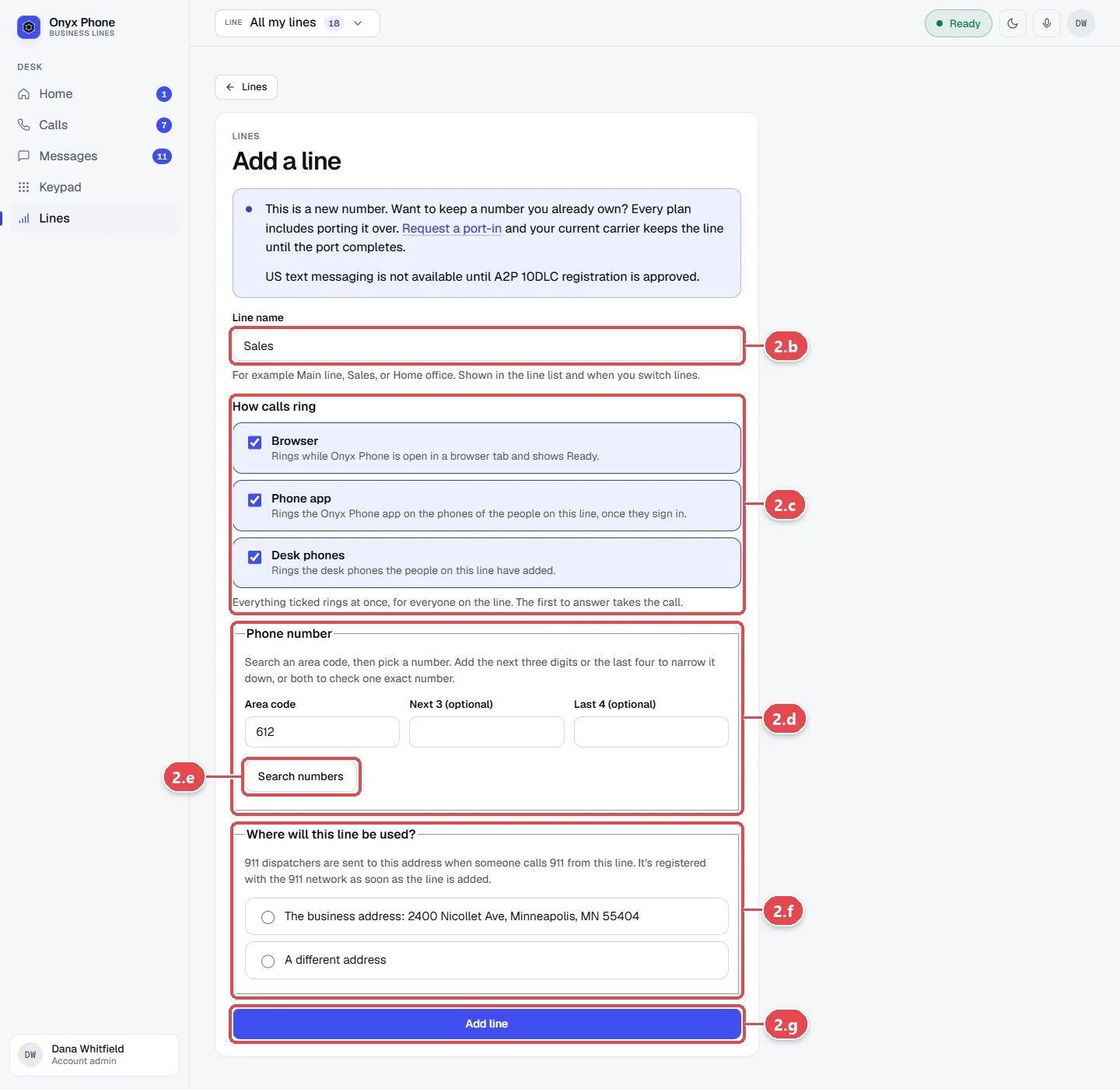
- Step 2.a On Lines, click Add a line at the top right.
- Step 2.b In Line name, type a name your team will recognize, such as Sales or Main line.
- Step 2.c Under How calls ring, tick what should ring for this line, Browser, Phone app, and Desk phones. If your account has more than one business, also choose the business the line belongs to.
- Step 2.d In Area code, type the three-digit area code you want. To narrow it down, type the next three digits in Next 3, the last four in Last 4, or both.
- Step 2.e Click Search numbers, then click the number you want from the list. Each shows its city and state.
- Step 2.f Under the 911 address, choose The business address or A different address where this line is used.
- Step 2.g Click Add line. The number is yours right away; set up how it rings next. See Line settings, ringing, and voicemail.
Step 3. Keep a number you already have
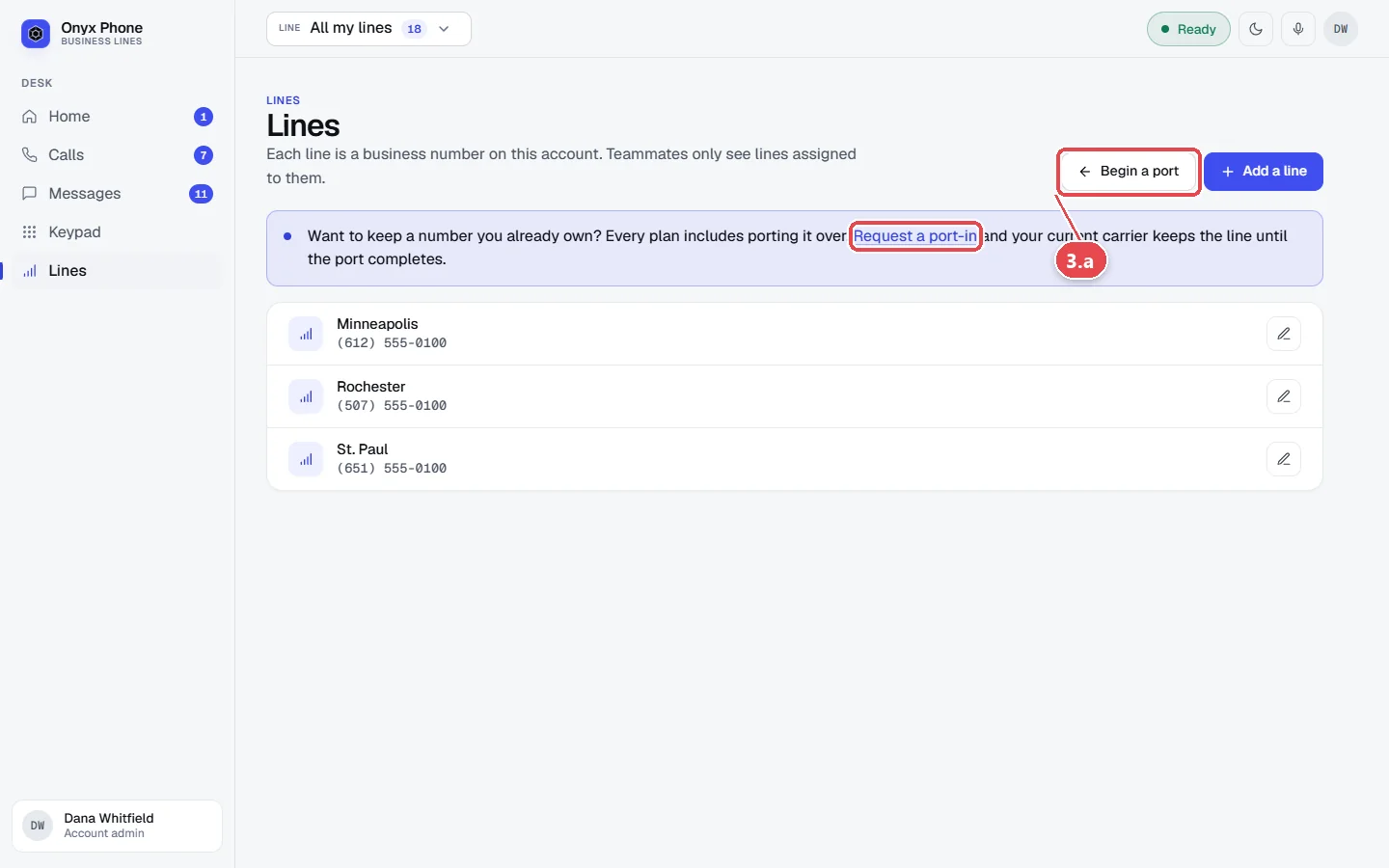
- Step 3.a On Lines, click Begin a port, or on Add a line click Request a port-in.
- Step 3.b Fill in the port request. See Move a number you already have.
Questions and answers
Can I choose any area code?
You can search any US area code. If none are free in that area code, try a nearby one; a number in an overlay area code dials the same locally. See area codes by state.
How many lines does my plan include?
The page shows your plan's included lines and how many you have. More can be added to your bill; see pricing.
Who can answer a new line?
Admins at first. Add teammates to it on Team, or tick it when inviting someone. See Invite and manage teammates.
Can I get a toll-free number?
Contact us for a toll-free line. Toll-free numbers have their own texting verification.
How do I remove a line?
Contact us from the contact page and tell us which line. Removing a line releases its number, so we confirm with you first.
Related guides
- How to set how a business line rings and what voicemail saysSet how an Onyx Phone line rings: browsers, phone apps, and desk phones, ring time, the greeting, voicemail greeting, and voicemail by email.
- How to move your existing business number to Onyx PhoneMove your business number to Onyx Phone from AT&T, Verizon, Comcast, or any carrier: fill in the port request, upload a bill, sign, and track it.
- How to register a 911 address for each business phone lineRegister a 911 address for each Onyx Phone line so dispatchers know where to go, accept the 911 notice, and check each line's 911 status.
- How to invite teammates and choose which lines they answerInvite teammates to Onyx Phone by email or in bulk, choose the lines each person answers, give extensions, let them call each other, or remove someone.
Getting started
- Create a login and pick a plan. Checkout saves a card for the 7-day free trial, and nothing is charged until it ends.
- Confirm your business and its 911 address, and get a local number on the spot. Bringing your own number? You answer on a temporary one while it moves over, for free.
- Choose where calls ring, write what callers hear, invite your team, and register for texting. Then answer in the browser, the iPhone and Android apps, or a desk phone. How it works has the details.
Screens change as we improve Onyx Phone; we last checked this guide on November 6, 2026. The screenshots show a made-up business. Markdown version · All guides · Contact us