Guides / Lines and call routing
How to move your existing business number to Onyx Phone
You can keep the business number your customers already know. Porting moves it from your current carrier to Onyx Phone, usually 3 to 7 business days after the paperwork is signed, and every plan includes it. This guide shows account admins how to start a port, choose which line the number replaces, enter the account details exactly as your carrier has them, upload a bill, and follow the port until it's done.
Before you start
- You need to be an account admin.
- Have a recent bill from your current carrier, your account number there, and the transfer PIN if your carrier uses one. Each carrier's steps are in our porting guides.
- Keep your current service active until the port completes, or the number can be lost.
Step 1. Start a port
- Step 1.a In the left menu, click Lines, then click Begin a port.
- Step 1.b Read How moving a number works for what happens and when.
- Step 1.c Click Start a port at the top right.
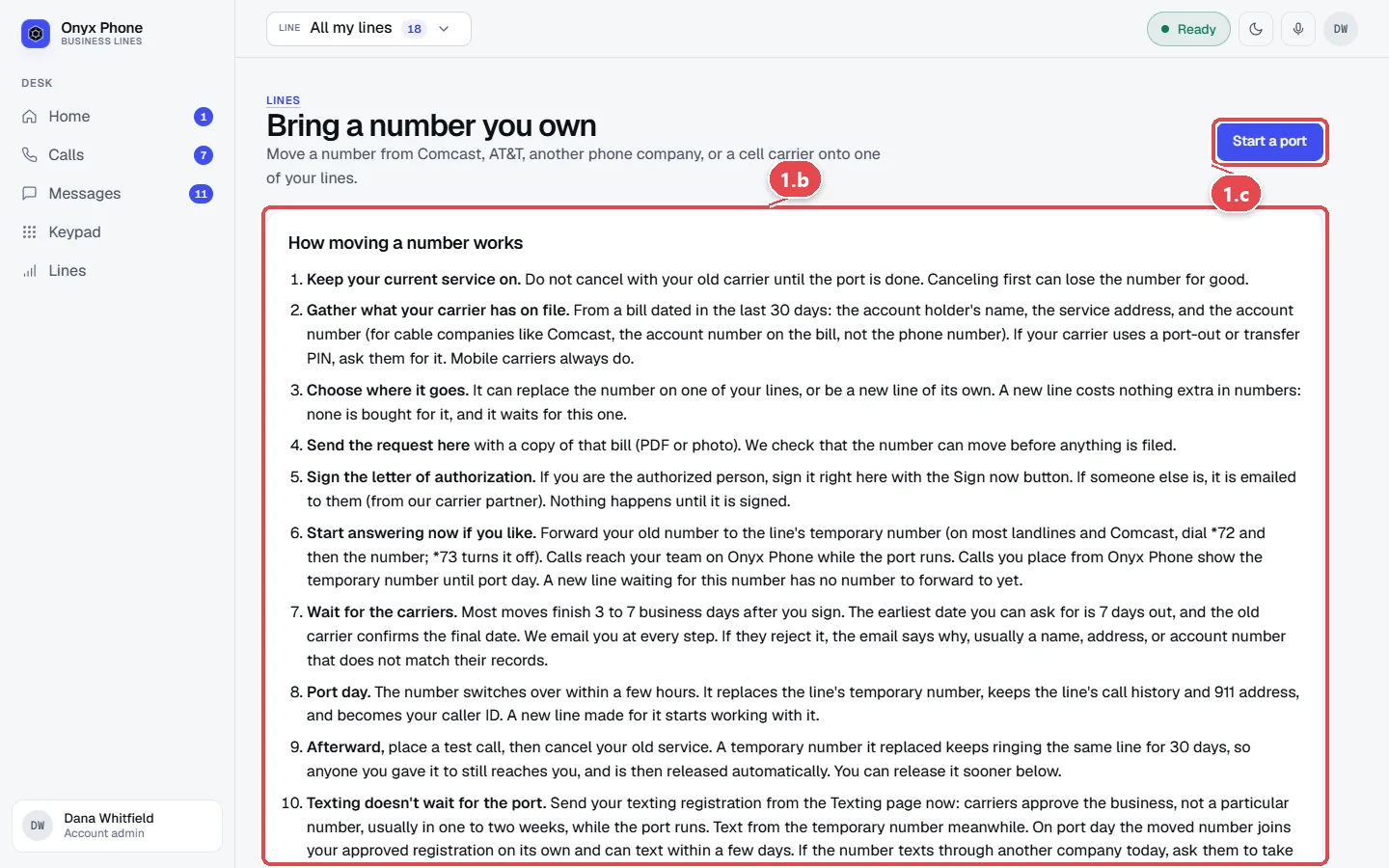
Step 2. Choose the number and where it goes
- Step 2.a In Number to move, type the number you're bringing over.
- Step 2.b Choose which line it goes to. Replace the number on a line swaps in your number on port day, keeping that line's history and settings. Make it a new line adds a line when the request is sent.
- Step 2.c Choose your Current carrier. Click See the guide for your carrier for where to find your account number and PIN.
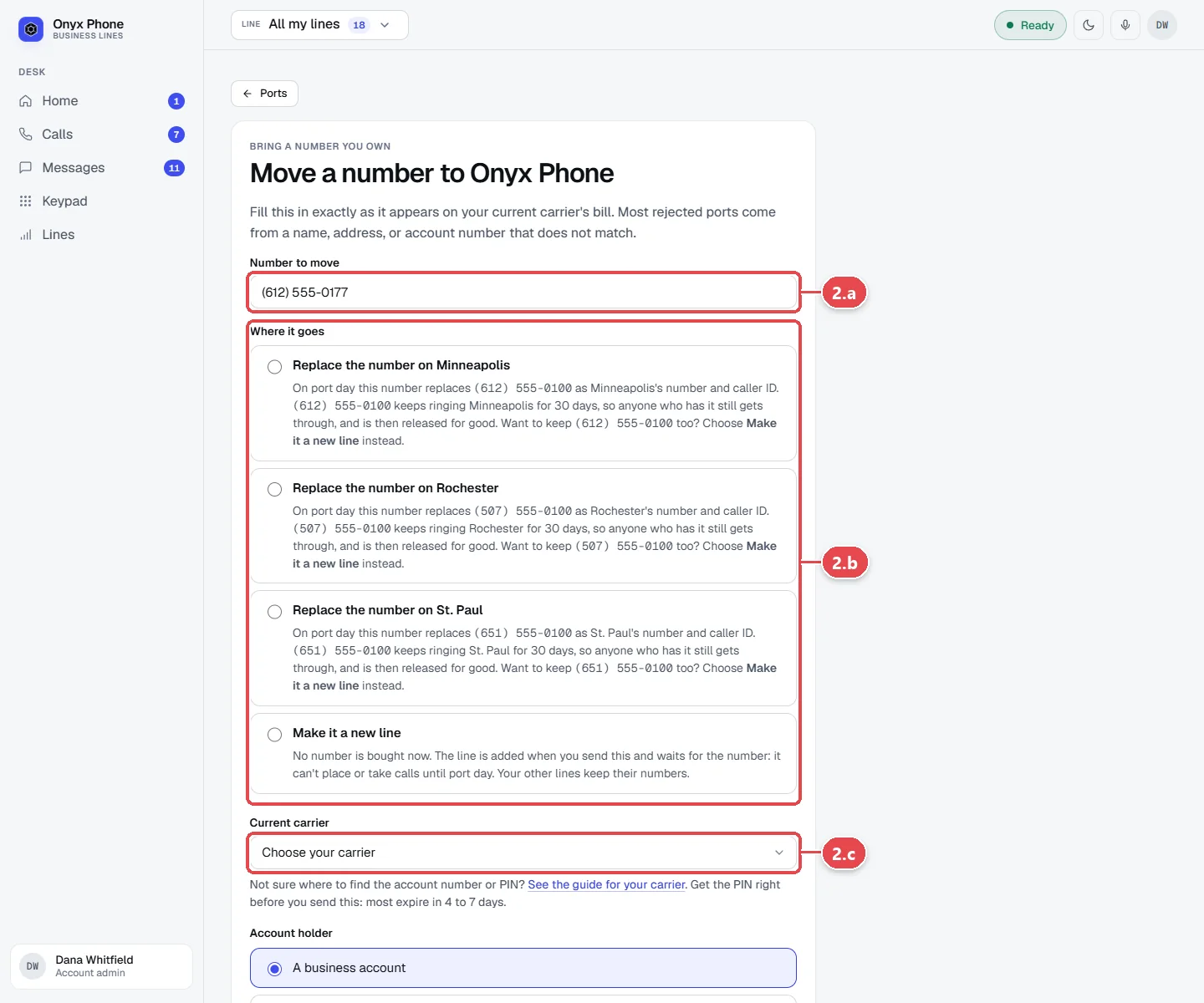
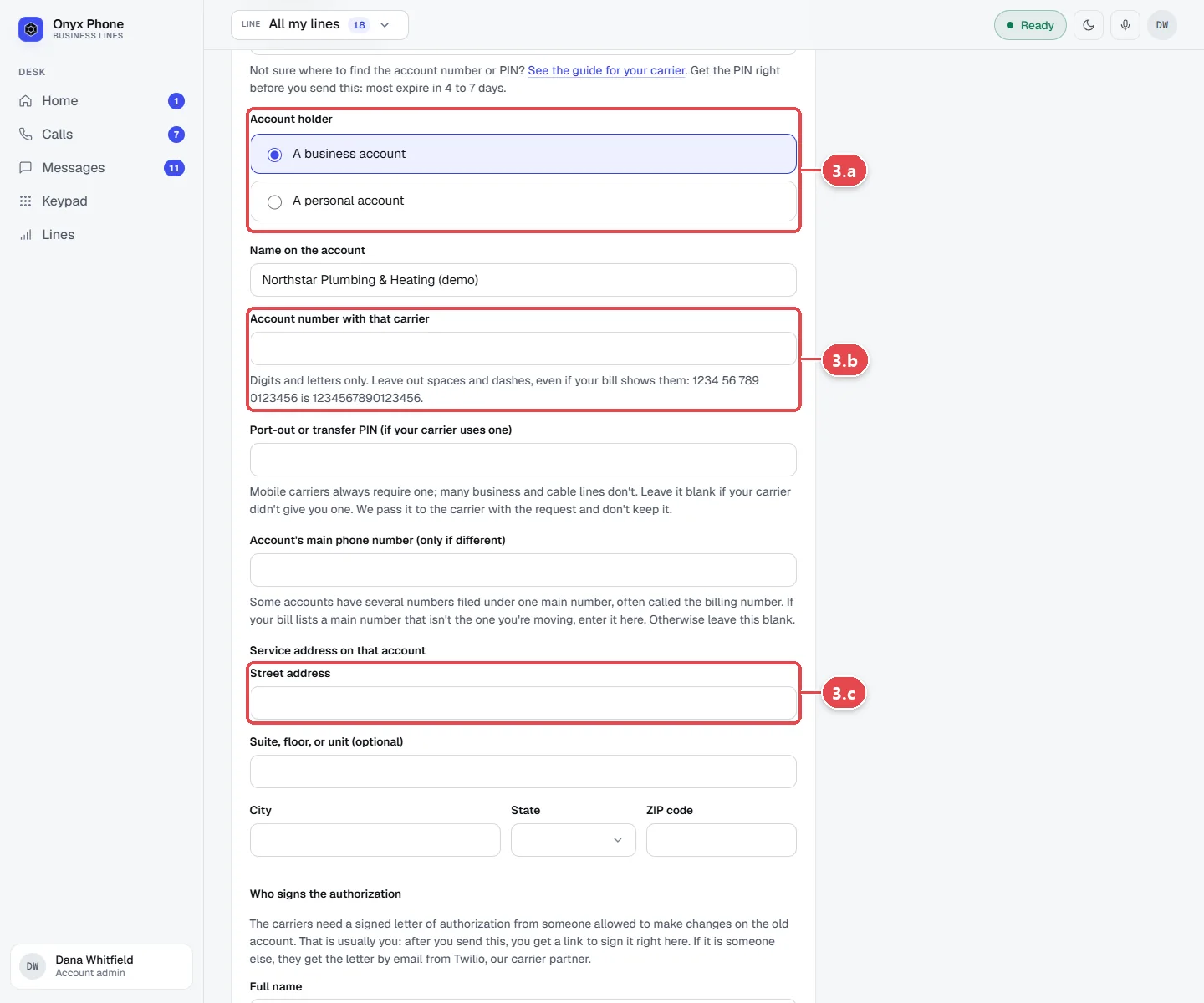
Step 3. Enter your account details and send it
- Step 3.a Choose whether the number is on A business account or A personal account.
- Step 3.b Type the Name on the account, the Account number with that carrier, and the Port-out or transfer PIN, exactly as they appear on your bill.
- Step 3.c Type the service address the carrier has for the number.
- Step 3.d Under Who signs the authorization, type the Full name and Email for the signature request of the person allowed to make changes on the old account, usually you.
- Step 3.e Choose the Port date you want, a weekday at least 7 days out. The carrier confirms the final date.
- Step 3.f Click the file box under A bill from that carrier, dated in the last 30 days and choose a PDF, JPG, or PNG of the bill.
- Step 3.g Click Send port request.
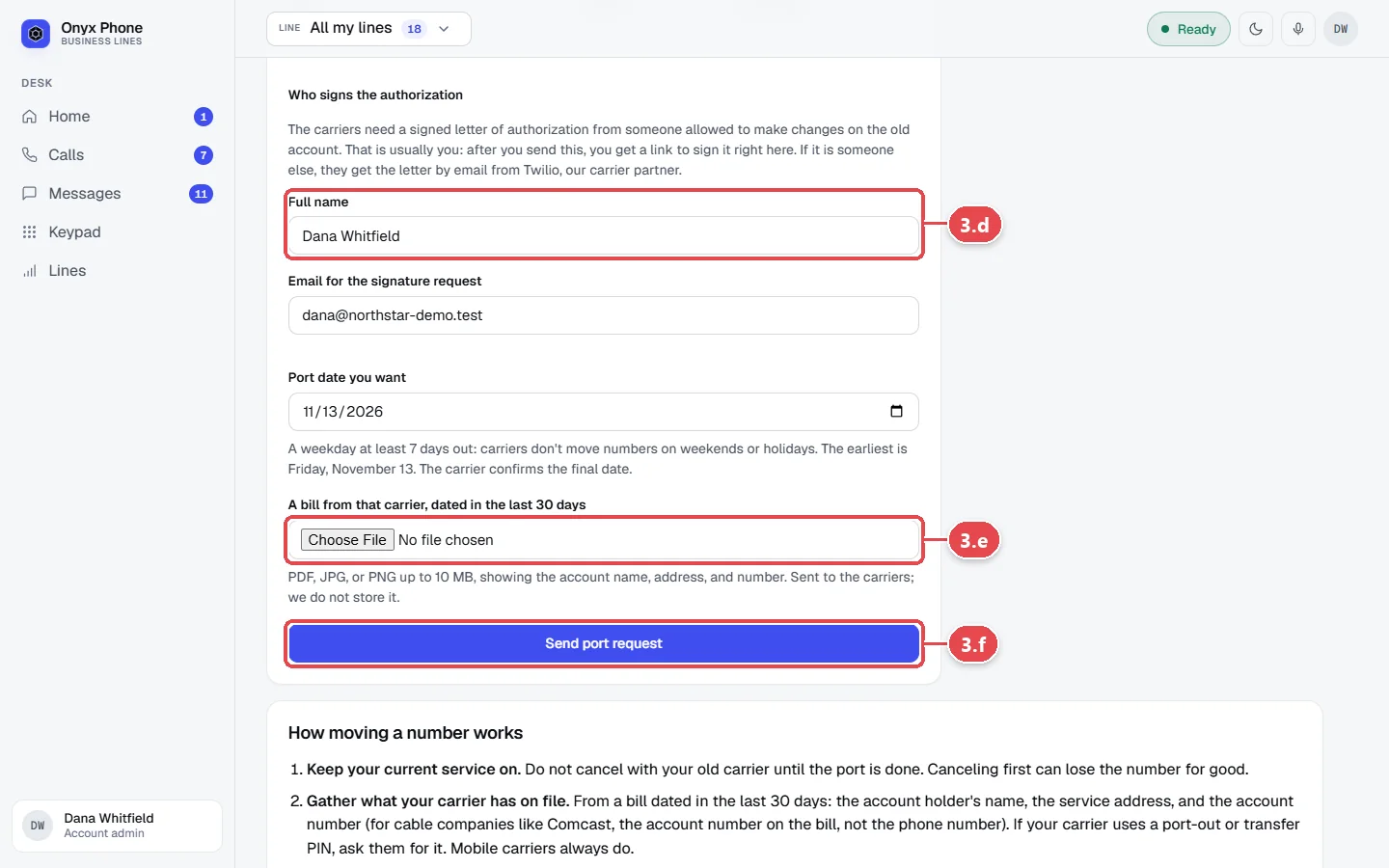
Step 4. Sign and follow the port
- Step 4.a Sign the letter of authorization. If you're the person who signs, click Sign now on the port's page right after sending. Otherwise Twilio, our carrier partner, emails the letter to the signer. Nothing is filed until it's signed.
- Step 4.b Check Bring a number you own for the port's status and timeline. You're also emailed at each change.
- Step 4.c If your carrier rejects the request, the page says why. Fix the details and send it again.
- Step 4.d On port day, your number switches over within a few hours and becomes the line's caller ID. Place a test call, then cancel your old service. The temporary number keeps ringing the same line for 30 days and is then released; you can release it sooner from the port's page.
Questions and answers
How long does porting take?
Most moves finish 3 to 7 business days after the letter of authorization is signed. You can ask for a date at least 7 days out, and the old carrier confirms the final date.
Will my number stop working during the port?
No. Your current service keeps working until port day, then calls start ringing in Onyx Phone. Don't cancel your old service until the port is complete.
Can I use Onyx Phone before the port finishes?
Yes. Your line works right away with a temporary number. On most landlines and Comcast you can forward your old number to the temporary number by dialing *72 and then the number (*73 turns it off).
Why was my port rejected?
Usually a detail doesn't match the carrier's records exactly, such as the account number, PIN, name, or address. The page shows the carrier's reason; fix it and send again.
Can I port a toll-free number?
Contact us for toll-free numbers. Ports here are for US local and mobile numbers.
Is the bill I upload kept?
No. It's sent with the request and not stored, and the transfer PIN is dropped once the request is filed.
Related guides
- How to add a business phone line and choose its numberAdd a business line in Onyx Phone: name it, search for a local number by area code, set its 911 address, and start taking calls, or bring your own number.
- How to set how a business line rings and what voicemail saysSet how an Onyx Phone line rings: browsers, phone apps, and desk phones, ring time, the greeting, voicemail greeting, and voicemail by email.
- How to register a 911 address for each business phone lineRegister a 911 address for each Onyx Phone line so dispatchers know where to go, accept the 911 notice, and check each line's 911 status.
- How to verify your business for caller ID and spam protectionVerify your business in Onyx Phone to show your caller ID name, sign calls against spam labels, and unlock texting. Run several businesses on one account.
Getting started
- Create a login and pick a plan. Checkout saves a card for the 7-day free trial, and nothing is charged until it ends.
- Confirm your business and its 911 address, and get a local number on the spot. Bringing your own number? You answer on a temporary one while it moves over, for free.
- Choose where calls ring, write what callers hear, invite your team, and register for texting. Then answer in the browser, the iPhone and Android apps, or a desk phone. How it works has the details.
Screens change as we improve Onyx Phone; we last checked this guide on November 6, 2026. The screenshots show a made-up business. Markdown version · All guides · Contact us