Guides / Account, billing, and compliance
How to connect Onyx Phone to Zapier, AI assistants, and your own software
Onyx Phone connects to the tools you already use. This guide shows account admins how to add Onyx Phone to Zapier to send missed calls, voicemails, and texts to a CRM or spreadsheet, connect an AI assistant like Claude or ChatGPT, make and revoke API keys for your own software, and see which webhooks are connected.
Before you start
- You need to be an account admin.
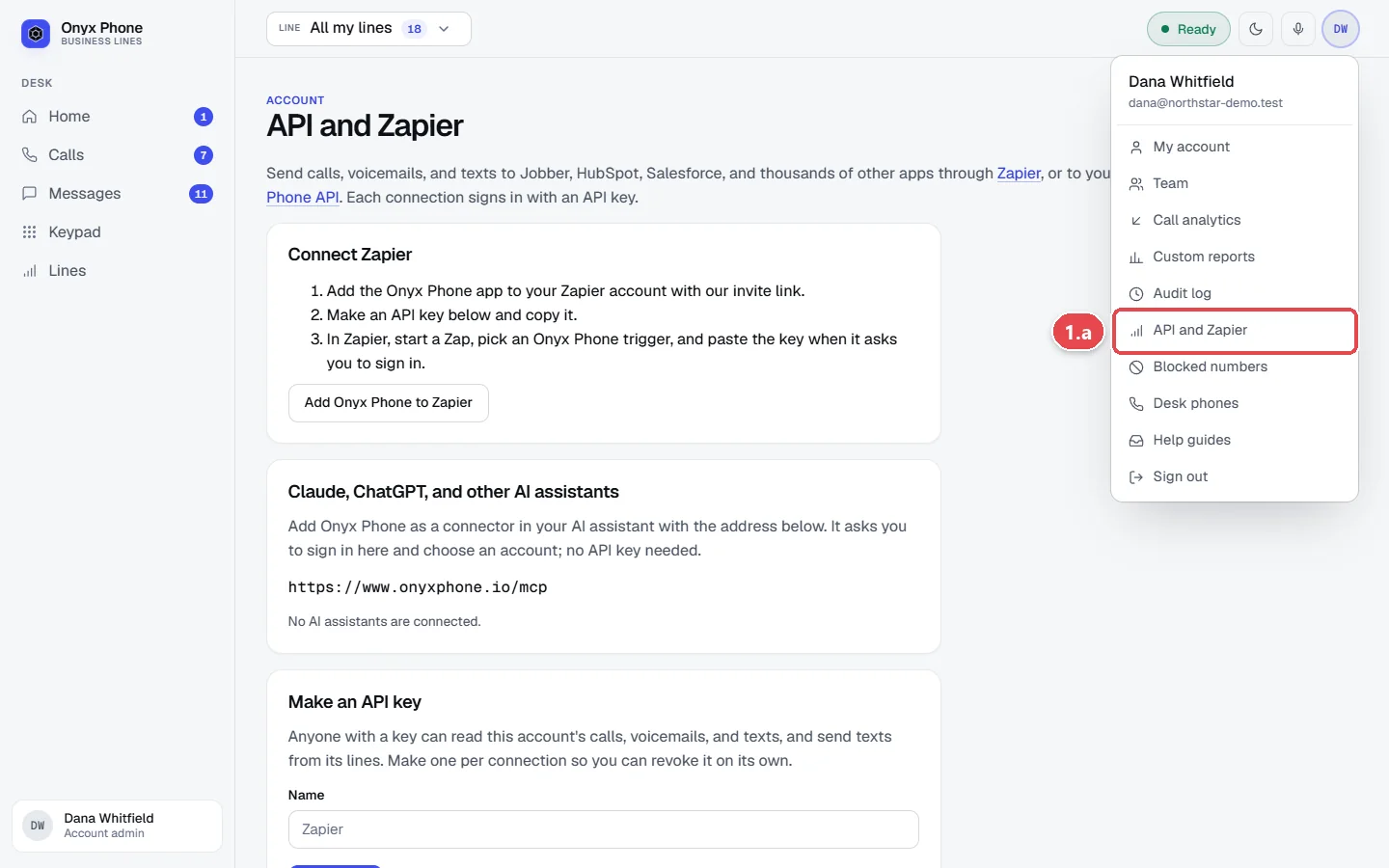
Step 1. Open API and Zapier
- Step 1.a Click your initials at the top right of the screen, then click API and Zapier.
- Step 1.b Click Onyx Phone API for the developer documentation.
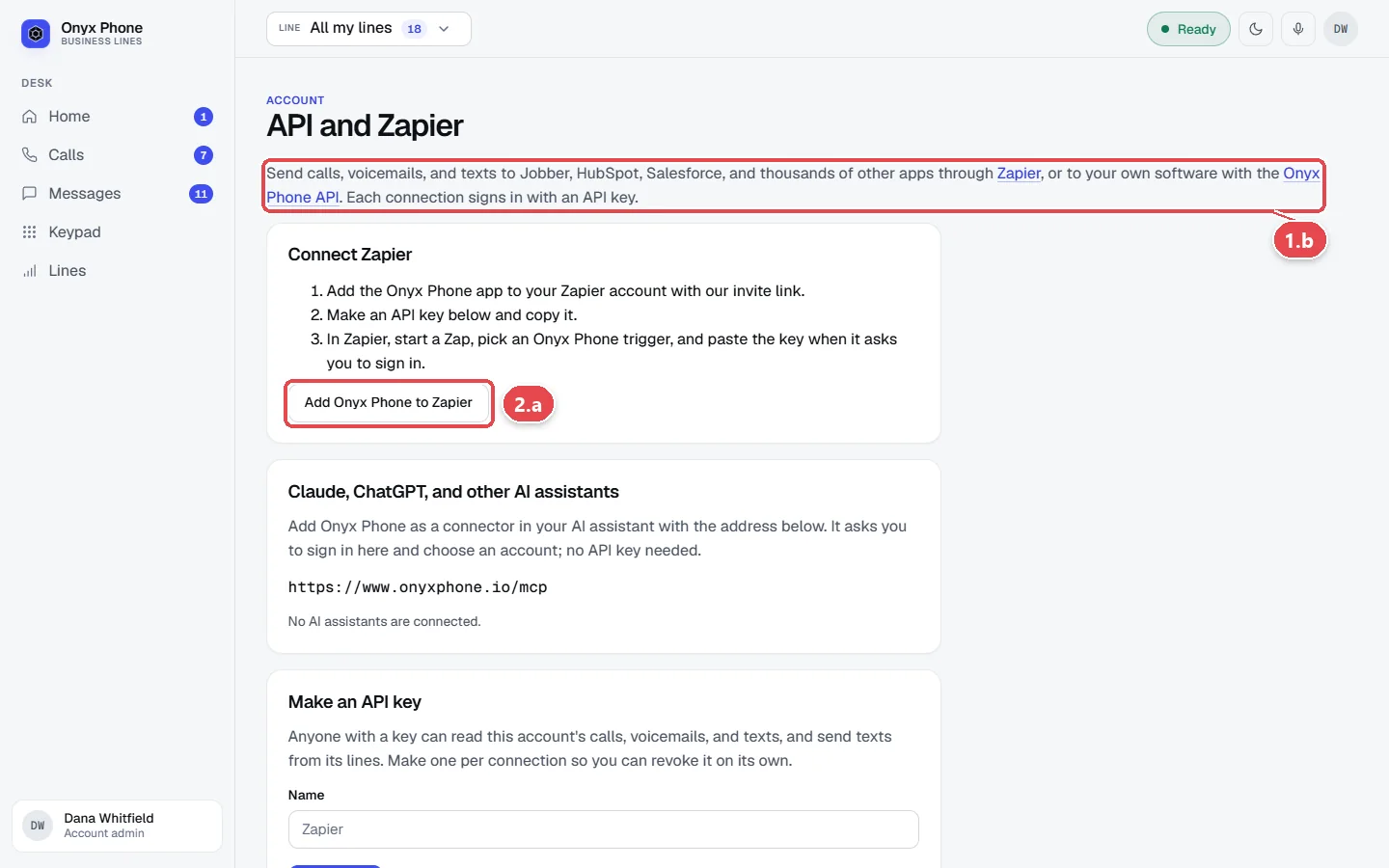
Step 2. Connect Zapier
- Step 2.a Under Connect Zapier, click Add Onyx Phone to Zapier and accept the invitation in Zapier.
- Step 2.b In Zapier, make a Zap with an Onyx Phone trigger, such as New Missed Call, New Voicemail, New Call, or New Text.
- Step 2.c When Zapier asks you to connect Onyx Phone, make an API key (step 4) and paste it in.
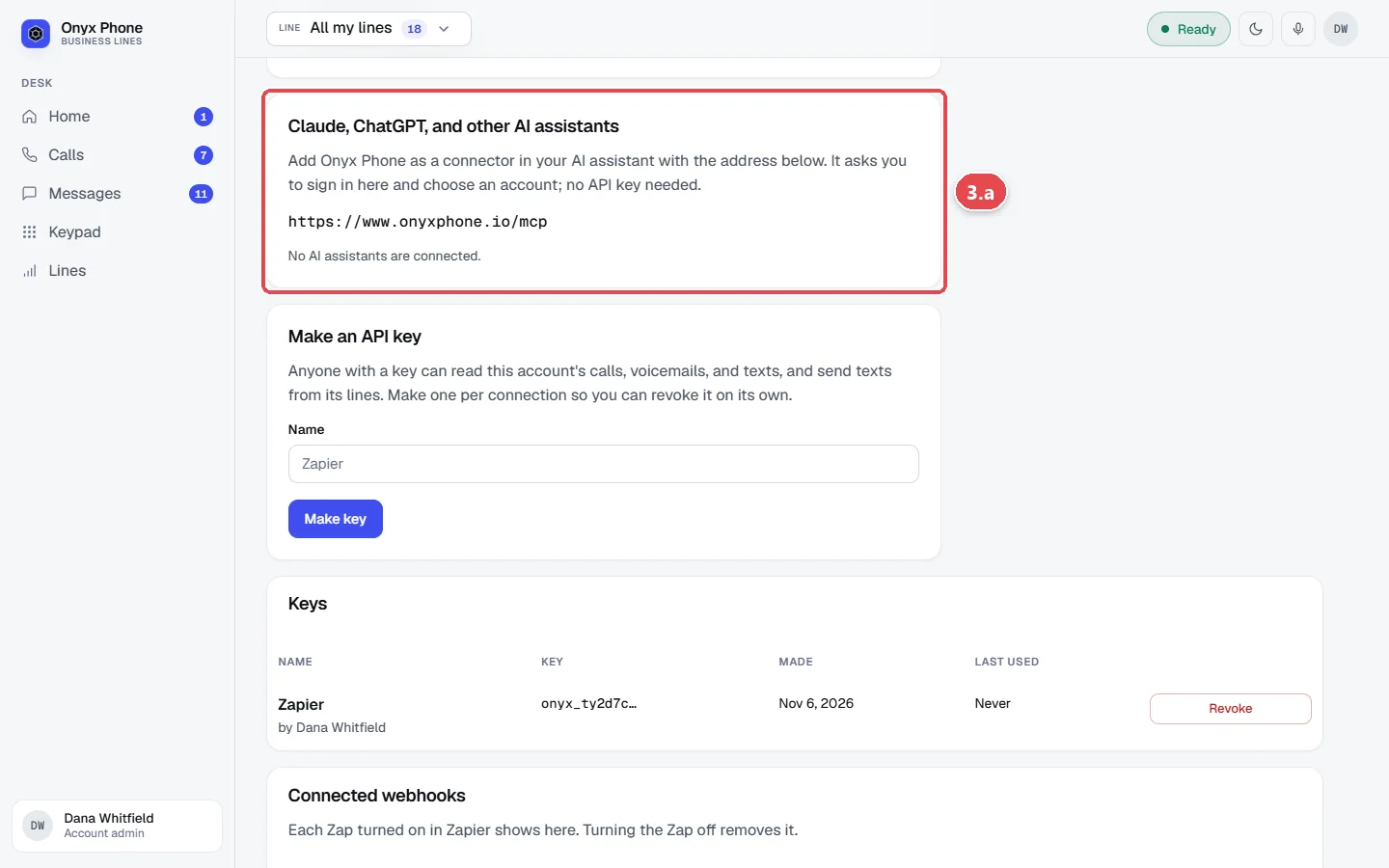
Step 3. Connect an AI assistant
- Step 3.a Under Claude, ChatGPT, and other AI assistants, copy the connector address shown.
- Step 3.b In your AI assistant's settings, add a custom connector and paste the address.
- Step 3.c Sign in to Onyx Phone when it asks, and choose your account. No API key is needed. Connected assistants are listed on this page with a button to disconnect them.
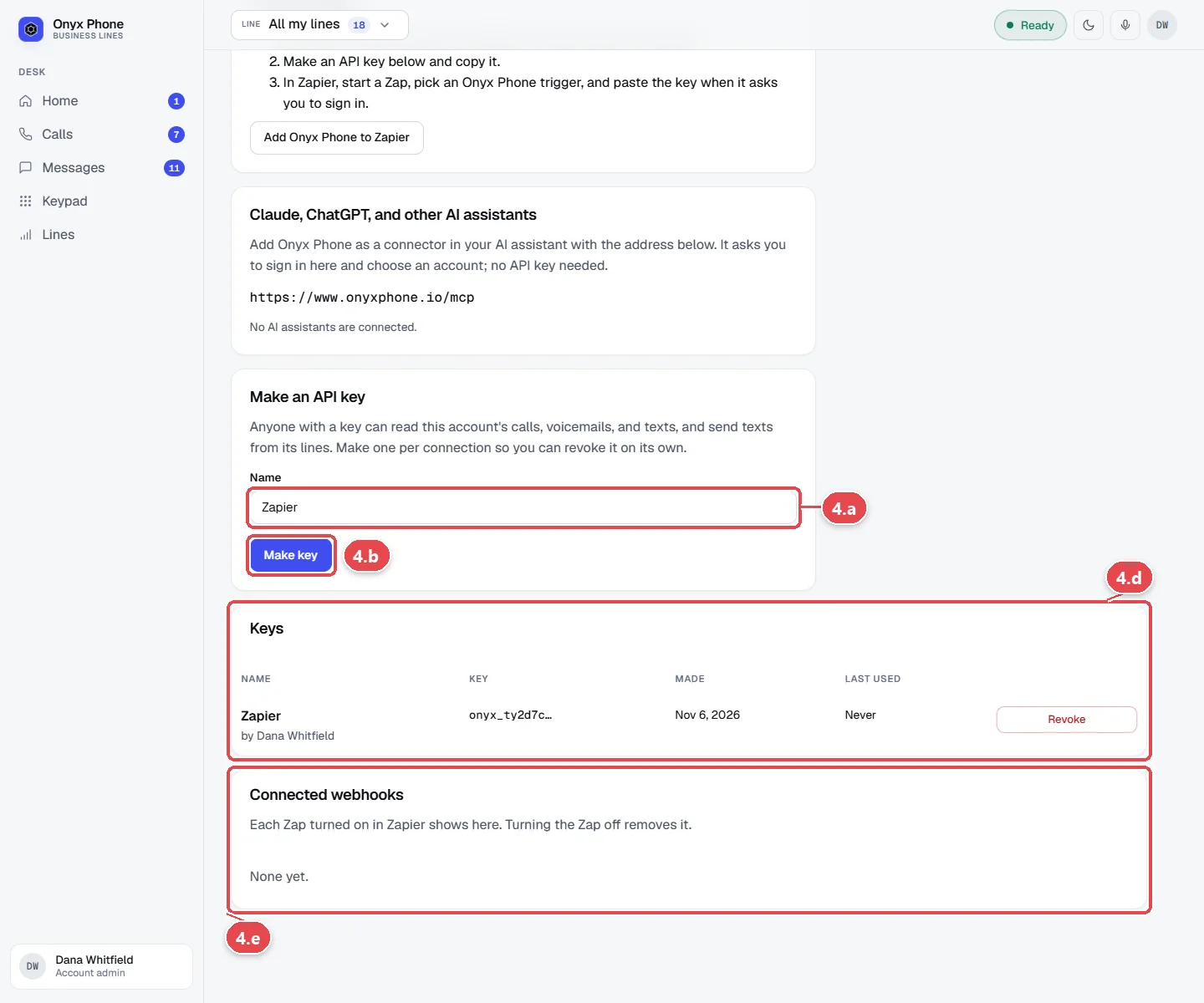
Step 4. Make or revoke an API key
- Step 4.a Under Make an API key, type a Name that says where it's used, such as Zapier.
- Step 4.b Click Make key.
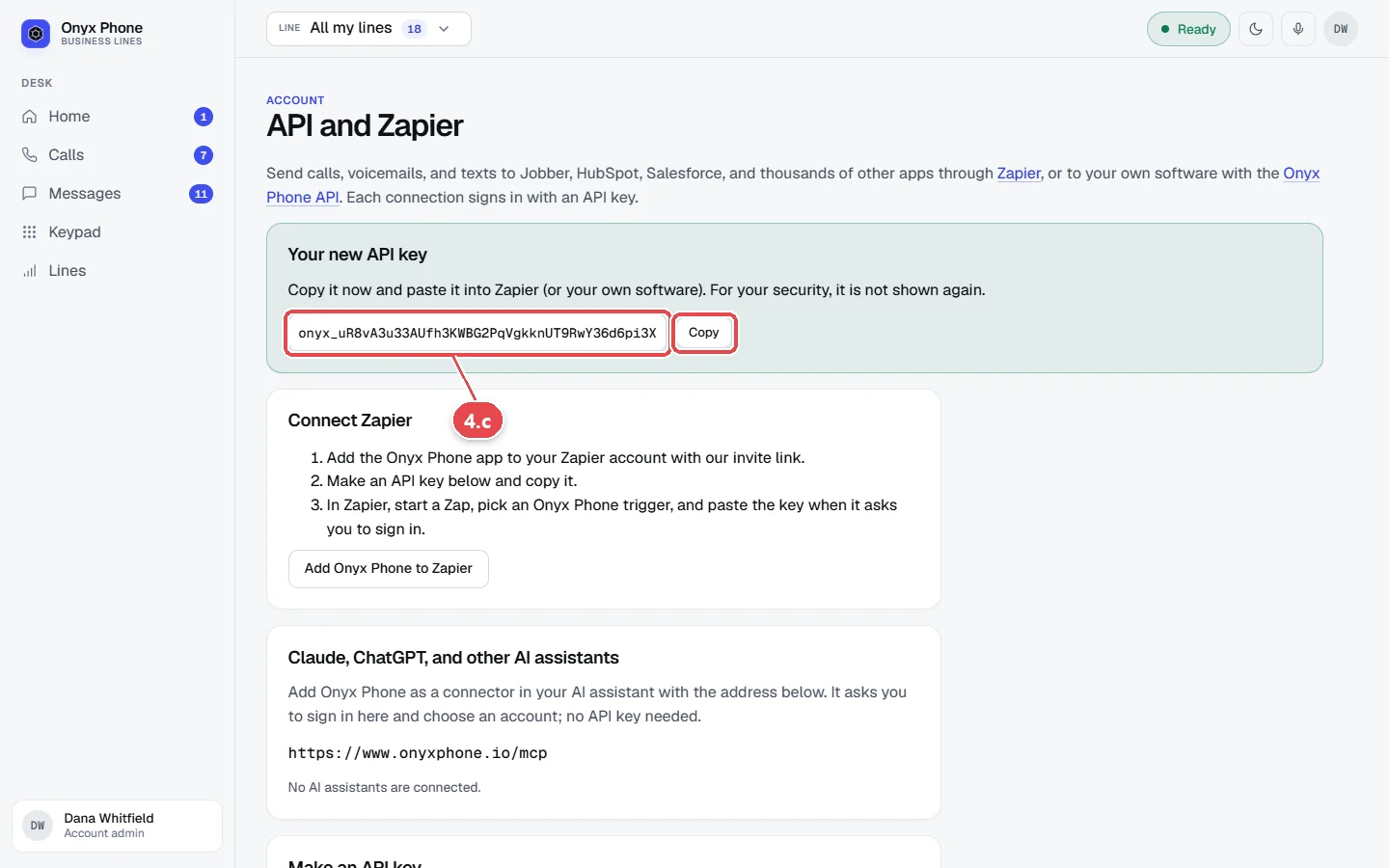
- Step 4.c Click Copy next to the new key and store it somewhere safe, such as your Zapier connection. It's shown only once.
- Step 4.d Under Keys, see each key and when it was last used. Click Revoke to turn one off; its webhooks are removed too.
- Step 4.e Under Connected webhooks, see each webhook's last delivery and any failures.
Questions and answers
What can I do with the Onyx Phone API?
Read your account, lines, recent calls, and texts, send a text from a line, and get webhooks for completed calls, missed calls, voicemails, and texts. See the API documentation.
Which apps can Zapier connect Onyx Phone to?
Thousands, including Jobber, HubSpot, Salesforce, Google Sheets, and Slack. Phone numbers come in several formats so CRMs can match customers.
Are texts sent through Zapier or the API billed?
Yes, per segment, as shown on the Usage page. Texts your team sends in Onyx Phone are included in your plan.
What happens if a key leaks?
Revoke it on this page and make a new one. Revoking stops it at once and removes its webhooks; reconnect your Zaps with the new key.
What can an AI assistant see?
What your Onyx Phone sign-in can see on the account you choose, such as calls, voicemails, and texts. Disconnect it here at any time.
Related guides
- How to see your call history, recordings, and call detailsFind any business call in Onyx Phone. Filter missed and outgoing calls, play recordings, read AI summaries and transcripts, and add notes for your team.
- How to send and receive business texts from your computerText customers from your business number in any browser. Start a text, reply, send photos, mark texts read or unread, and delete or block a number.
- How to check your usage and extra chargesSee your Onyx Phone usage for the billing period, what's included with your plan, any extra charges so far, usage by line, and past periods.
- How to see who changed your phone system settings with the audit logUse the Onyx Phone audit log to see every change to your lines, team, billing, and compliance settings, who made it, when, and the before and after values.
Getting started
- Create a login and pick a plan. Checkout saves a card for the 7-day free trial, and nothing is charged until it ends.
- Confirm your business and its 911 address, and get a local number on the spot. Bringing your own number? You answer on a temporary one while it moves over, for free.
- Choose where calls ring, write what callers hear, invite your team, and register for texting. Then answer in the browser, the iPhone and Android apps, or a desk phone. How it works has the details.
Screens change as we improve Onyx Phone; we last checked this guide on November 6, 2026. The screenshots show a made-up business. Markdown version · All guides · Contact us