Guides / Account, billing, and compliance
How to see who changed your phone system settings with the audit log
The audit log is a record of every change to your Onyx Phone account's settings, newest first: who changed what, when, and the value before and after. This guide shows account admins how to open it and read each entry. The audit log comes with the Scale plan, and every account's changes are recorded from the start, so the full history is there after upgrading.
Before you start
- You need to be an account admin on the Scale plan. Other plans see what it includes, with a button to switch.
Step 1. Open the audit log
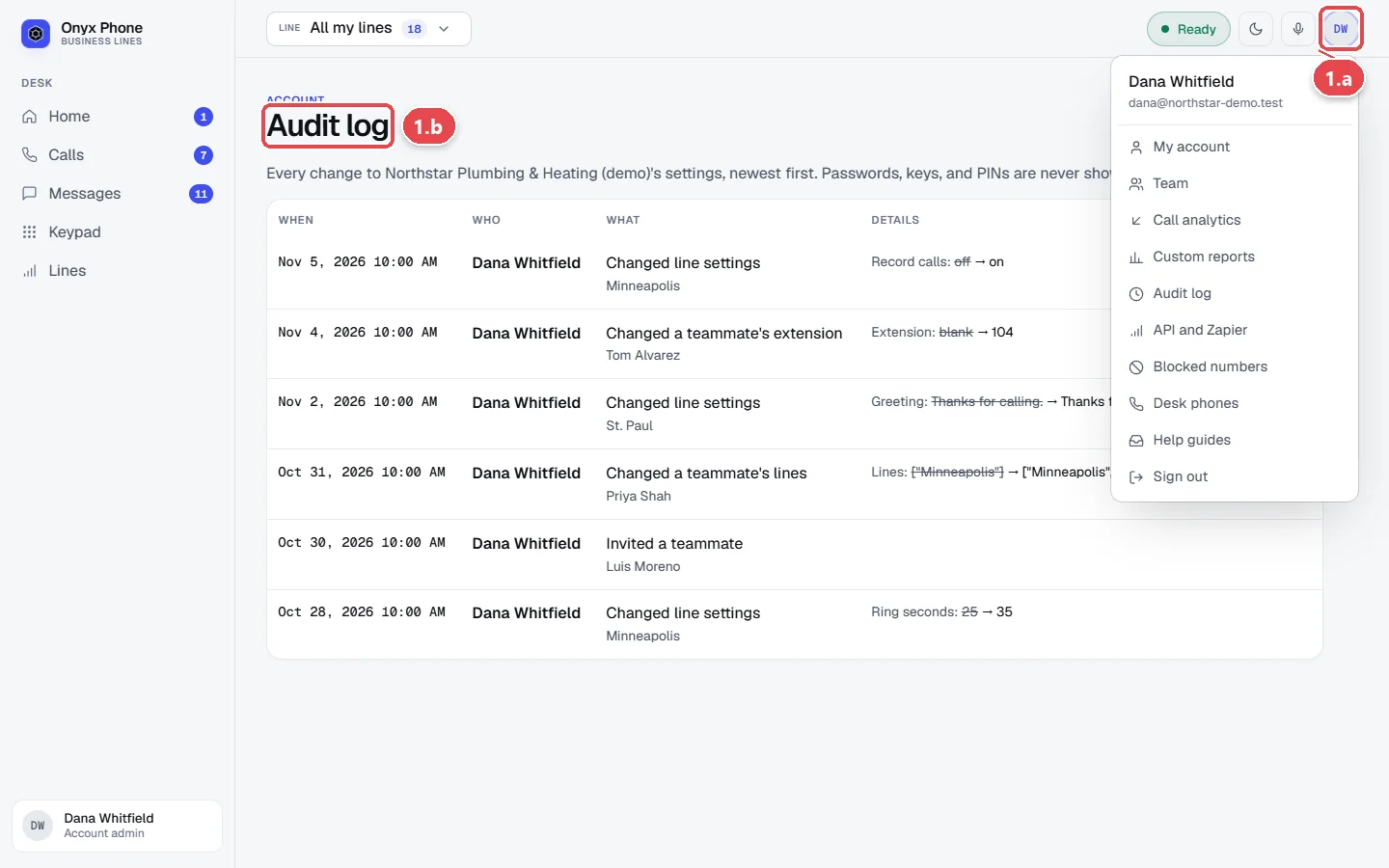
- Step 1.a Click your initials at the top right of the screen.
- Step 1.b Click Audit log.
Step 2. Read an entry
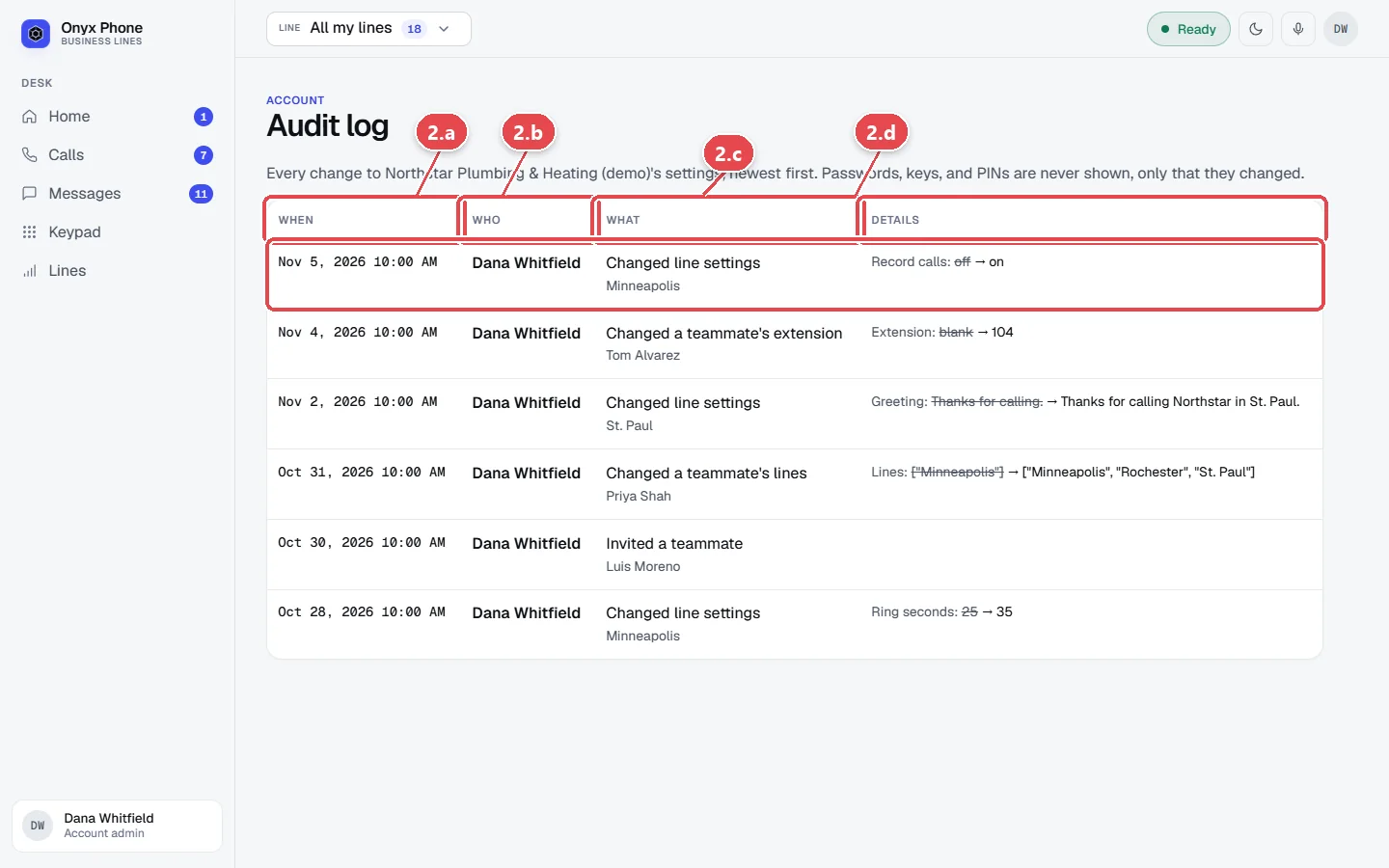
- Step 2.a Read When for the date and time of the change.
- Step 2.b Read Who for the person who made it. Changes made by Onyx Phone support show as Onyx Phone support.
- Step 2.c Read What for the kind of change and what it was made to, such as a line or a teammate.
- Step 2.d Read Details for each value before and after. The old value is crossed out, followed by the new one.
Questions and answers
What does the audit log record?
Changes to line settings, adding lines, the team (invites, lines, extensions, removals), plan and billing changes, the card on file, 911 setup, business verification, texting, desk phones, porting, and API keys.
Are passwords or keys shown in the log?
No. Passwords, API keys, tokens, PINs, and the EIN are never written to the log, only that they changed.
Can I see changes from before I upgraded?
Yes. Every account's changes are recorded whatever its plan, so the history is all there when you move to Scale.
Can a change be undone from the audit log?
No, the log is a record. Change the setting back on its own page; that change is logged too.
Related guides
- How to invite teammates and choose which lines they answerInvite teammates to Onyx Phone by email or in bulk, choose the lines each person answers, give extensions, let them call each other, or remove someone.
- How to change your plan, update your card, download invoices, or cancelManage Onyx Phone billing: switch plans or to yearly, update the card on file, download invoice PDFs, see your renewal date, and cancel or keep your plan.
- How to use My account to manage your profile, billing, and complianceMy account puts your Onyx Phone profile, devices, billing, usage, and business setup (verification, texting, 911) on one page, with the next step for each.
- How to connect Onyx Phone to Zapier, AI assistants, and your own softwareConnect Onyx Phone to Zapier, Claude, ChatGPT, or your own software: add the Zapier app, connect an AI assistant, and make or revoke API keys.
Getting started
- Create a login and pick a plan. Checkout saves a card for the 7-day free trial, and nothing is charged until it ends.
- Confirm your business and its 911 address, and get a local number on the spot. Bringing your own number? You answer on a temporary one while it moves over, for free.
- Choose where calls ring, write what callers hear, invite your team, and register for texting. Then answer in the browser, the iPhone and Android apps, or a desk phone. How it works has the details.
Screens change as we improve Onyx Phone; we last checked this guide on November 6, 2026. The screenshots show a made-up business. Markdown version · All guides · Contact us