Guides / Account, billing, and compliance
How to change your plan, update your card, download invoices, or cancel
The Billing page is where account admins manage what they pay for Onyx Phone. This guide shows you how to see your plan, switch to another plan or to yearly billing, update the card on file, download invoices, check when your plan renews, and cancel at the end of the period or keep your plan after canceling.
Before you start
- You need to be an account admin.
Step 1. Open Billing
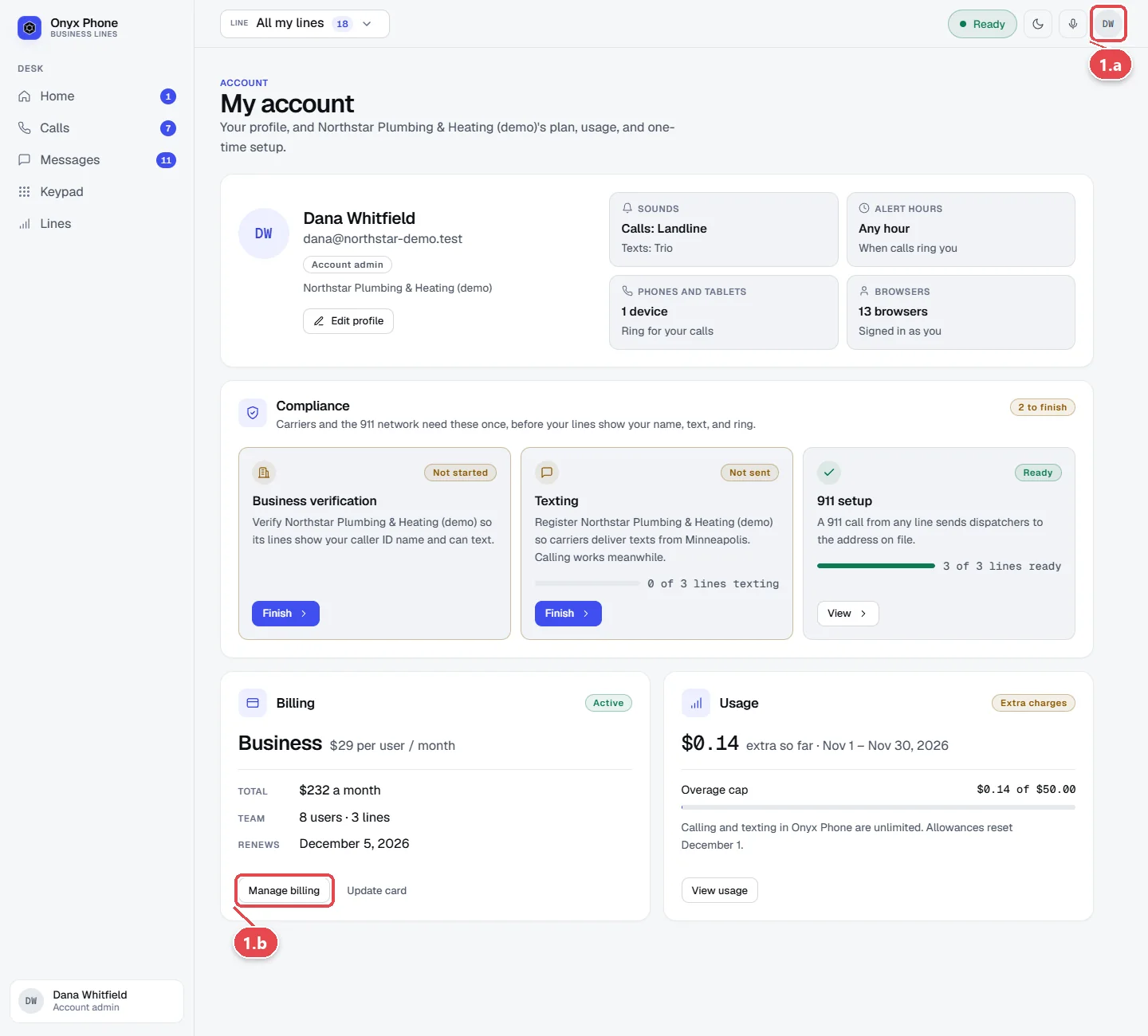
- Step 1.a Click your initials at the top right of the screen, then click My account.
- Step 1.b On the Billing card, click Manage billing.
Step 2. Change your plan
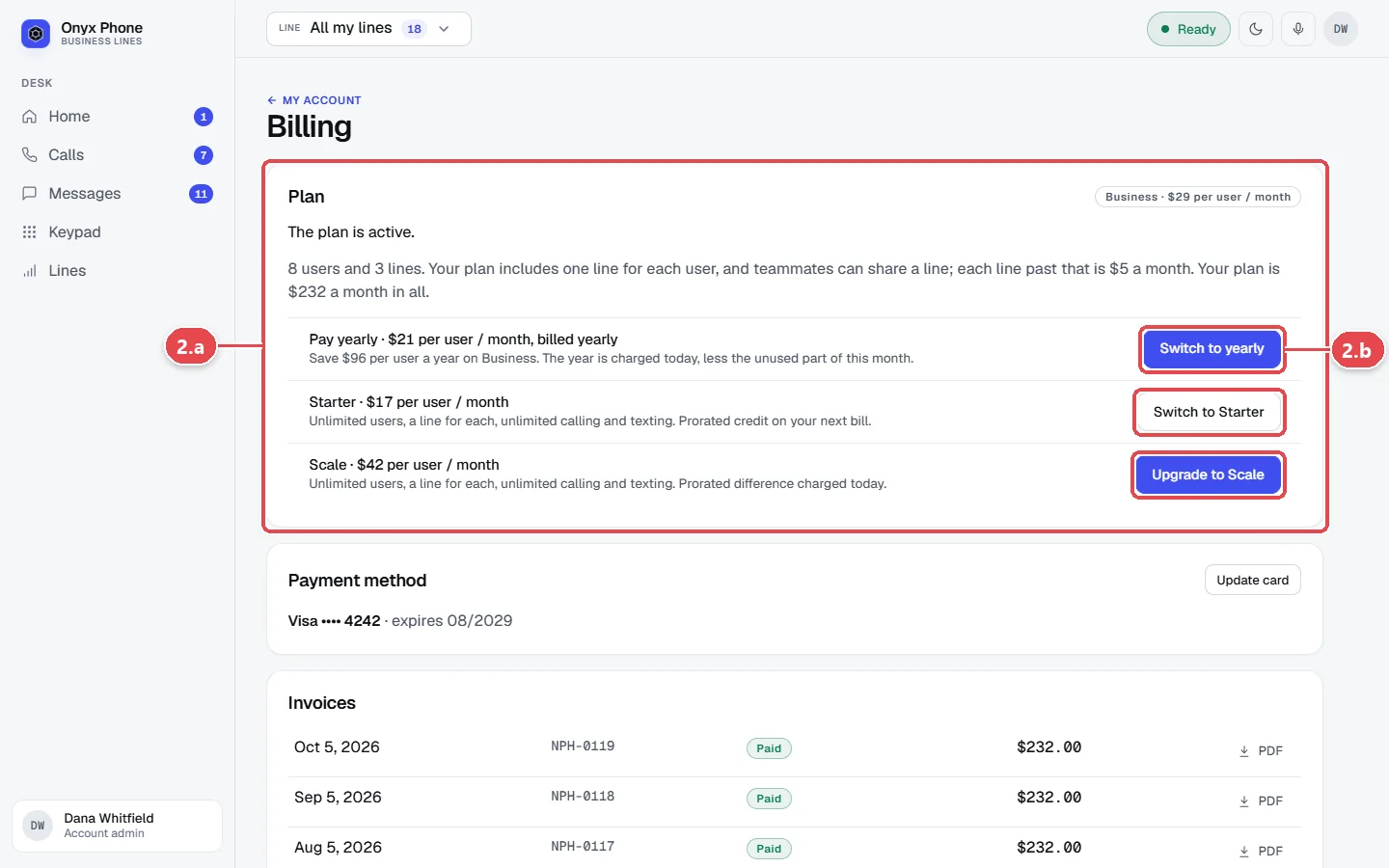
- Step 2.a Under Plan, read your current plan, its price, and how many people and lines it covers.
- Step 2.b Click Switch to yearly to pay once a year for a lower price, or Upgrade or Switch to another plan.
- Step 2.c Read the next page. It shows what's due today for an upgrade, or the credit for a downgrade, with tax. Click the button to confirm, or Cancel to go back.
Step 3. Update your card and get invoices
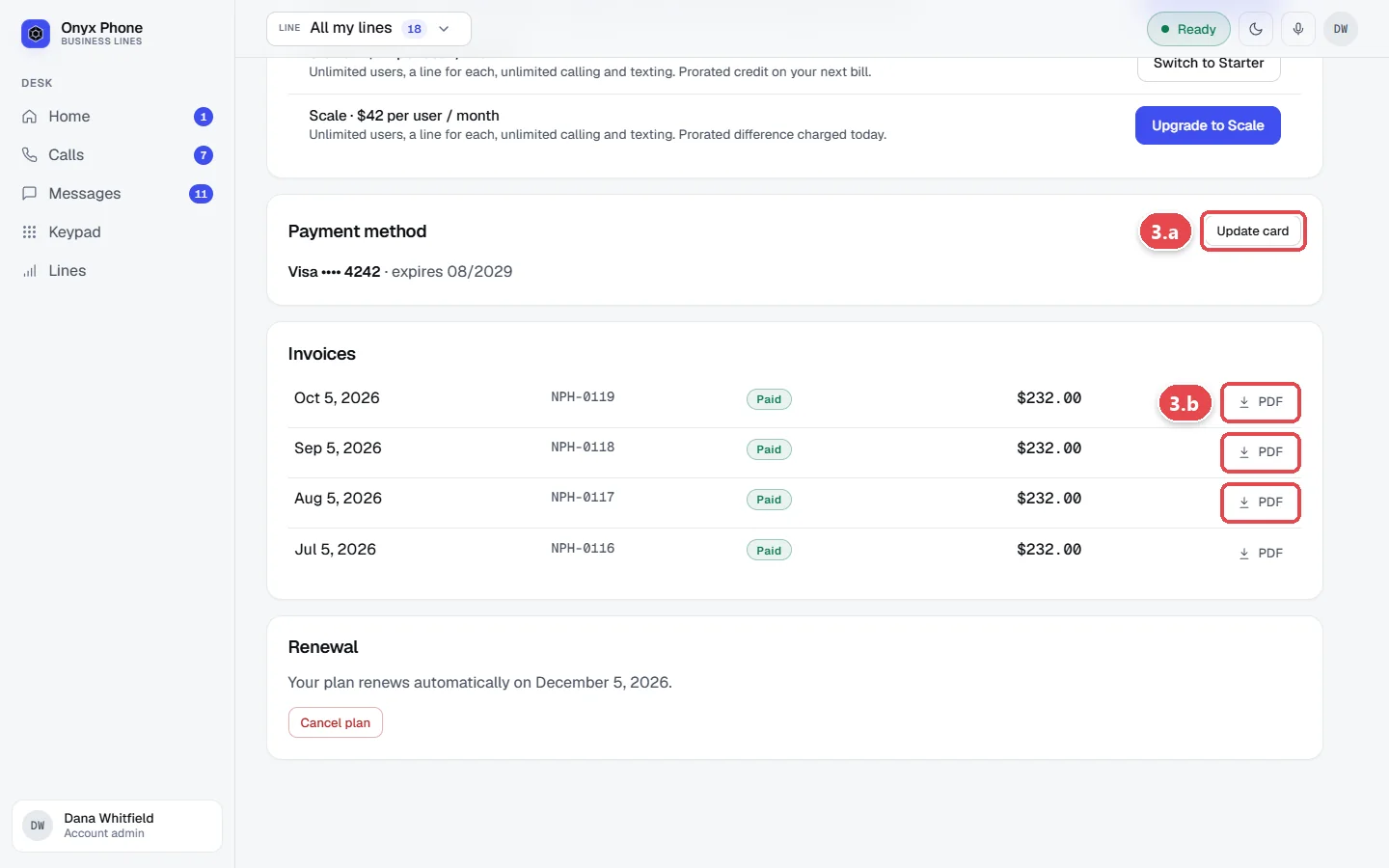
- Step 3.a Under Payment method, click Update card, enter the new card, and save it. An unpaid bill is retried on the new card right away.
- Step 3.b Under Invoices, find the invoice by its date and amount and click PDF to download it.
Step 4. Cancel, or keep your plan
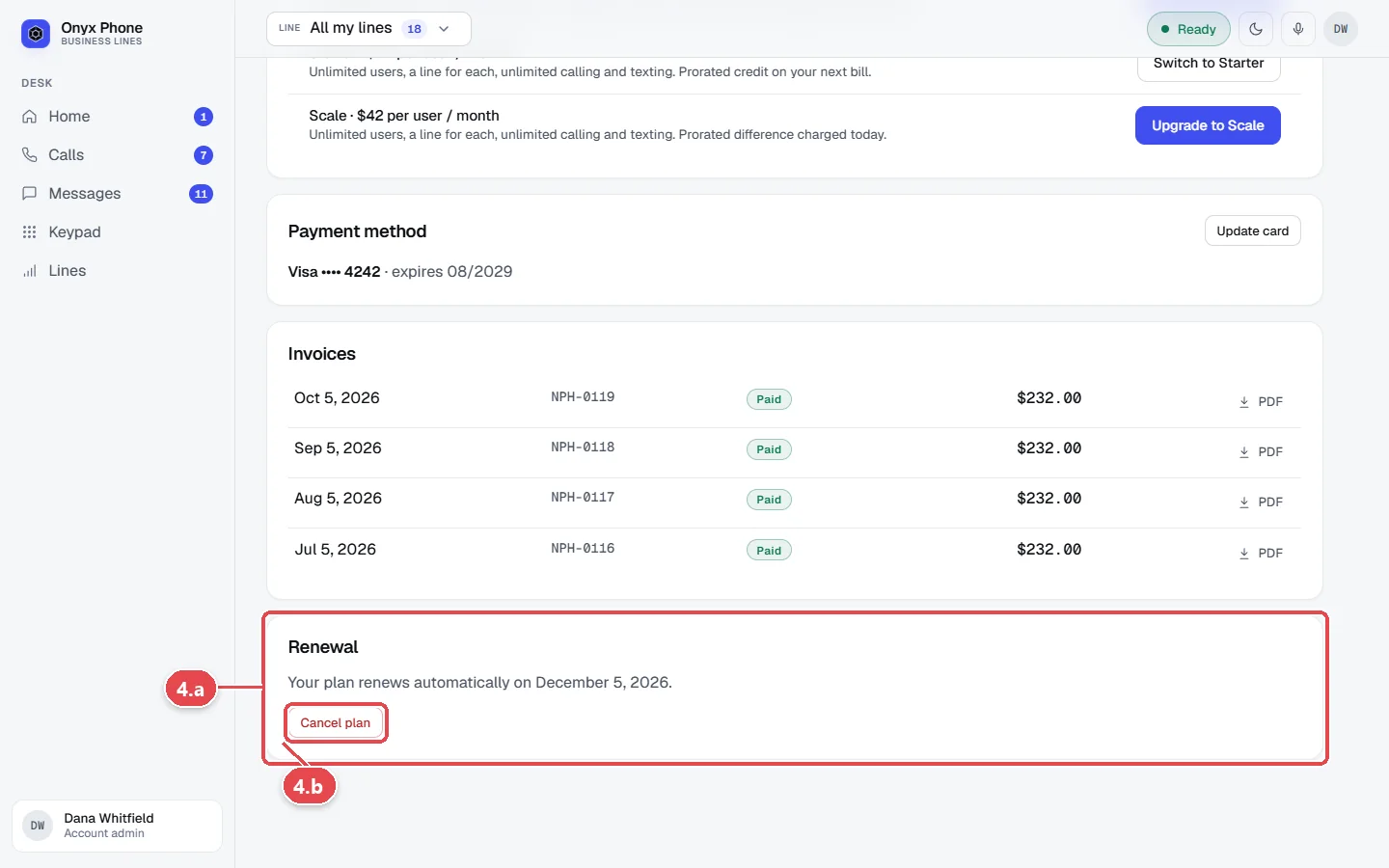
- Step 4.a Under Renewal, read when your plan renews.
- Step 4.b Click Cancel plan.
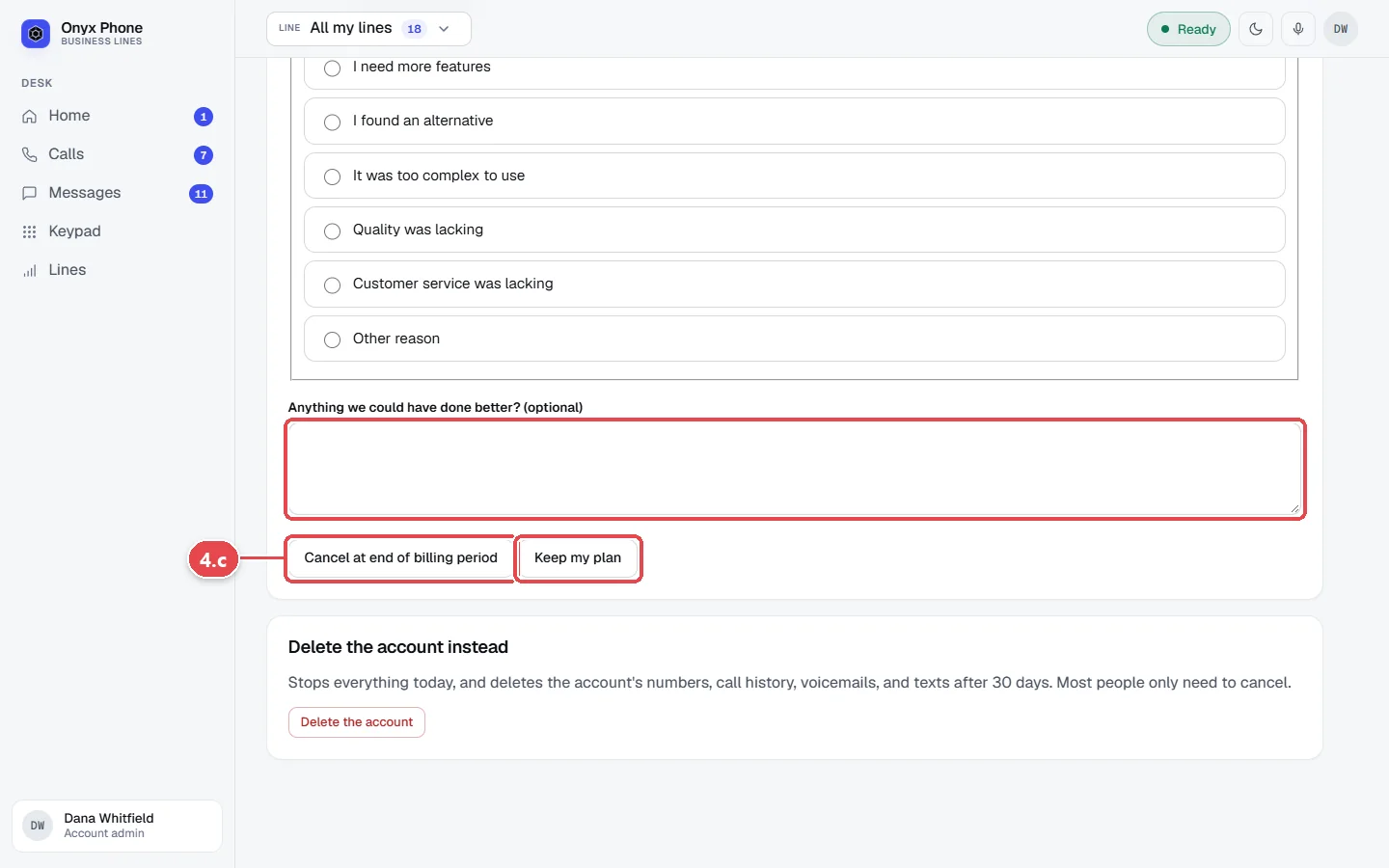
- Step 4.c Optionally tell us what we could have done better, then click Cancel at end of billing period. Everything keeps working until then, and you won't be charged again.
- Step 4.d Changed your mind? Before the period ends, open Billing and click Keep my plan.
Questions and answers
Is there a charge for each teammate?
Plans are priced per user, with unlimited US and Canada calling and texting for each. See pricing.
What happens when I cancel?
Your plan runs to the end of the period you paid for and isn't renewed. After that, your numbers are held for 60 days. To delete everything instead, see Close your account.
Do you add sales tax?
Where it applies, sales tax is added to your invoices and shown before you confirm a plan change.
My payment failed. What should I do?
Update your card on the Billing page. The unpaid invoice is retried on the new card right away, and admins are emailed when a payment fails.
Can we pay by invoice instead of card?
Ask us from the contact page about paying by invoice.
Related guides
- How to check your usage and extra chargesSee your Onyx Phone usage for the billing period, what's included with your plan, any extra charges so far, usage by line, and past periods.
- How to use My account to manage your profile, billing, and complianceMy account puts your Onyx Phone profile, devices, billing, usage, and business setup (verification, texting, 911) on one page, with the next step for each.
- How to delete your Onyx Phone account or your loginDelete an Onyx Phone account and its numbers and history, cancel instead to keep them, restore within 30 days, or delete your own login from the app.
- How to invite teammates and choose which lines they answerInvite teammates to Onyx Phone by email or in bulk, choose the lines each person answers, give extensions, let them call each other, or remove someone.
Getting started
- Create a login and pick a plan. Checkout saves a card for the 7-day free trial, and nothing is charged until it ends.
- Confirm your business and its 911 address, and get a local number on the spot. Bringing your own number? You answer on a temporary one while it moves over, for free.
- Choose where calls ring, write what callers hear, invite your team, and register for texting. Then answer in the browser, the iPhone and Android apps, or a desk phone. How it works has the details.
Screens change as we improve Onyx Phone; we last checked this guide on November 6, 2026. The screenshots show a made-up business. Markdown version · All guides · Contact us