Guides / Account, billing, and compliance
How to use My account to manage your profile, billing, and compliance
My account is the starting point for everything about you and your account. Everyone sees their profile, sounds, alert hours, phones, and browsers there. Account admins also see billing, usage, and a Compliance card for business verification, texting registration, and 911 setup, each with its status and next step. This guide walks through the page.
Step 1. Open My account
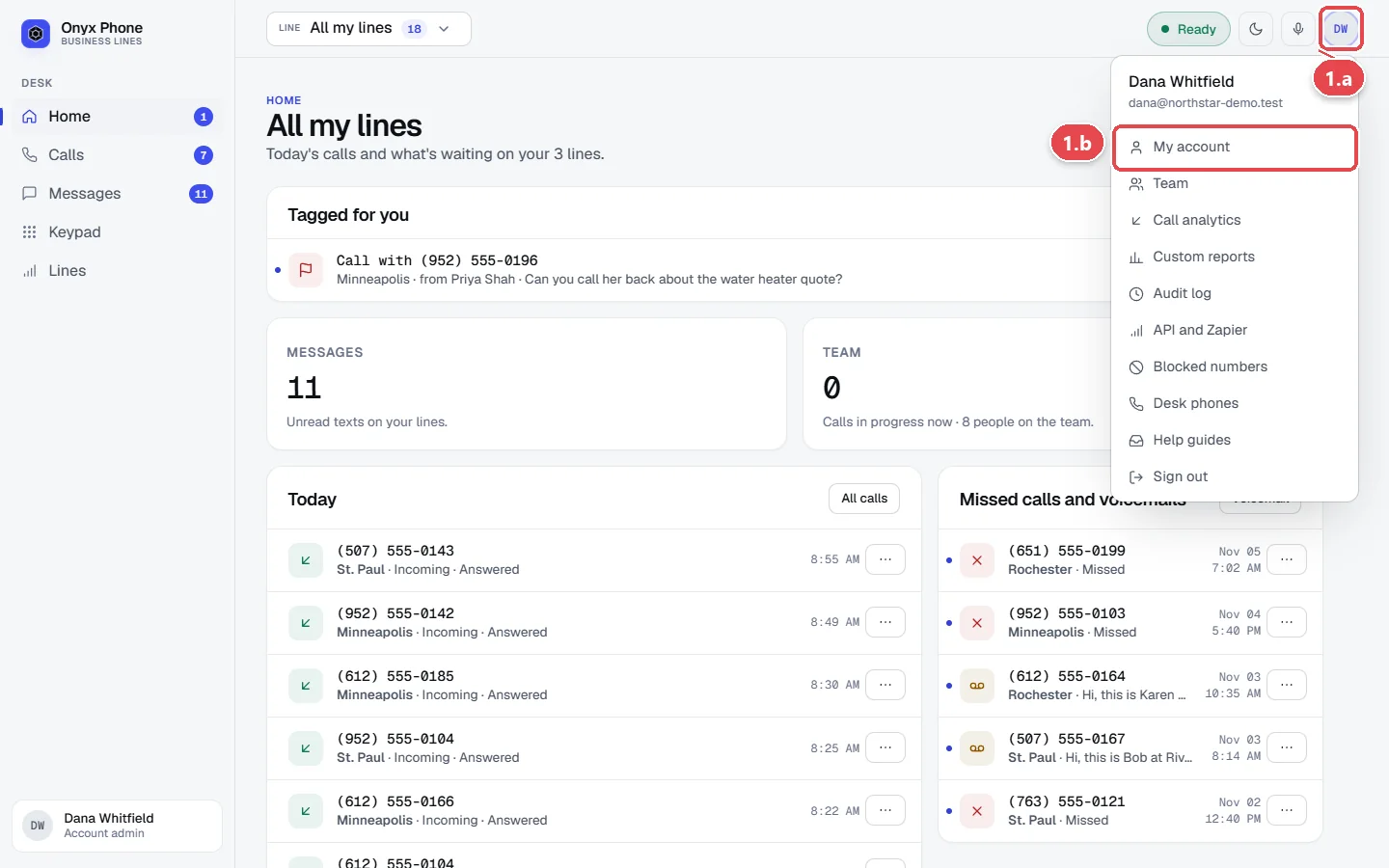
- Step 1.a Click your initials at the top right of the screen.
- Step 1.b Click My account, the first item in the menu.
Step 2. Use your profile card
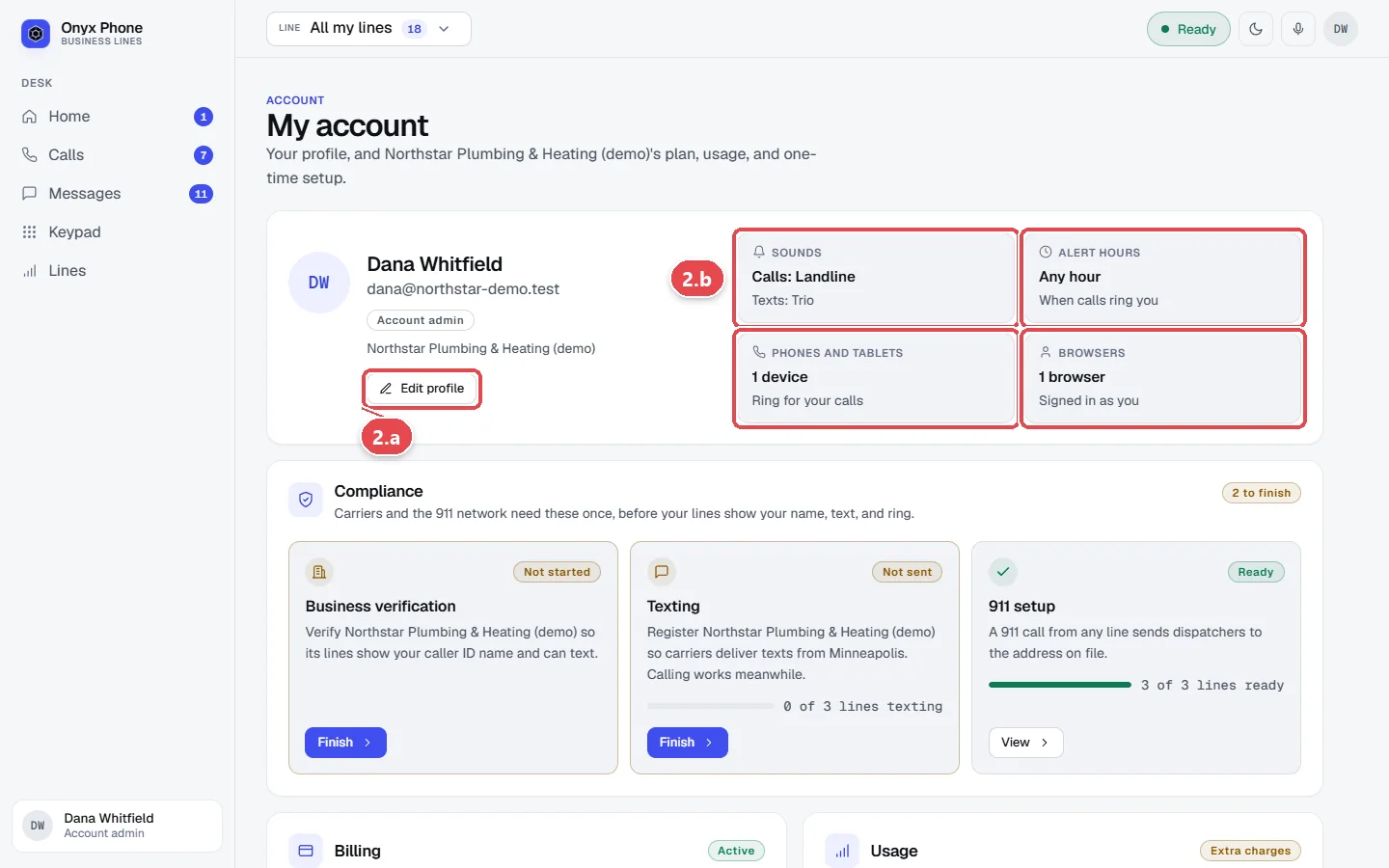
- Step 2.a Click Edit profile to change your name, email, password, and voicemail greeting.
- Step 2.b Click Sounds, Alert hours, Phones and tablets, or Browsers to jump straight to that part of your profile.
Step 3. Finish compliance and check billing (admins)
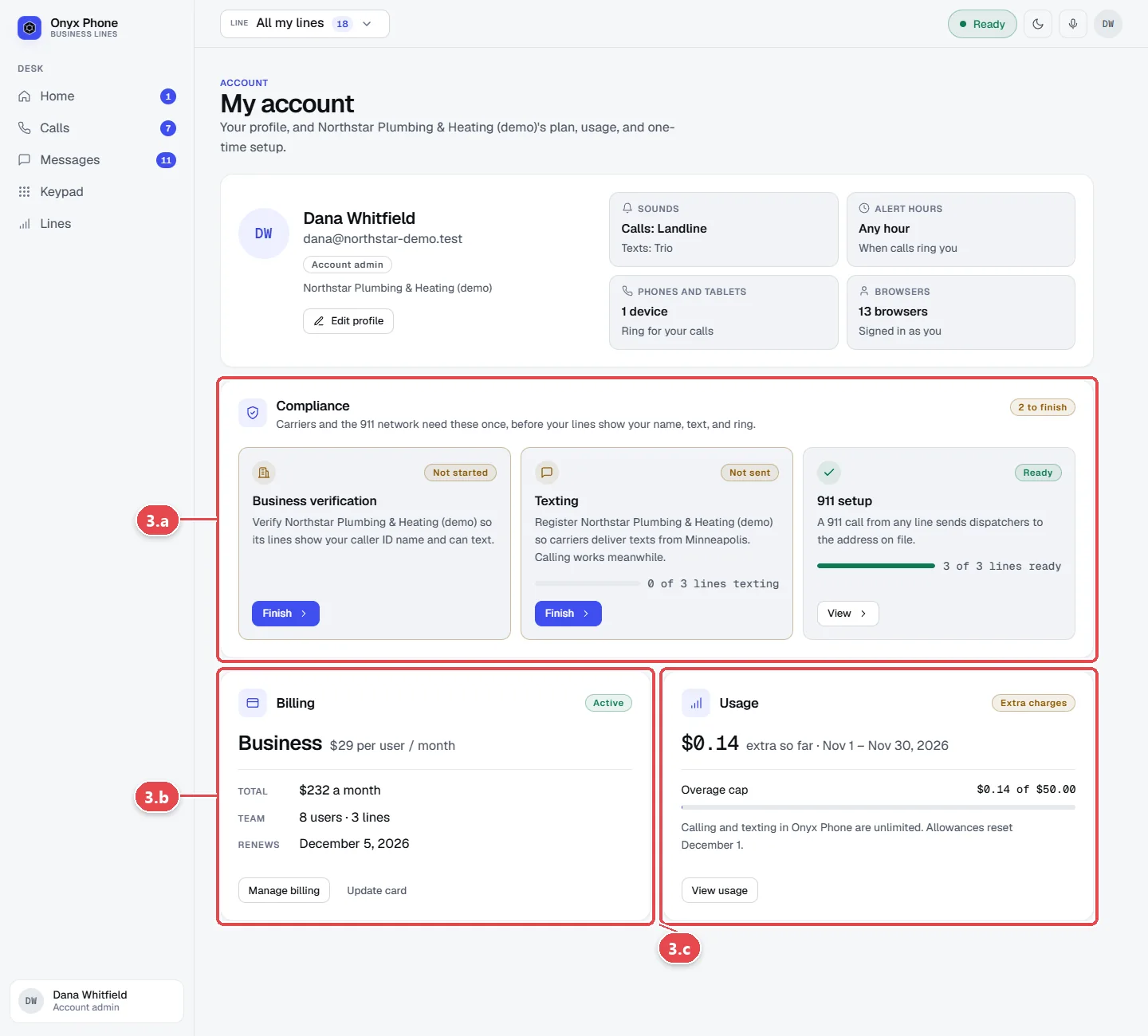
- Step 3.a On the Compliance card, read the status of Business verification, Texting, and 911 setup, and click the button under each for the next step. The card sits at the top while something waits on you.
- Step 3.b On the Billing card, read your plan, price, people and lines, and renewal date, then click Manage billing or Update card.
- Step 3.c On the Usage card, read any extra charges so far and click View usage.
Questions and answers
Why don't I see Billing or Compliance?
Those cards are for account admins. Teammates see who their account admins are, so they know who to ask.
What does the Compliance card mean?
It tracks the three one-time setups carriers and the law require. Business verification unlocks caller ID names and trusted calls, texting registration lets your lines text, and 911 setup lets them make and take calls.
Where do I rename the account?
Account admins rename it on the Home page, under Account name.
Related guides
- How to update your profile and sign out of devices and browsersChange your name, email, and voicemail greeting in Onyx Phone, and see every phone and browser signed in as you, with a button to sign each one out.
- How to change your plan, update your card, download invoices, or cancelManage Onyx Phone billing: switch plans or to yearly, update the card on file, download invoice PDFs, see your renewal date, and cancel or keep your plan.
- How to verify your business for caller ID and spam protectionVerify your business in Onyx Phone to show your caller ID name, sign calls against spam labels, and unlock texting. Run several businesses on one account.
- How to register a 911 address for each business phone lineRegister a 911 address for each Onyx Phone line so dispatchers know where to go, accept the 911 notice, and check each line's 911 status.
Getting started
- Create a login and pick a plan. Checkout saves a card for the 7-day free trial, and nothing is charged until it ends.
- Confirm your business and its 911 address, and get a local number on the spot. Bringing your own number? You answer on a temporary one while it moves over, for free.
- Choose where calls ring, write what callers hear, invite your team, and register for texting. Then answer in the browser, the iPhone and Android apps, or a desk phone. How it works has the details.
Screens change as we improve Onyx Phone; we last checked this guide on November 6, 2026. The screenshots show a made-up business. Markdown version · All guides · Contact us