Guides / Account, billing, and compliance
How to verify your business for caller ID and spam protection
Verifying your business with the carriers unlocks your caller ID name, signs your calls so people are less likely to see "Spam Likely", and is the first step to texting. This guide shows account admins how to see where each line stands, choose a business's lines, fill in the legal details, address, and authorized representative, send it for verification, and add a second business to the same account.
Before you start
- You need to be an account admin, with your business's legal name, EIN (if it has one), address, and a representative's details.
Step 1. Open Business verification
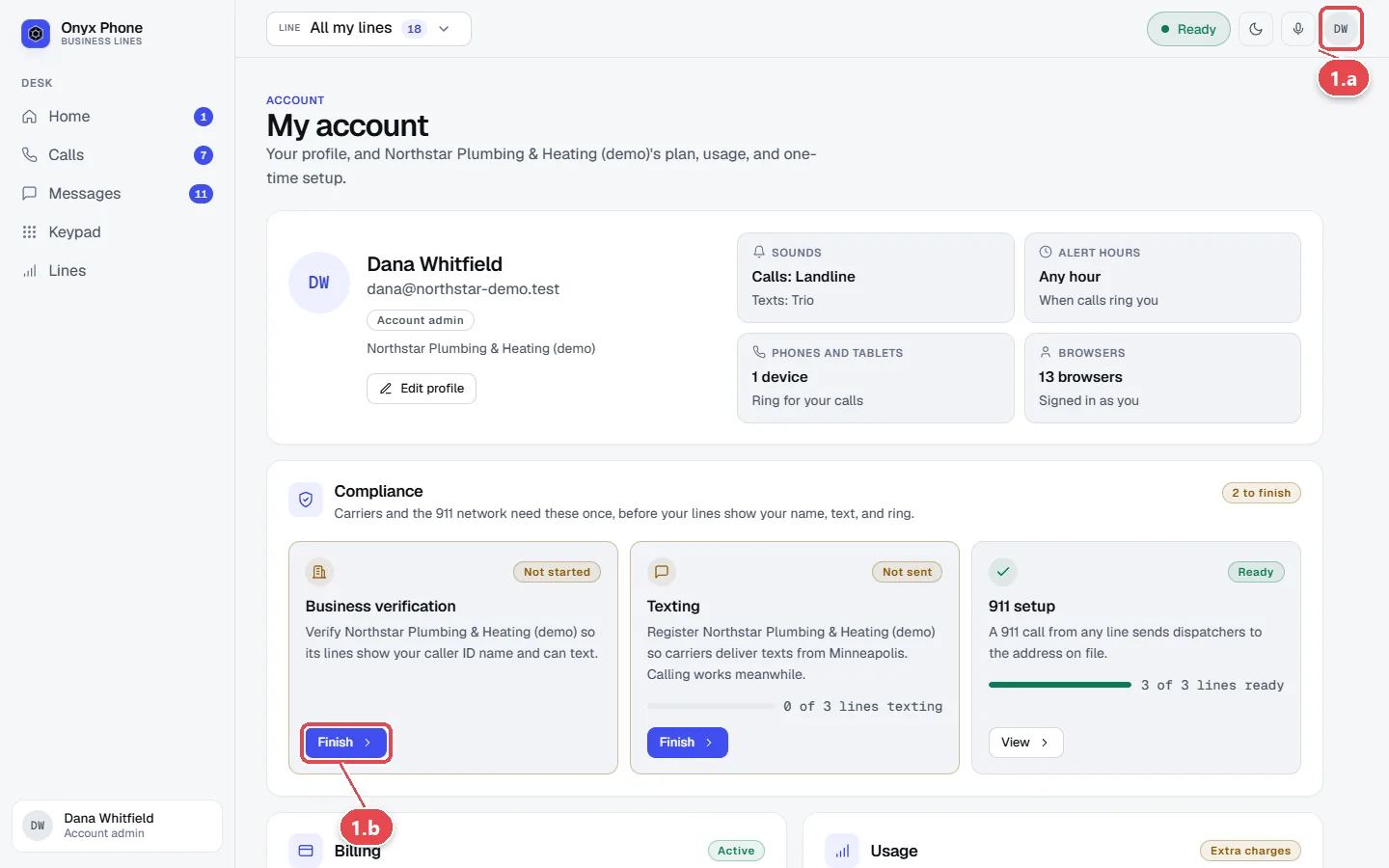
- Step 1.a Click your initials at the top right of the screen, then click My account.
- Step 1.b On the Compliance card, click Finish Business verification.
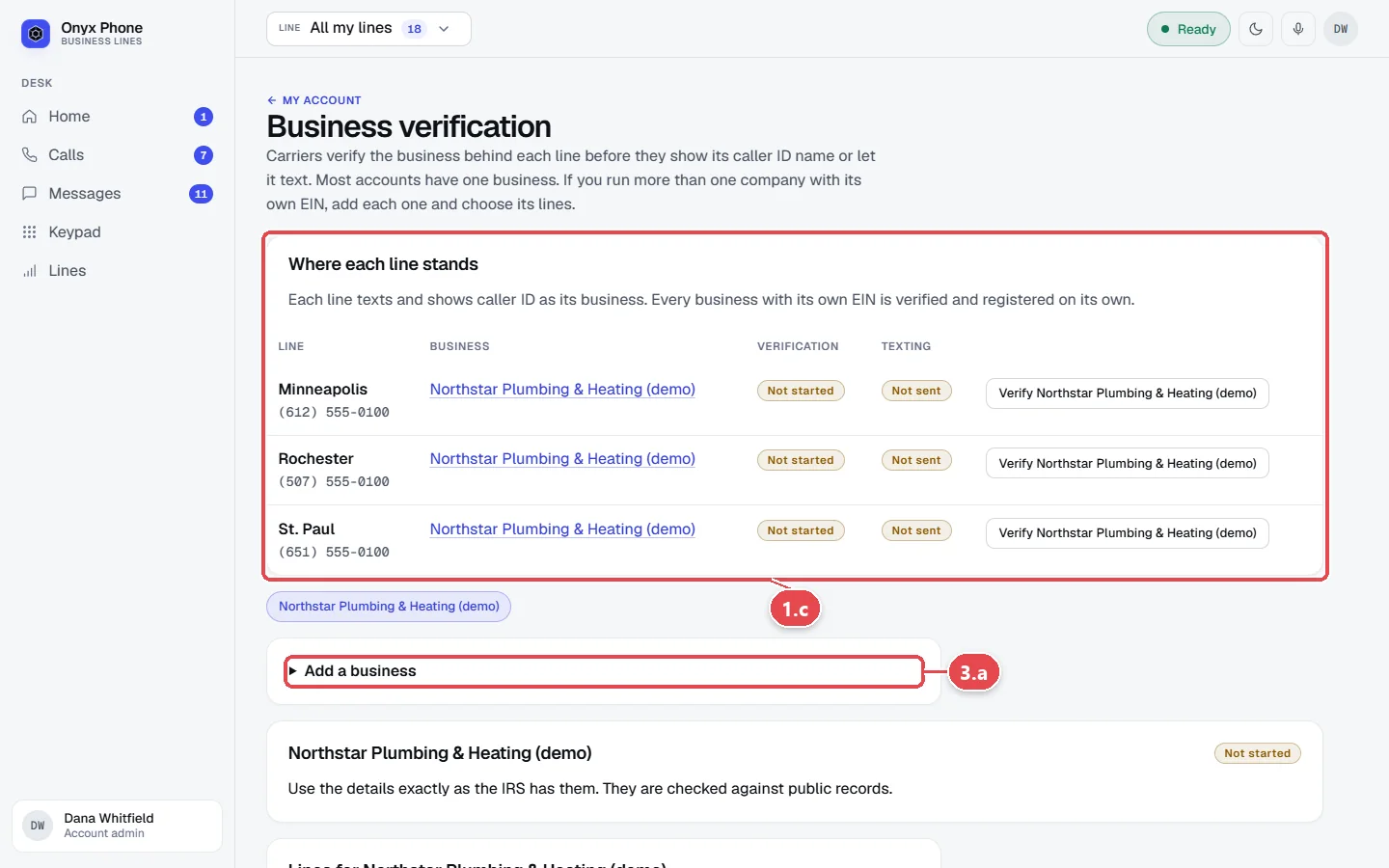
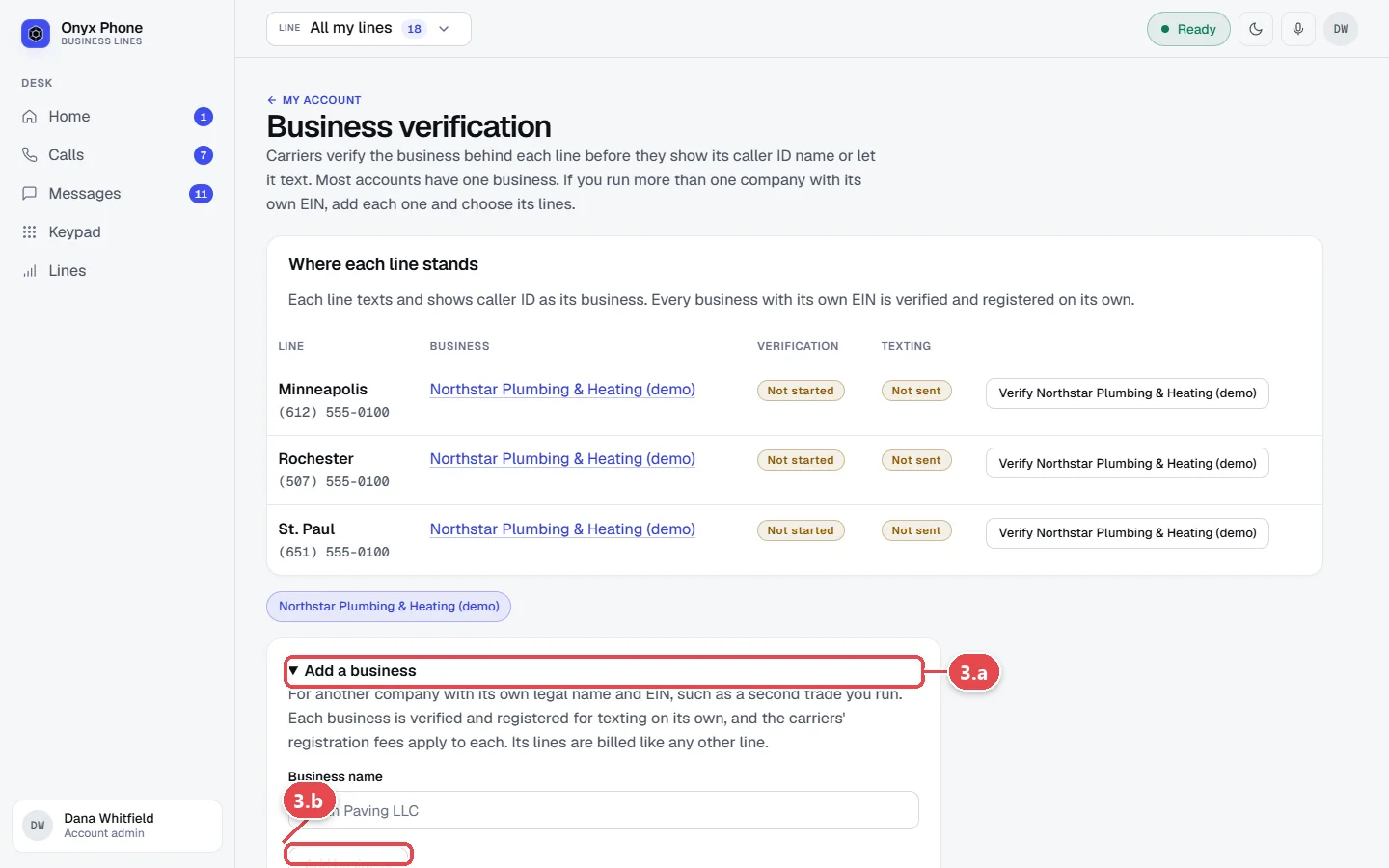
- Step 1.c Read Where each line stands. Each line shows its business, verification status, texting status, and a link to the next step.
Step 2. Choose the business's lines and fill in its details
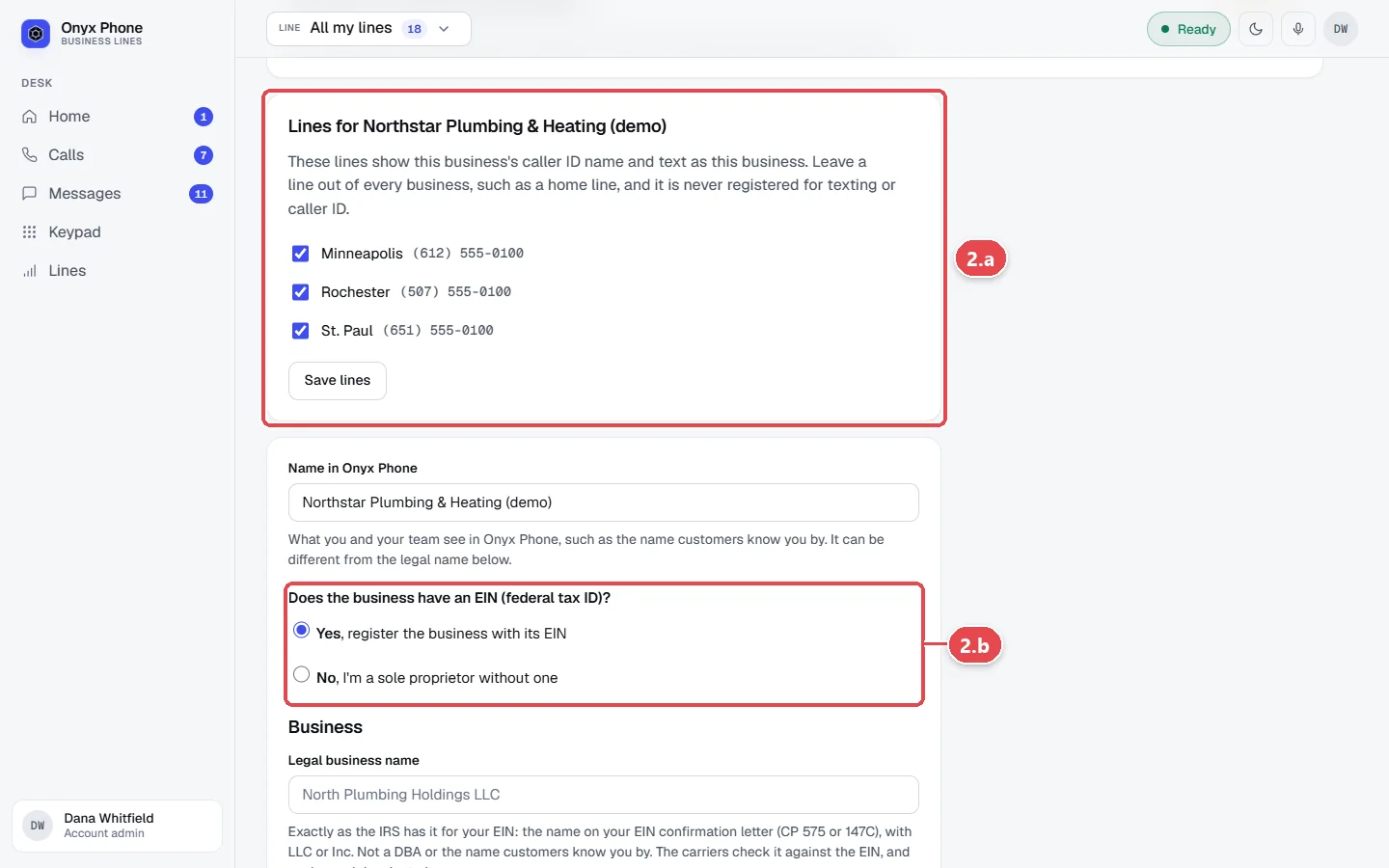
- Step 2.a Under Lines for your business, tick the lines that belong to it and click Save lines.
- Step 2.b Choose whether the business registers with its EIN, or is a sole proprietor without one.
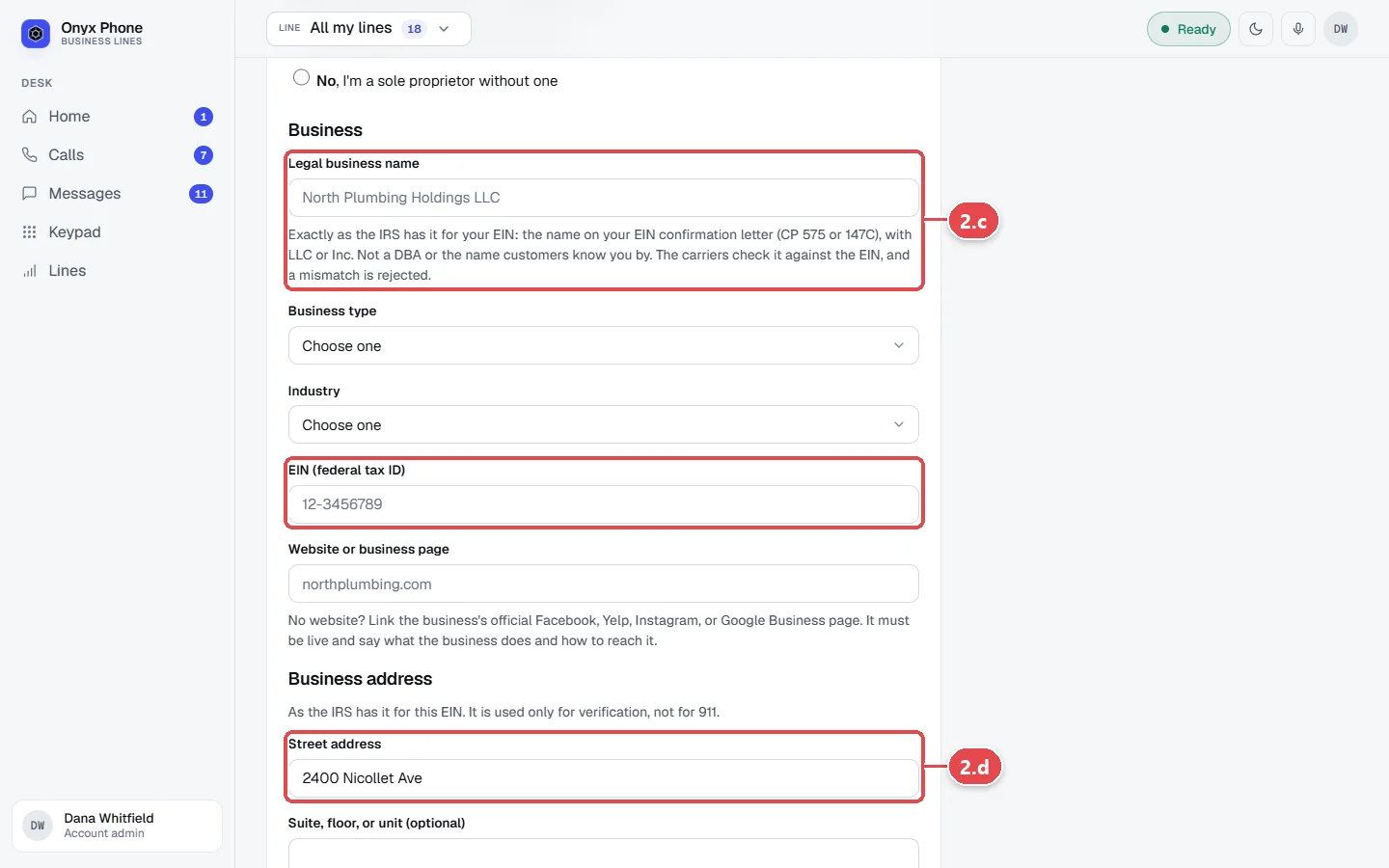
- Step 2.c Under Business, fill in the Legal business name, Business type, Industry, EIN (federal tax ID), and Website or business page, exactly as on your tax records.
- Step 2.d Under Business address, type the business's street address, city, state, and ZIP code.
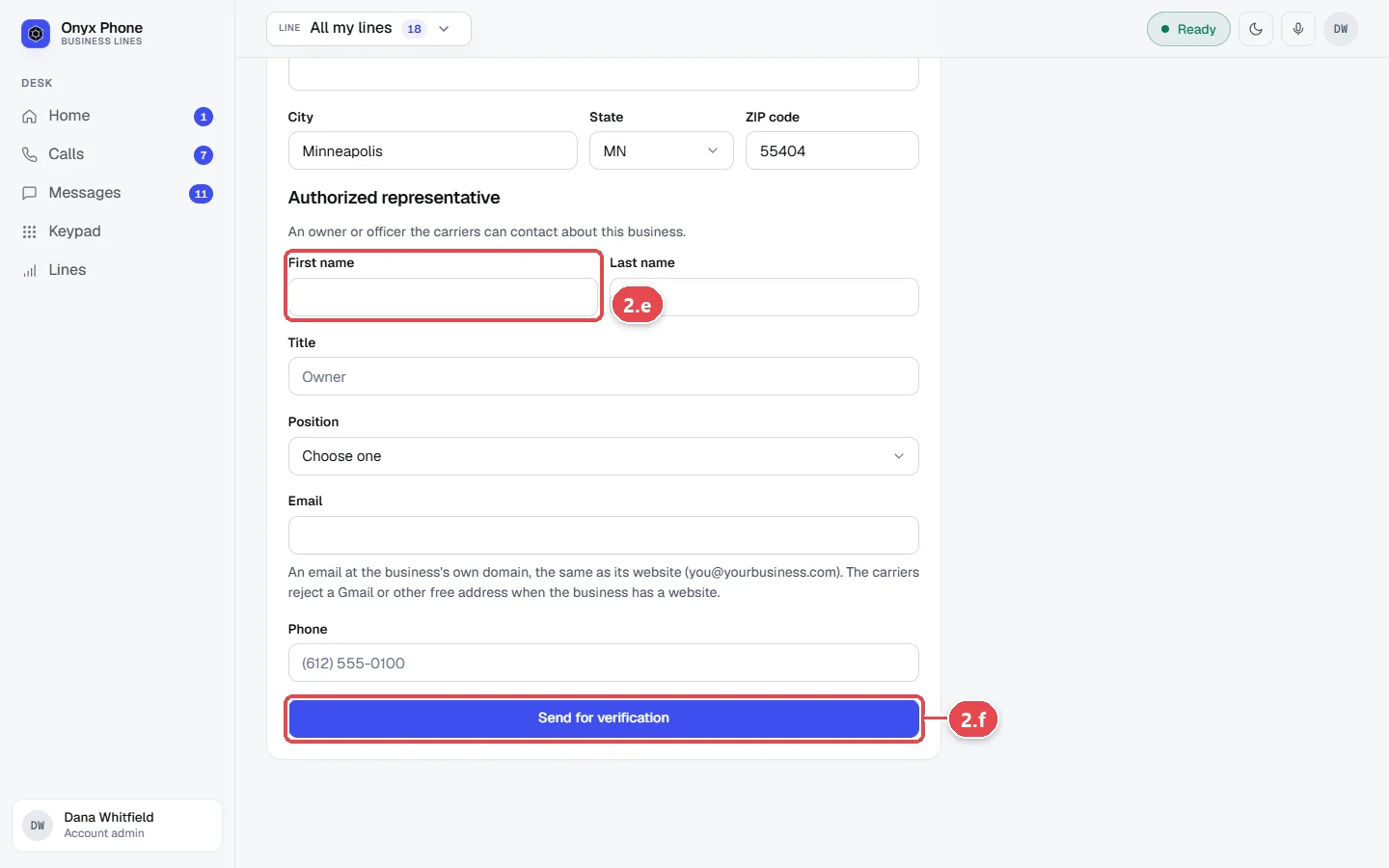
- Step 2.e Under Authorized representative, type the first and last name, title, position, email, and phone of an owner or officer the carriers can contact. Use an email at the business's own domain when it has a website.
- Step 2.f Click Send for verification. The details are locked while they're reviewed.
Step 3. Add another business
- Step 3.a Click Add a business under Where each line stands.
- Step 3.b Type its name and click Add business, then choose its lines and fill in its details the same way.
Questions and answers
How long does verification take?
Usually a few business days. The status is checked every hour and shows not started, being reviewed, needs a fix, or verified.
What does verification unlock?
Your lines' caller ID name is filed with the carriers, every number is signed so calls get the highest trust level (SHAKEN/STIR "A" attestation), and texting registration can go ahead.
We run two companies. Can they share one account?
Yes. Add each business with its own legal details and choose which lines belong to it. One plan, one bill, and one team cover both.
Can a line move to another business?
Only before its number is filed with the carriers. After that it stays with its business.
I'm a sole proprietor without an EIN. Can I still verify?
Yes. Choose that you're a sole proprietor without an EIN and fill in your own details.
Related guides
- How to register your business for texting (A2P 10DLC)Register your Onyx Phone lines with US carriers for business texting (A2P 10DLC): describe your texts, how people opt in, add samples, and send it.
- How to set your caller ID name, record calls, and text back missed callersSet the caller ID name people see when you call, show incoming callers' names, record calls with AI summaries, and text back callers you missed.
- How to use My account to manage your profile, billing, and complianceMy account puts your Onyx Phone profile, devices, billing, usage, and business setup (verification, texting, 911) on one page, with the next step for each.
- How to register a 911 address for each business phone lineRegister a 911 address for each Onyx Phone line so dispatchers know where to go, accept the 911 notice, and check each line's 911 status.
Getting started
- Create a login and pick a plan. Checkout saves a card for the 7-day free trial, and nothing is charged until it ends.
- Confirm your business and its 911 address, and get a local number on the spot. Bringing your own number? You answer on a temporary one while it moves over, for free.
- Choose where calls ring, write what callers hear, invite your team, and register for texting. Then answer in the browser, the iPhone and Android apps, or a desk phone. How it works has the details.
Screens change as we improve Onyx Phone; we last checked this guide on November 6, 2026. The screenshots show a made-up business. Markdown version · All guides · Contact us