Guides / Lines and call routing
How to set your caller ID name, record calls, and text back missed callers
This guide covers three line settings that help you look professional and never lose a lead: the Caller ID name people see when you call, caller name lookup for incoming calls, call recording with AI summaries and transcripts, and missed-call text-back, which texts a caller automatically when nobody picks up.
Before you start
- You need to be an account admin. A caller ID name needs your business verified first; see Business verification.
Step 1. Set the caller ID name
- Step 1.a In the left menu, click Lines, then click the pencil button next to the line.
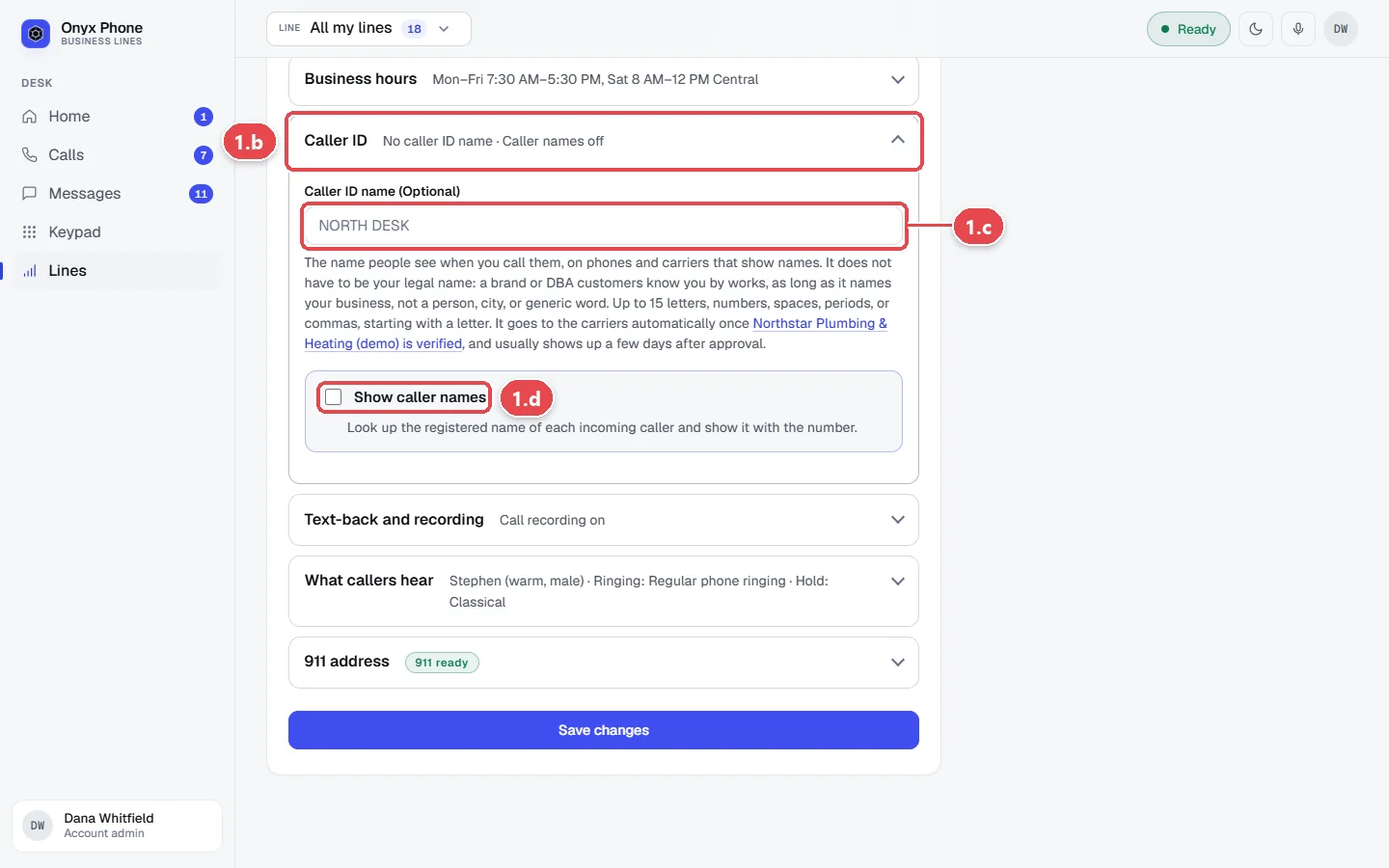
- Step 1.b Click Caller ID.
- Step 1.c Type the name people should see when this line calls them, up to 15 characters, such as NORTHSTAR PLMB. Its filing status shows below the box.
- Step 1.d Tick Show caller names to look up the registered name of each caller who rings this line. It costs about a cent a call, so it's off until you turn it on.
Step 2. Record calls and text back missed callers
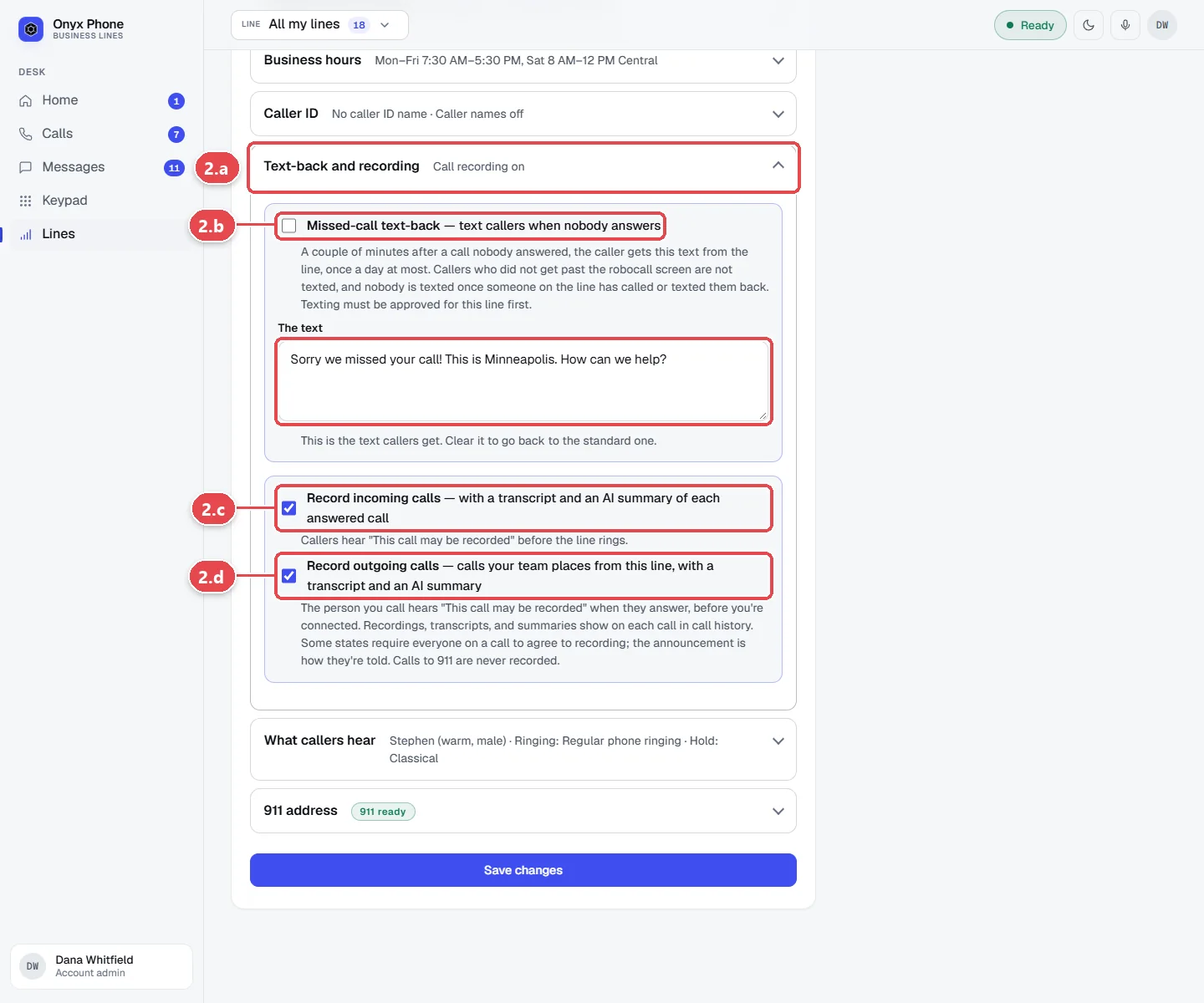
- Step 2.a Click Text-back and recording.
- Step 2.b Tick Missed-call text-back to send a text to callers nobody answered, and type The text, such as "Sorry we missed you! We'll call you back shortly, or reply here."
- Step 2.c Tick Record incoming calls to record calls people make to this line. Callers hear "This call may be recorded" before it rings.
- Step 2.d Tick Record outgoing calls to record calls your team places from this line. The person you call hears "This call may be recorded" when they answer. Recordings come with an AI summary and a transcript on each call's page.
- Step 2.e Click Save changes at the bottom of the page.
Questions and answers
Why doesn't my caller ID name show up yet?
Carriers update caller ID names on their own schedule, usually within a few days of filing, and some phones show only the number. The status under the box shows where the filing stands.
Is it legal to record calls?
Many states require telling everyone on the call. Onyx Phone plays "This call may be recorded" to callers before the line rings, and to the people you call when they answer. Check the rules where you and your callers are.
Can I record only outgoing calls, or only incoming ones?
Yes. Record incoming calls and Record outgoing calls are separate, and each line has its own. Calls to 911 are never recorded.
Where do I listen to recordings?
Open the call from Calls. The recording, AI summary, and transcript are under Call recording. See Call history and call details.
Does missed-call text-back need texting turned on?
Yes. The text goes from the line's number, so the line needs texting registered and approved.
Who sees text-back messages?
They appear in the caller's conversation in Messages, so your team sees what was sent and any reply.
Related guides
- How to verify your business for caller ID and spam protectionVerify your business in Onyx Phone to show your caller ID name, sign calls against spam labels, and unlock texting. Run several businesses on one account.
- How to see your call history, recordings, and call detailsFind any business call in Onyx Phone. Filter missed and outgoing calls, play recordings, read AI summaries and transcripts, and add notes for your team.
- How to register your business for texting (A2P 10DLC)Register your Onyx Phone lines with US carriers for business texting (A2P 10DLC): describe your texts, how people opt in, add samples, and send it.
- How to set how a business line rings and what voicemail saysSet how an Onyx Phone line rings: browsers, phone apps, and desk phones, ring time, the greeting, voicemail greeting, and voicemail by email.
Getting started
- Create a login and pick a plan. Checkout saves a card for the 7-day free trial, and nothing is charged until it ends.
- Confirm your business and its 911 address, and get a local number on the spot. Bringing your own number? You answer on a temporary one while it moves over, for free.
- Choose where calls ring, write what callers hear, invite your team, and register for texting. Then answer in the browser, the iPhone and Android apps, or a desk phone. How it works has the details.
Screens change as we improve Onyx Phone; we last checked this guide on November 6, 2026. The screenshots show a made-up business. Markdown version · All guides · Contact us