Guides / Calls and voicemail
How to make business calls from your web browser
Onyx Phone turns any Chrome, Edge, Firefox, or Safari window into a business phone. This guide shows you how to place a call from the Keypad, choose which business number the other person sees, call back a missed caller or voicemail in two clicks, and call a teammate by name, with a labeled screenshot for every click.
Before you start
- A computer with a microphone and speakers or a headset. A USB or Bluetooth headset gives the clearest sound.
- Your Onyx Phone sign-in. An admin on your account sends it from Team; see Invite and manage teammates.
- At least one line assigned to you. You can call only from the lines you answer.
Step 1. Open the Keypad
- Step 1.a On your computer, go to onyxphone.io/login and sign in with your email and password.
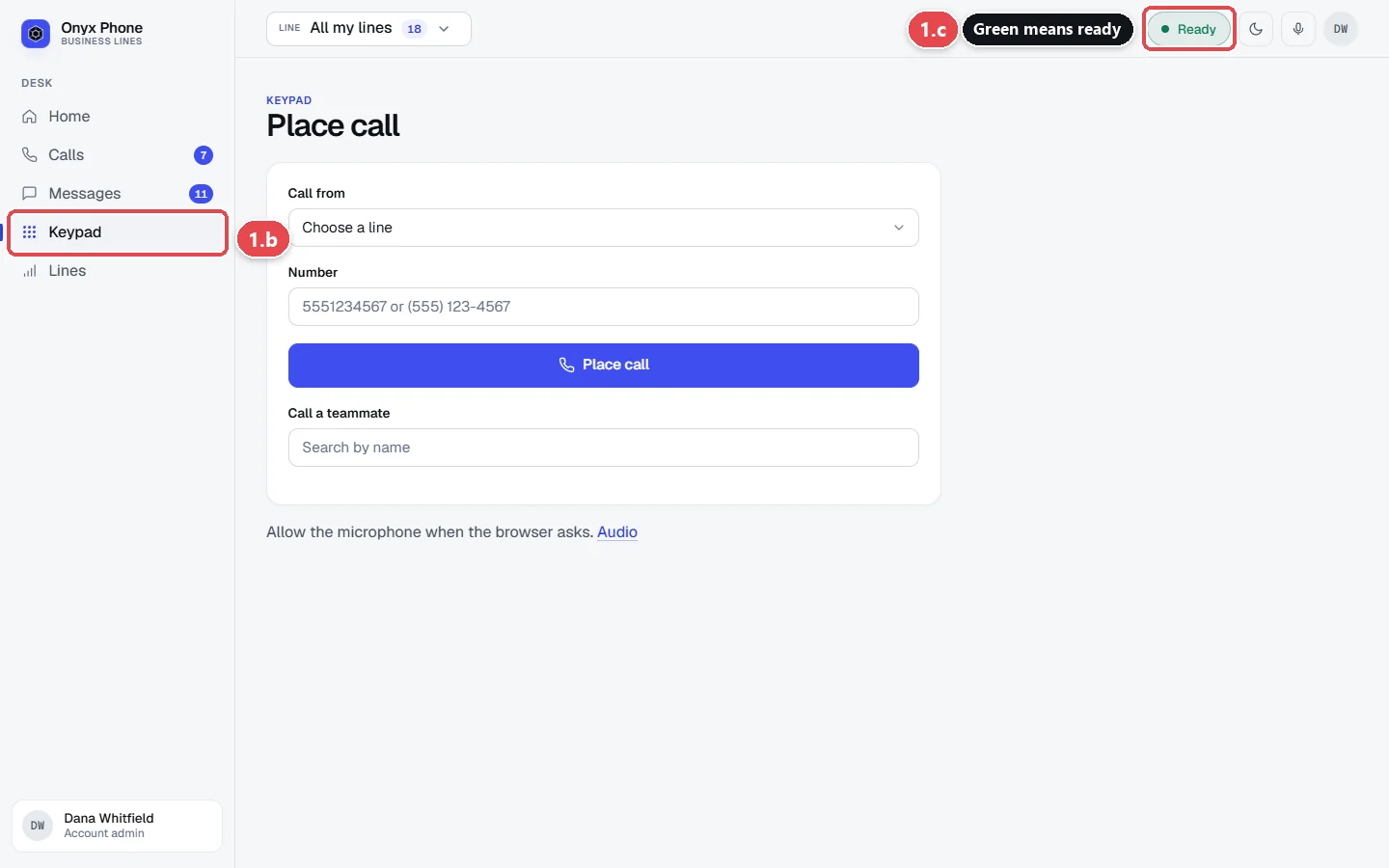
- Step 1.b In the menu on the left side of the screen, click Keypad. It has a grid of nine dots next to it.
- Step 1.c Look at the top right corner of the screen. The Ready button with a green dot means this browser can place and take calls. If it says Connecting or shows a red dot, wait a few seconds or reload the page.
Step 2. Choose the line to call from
Each line is one of your business numbers. The person you call sees the number of the line you choose, never your personal number.
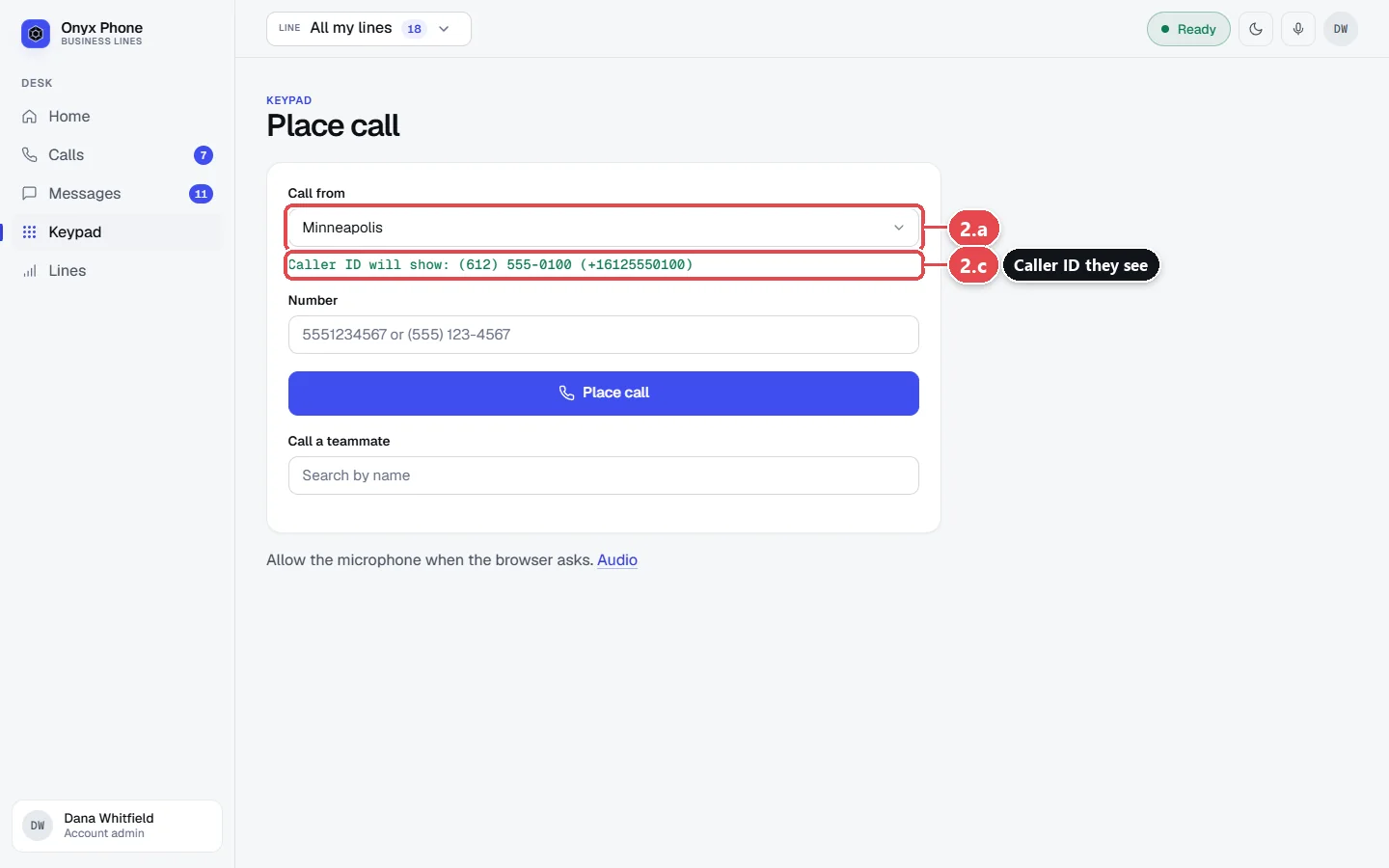
- Step 2.a Click the Call from box. A list of the lines assigned to you opens.
- Step 2.b Click the line you want to call from, such as Minneapolis.
- Step 2.c Check the number shown under the box. That is the caller ID the other person will see.
Tip: If the line picker at the top of the screen is set to one line, the Keypad starts with that line already chosen.
Step 3. Dial the number and place the call
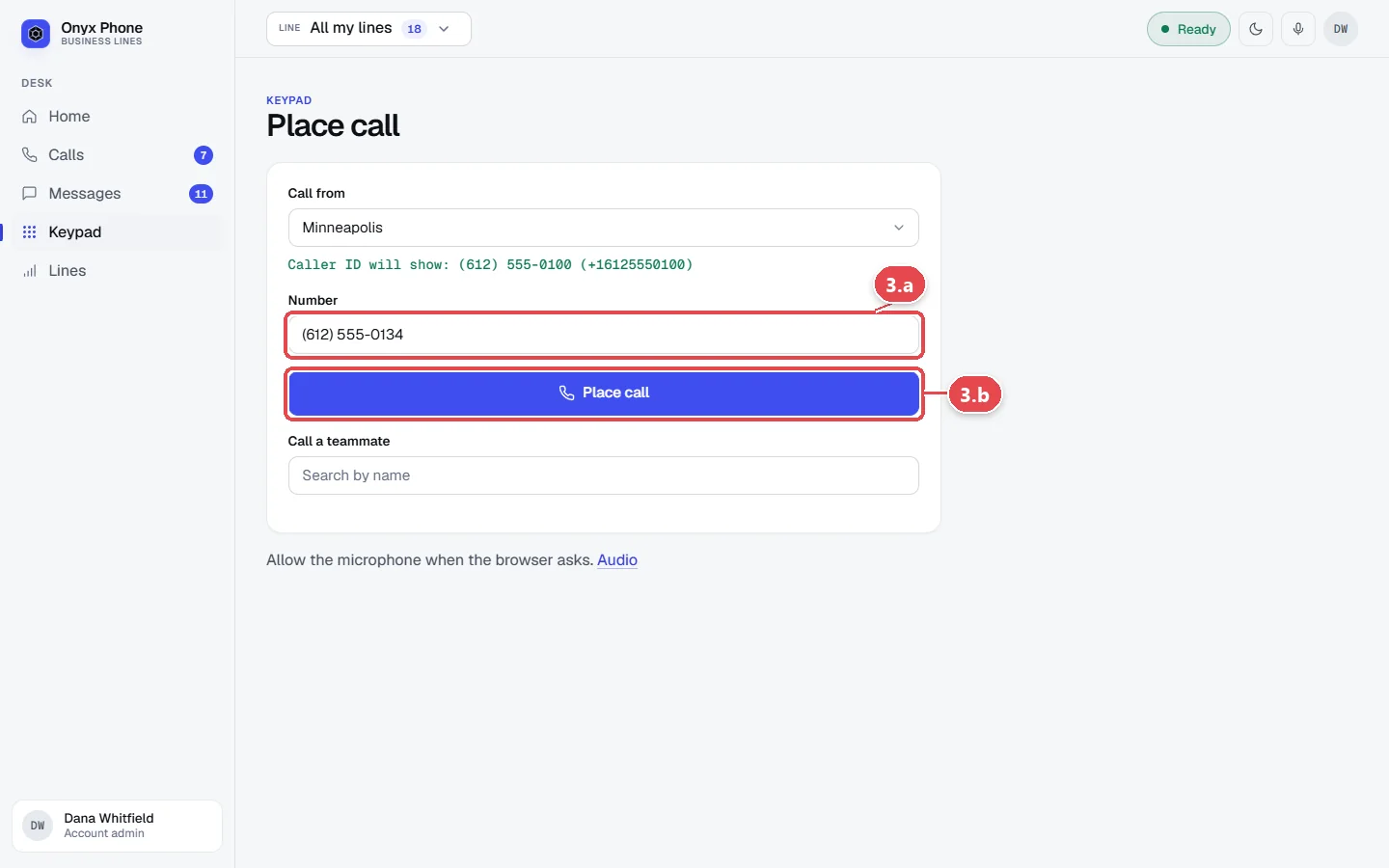
- Step 3.a Click in the Number box and type the number. Type the 10 digits, with or without dashes and parentheses, such as (612) 555-0134. Calls to the US and Canada are included in your plan.
- Step 3.b Click the blue Place call button.
- Step 3.c The first time you call from this browser, it asks to use your microphone. Click Allow. Onyx Phone can't place calls without it.
- Step 3.d The call screen opens and shows the number while it rings. When you're done, click Hang up. To mute, hold, or transfer during the call, see Answer and manage calls in your browser.
Step 4. Call back a missed call or voicemail
You don't need to type the number again. Any call or voicemail can be returned from its details page.
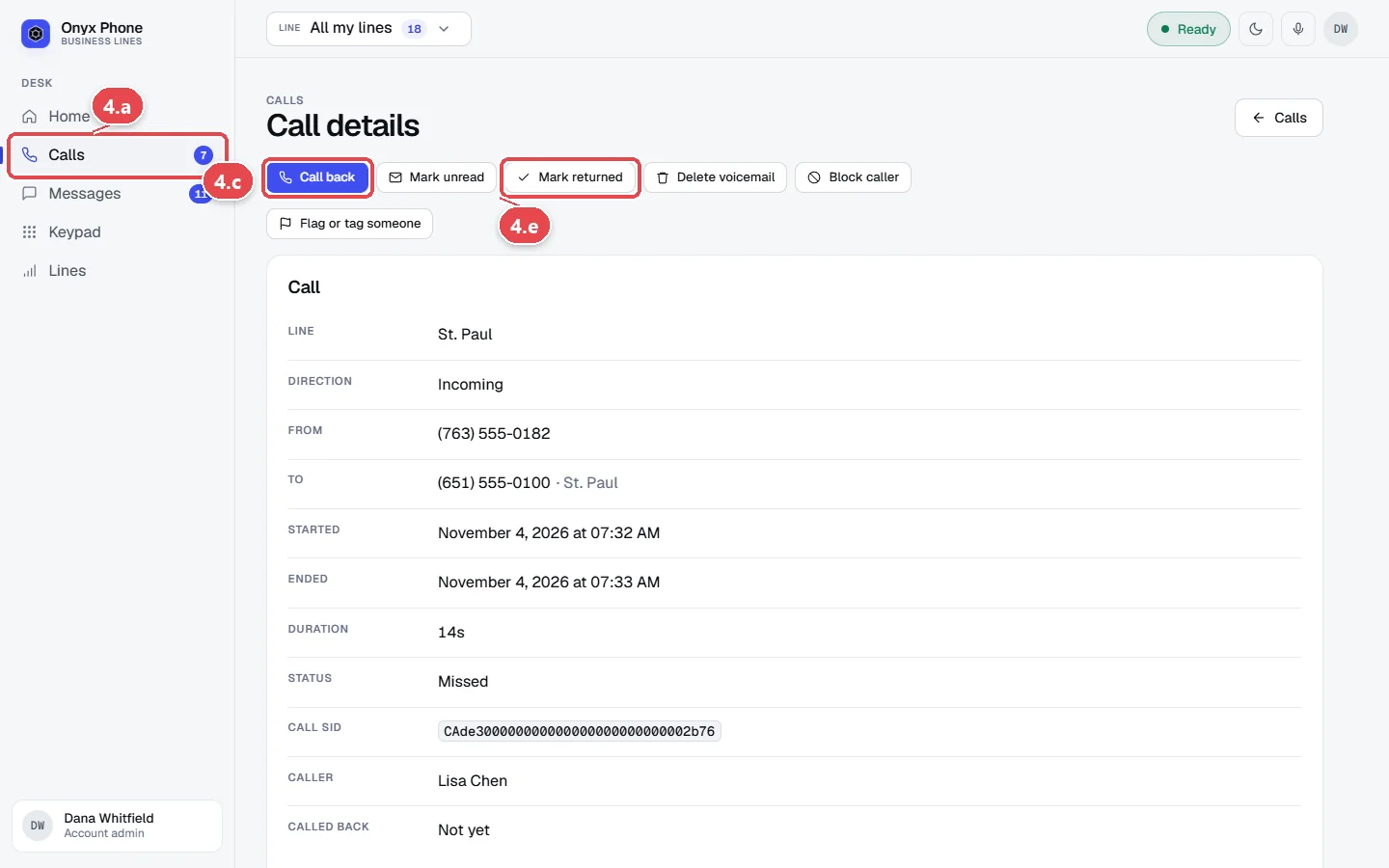
- Step 4.a In the left menu, click Calls. The number in the blue badge is how many missed calls and voicemails you haven't opened yet.
- Step 4.b Click the call or voicemail you want to return. Its Call details page opens.
- Step 4.c Click the blue Call back button at the top of the page.
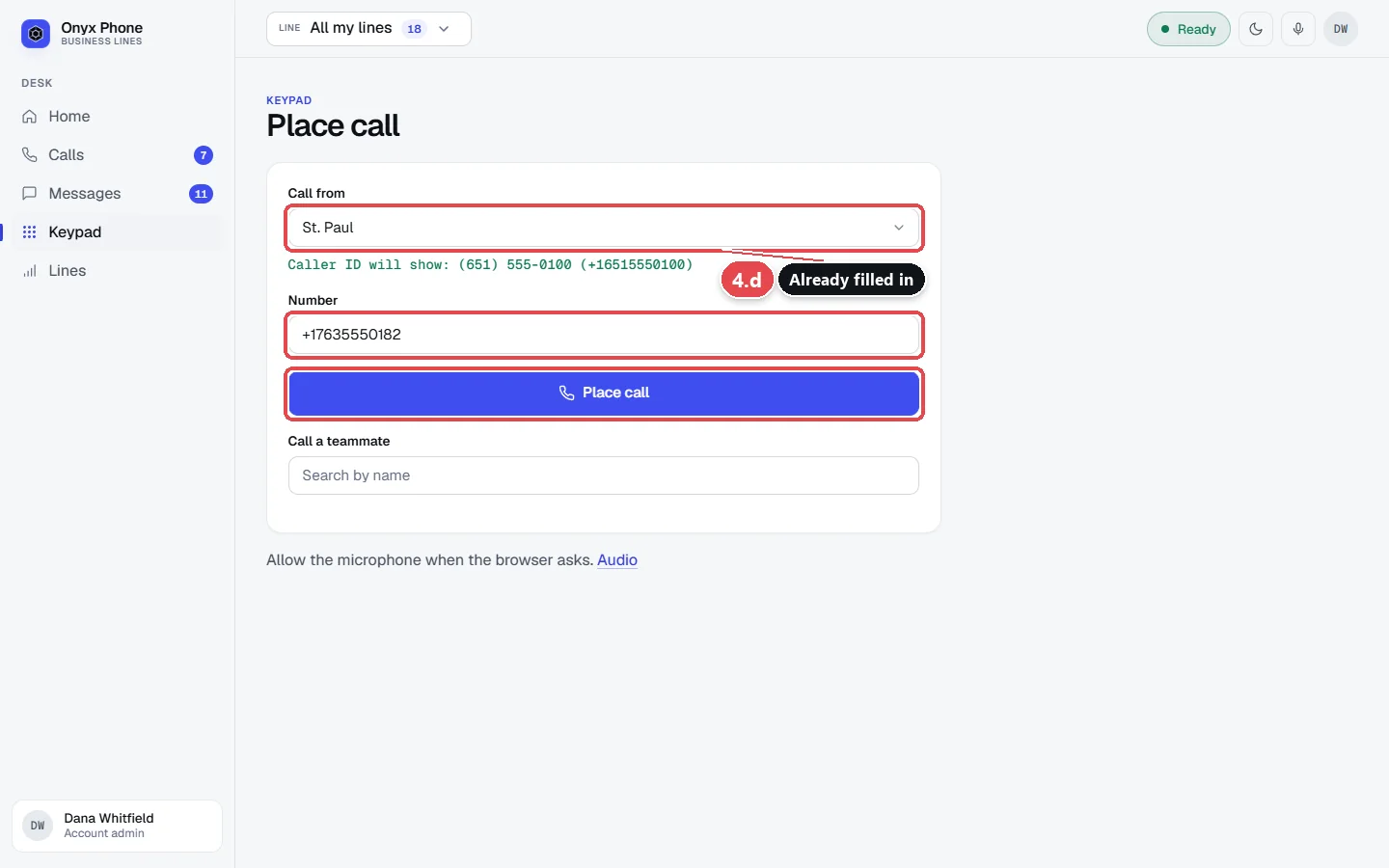
- Step 4.d The Keypad opens with the caller's number in the Number box and the line they called already chosen in Call from. Click Place call.
- Step 4.e After you've talked to them, go back to the call's page and click Mark returned, so your team knows the call was handled.
Step 5. Call a teammate by name
When an admin turns on Calling each other on the Team page, you can call anyone on your team without knowing their number. Their browser, phone app, and desk phone ring.
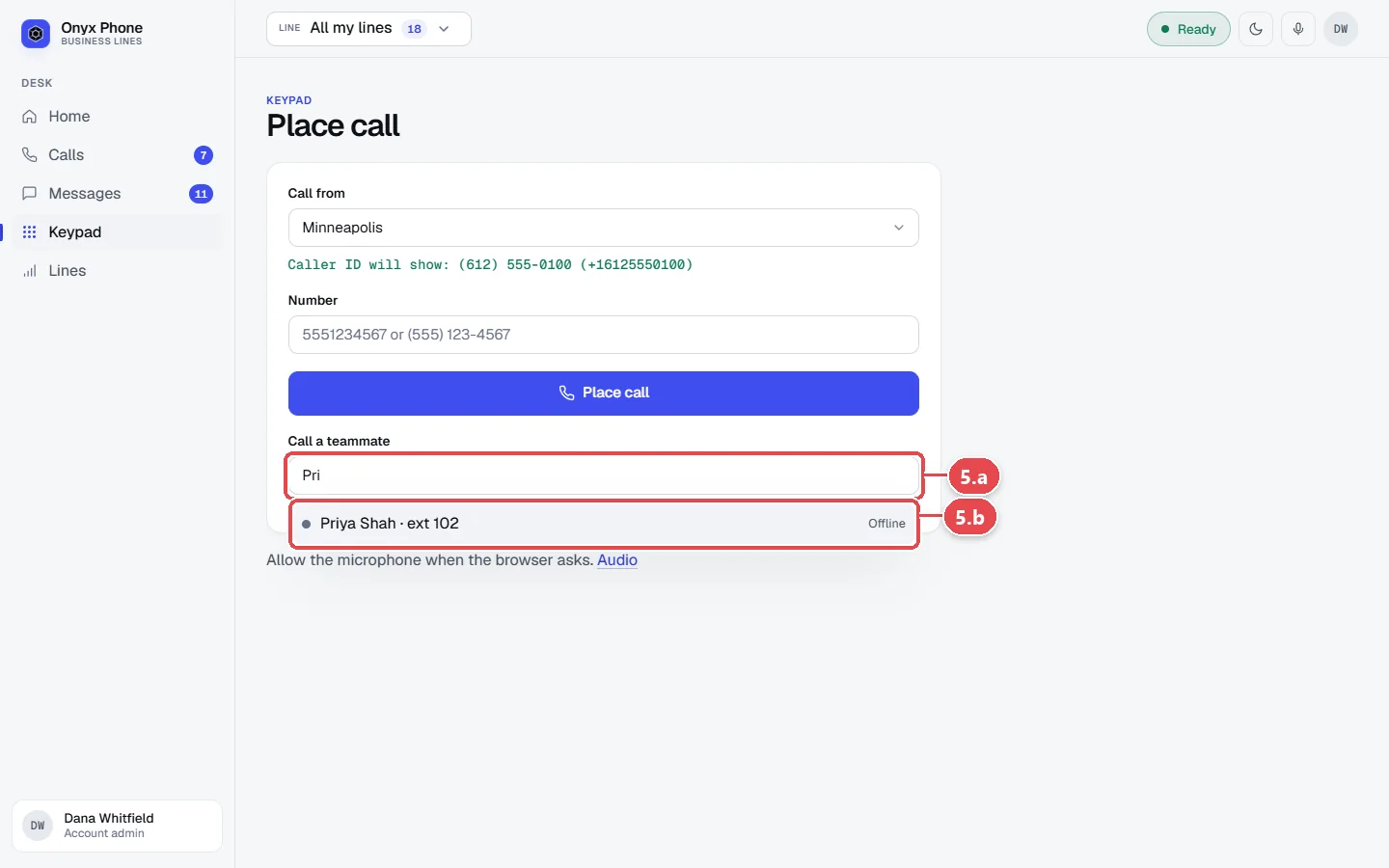
- Step 5.a On the Keypad, click the Call a teammate box under Place call.
- Step 5.b Type the first few letters of your teammate's name, then click their name in the list.
- Step 5.c Click the green Call button that appears. Your teammate sees your name when it rings.
Tip: You can also type a teammate's extension, such as 102, in the Number box and click Place call, if your account uses extensions.
Step 6. Start a call from the Home page
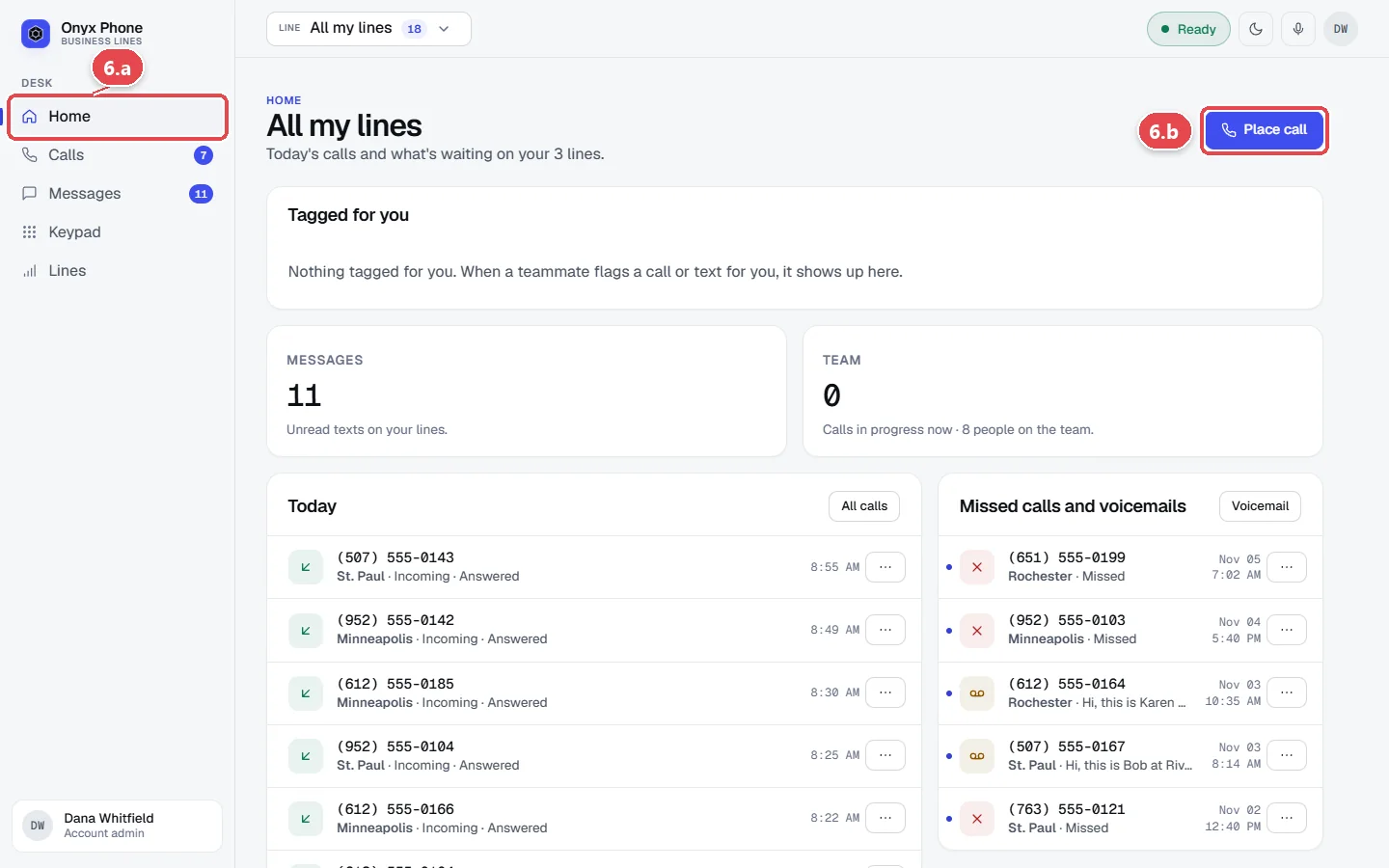
- Step 6.a In the left menu, click Home.
- Step 6.b Click Place call at the top right of the page. The Keypad opens with the line from the line picker already chosen.
Questions and answers
What number do people see when I call from Onyx Phone?
They see the business number of the line you chose in Call from. Your personal cell or home number is never shown. Once your business is verified, the line's caller ID name shows too; see Caller ID, call recording, and text-back.
Which browsers can I make calls from?
Current versions of Chrome, Edge, Firefox, and Safari on Windows, Mac, and Chromebook. The browser needs permission to use your microphone. See supported devices.
Why is the Place call button not working?
Check that you chose a line in Call from, that the number has 10 digits, and that the Ready button at the top of the screen has a green dot. If your browser blocked the microphone, click the lock or camera icon in the address bar and allow it, then reload the page.
Can I call international numbers?
Calls to the US and Canada are included. International calling is off unless you ask us to turn it on, at rates we quote in advance; contact us. Once it's on, type + and the country code before the number.
Can I call 911 from Onyx Phone?
Yes, from any line with a registered 911 address. Dispatchers see the address set for that line. 911 calls need power and an internet connection, so keep another way to call in an emergency. See 911 setup.
Why can't I see a line in the Call from list?
You can call only from lines assigned to you. Ask an account admin to add you to the line on the Team page.
Do calls from my browser get recorded?
Only if an admin turned on call recording for that line. Callers hear an announcement when a call is recorded. See Caller ID, call recording, and text-back.
Related guides
- How to answer and manage business calls in your web browserAnswer business calls in your browser with Onyx Phone: accept, ignore, or reject, then hold, mute, add someone, transfer, take a second call, and hang up.
- How to see your call history, recordings, and call detailsFind any business call in Onyx Phone. Filter missed and outgoing calls, play recordings, read AI summaries and transcripts, and add notes for your team.
- How to listen to, return, and delete business voicemailsCheck business voicemail on the web, iPhone, or Android: play messages, read transcripts, call back, mark them returned, and delete or restore them.
- How to make and answer business calls in the Onyx Phone appMake and answer business calls on iPhone or Android: answer or decline, then mute, keypad, speaker, hold, swap, merge, add someone, and transfer.
Getting started
- Create a login and pick a plan. Checkout saves a card for the 7-day free trial, and nothing is charged until it ends.
- Confirm your business and its 911 address, and get a local number on the spot. Bringing your own number? You answer on a temporary one while it moves over, for free.
- Choose where calls ring, write what callers hear, invite your team, and register for texting. Then answer in the browser, the iPhone and Android apps, or a desk phone. How it works has the details.
Screens change as we improve Onyx Phone; we last checked this guide on November 6, 2026. The screenshots show a made-up business. Markdown version · All guides · Contact us