Guides / Account, billing, and compliance
How to add and set up a desk phone (Yealink, Grandstream, or any SIP phone)
Onyx Phone works with office desk phones as well as browsers and the phone apps. Yealink and Grandstream models set themselves up from a web address, and any other standard SIP phone works with settings you type in. This guide shows you how to add a desk phone, choose which lines it rings for, set its 911 location, set it up, add phones for teammates, and remove a phone.
Before you start
- A supported desk phone with a network cable and power (PoE or an adapter). Phones locked to another provider won't work.
Step 1. Open Desk phones and add a phone
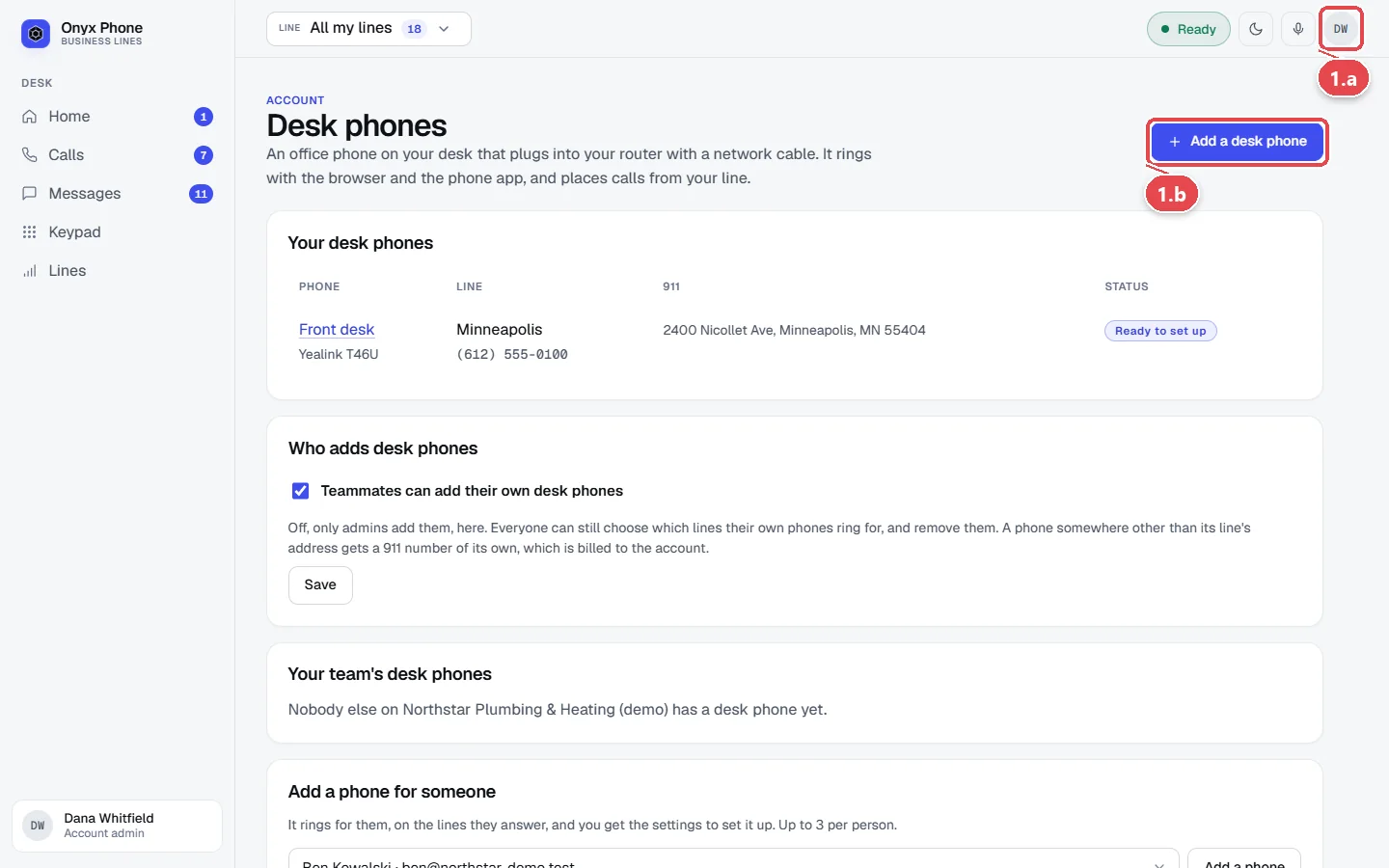
- Step 1.a Click your initials at the top right of the screen, then click Desk phones.
- Step 1.b Click Add a desk phone at the top right.
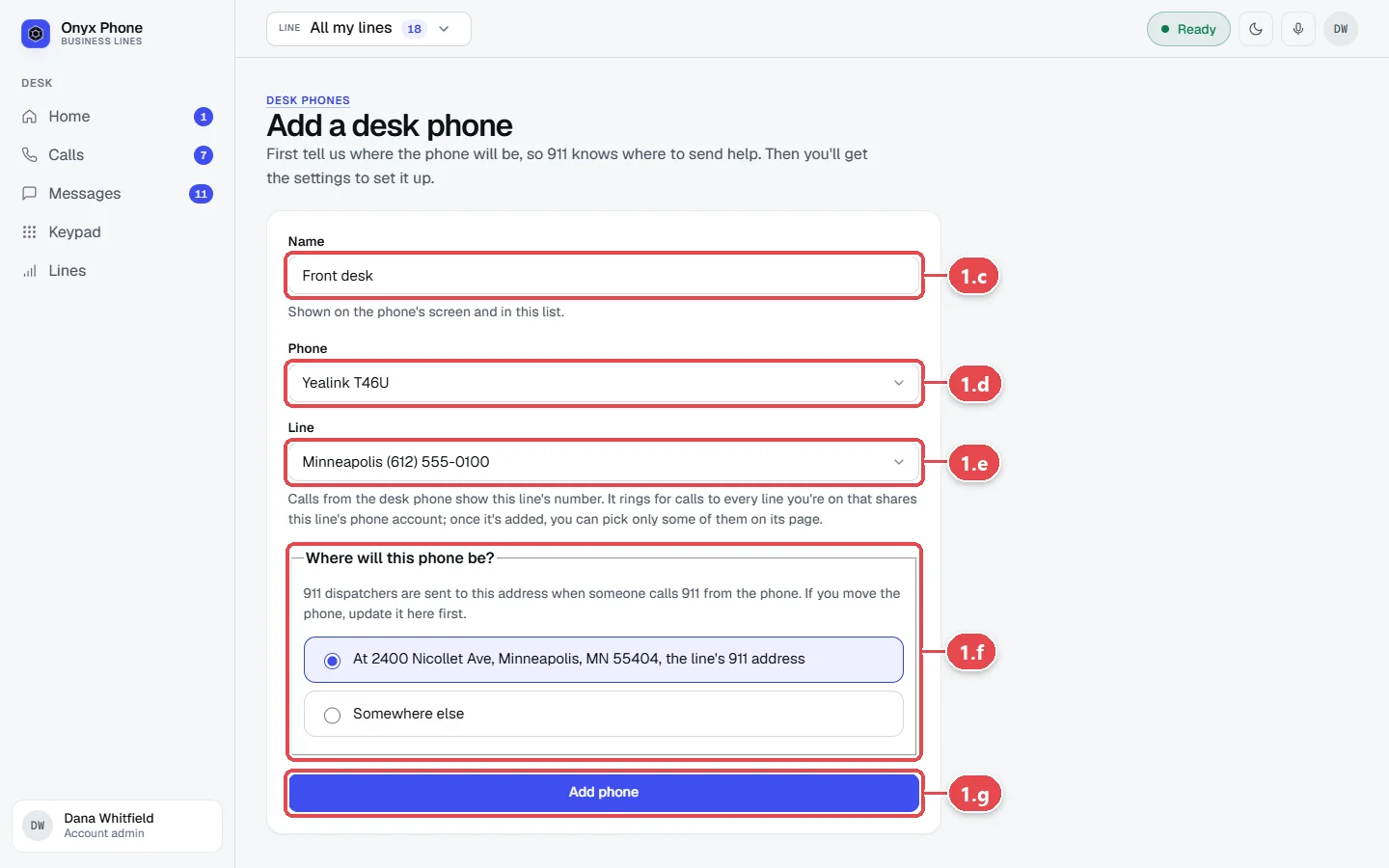
- Step 1.c Type a Name for it, such as Front desk.
- Step 1.d Choose the Phone model. Models marked beta are newer to Onyx Phone.
- Step 1.e Choose the Line whose number the phone calls out from.
- Step 1.f Choose where the phone is for 911, at the line's 911 address or Somewhere else, and type that address.
- Step 1.g Click Add phone. Its page opens with the setup steps.
Step 2. Set up the phone
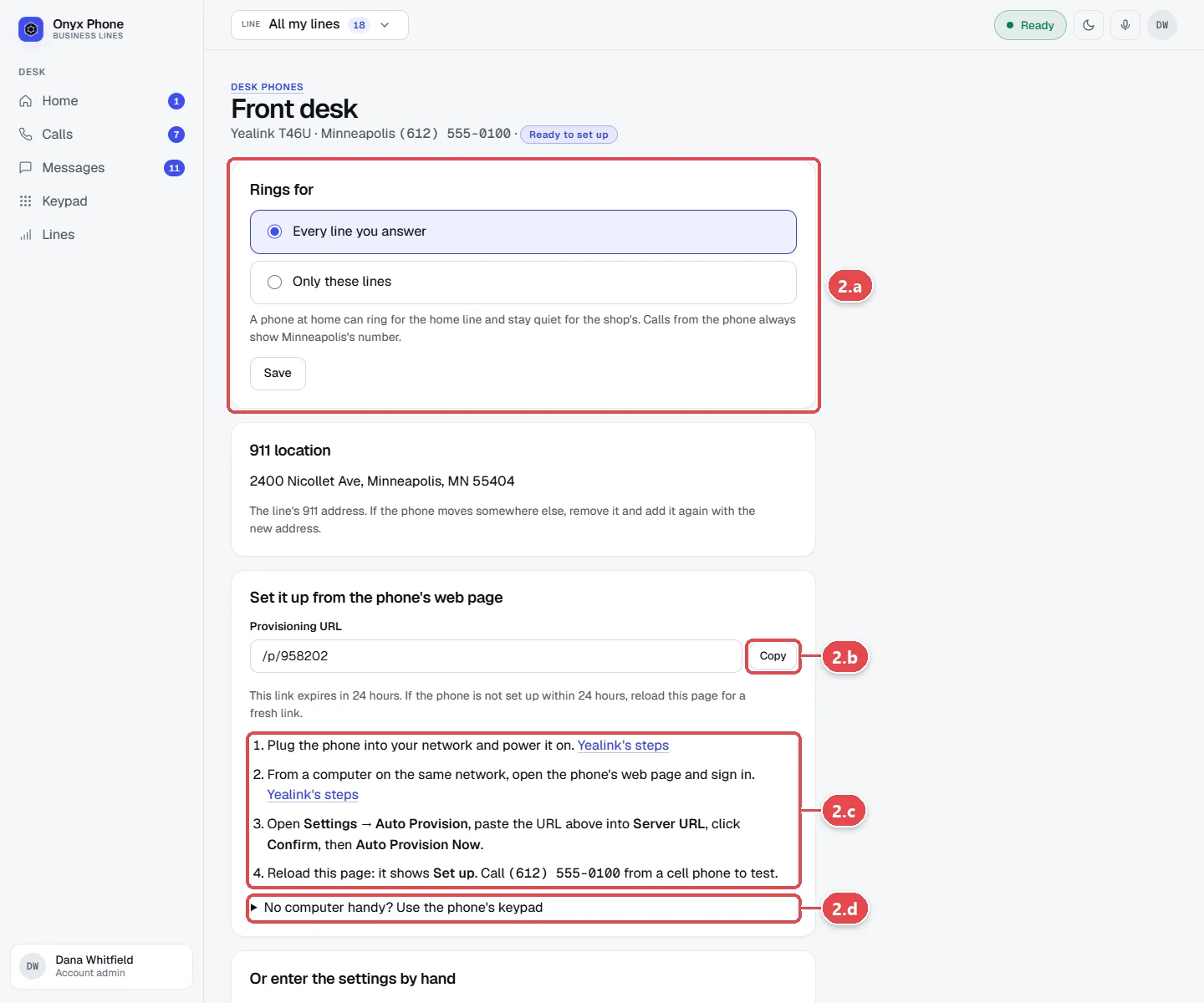
- Step 2.a Under Rings for, tick the lines the phone rings for and click Save.
- Step 2.b Under Set it up from the phone's web page, click Copy to copy the phone's setup address.
- Step 2.c Follow the numbered steps on the page to open the phone's web page from a computer on the same network, paste the address, and start provisioning. The phone downloads its settings and registers in about a minute.
- Step 2.d No computer? Click No computer handy? Use the phone's keypad for steps on the phone itself, with a six-digit code.
- Step 2.e Reload the page. When it shows Set up, call your business number from a cell phone to test.
Step 3. Add phones for teammates (admins)
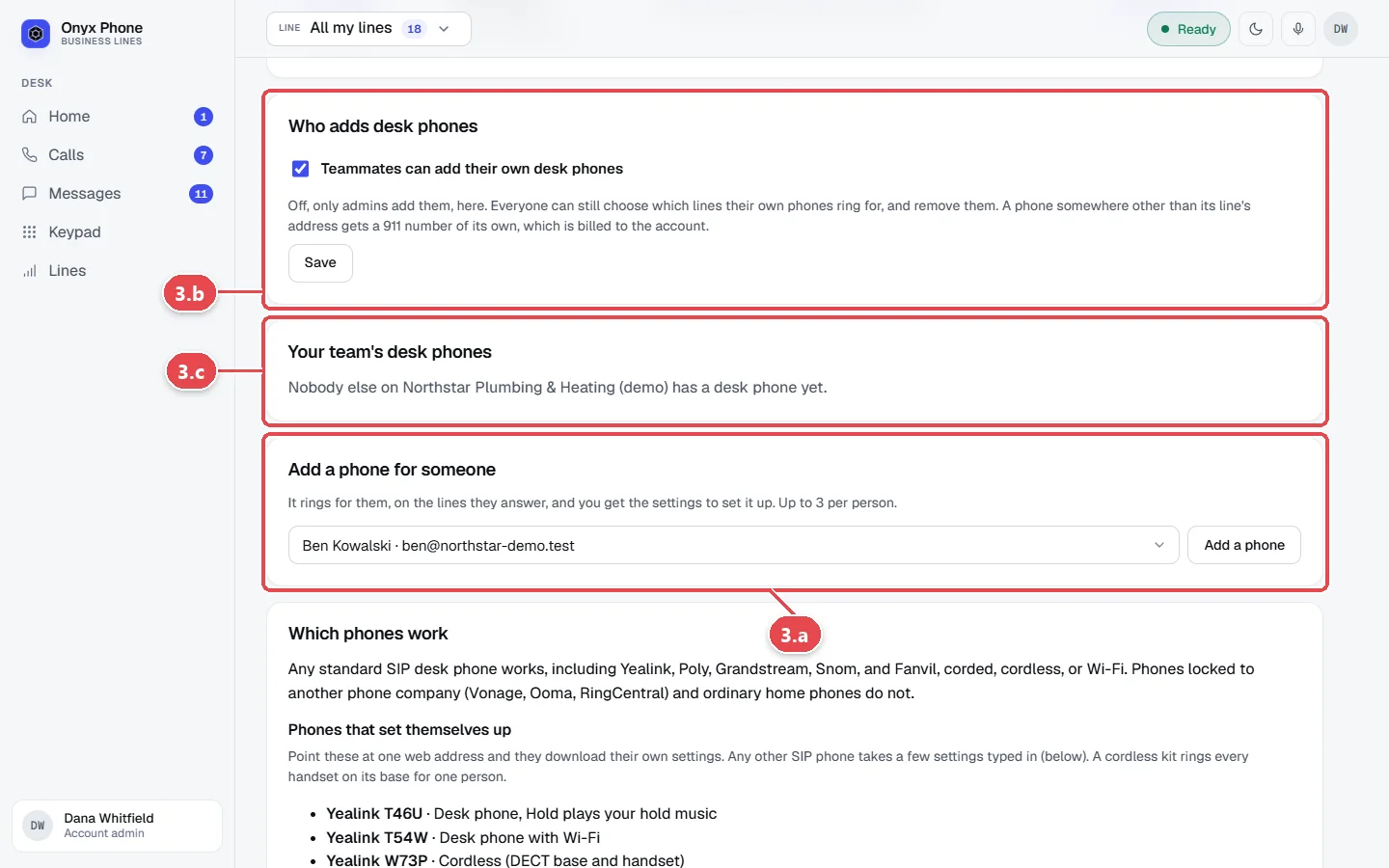
- Step 3.a On Desk phones, under Add a phone for someone, choose the Person and click Add a phone.
- Step 3.b Under Who adds desk phones, choose whether teammates can add their own phones, and click Save.
- Step 3.c See everyone's phones under Your team's desk phones.
Step 4. Remove a phone
- Step 4.a Open the phone from Desk phones.
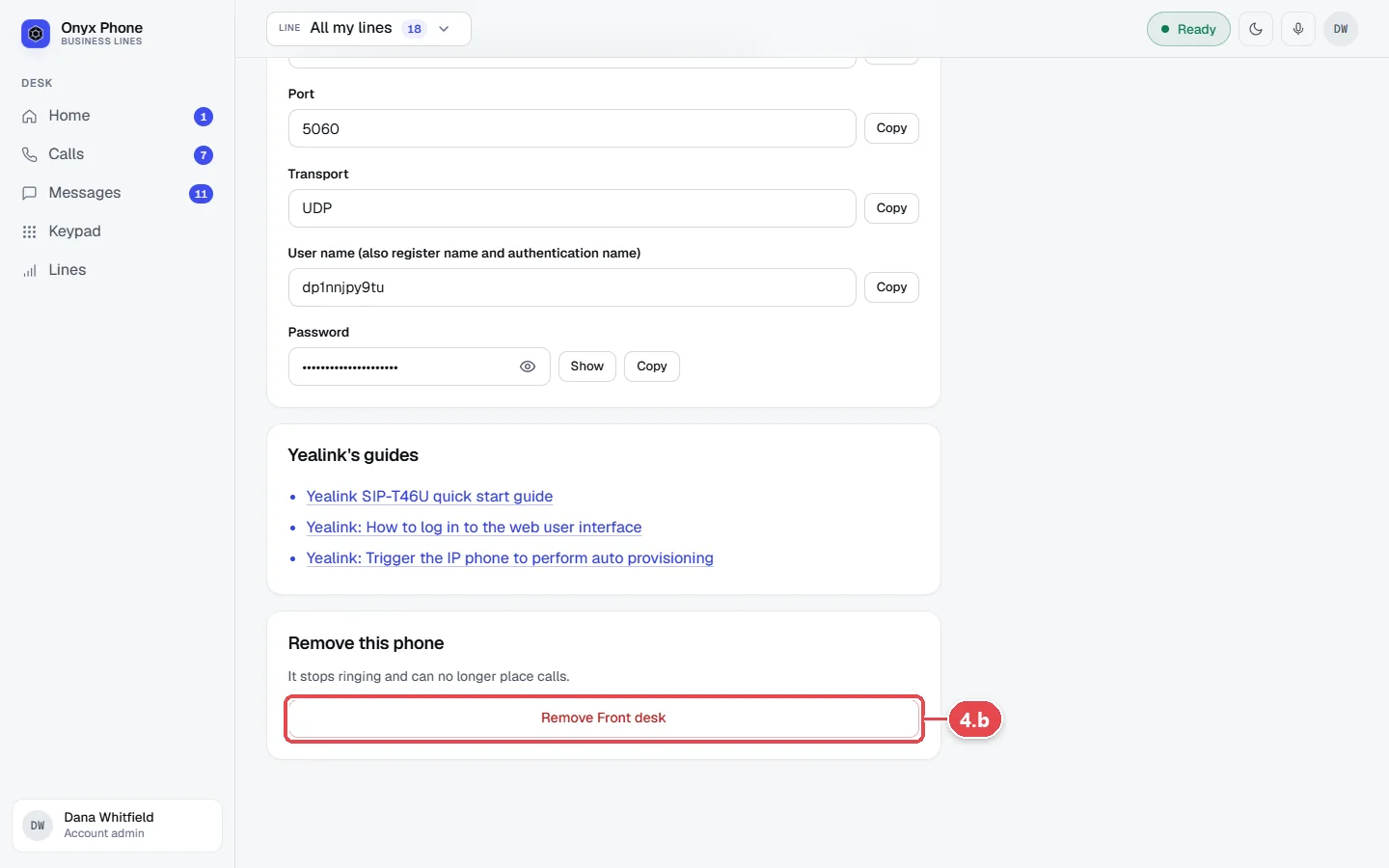
- Step 4.b Under Remove this phone, click the Remove button and confirm. It stops ringing and can't place calls.
Questions and answers
Which desk phones work with Onyx Phone?
Yealink T46U, T54W, and W73P cordless set themselves up, and Grandstream GRP2614, GRP2615, and DP752 do as a beta. Any other standard SIP phone from Poly, Grandstream, Snom, Fanvil, and others works with settings you type in. See supported devices.
How many desk phones can one person have?
Up to three. A cordless kit counts as one phone, and every handset on its base rings.
Does the desk phone ring with my browser and app?
Yes. Everything ticked under the line's How calls ring rings at once, and the first to answer takes the call.
Can I put a caller on hold from a desk phone?
Yes. On supported phones the Hold button plays your line's hold music.
Why does a desk phone need its own 911 location?
So a 911 call from it sends dispatchers to where the phone actually is, which may differ from the line's address.
Related guides
- How to register a 911 address for each business phone lineRegister a 911 address for each Onyx Phone line so dispatchers know where to go, accept the 911 notice, and check each line's 911 status.
- How to set how a business line rings and what voicemail saysSet how an Onyx Phone line rings: browsers, phone apps, and desk phones, ring time, the greeting, voicemail greeting, and voicemail by email.
- How to invite teammates and choose which lines they answerInvite teammates to Onyx Phone by email or in bulk, choose the lines each person answers, give extensions, let them call each other, or remove someone.
- How to set up and use the Onyx Phone app on iPhone and AndroidInstall the Onyx Phone app on iPhone or Android, sign in, check your lines are ready, allow full-screen calls, and find the tabs and Settings menu.
Getting started
- Create a login and pick a plan. Checkout saves a card for the 7-day free trial, and nothing is charged until it ends.
- Confirm your business and its 911 address, and get a local number on the spot. Bringing your own number? You answer on a temporary one while it moves over, for free.
- Choose where calls ring, write what callers hear, invite your team, and register for texting. Then answer in the browser, the iPhone and Android apps, or a desk phone. How it works has the details.
Screens change as we improve Onyx Phone; we last checked this guide on November 6, 2026. The screenshots show a made-up business. Markdown version · All guides · Contact us