Guides / Calls and voicemail
How to make and answer business calls in the Onyx Phone app
The Onyx Phone app turns your iPhone or Android phone into a business phone. This guide shows you how to place a call from any of your lines, call a teammate, call back from recent calls, answer or decline incoming calls, and use every button on the call screen, including hold, call waiting, swap, merge, adding someone, and transferring a call.
Before you start
- The Onyx Phone app installed and signed in, with Ready for calls showing. See Get started with the phone app.
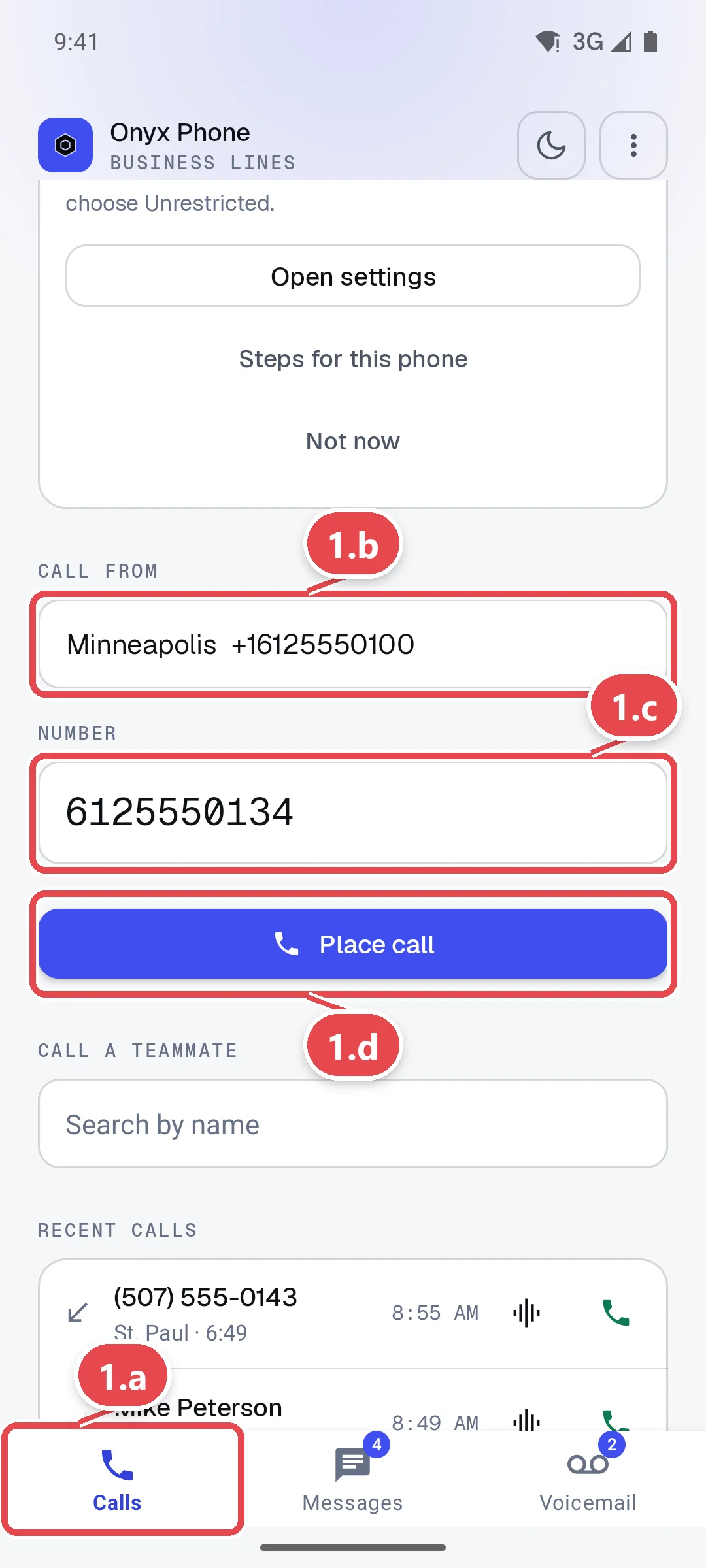
Step 1. Place a call
- Step 1.a Open the app and tap Calls at the bottom of the screen.
- Step 1.b Tap Call from and choose the line to call from. The person sees that line's business number.
- Step 1.c Tap Number and type the number, or a teammate's extension.
- Step 1.d Tap Place call. The call screen opens.
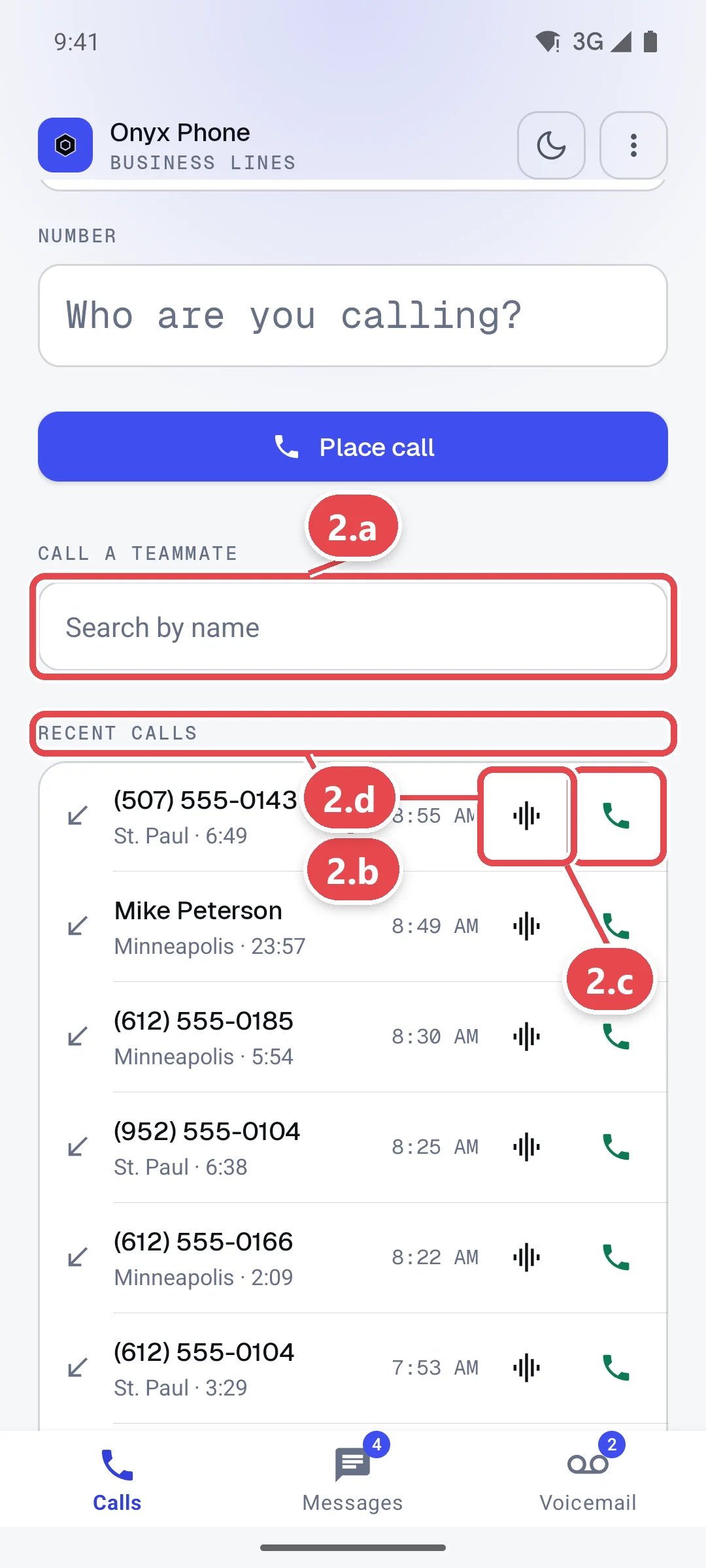
Step 2. Call a teammate or call back a recent call
- Step 2.a To call a teammate, tap Search by name under Call a teammate, type their name, and tap them. This shows when an admin has turned on calling each other.
- Step 2.b Scroll down to Recent calls. Each row shows the number or name, the line, how long the call lasted, and when.
- Step 2.c Tap the phone button at the right of a call to call that person back from the same line.
- Step 2.d Tap the play button, where there is one, to listen to the call's recording.
- Step 2.e Tap Show older calls at the bottom for earlier calls.
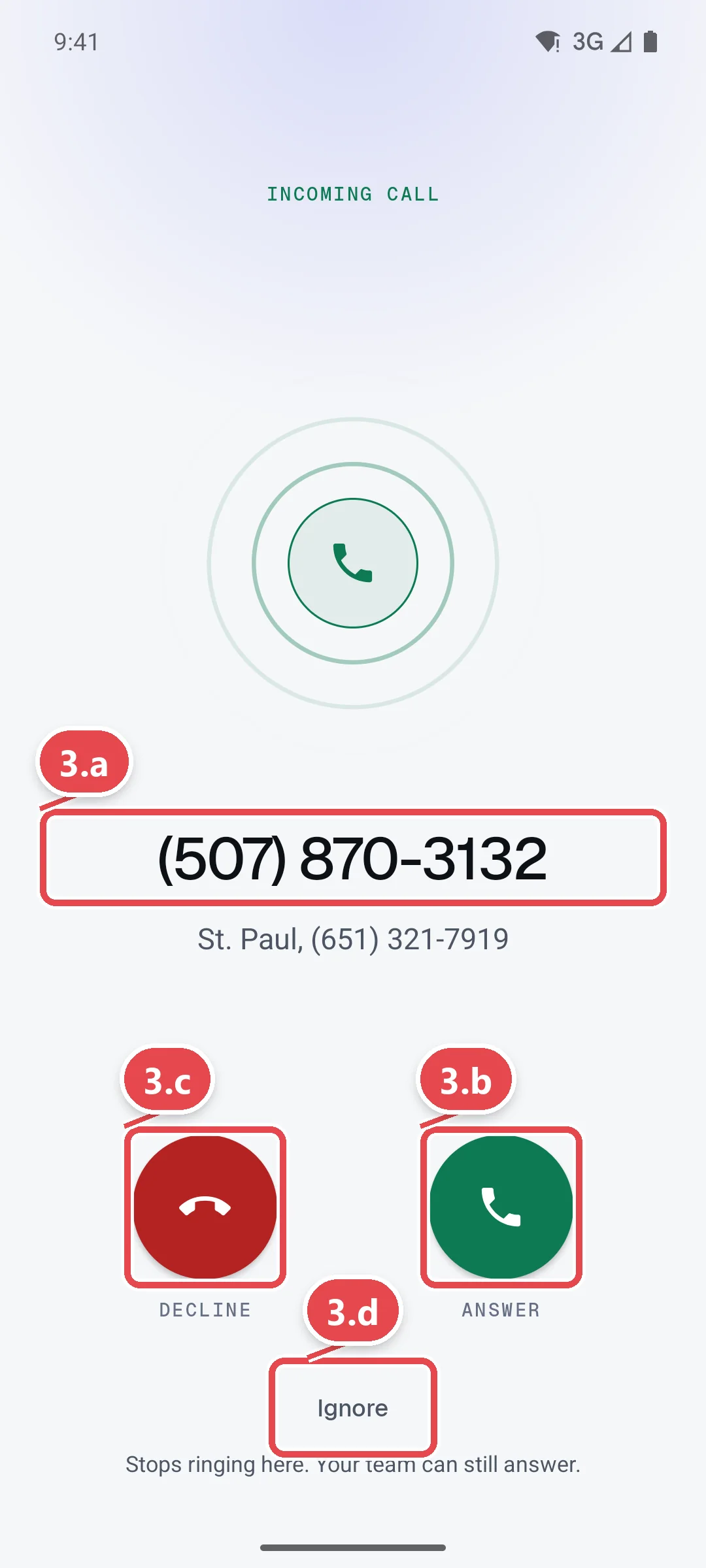
Step 3. Answer or decline an incoming call
Incoming calls ring every phone, browser, and desk phone on the line at once; the first person to answer takes the call.
- Step 3.a Look at the incoming call screen. It shows the caller's name or number and which line they called.
- Step 3.b Tap the green Answer button to take the call.
- Step 3.c Tap the red Decline button to stop it ringing your devices. It keeps ringing for the rest of your team.
- Step 3.d Tap Ignore to silence it on this phone only. Your team can still answer.
Tip: On a locked phone the call fills the screen. If you see only a banner at the top of the screen, tap it, or allow full-screen calls in the app's Settings menu.
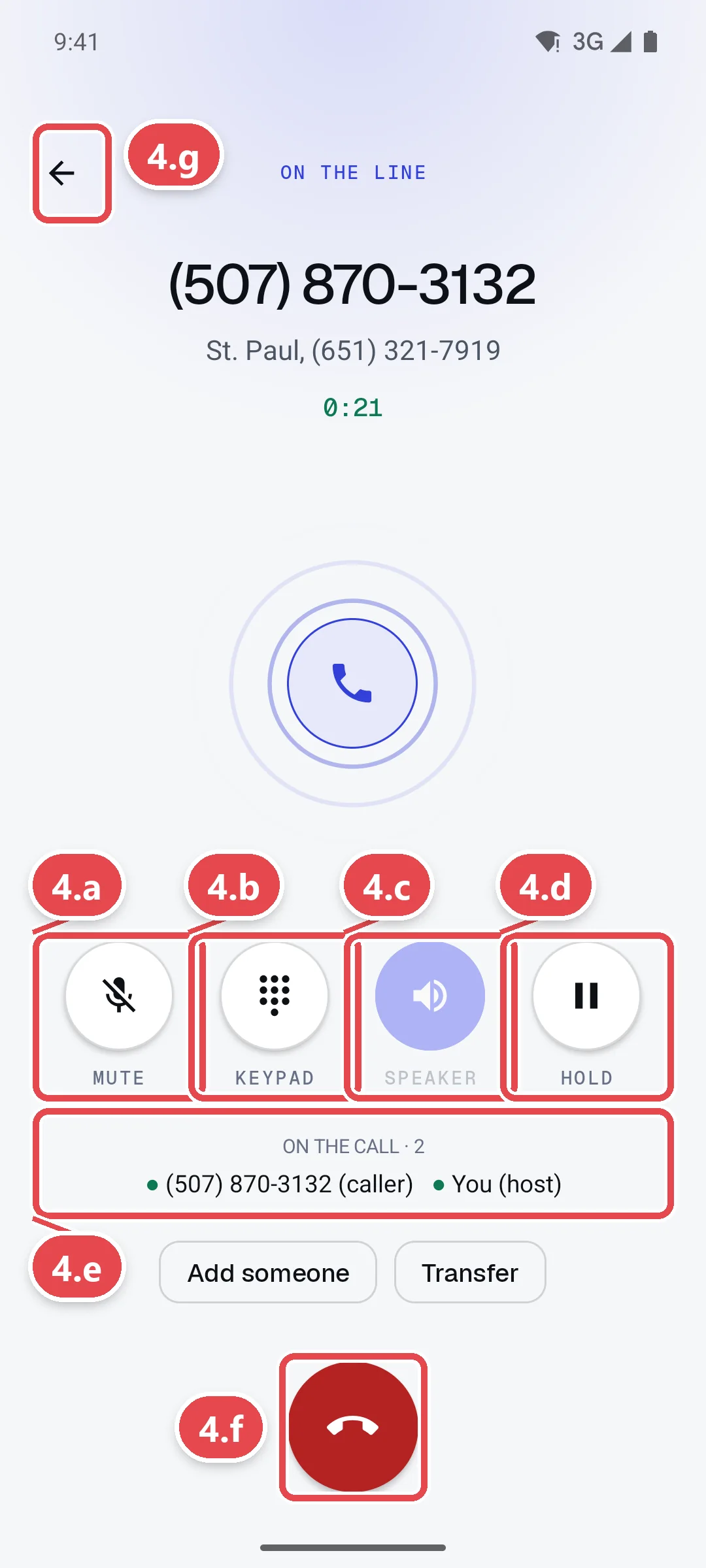
Step 4. Use the call screen
- Step 4.a Tap Mute to turn your microphone off. Tap it again to unmute.
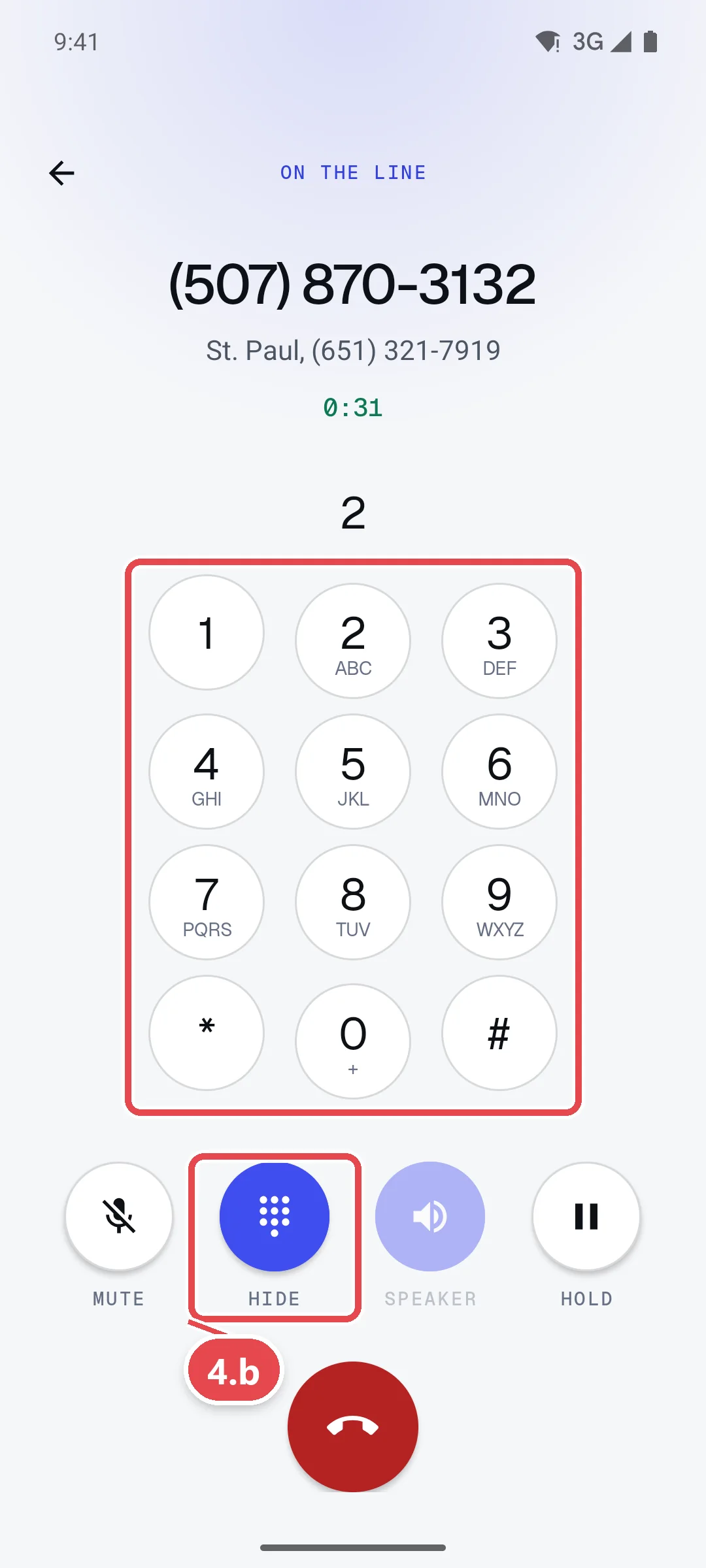
- Step 4.b Tap Keypad to press numbers, for example to choose an option in another company's phone menu. Tap Hide to close it.
- Step 4.c Tap Speaker to put the call on speaker. With Bluetooth or a headset connected, the button lets you choose where the sound plays.
- Step 4.d Tap Hold to put the caller on hold with your hold music. Tap Resume to come back.
- Step 4.e Read On the call to see everyone who is on the call.
- Step 4.f Tap the red button at the bottom to hang up.
- Step 4.g Tap the back arrow at the top left to go back to the app. The call stays on; tap Return to call in the app to come back to it.
Step 5. Add someone or transfer the call
- Step 5.a On the call screen, tap Add someone to bring another person into the call, or Transfer to hand the call to them.
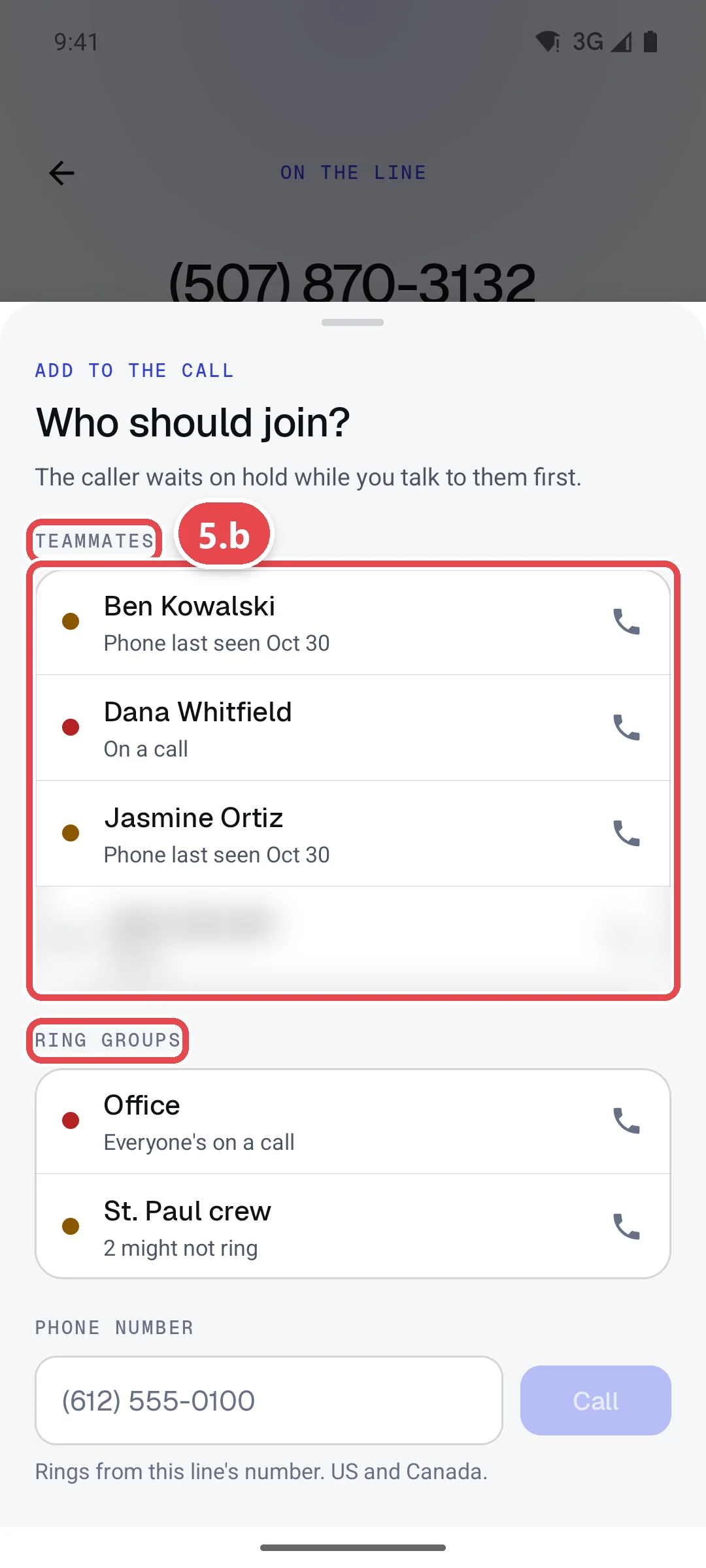
- Step 5.b Choose who to call. Tap a teammate under Teammates, a group under Ring groups, type an extension like 102 under Extension, or type an outside number under Phone number, then tap Call.
- Step 5.c While they ring, the caller waits on hold. When they answer, you can talk to them first, then bring the caller in or hand the call over.
Step 6. Handle a second call, swap, and merge
- Step 6.a When a second call rings during a call, tap Answer. The first caller goes on hold automatically.
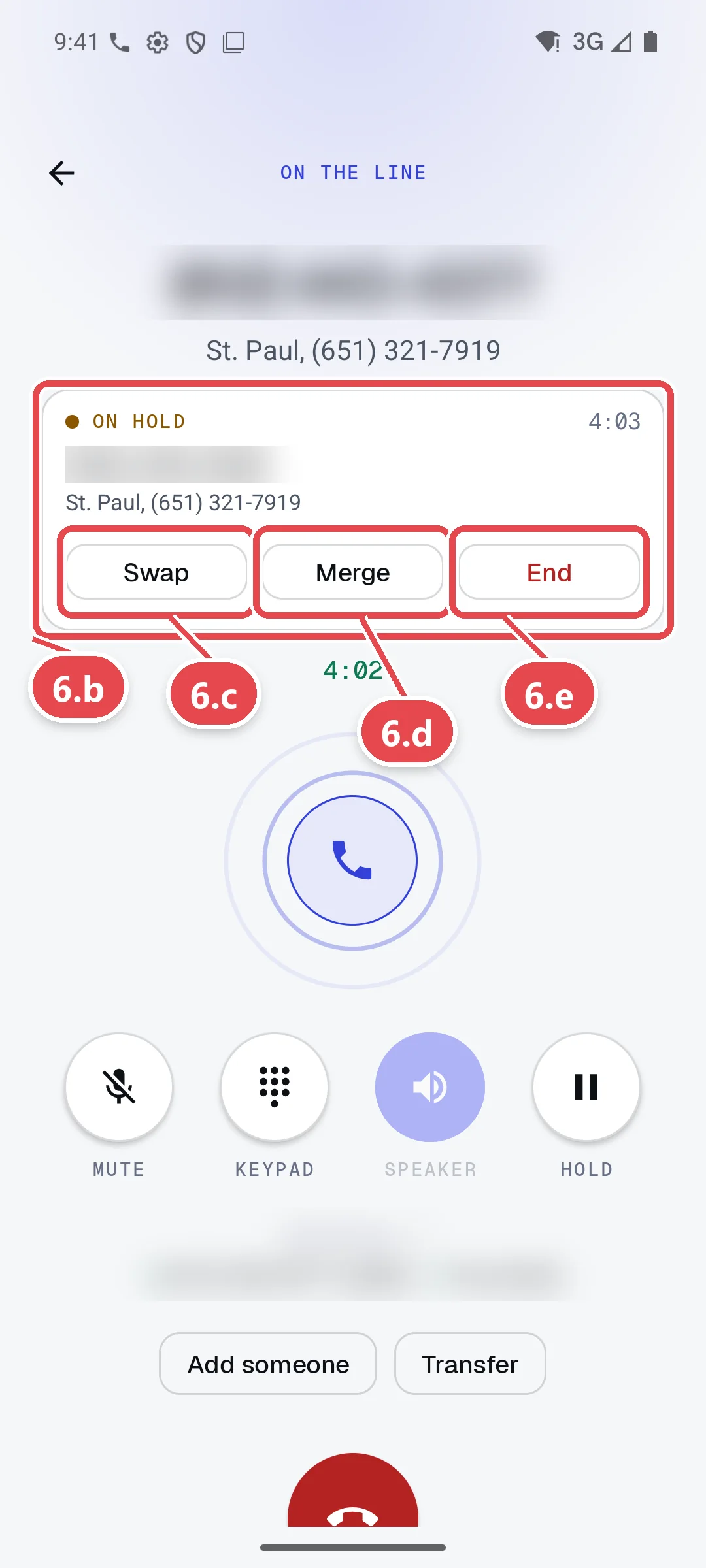
- Step 6.b Look at the On hold card at the top of the call screen. It shows who is waiting and for how long.
- Step 6.c Tap Swap to switch to the caller on hold. The person you were talking to goes on hold.
- Step 6.d Tap Merge to bring everyone into one call.
- Step 6.e Tap End to hang up on the caller on hold without ending your current call.
Questions and answers
What number do people see when I call from the app?
They see the business number of the line you chose in Call from, never your personal cell number.
Why didn't my phone ring for a call?
Check that the app shows Ready for calls, that notifications and full-screen calls are allowed, that battery use is unrestricted on Android, and that you're inside your alert hours. Do Not Disturb also silences business calls. See Get started with the phone app and Alert hours.
What's the difference between Decline and Ignore?
Decline stops the call ringing on all your devices; your teammates' devices keep ringing. Ignore only silences this phone, so your browser or desk phone keeps ringing too.
How long can a caller stay on hold?
As long as you keep them there, up to four hours. If the phone that held them loses its connection and nobody comes back within about three minutes, the caller goes to the line's voicemail.
Can I move a call from my phone to my computer?
Yes. Use Transfer and choose yourself, or answer on the device you want. The website's call controls and the app work on the same call.
Can I call 911 from the app?
Yes, from a line with a registered 911 address. The app shows how 911 works the first time. Keep another way to call 911, since it needs power and a data connection.
Related guides
- How to set up and use the Onyx Phone app on iPhone and AndroidInstall the Onyx Phone app on iPhone or Android, sign in, check your lines are ready, allow full-screen calls, and find the tabs and Settings menu.
- How to answer and manage business calls in your web browserAnswer business calls in your browser with Onyx Phone: accept, ignore, or reject, then hold, mute, add someone, transfer, take a second call, and hang up.
- How to listen to, return, and delete business voicemailsCheck business voicemail on the web, iPhone, or Android: play messages, read transcripts, call back, mark them returned, and delete or restore them.
- How to set up ring groups to ring a set of teammates togetherMake ring groups in Onyx Phone, like Office or Dispatch, to ring a set of teammates together, transfer calls to them, and use them in phone menus.
Getting started
- Create a login and pick a plan. Checkout saves a card for the 7-day free trial, and nothing is charged until it ends.
- Confirm your business and its 911 address, and get a local number on the spot. Bringing your own number? You answer on a temporary one while it moves over, for free.
- Choose where calls ring, write what callers hear, invite your team, and register for texting. Then answer in the browser, the iPhone and Android apps, or a desk phone. How it works has the details.
Screens change as we improve Onyx Phone; we last checked this guide on November 6, 2026. The screenshots show a made-up business. Markdown version · All guides · Contact us