Guides / Calls and voicemail
How to answer and manage business calls in your web browser
Any open Onyx Phone tab rings when your business lines get a call, on every page of the web app. This guide shows you how to answer, ignore, or reject a call, and use the Call management panel during the call: hold, mute, add a teammate or another number, transfer the call, take a second call, and hang up.
Before you start
- Onyx Phone open in a browser tab with Ready showing at the top right, and Browser ticked under the line's How calls ring. See Find your way around the web app.
- A headset or your computer's microphone and speakers, allowed in the browser.
Step 1. Answer an incoming call
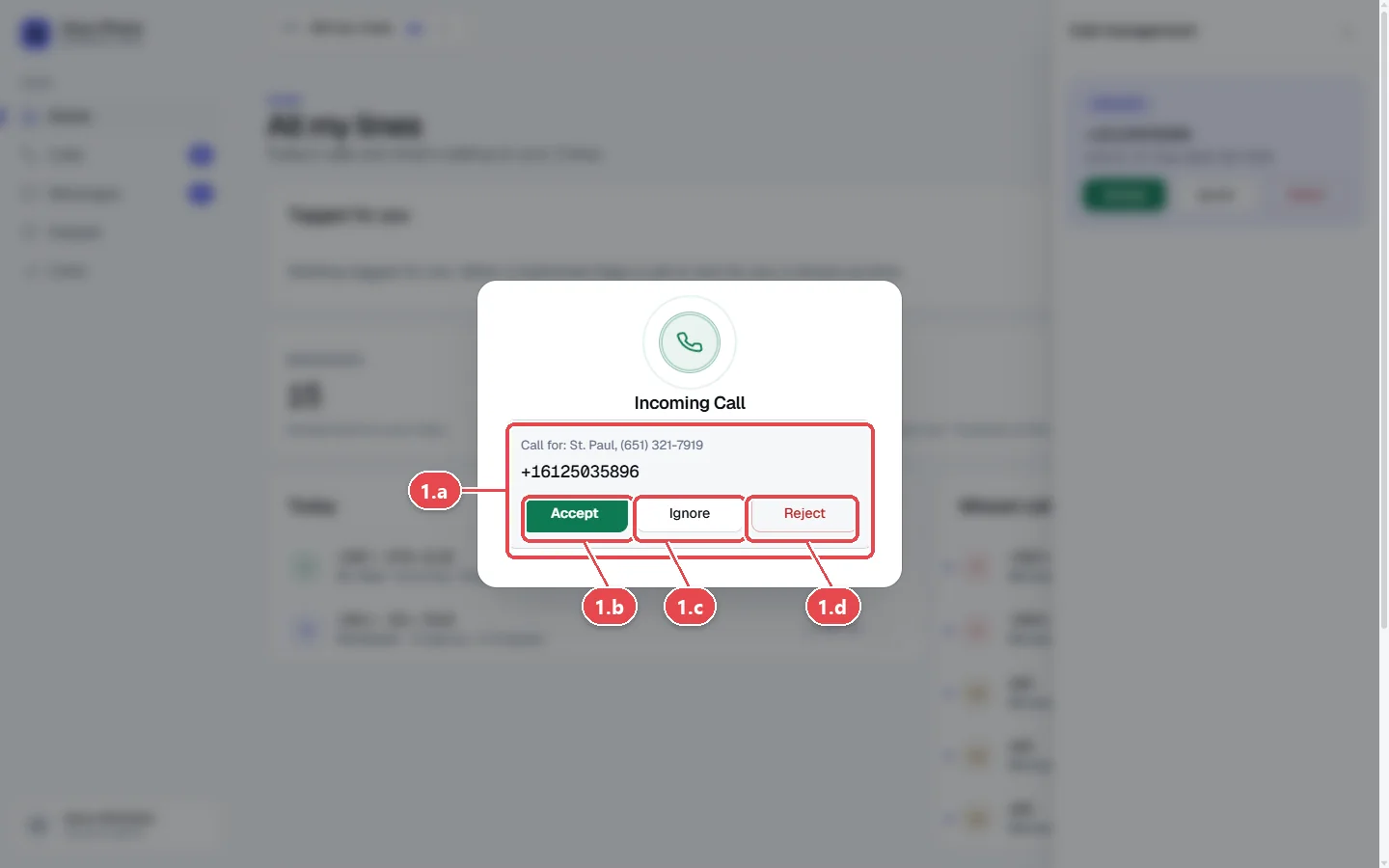
- Step 1.a When a call comes in, the Incoming Call window opens on whatever page you're on, with a ring. It shows which line was called (Call for), the caller's number, and their name when known.
- Step 1.b Click Accept to answer.
- Step 1.c Click Ignore to stop it ringing in this browser only. Your phone app, desk phone, and teammates keep ringing.
- Step 1.d Click Reject to stop it ringing on all your devices. Teammates can still answer.
Tip: Turn on browser notifications to get a pop-up when a call rings while Onyx Phone is behind other windows. See Sounds and notifications.
Step 2. Use the call controls
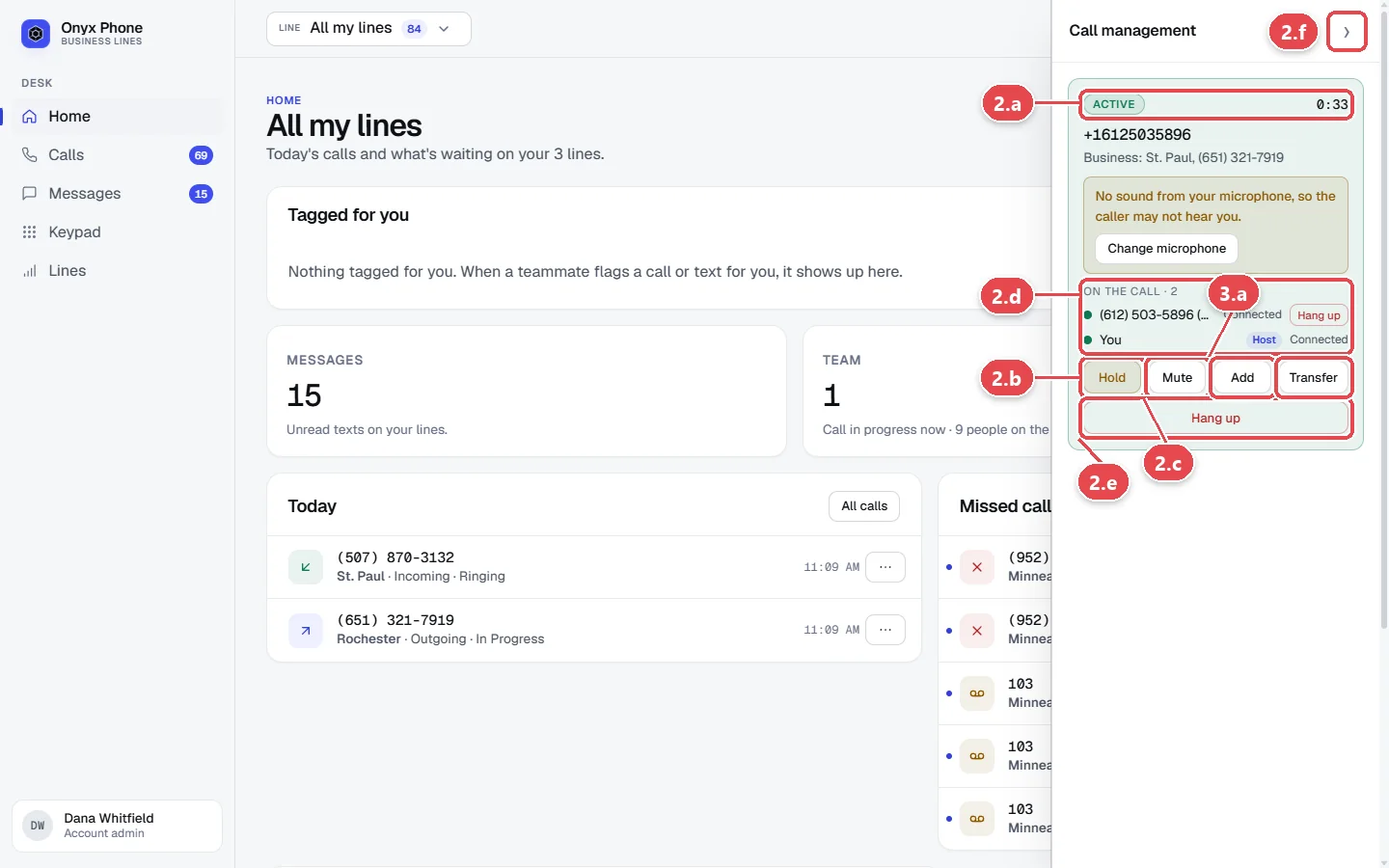
- Step 2.a Look at the Call management panel on the right. It shows Active, how long the call has lasted, the caller, and the line.
- Step 2.b Click Hold to put the caller on hold with your hold music. Click it again to come back.
- Step 2.c Click Mute to turn off your microphone. Click it again to unmute.
- Step 2.d Click Hang up to end the call.
- Step 2.e Click › at the top of the panel to tuck it away; the call stays on.
Step 3. Add someone or transfer the call
- Step 3.a Click Add to bring another person into the call, or Transfer to hand the call to them. Both are in the call's card in Call management, shown in the picture under Step 2.
- Step 3.b Choose who to call from the list under the card. Each teammate and ring group shows a colored dot, green when they're free. With extensions on, you can type an extension instead, or a phone number. Then click Transfer or Call them. The caller waits on hold while it rings.
- Step 3.c When they answer, talk to them first if you like, then click Complete transfer (or Hand off) to leave them with the caller, Merge calls to bring everyone together, or cancel to go back to your caller.
Step 4. Take a second call
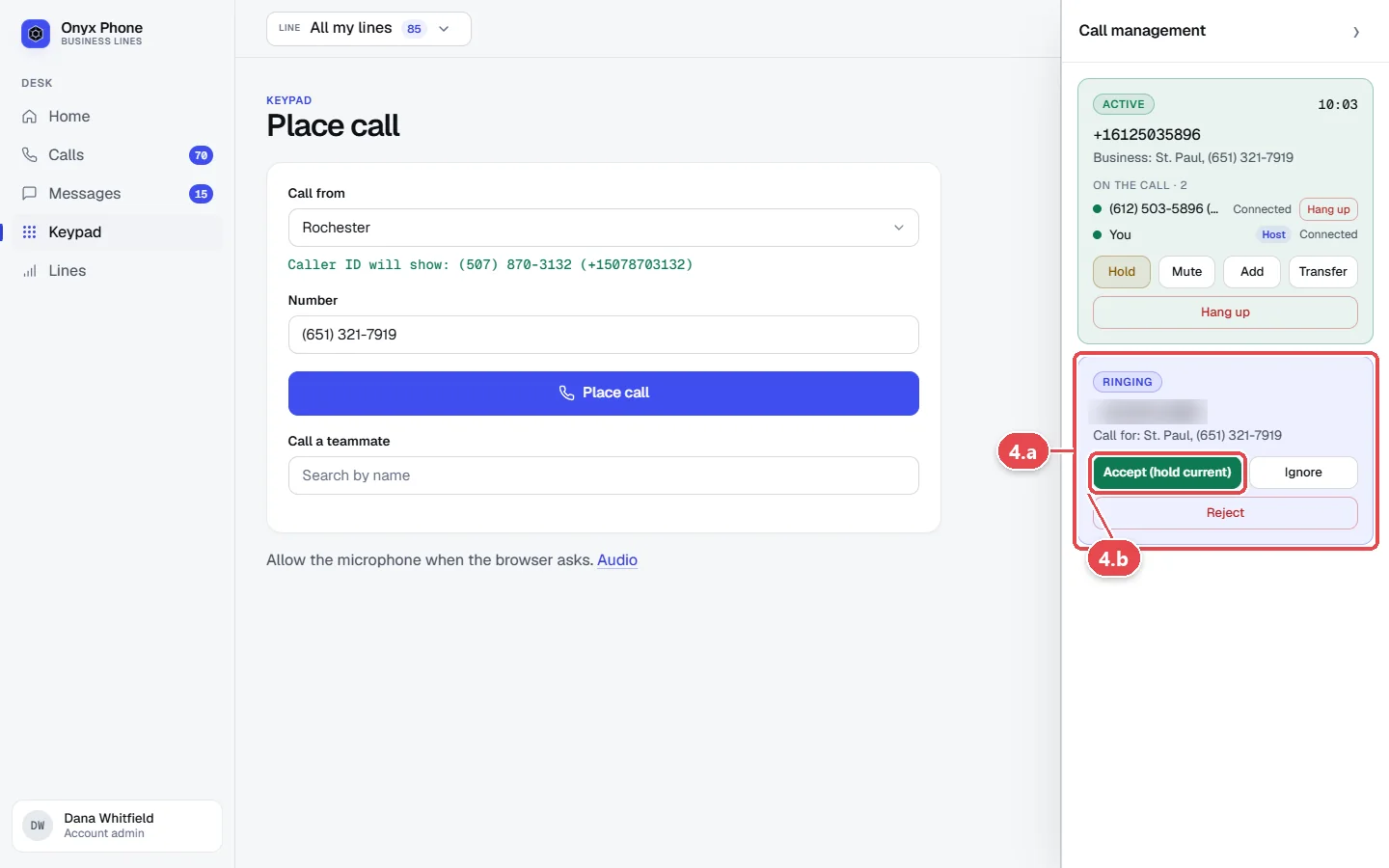
- Step 4.a When another call rings during a call, a Ringing card for it appears in Call management, with the caller and the line.
- Step 4.b Click Accept (hold current). Your first caller goes on hold automatically. Or click Ignore or Reject.
- Step 4.c In Call management, each call has its own card. Use the buttons on a card to switch to that call, merge the calls, or hang up one of them.
Questions and answers
Do I need to stay on the Keypad page to get calls?
No. Calls ring on every page of the web app, as long as one Onyx Phone tab is open and shows Ready.
What's the difference between Ignore and Reject?
Ignore silences this browser only. Reject stops the call ringing on all your devices. In both cases teammates on the line keep ringing.
What does the caller hear on hold?
The hold music chosen in the line's settings, or silence if you chose that. See Voices and music.
What if I close the tab during a call?
The call ends for you. If the caller was on hold and nobody comes back within about three minutes, they go to the line's voicemail.
The caller can't hear me. What should I check?
Click the microphone button at the top of the screen to open Audio device settings, pick the right microphone and speaker, and use Test Microphone. Also check that the browser has permission to use the microphone.
Related guides
- How to make business calls from your web browserPlace business calls from your computer with Onyx Phone. Pick the line your caller ID shows, dial, call back missed callers, and call teammates by name.
- How to make and answer business calls in the Onyx Phone appMake and answer business calls on iPhone or Android: answer or decline, then mute, keypad, speaker, hold, swap, merge, add someone, and transfer.
- How to set up ring groups to ring a set of teammates togetherMake ring groups in Onyx Phone, like Office or Dispatch, to ring a set of teammates together, transfer calls to them, and use them in phone menus.
- How to find your way around the Onyx Phone web appA tour of the Onyx Phone web app: the left menu, switching lines, the Ready light, audio settings, the account menu, and the Home page.
Getting started
- Create a login and pick a plan. Checkout saves a card for the 7-day free trial, and nothing is charged until it ends.
- Confirm your business and its 911 address, and get a local number on the spot. Bringing your own number? You answer on a temporary one while it moves over, for free.
- Choose where calls ring, write what callers hear, invite your team, and register for texting. Then answer in the browser, the iPhone and Android apps, or a desk phone. How it works has the details.
Screens change as we improve Onyx Phone; we last checked this guide on November 6, 2026. The screenshots show a made-up business. Markdown version · All guides · Contact us