Guides / Lines and call routing
How to choose the voice, ringing music, and hold music callers hear
Everything callers hear on your line, from the greeting to the phone menu to the voicemail greeting, is read in the voice you choose. This guide shows account admins how to choose and preview a voice, choose what callers hear while the line rings and while they're on hold, and upload your own music.
Before you start
- You need to be an account admin.
Step 1. Choose the voice
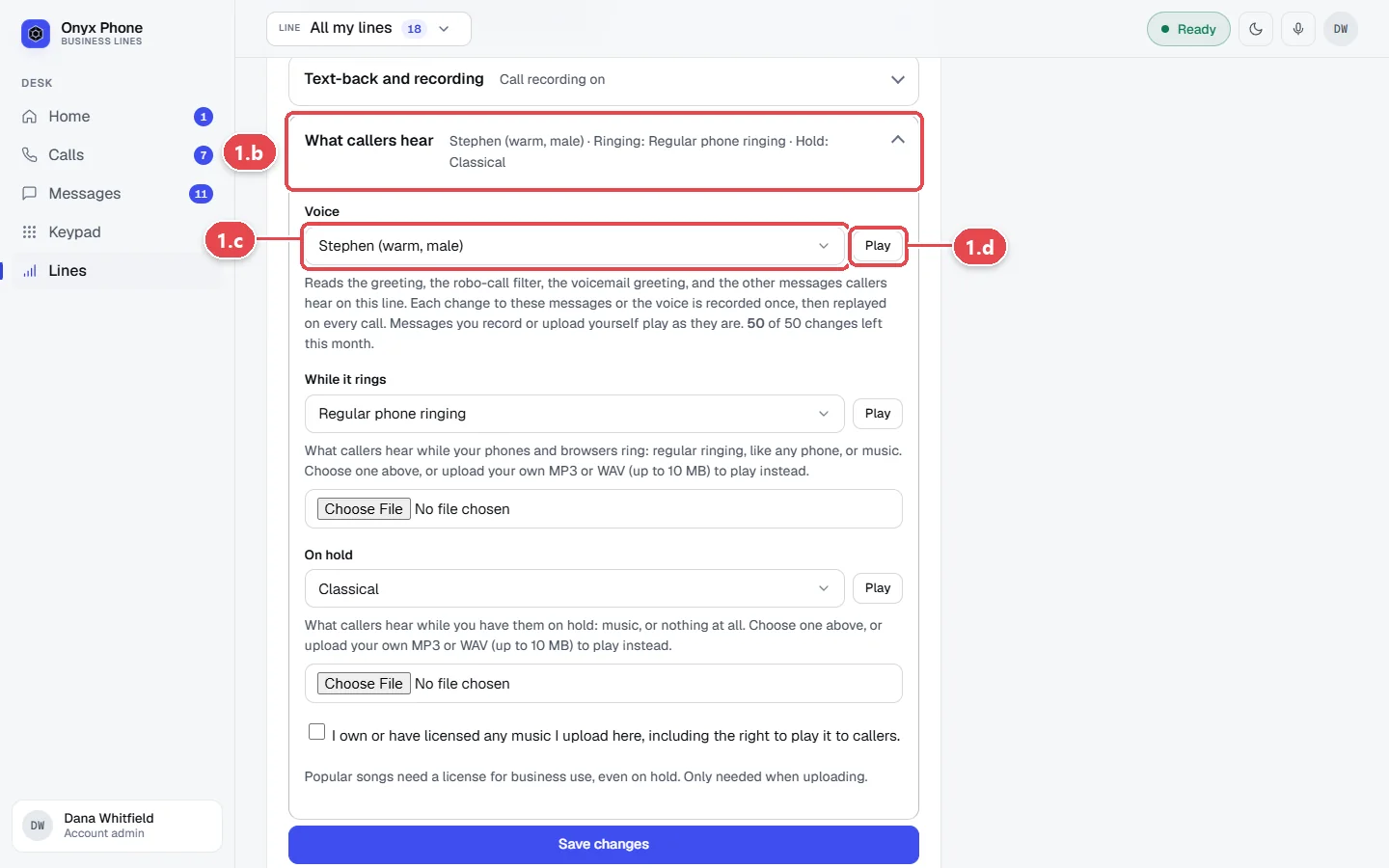
- Step 1.a In the left menu, click Lines, then click the pencil button next to the line.
- Step 1.b Click What callers hear.
- Step 1.c Open Voice and choose one of the 12 voices, such as Coral or Stephen.
- Step 1.d Click the play button next to it to hear a sample.
Step 2. Choose ringing and hold music
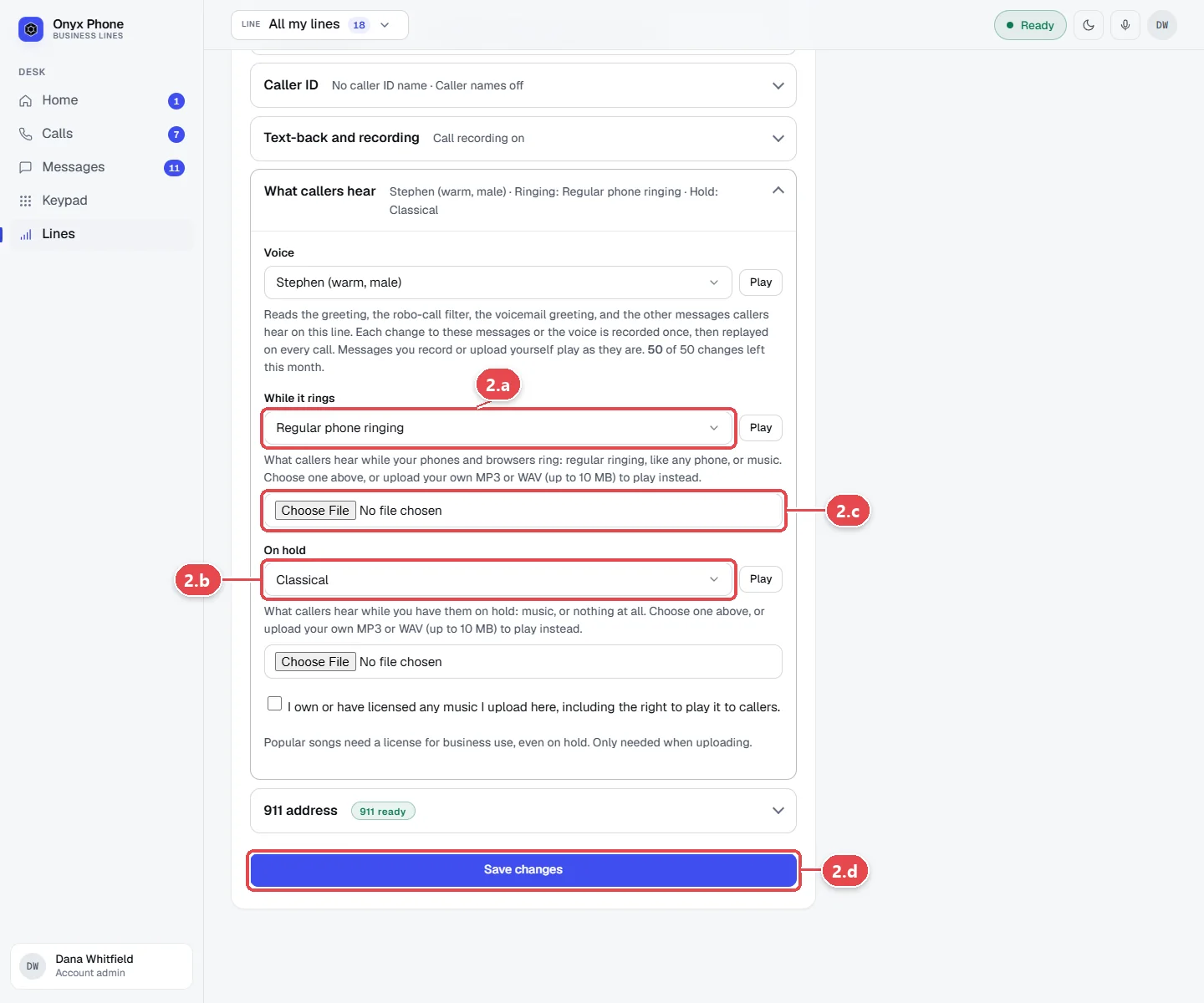
- Step 2.a Under While it rings, choose regular phone ringing or a music track, and click play to hear it.
- Step 2.b Under hold music, choose a track, or Nothing plays (silence).
- Step 2.c To use your own music, click the file box under either one and choose an MP3 or WAV file, then tick the box confirming you have the rights to use it.
- Step 2.d Click Save changes at the bottom of the page.
Questions and answers
How many voices are there?
Twelve, including a classic phone voice and natural-sounding AI voices, each with a sample to play first.
Do I have to tell callers the voice is AI?
Some places require it. The settings page reminds you; a short line in your greeting covers it.
Is there a limit on changing messages?
Each line can change its messages or voice up to 50 times a month. Switching back to earlier words or an earlier voice doesn't count.
What music files can I upload?
MP3 or WAV files you have the rights to use. An upload replaces the preset track, and you can preview or remove it.
Related guides
- How to set how a business line rings and what voicemail saysSet how an Onyx Phone line rings: browsers, phone apps, and desk phones, ring time, the greeting, voicemail greeting, and voicemail by email.
- How to set up a phone menu, ring order, and robocall filterBuild a phone menu (press 1 for sales) in Onyx Phone, ring teammates in order, forward calls to another number, and screen robocalls.
- How to set business hours and an after-hours message for a phone lineSet open and closed hours for each Onyx Phone line, pick its time zone, and play an after-hours message before callers leave a voicemail.
- How to make and answer business calls in the Onyx Phone appMake and answer business calls on iPhone or Android: answer or decline, then mute, keypad, speaker, hold, swap, merge, add someone, and transfer.
Getting started
- Create a login and pick a plan. Checkout saves a card for the 7-day free trial, and nothing is charged until it ends.
- Confirm your business and its 911 address, and get a local number on the spot. Bringing your own number? You answer on a temporary one while it moves over, for free.
- Choose where calls ring, write what callers hear, invite your team, and register for texting. Then answer in the browser, the iPhone and Android apps, or a desk phone. How it works has the details.
Screens change as we improve Onyx Phone; we last checked this guide on November 6, 2026. The screenshots show a made-up business. Markdown version · All guides · Contact us