Guides / Getting started
How to sign up for Onyx Phone and set up your business phone number
Signing up for Onyx Phone takes a few minutes, and guided setup walks you through everything else one page at a time: your business, your number, how calls ring, what callers hear, your hours, your team, and the phone apps. This guide shows every step, with a labeled screenshot of each page.
Before you start
- A card for the free trial. Nothing is charged until the trial ends.
Step 1. Create your login
- Step 1.a Go to onyxphone.io/signup, or click Try it for free at the top of any page.
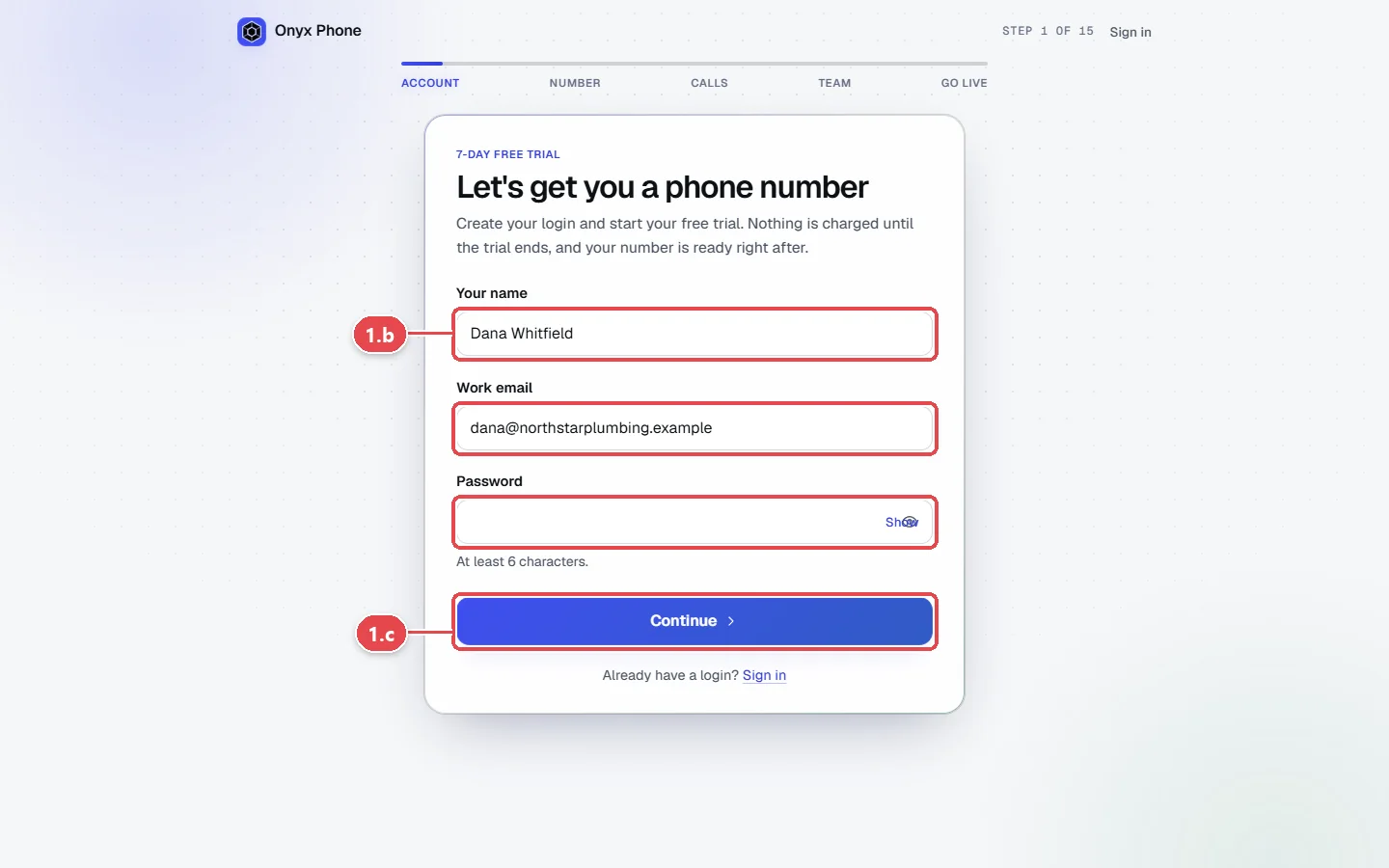
- Step 1.b Type Your name, your Work email, and a Password of at least 6 characters.
- Step 1.c Click Continue. You may be asked to verify your mobile number with a code by text.
- Step 1.d Enter your card to start the free trial. Nothing is charged until the trial ends.
Step 2. Tell us about your business
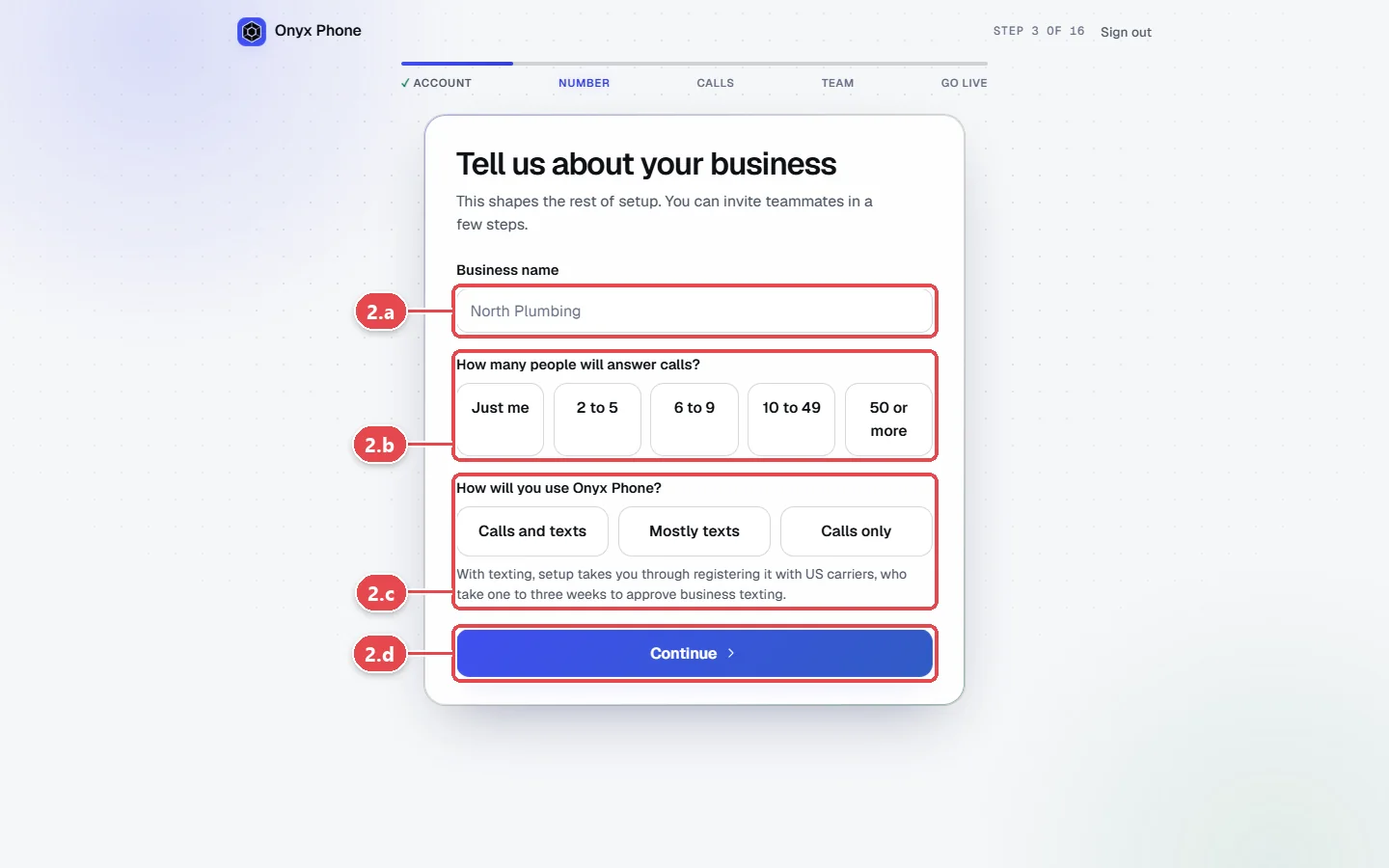
- Step 2.a Type your Business name.
- Step 2.b Under How many people will answer calls?, click the closest choice.
- Step 2.c Under How will you use Onyx Phone?, click Calls and texts, Mostly texts, or Calls only.
- Step 2.d Click Continue, then enter where you answer calls, which becomes your 911 address.
Step 3. Get your number
- Step 3.a Search for a new number by area code and pick one, or choose to bring the number you already have. See Move your number.
- Step 3.b Click Continue. A new number is ready right away.
Step 4. Choose how calls ring and what callers hear
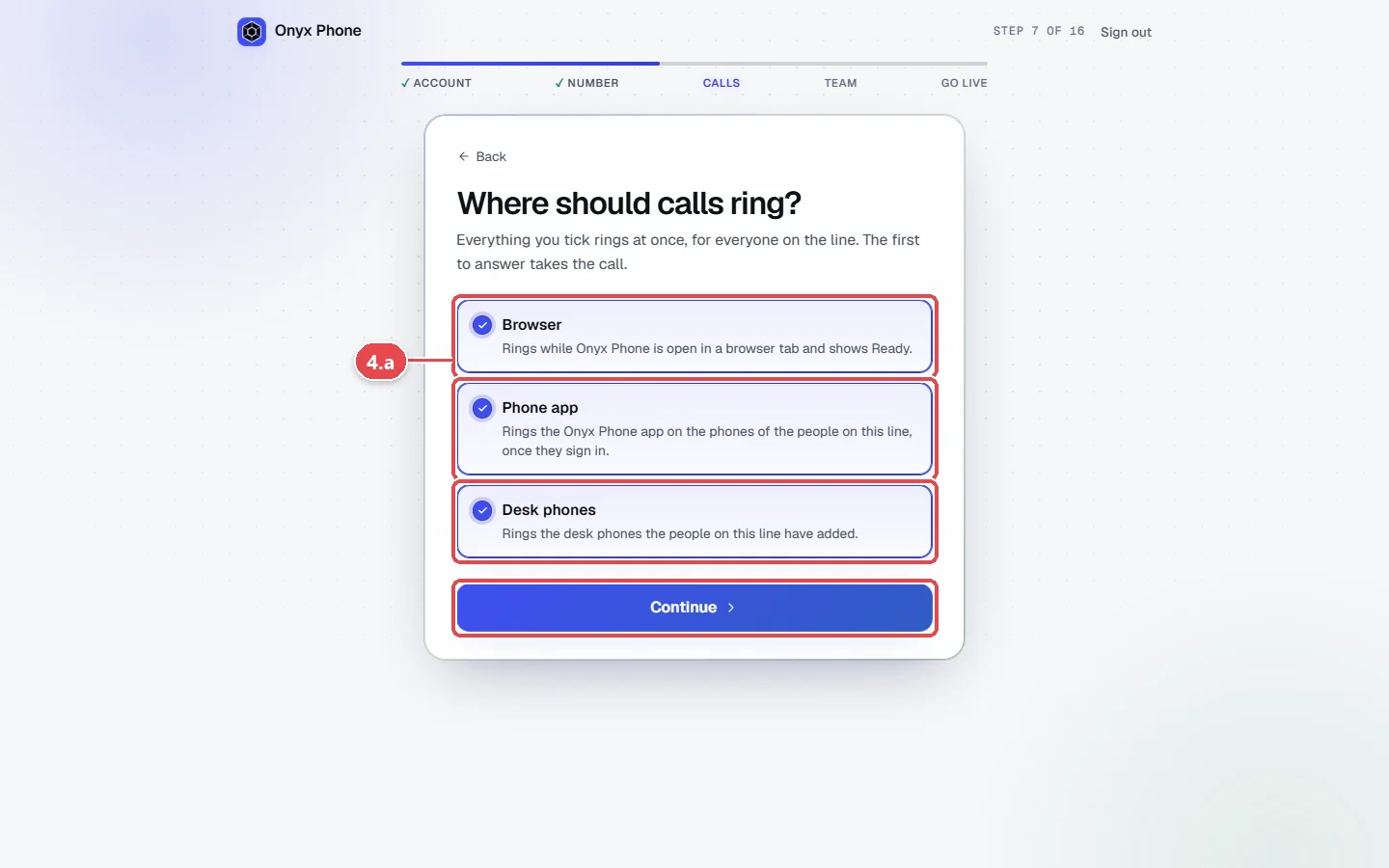
- Step 4.a Under Where should calls ring?, tick Browser, Phone app, and Desk phones as you like, then click Continue.
- Step 4.b Under What callers hear, write a greeting and a voicemail greeting, or click Use this example, and choose a voice. Click Play to hear it, then Continue.
- Step 4.c Choose ringing and hold music, then Continue.
Step 5. Set your hours and features
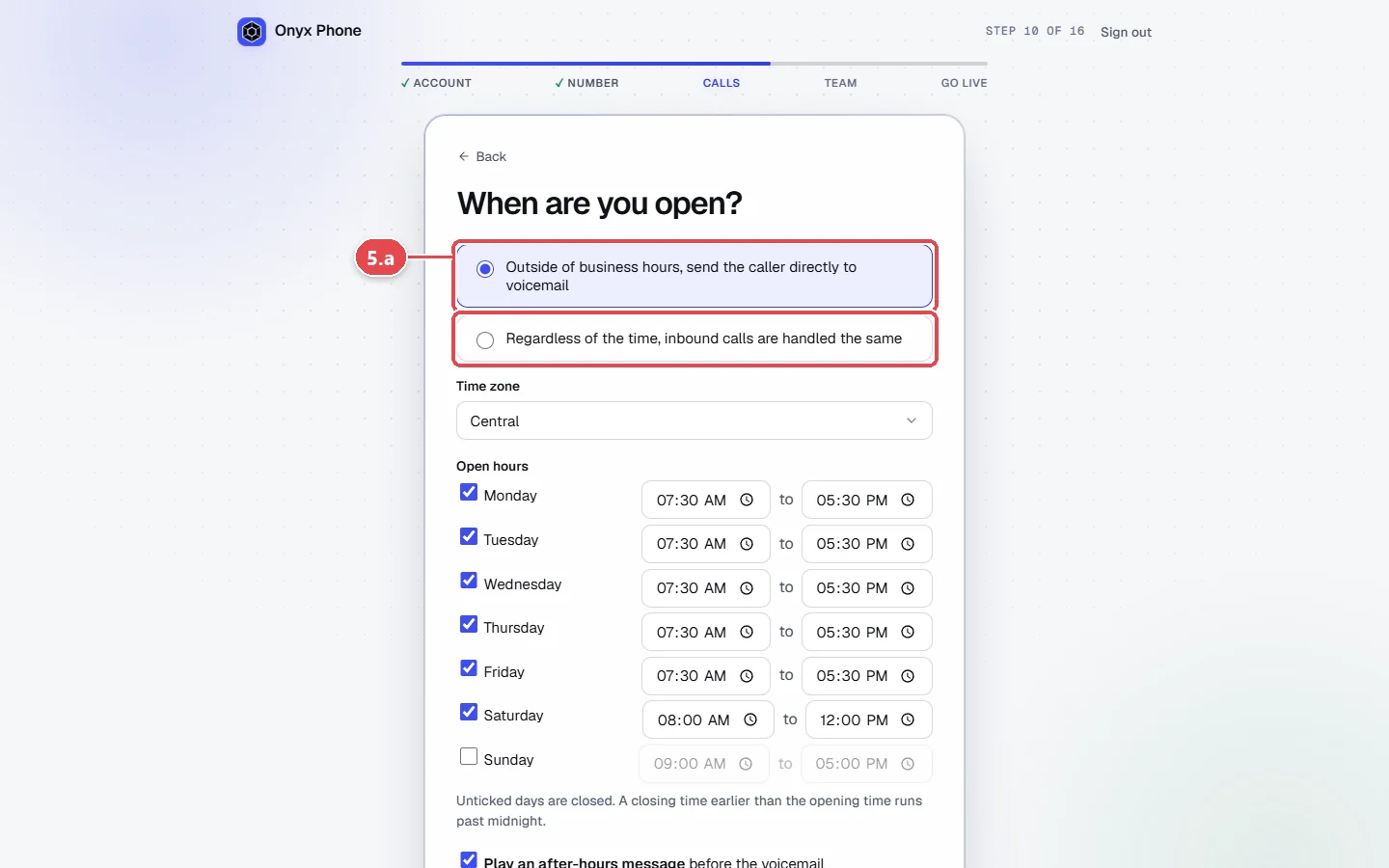
- Step 5.a Under When are you open?, choose to send callers to voicemail outside business hours and set them, or to handle calls the same at any hour. Click Continue.
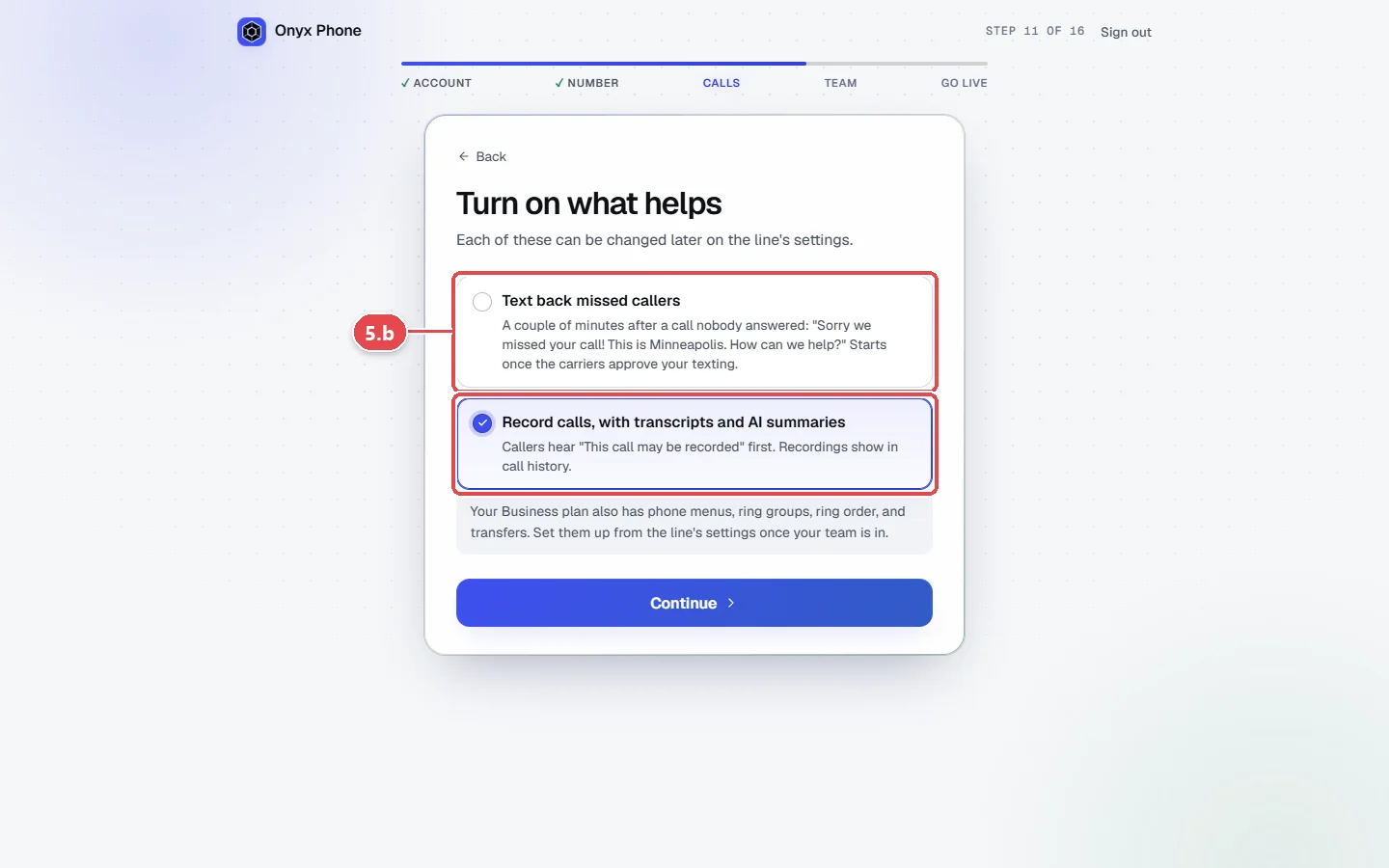
- Step 5.b Under Turn on what helps, tick Text back missed callers and Record calls, with transcripts and AI summaries if you want them, then click Continue.
Step 6. Invite your team and go live
- Step 6.a Under Invite your team, type each person's name and email and click Send invitation, or paste a list. Skip it if you answer alone.
- Step 6.b Choose whether teammates can call each other, then work through business verification and texting, which carriers need before your number can text.
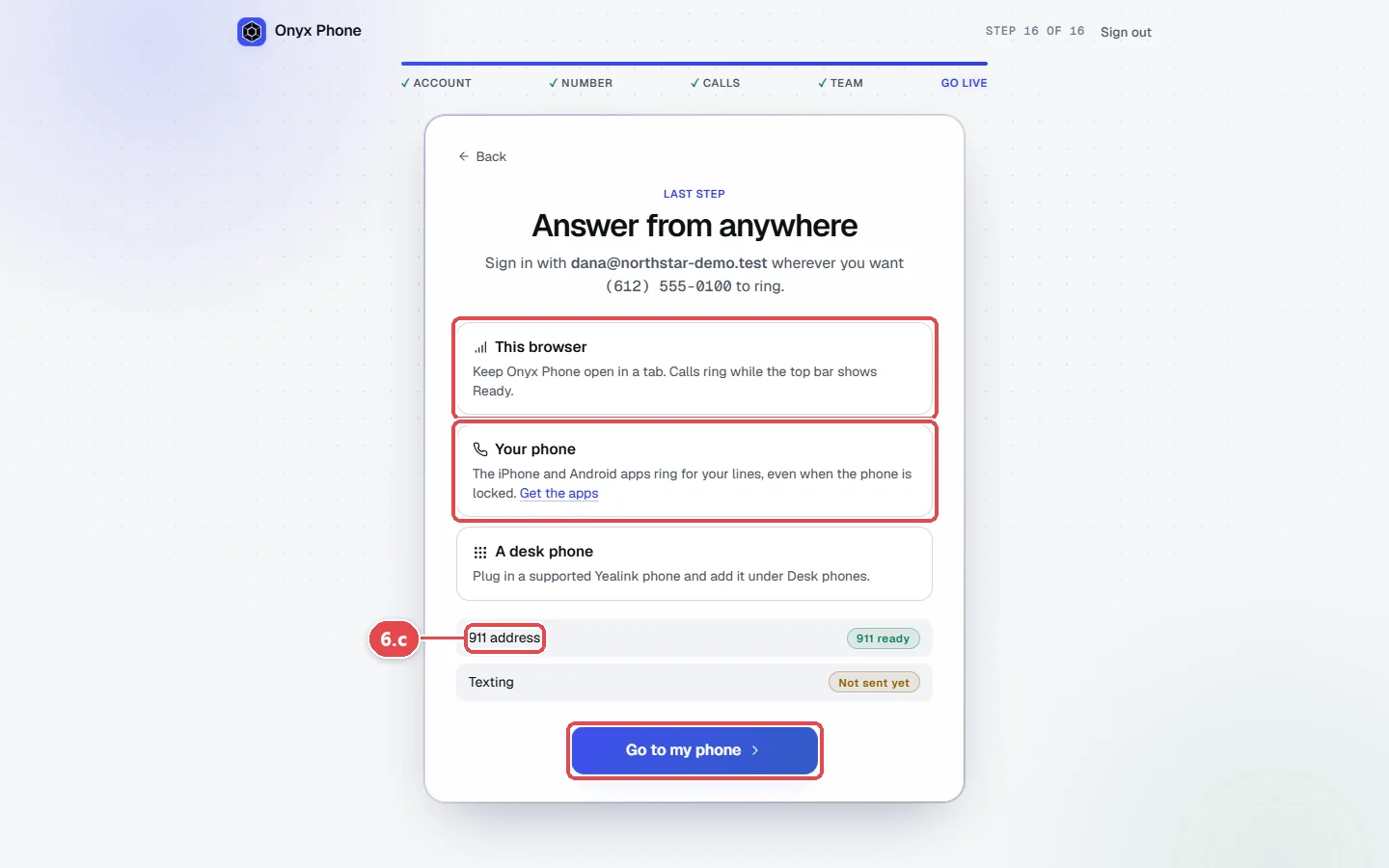
- Step 6.c On Answer from anywhere, read how to answer in this browser, on your phone, or on a desk phone, check that 911 address is ready, and click Go to my phone.
Questions and answers
How long is the free trial?
Seven days. Your number works right away, and nothing is charged until the trial ends. Cancel before then and you pay nothing.
Can I keep my current business number?
Yes. Choose to bring your number during setup, or start a port later from Lines. Your line works with a temporary number until the port finishes. See Move your number.
Can I come back to setup later?
Yes. Setup saves as you go, and Home shows Continue setup until it's done.
Do I have to set up texting now?
No. Calling works right away. Texting needs a one-time carrier registration, which you can finish later from the Texting page. See Register for business texting.
How many people can I add?
As many as you need. See pricing for what each person costs.
Related guides
- How to set up and use the Onyx Phone app on iPhone and AndroidInstall the Onyx Phone app on iPhone or Android, sign in, check your lines are ready, allow full-screen calls, and find the tabs and Settings menu.
- How to find your way around the Onyx Phone web appA tour of the Onyx Phone web app: the left menu, switching lines, the Ready light, audio settings, the account menu, and the Home page.
- How to move your existing business number to Onyx PhoneMove your business number to Onyx Phone from AT&T, Verizon, Comcast, or any carrier: fill in the port request, upload a bill, sign, and track it.
- How to invite teammates and choose which lines they answerInvite teammates to Onyx Phone by email or in bulk, choose the lines each person answers, give extensions, let them call each other, or remove someone.
Getting started
- Create a login and pick a plan. Checkout saves a card for the 7-day free trial, and nothing is charged until it ends.
- Confirm your business and its 911 address, and get a local number on the spot. Bringing your own number? You answer on a temporary one while it moves over, for free.
- Choose where calls ring, write what callers hear, invite your team, and register for texting. Then answer in the browser, the iPhone and Android apps, or a desk phone. How it works has the details.
Screens change as we improve Onyx Phone; we last checked this guide on November 6, 2026. The screenshots show a made-up business. Markdown version · All guides · Contact us